- Matplotlib 基礎
- Matplotlib - 首頁
- Matplotlib - 簡介
- Matplotlib - 與 Seaborn 的對比
- Matplotlib - 環境設定
- Matplotlib - Anaconda 發行版
- Matplotlib - Jupyter Notebook
- Matplotlib - Pyplot API
- Matplotlib - 簡單繪圖
- Matplotlib - 儲存圖形
- Matplotlib - 標記
- Matplotlib - 圖形
- Matplotlib - 樣式
- Matplotlib - 圖例
- Matplotlib - 顏色
- Matplotlib - 顏色對映
- Matplotlib - 顏色對映歸一化
- Matplotlib - 選擇顏色對映
- Matplotlib - 色標
- Matplotlib - 文字
- Matplotlib - 文字屬性
- Matplotlib - 子圖示題
- Matplotlib - 影像
- Matplotlib - 影像蒙版
- Matplotlib - 註釋
- Matplotlib - 箭頭
- Matplotlib - 字型
- Matplotlib - 什麼是字型?
- 全域性設定字型屬性
- Matplotlib - 字型索引
- Matplotlib - 字型屬性
- Matplotlib - 刻度
- Matplotlib - 線性和對數刻度
- Matplotlib - 對稱對數和 Logit 刻度
- Matplotlib - LaTeX
- Matplotlib - 什麼是 LaTeX?
- Matplotlib - LaTeX 用於數學表示式
- Matplotlib - 在註釋中使用 LaTeX 進行文字格式化
- Matplotlib - PostScript
- 在註釋中啟用 LaTeX 渲染
- Matplotlib - 數學表示式
- Matplotlib - 動畫
- Matplotlib - 圖形物件
- Matplotlib - 使用 Cycler 進行樣式設定
- Matplotlib - 路徑
- Matplotlib - 路徑效果
- Matplotlib - 轉換
- Matplotlib - 刻度和刻度標籤
- Matplotlib - 弧度刻度
- Matplotlib - 日期刻度
- Matplotlib - 刻度格式化器
- Matplotlib - 刻度定位器
- Matplotlib - 基本單位
- Matplotlib - 自動縮放
- Matplotlib - 反轉座標軸
- Matplotlib - 對數座標軸
- Matplotlib - Symlog
- Matplotlib - 單位處理
- Matplotlib - 帶有單位的橢圓
- Matplotlib - 脊柱
- Matplotlib - 座標軸範圍
- Matplotlib - 座標軸刻度
- Matplotlib - 座標軸刻度
- Matplotlib - 格式化座標軸
- Matplotlib - Axes 類
- Matplotlib - 雙座標軸
- Matplotlib - Figure 類
- Matplotlib - 多圖
- Matplotlib - 網格
- Matplotlib - 面向物件介面
- Matplotlib - PyLab 模組
- Matplotlib - Subplots() 函式
- Matplotlib - Subplot2grid() 函式
- Matplotlib - 固定圖形物件
- Matplotlib - 手動等值線
- Matplotlib - 座標報告
- Matplotlib - AGG 過濾器
- Matplotlib - 帶狀框
- Matplotlib - 填充螺旋線
- Matplotlib - Findobj 演示
- Matplotlib - 超連結
- Matplotlib - 影像縮圖
- Matplotlib - 使用關鍵字繪圖
- Matplotlib - 建立 Logo
- Matplotlib - 多頁 PDF
- Matplotlib - 多程序
- Matplotlib - 列印標準輸出
- Matplotlib - 複合路徑
- Matplotlib - Sankey 類
- Matplotlib - MRI 與 EEG
- Matplotlib - 樣式表
- Matplotlib - 背景顏色
- Matplotlib - Basemap
- Matplotlib 事件處理
- Matplotlib - 事件處理
- Matplotlib - 關閉事件
- Matplotlib - 滑鼠移動
- Matplotlib - 點選事件
- Matplotlib - 滾動事件
- Matplotlib - 按鍵事件
- Matplotlib - 選擇事件
- Matplotlib - 放大鏡
- Matplotlib - 路徑編輯器
- Matplotlib - 多邊形編輯器
- Matplotlib - 定時器
- Matplotlib - Viewlims
- Matplotlib - 縮放視窗
- Matplotlib 小部件
- Matplotlib - 遊標小部件
- Matplotlib - 帶註釋的遊標
- Matplotlib - 按鈕小部件
- Matplotlib - 複選框
- Matplotlib - 套索選擇器
- Matplotlib - 選單小部件
- Matplotlib - 滑鼠遊標
- Matplotlib - 多遊標
- Matplotlib - 多邊形選擇器
- Matplotlib - 單選按鈕
- Matplotlib - 範圍滑塊
- Matplotlib - 矩形選擇器
- Matplotlib - 橢圓選擇器
- Matplotlib - 滑塊小部件
- Matplotlib - 跨度選擇器
- Matplotlib - 文字框
- Matplotlib 繪圖
- Matplotlib - 條形圖
- Matplotlib - 直方圖
- Matplotlib - 餅圖
- Matplotlib - 散點圖
- Matplotlib - 箱線圖
- Matplotlib - 小提琴圖
- Matplotlib - 等值線圖
- Matplotlib - 3D 繪圖
- Matplotlib - 3D 等值線
- Matplotlib - 3D 線框圖
- Matplotlib - 3D 曲面圖
- Matplotlib - Quiver 圖
- Matplotlib 有用資源
- Matplotlib - 快速指南
- Matplotlib - 有用資源
- Matplotlib - 討論
Matplotlib - 在註釋中啟用 LaTeX 渲染
什麼是 LaTeX 渲染?
LaTeX 渲染是指將包含排版指令和命令的 LaTeX 標記語言轉換為格式化輸出的過程。此輸出通常是高質量的文件、數學公式、科學論文或技術報告,具有精確且一致的排版。
由於其強大的排版功能以及生成專業外觀文件的能力,LaTeX 渲染廣泛應用於學術界、科學研究、技術文件和出版領域。
LaTeX 渲染的關鍵方面
排版 - LaTeX 以其卓越的排版功能而聞名,可確保學術和技術內容的專業級文件格式。
數學公式 - LaTeX 因其在排版複雜數學方程式方面的出色支援而被廣泛使用,使其成為學術和科學出版物的首選。
標記語言 - LaTeX 使用標記語言,使用者使用純文字編寫文件,幷包含命令以指定格式、結構和內容。
編譯 - LaTeX 原始碼需要使用 LaTeX 編譯器(如 pdflatex、xelatex、lualatex)進行編譯。在編譯過程中,編譯器會解釋 LaTeX 命令並生成各種格式的最終輸出,例如 PDF、DVI 或 PostScript。
自定義 - LaTeX 允許使用者建立自定義樣式、模板和包,從而能夠精確控制文件格式和佈局。
LaTeX 渲染的優勢
質量和一致性 - LaTeX 確保在各種平臺和裝置上具有高質量且一致的文件格式。
數學排版 - 它擅長處理複雜的數學符號,使其成為科學和數學內容必不可少的工具。
跨平臺相容性 - LaTeX 文件可以輕鬆地在不同的作業系統上編譯和檢視。
版本控制 - 基於純文字的原始檔透過簡化協作和文件歷史管理來促進版本控制系統。
啟用 Latex 渲染
要啟用 LaTeX 渲染以建立文件、方程式或註釋,我們通常需要以下內容。
LaTeX 安裝
安裝 LaTeX 發行版(如 TeX Live、MiKTeX 或 MacTeX),其中包含必要的 LaTeX 編譯器和包。
文字編輯器
選擇一個支援 LaTeX 的文字編輯器或整合開發環境 (IDE),例如 TeXstudio、TeXworks、Overleaf 或像 Sublime Text、VS Code 或 Atom 這樣的編輯器,並使用 LaTeX 外掛/擴充套件。
編寫 LaTeX 程式碼
建立一個 .tex 檔案,並使用適當的命令和語法編寫 LaTeX 程式碼來構建我們的文件,其中包括方程式或格式化文字。
編譯
使用 LaTeX 編譯器將 .tex 檔案編譯成所需的輸出格式,例如 PDF、DVI、PS。在終端中執行相應的命令,或使用我們選擇的編輯器/IDE 的整合功能。
例如,在終端中,我們可能會執行以下程式碼。
示例
pdflatex your_file.tex
或者在編輯器/IDE 中,通常有一個 構建 或 編譯 按鈕來啟動編譯過程。
Matplotlib 中用於註釋的 LaTeX 渲染
對於 Matplotlib 註釋,在繪圖中使用 LaTeX 進行文字格式化,我們必須確保以下幾點。
Matplotlib 支援 - Matplotlib 透過在 plt.annotate() 或類似函式中使用 LaTeX 語法來支援 LaTeX 註釋。
LaTeX 安裝 - 確保我們的系統上安裝了可供 Matplotlib 訪問的正常工作的 LaTeX 安裝,以便在註釋中渲染 LaTeX 文字。
正確的語法 - 在 Matplotlib 函式中使用正確的 LaTeX 語法 r'$...$' 進行註釋,以渲染所需的 LaTeX 格式化文字。
透過遵循上述步驟,我們可以啟用 LaTeX 渲染以用於各種目的,例如文件建立、數學符號或視覺化庫(如 Matplotlib)中的註釋。
啟用 LaTeX 渲染
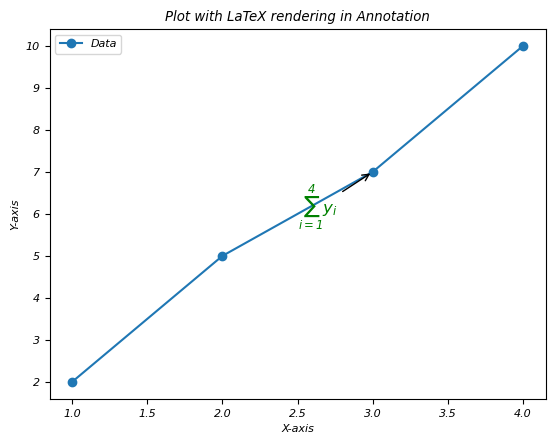
在這個例子中,我們將在繪圖的註釋中使用 LaTeX 渲染。
示例
import matplotlib.pyplot as plt
# Sample data
x = [1, 2, 3, 4]
y = [2, 5, 7, 10]
plt.plot(x, y, 'o-', label='Data')
# Annotating a point with LaTeX-rendered text
plt.annotate(r'$\sum_{i=1}^{4} y_i$',   # LaTeX expression within the annotation
   xy=(x[2], y[2]),           # Coordinates of the annotation point
   xytext=(2.5, 6),           # Text position
   arrowprops=dict(facecolor='black', arrowstyle='->'),
   fontsize=12,
   color='green')
# Labeling axes and title
plt.xlabel('X-axis')
plt.ylabel('Y-axis')
plt.title('Plot with LaTeX rendering in Annotation')
plt.legend()
plt.show()
輸出
執行上述程式碼後,您將獲得以下輸出 -
示例
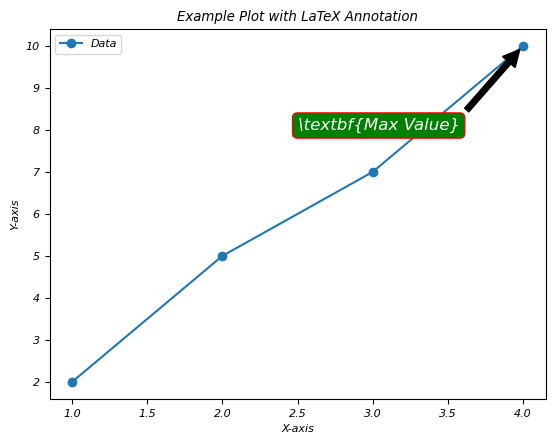
這裡這是另一個在繪圖註釋中使用 LaTeX 渲染的示例。
import matplotlib.pyplot as plt
# Generating some data points
x = [1, 2, 3, 4]
y = [2, 5, 7, 10]
plt.plot(x, y, 'o-', label='Data')
# Annotating a point with LaTeX rendering
plt.annotate(r'\textbf{Max Value}',
   xy=(x[y.index(max(y))], max(y)),
   xytext=(2.5, 8),
   arrowprops=dict(facecolor='black', shrink=0.05),
   fontsize=12,
   color='white',
   bbox=dict(boxstyle='round,pad=0.3', edgecolor='red', facecolor='green'))
plt.xlabel('X-axis')
plt.ylabel('Y-axis')
plt.title('Example Plot with LaTeX Annotation')
plt.legend()
plt.show()
輸出
執行上述程式碼後,您將獲得以下輸出 -
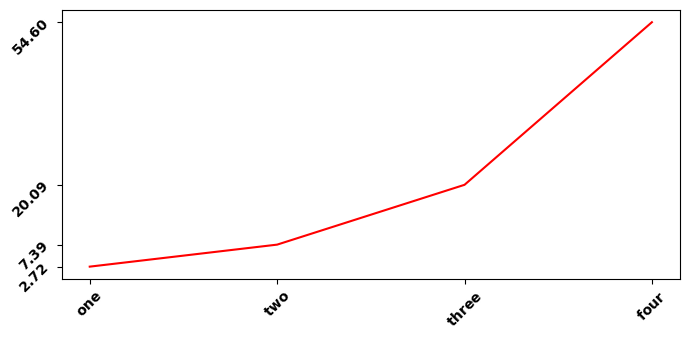
在使用 LaTeX 渲染時更改 Matplotlib 繪圖中的軸刻度字型
這裡這是在使用 LaTeX 渲染時更改 matplotlib 中軸刻度字型的示例
示例
import numpy as np
import matplotlib.pyplot as plt
plt.rcParams["figure.figsize"] = [7.00, 3.50]
plt.rcParams["figure.autolayout"] = True
x = np.array([1, 2, 3, 4])
y = np.exp(x)
ax1 = plt.subplot()
ax1.set_xticks(x)
ax1.set_yticks(y)
ax1.plot(x, y, c="red")
ax1.set_xticklabels([r"$\bf{one}$", r"$\bf{two}$", r"$\bf{three}$", r"$\bf{four}$"], rotation=45)
ax1.set_yticklabels([r"$\bf{:.2f}$".format(y[0]), r"$\bf{:.2f}$".format(y[1]),
   r"$\bf{:.2f}$".format(y[2]), r"$\bf{:.2f}$".format(y[3])], rotation=45)
plt.tight_layout()
plt.show()
輸出
執行上述程式碼後,您將獲得以下輸出 -