
- Matplotlib 基礎
- Matplotlib - 首頁
- Matplotlib - 簡介
- Matplotlib - 與 Seaborn 的對比
- Matplotlib - 環境設定
- Matplotlib - Anaconda 發行版
- Matplotlib - Jupyter Notebook
- Matplotlib - Pyplot API
- Matplotlib - 簡單繪圖
- Matplotlib - 儲存圖形
- Matplotlib - 標記
- Matplotlib - 圖形
- Matplotlib - 樣式
- Matplotlib - 圖例
- Matplotlib - 顏色
- Matplotlib - 色圖
- Matplotlib - 色圖歸一化
- Matplotlib - 選擇色圖
- Matplotlib - 色條
- Matplotlib - 文字
- Matplotlib - 文字屬性
- Matplotlib - 子圖示題
- Matplotlib - 影像
- Matplotlib - 影像蒙版
- Matplotlib - 註釋
- Matplotlib - 箭頭
- Matplotlib - 字型
- Matplotlib - 什麼是字型?
- 全域性設定字型屬性
- Matplotlib - 字型索引
- Matplotlib - 字型屬性
- Matplotlib - 刻度
- Matplotlib - 線性刻度和對數刻度
- Matplotlib - 對稱對數刻度和 Logit 刻度
- Matplotlib - LaTeX
- Matplotlib - 什麼是 LaTeX?
- Matplotlib - LaTeX 用於數學表示式
- Matplotlib - LaTeX 在註釋中的文字格式
- Matplotlib - PostScript
- 在註釋中啟用 LaTeX 渲染
- Matplotlib - 數學表示式
- Matplotlib - 動畫
- Matplotlib - 圖形物件
- Matplotlib - 使用 Cycler 進行樣式設定
- Matplotlib - 路徑
- Matplotlib - 路徑效果
- Matplotlib - 變換
- Matplotlib - 刻度和刻度標籤
- Matplotlib - 弧度刻度
- Matplotlib - 日期刻度
- Matplotlib - 刻度格式化程式
- Matplotlib - 刻度定位器
- Matplotlib - 基本單位
- Matplotlib - 自動縮放
- Matplotlib - 反轉座標軸
- Matplotlib - 對數座標軸
- Matplotlib - Symlog
- Matplotlib - 單位處理
- Matplotlib - 帶單位的橢圓
- Matplotlib - 脊柱
- Matplotlib - 座標軸範圍
- Matplotlib - 座標軸刻度
- Matplotlib - 座標軸刻度
- Matplotlib - 格式化座標軸
- Matplotlib - Axes 類
- Matplotlib - 雙座標軸
- Matplotlib - Figure 類
- Matplotlib - 多圖
- Matplotlib - 網格
- Matplotlib - 面向物件介面
- Matplotlib - PyLab 模組
- Matplotlib - Subplots() 函式
- Matplotlib - Subplot2grid() 函式
- Matplotlib - 錨定圖形物件
- Matplotlib - 手動等值線
- Matplotlib - 座標報告
- Matplotlib - AGG 過濾器
- Matplotlib - 帶狀框
- Matplotlib - 填充螺旋線
- Matplotlib - Findobj 演示
- Matplotlib - 超連結
- Matplotlib - 影像縮圖
- Matplotlib - 使用關鍵字繪圖
- Matplotlib - 建立 Logo
- Matplotlib - 多頁 PDF
- Matplotlib - 多程序
- Matplotlib - 列印標準輸出
- Matplotlib - 複合路徑
- Matplotlib - Sankey 類
- Matplotlib - MRI 與 EEG
- Matplotlib - 樣式表
- Matplotlib - 背景顏色
- Matplotlib - Basemap
- Matplotlib 事件處理
- Matplotlib - 事件處理
- Matplotlib - 關閉事件
- Matplotlib - 滑鼠移動
- Matplotlib - 點選事件
- Matplotlib - 滾動事件
- Matplotlib - 按鍵事件
- Matplotlib - 選擇事件
- Matplotlib - 放大鏡
- Matplotlib - 路徑編輯器
- Matplotlib - 多邊形編輯器
- Matplotlib - 定時器
- Matplotlib - Viewlims
- Matplotlib - 縮放視窗
- Matplotlib 小部件
- Matplotlib - 游標小部件
- Matplotlib - 帶註釋的游標
- Matplotlib - 按鈕小部件
- Matplotlib - 複選框
- Matplotlib - 套索選擇器
- Matplotlib - 選單小部件
- Matplotlib - 滑鼠游標
- Matplotlib - 多游標
- Matplotlib - 多邊形選擇器
- Matplotlib - 單選按鈕
- Matplotlib - RangeSlider
- Matplotlib - 矩形選擇器
- Matplotlib - 橢圓選擇器
- Matplotlib - 滑塊小部件
- Matplotlib - 跨度選擇器
- Matplotlib - 文字框
- Matplotlib 繪圖
- Matplotlib - 條形圖
- Matplotlib - 直方圖
- Matplotlib - 餅圖
- Matplotlib - 散點圖
- Matplotlib - 箱線圖
- Matplotlib - 小提琴圖
- Matplotlib - 等值線圖
- Matplotlib - 3D 繪圖
- Matplotlib - 3D 等值線
- Matplotlib - 3D 線框圖
- Matplotlib - 3D 曲面圖
- Matplotlib - Quiver 圖
- Matplotlib 有用資源
- Matplotlib - 快速指南
- Matplotlib - 有用資源
- Matplotlib - 討論
Matplotlib - 箭頭
什麼是 Matplotlib 中的箭頭?
在 Matplotlib 庫中,箭頭指的是用於指示方向、點之間的連線以及突出顯示繪圖中特定特徵的圖形元素。可以使用plt.arrow()函式將箭頭新增到繪圖中,或者透過使用plt.annotate()函式將其整合到註釋中。
Matplotlib 庫中的箭頭是多功能的元素,用於直觀地描繪視覺化中的方向性、連線或突出顯示,從而幫助更好地傳達資訊。我們可以調整諸如座標、長度、顏色和樣式等引數以滿足特定的視覺化需求。
matplotlib 庫中的plt.arrow()函式在繪圖上的兩點之間建立箭頭。
語法
以下是plt.arrow()函式的語法和引數。
plt.arrow(x, y, dx, dy, kwargs)
其中,
x, y - 這些是箭頭的起始點座標。
dx, dy - 這些是箭頭在 x 和 y 方向上的長度。
kwargs - 我們可以新增其他關鍵字引數來自定義箭頭屬性,例如顏色、寬度、樣式等。
向線形圖新增箭頭
在這個例子中,我們透過使用plt.arrow()函式在繪圖上的給定兩點之間建立箭頭來繪製一個繪圖。我們向此函式傳遞了 x、y、dx 和 dy 點作為輸入引數,用於在這些提到的點建立箭頭。此外,我們還傳遞了諸如箭頭的長度、寬度和顏色等引數。
示例
import matplotlib.pyplot as plt
# Creating a line plot
plt.plot([0, 1], [0, 1])
# Adding an arrow
plt.arrow(0.2, 0.2, 0.4, 0.4, head_width=0.05, head_length=0.1, fc='red', ec='blue')
plt.xlabel('X-axis')
plt.ylabel('Y-axis')
plt.title('Arrow created by using plt.arrow() function')
# show grid of the plot
plt.grid(True)
plt.show()
輸出
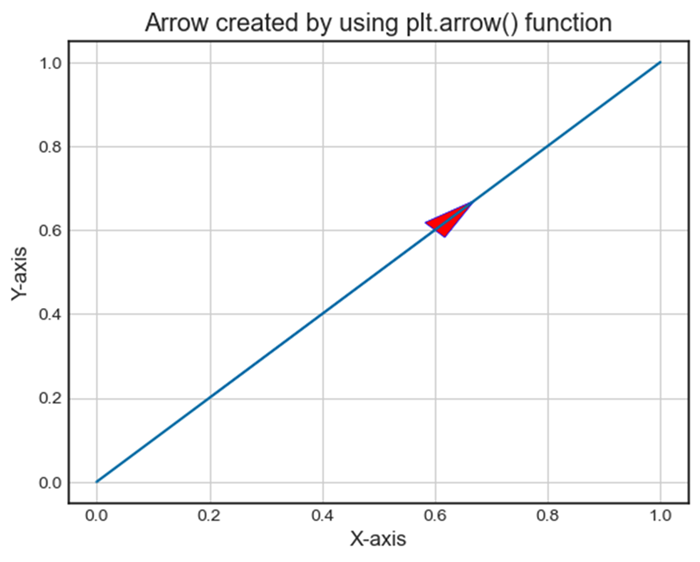
單獨新增箭頭
這是建立箭頭的另一個示例。眾所周知,箭頭也可以透過指定arrowprops來定義箭頭樣式,從而整合到plt.annotate()中的註釋中。在這個例子中,'箭頭註釋'連線到點(0.5, 0.5),並使用arrowprops指定箭頭樣式。
示例
import matplotlib.pyplot as plt
# Creating a plot
plt.plot([0, 1], [0, 1])
# Adding an arrow with annotation
plt.annotate('Arrow Annotation', xy=(0.5, 0.5), xytext=(0.2, 0.2), arrowprops=dict(facecolor='yellow',ec = 'red', arrowstyle='->'))
plt.xlabel('X-axis')
plt.ylabel('Y-axis')
plt.title('Arrow Annotation Example')
# Displaying the grid
plt.grid(True)
plt.show()
輸出
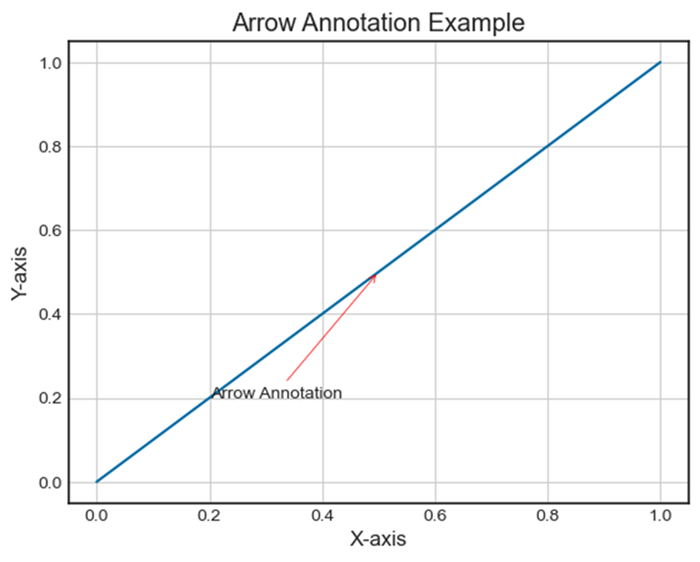
在技術圖紙中繪製距離箭頭
為了在 matplotlib 中的技術圖紙中繪製距離箭頭,我們可以使用帶有箭頭屬性的 annotate() 方法。
示例
from matplotlib import pyplot as plt
plt.rcParams["figure.figsize"] = [7.50, 3.50]
plt.rcParams["figure.autolayout"] = True
plt.axhline(3.5)
plt.axhline(2.5)
plt.annotate(
   '', xy=(0.5, 3.5), xycoords='data',
   xytext=(0.5, 2.5), textcoords='data',
   arrowprops={'arrowstyle': '<->'})
plt.annotate(
   '$\it{d=1}$', xy=(0.501, 3.0), xycoords='data',
   xytext=(0.5, 3.5), textcoords='offset points')
plt.show()
輸出
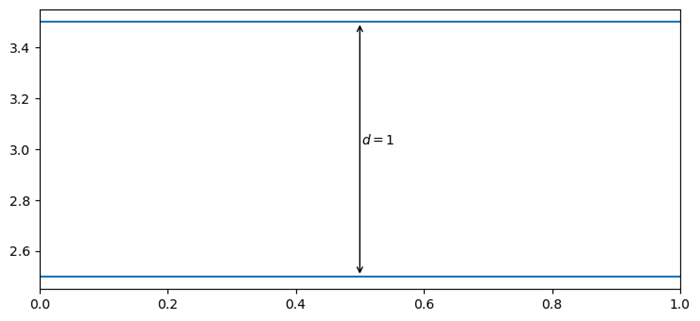
廣告