- JavaFX 教程
- JavaFX - 首頁
- JavaFX - 概述
- JavaFX 安裝和架構
- JavaFX - 環境
- JavaFX - 使用 Netbeans 安裝
- JavaFX - 使用 Eclipse 安裝
- JavaFX - 使用 Visual Studio Code 安裝
- JavaFX - 架構
- JavaFX - 應用程式
- JavaFX 2D 形狀
- JavaFX - 2D 形狀
- JavaFX - 繪製直線
- JavaFX - 繪製矩形
- JavaFX - 繪製圓角矩形
- JavaFX - 繪製圓形
- JavaFX - 繪製橢圓
- JavaFX - 繪製多邊形
- JavaFX - 繪製折線
- JavaFX - 繪製三次貝塞爾曲線
- JavaFX - 繪製二次貝塞爾曲線
- JavaFX - 繪製圓弧
- JavaFX - 繪製 SVGPath
- JavaFX 2D 物件屬性
- JavaFX - 描邊型別屬性
- JavaFX - 描邊寬度屬性
- JavaFX - 描邊填充屬性
- JavaFX - 描邊屬性
- JavaFX - 描邊線連線屬性
- JavaFX - 描邊斜接限制屬性
- JavaFX - 描邊線端點屬性
- JavaFX - 平滑屬性
- JavaFX 路徑物件
- JavaFX - 路徑物件
- JavaFX - LineTo 路徑物件
- JavaFX - HLineTo 路徑物件
- JavaFX - VLineTo 路徑物件
- JavaFX - QuadCurveTo 路徑物件
- JavaFX - CubicCurveTo 路徑物件
- JavaFX - ArcTo 路徑物件
- JavaFX 顏色和紋理
- JavaFX - 顏色
- JavaFX - 線性漸變圖案
- JavaFX - 徑向漸變圖案
- JavaFX 文字
- JavaFX - 文字
- JavaFX 效果
- JavaFX - 效果
- JavaFX - 顏色調整效果
- JavaFX - 顏色輸入效果
- JavaFX - 圖片輸入效果
- JavaFX - 混合效果
- JavaFX - 輝光效果
- JavaFX - 泛光效果
- JavaFX - 方框模糊效果
- JavaFX - 高斯模糊效果
- JavaFX - 運動模糊效果
- JavaFX - 反射效果
- JavaFX - 棕褐色效果
- JavaFX - 陰影效果
- JavaFX - 投影效果
- JavaFX - 內陰影效果
- JavaFX - 光照效果
- JavaFX - Light.Distant 效果
- JavaFX - Light.Spot 效果
- JavaFX - Point.Spot 效果
- JavaFX - 位移貼圖
- JavaFX - 透視變換
- JavaFX 動畫
- JavaFX - 動畫
- JavaFX - 旋轉轉換
- JavaFX - 縮放轉換
- JavaFX - 平移轉換
- JavaFX - 淡入淡出轉換
- JavaFX - 填充轉換
- JavaFX - 描邊轉換
- JavaFX - 順序轉換
- JavaFX - 並行轉換
- JavaFX - 暫停轉換
- JavaFX - 路徑轉換
- JavaFX 圖片
- JavaFX - 圖片
- JavaFX 3D 形狀
- JavaFX - 3D 形狀
- JavaFX - 建立立方體
- JavaFX - 建立圓柱體
- JavaFX - 建立球體
- JavaFX 事件處理
- JavaFX - 事件處理
- JavaFX - 使用便捷方法
- JavaFX - 事件過濾器
- JavaFX - 事件處理器
- JavaFX UI 控制元件
- JavaFX - UI 控制元件
- JavaFX - ListView
- JavaFX - Accordion
- JavaFX - ButtonBar
- JavaFX - ChoiceBox
- JavaFX - HTMLEditor
- JavaFX - MenuBar
- JavaFX - Pagination
- JavaFX - ProgressIndicator
- JavaFX - ScrollPane
- JavaFX - Separator
- JavaFX - Slider
- JavaFX - Spinner
- JavaFX - SplitPane
- JavaFX - TableView
- JavaFX - TabPane
- JavaFX - ToolBar
- JavaFX - TreeView
- JavaFX - Label
- JavaFX - CheckBox
- JavaFX - RadioButton
- JavaFX - TextField
- JavaFX - PasswordField
- JavaFX - FileChooser
- JavaFX - Hyperlink
- JavaFX - Tooltip
- JavaFX - Alert
- JavaFX - DatePicker
- JavaFX - TextArea
- JavaFX 圖表
- JavaFX - 圖表
- JavaFX - 建立餅圖
- JavaFX - 建立折線圖
- JavaFX - 建立面積圖
- JavaFX - 建立柱狀圖
- JavaFX - 建立氣泡圖
- JavaFX - 建立散點圖
- JavaFX - 建立堆疊面積圖
- JavaFX - 建立堆疊柱狀圖
- JavaFX 佈局面板
- JavaFX - 佈局面板
- JavaFX - HBox 佈局
- JavaFX - VBox 佈局
- JavaFX - BorderPane 佈局
- JavaFX - StackPane 佈局
- JavaFX - TextFlow 佈局
- JavaFX - AnchorPane 佈局
- JavaFX - TilePane 佈局
- JavaFX - GridPane 佈局
- JavaFX - FlowPane 佈局
- JavaFX CSS
- JavaFX - CSS
- JavaFX 多媒體
- JavaFX - 處理多媒體
- JavaFX - 播放影片
- JavaFX 有用資源
- JavaFX - 快速指南
- JavaFX - 有用資源
- JavaFX - 討論
JavaFX - UI 控制元件
UI 控制元件是允許使用者與應用程式或網站互動的圖形元素。它們包括按鈕、選單、滑塊、文字欄位、複選框、單選按鈕等等。在本教程中,我們將探討 JavaFX 的不同型別的 UI 控制元件。
讓我們從介紹使用者介面的三個主要方面開始討論:
UI 元素 - 這些是使用者最終看到並與之互動的核心可視元素。JavaFX 提供了大量常用元素,從基本元素到複雜元素,我們將在本教程中介紹這些元素。
佈局 - 它們定義了 UI 元素如何在螢幕上組織,併為 GUI(圖形使用者介面)提供最終的外觀和感覺。這部分內容將在佈局章節中介紹。
行為 - 這些是使用者與 UI 元素互動時發生的事件。這部分內容將在事件處理章節中介紹。
要建立 GUI 元件(控制元件),JavaFX 支援多種控制元件,例如日期選擇器、按鈕文字欄位等。這些控制元件由包 **javafx.scene.control** 的不同類表示。我們可以透過例項化其相應的類來建立控制元件。
以下是設計 JavaFX 中 GUI 時常用的控制元件列表。
| 序號 | 控制元件和描述 |
|---|---|
| 1 |
Label 物件是用於放置文字的元件。 |
| 2 | 按鈕 (Button) 此類建立一個帶標籤的按鈕。 |
| 3 | 顏色選擇器 (ColorPicker) ColorPicker 提供一組控制元件面板,允許使用者操作和選擇顏色。 |
| 4 |
CheckBox 是一種圖形元件,可以處於開啟 (true) 或關閉 (false) 狀態。 |
| 5 |
RadioButton 類是一種圖形元件,在一個組中可以處於開啟 (true) 或關閉 (false) 狀態。 |
| 6 |
ListView 元件為使用者呈現一個可滾動的文字專案列表。 |
| 7 |
TextField 物件是一個文字元件,允許編輯單行文字。 |
| 8 |
PasswordField 物件是一個專門用於密碼輸入的文字元件。 |
| 9 | 捲軸 (Scrollbar) Scrollbar 控制元件表示一個捲軸元件,以便使用者可以從值的範圍內進行選擇。 |
| 10 |
FileChooser 控制元件表示一個對話方塊視窗,使用者可以在其中選擇檔案。 |
| 11 | 進度條 (ProgressBar) 隨著任務完成的進展,進度條會顯示任務的完成百分比。 |
| 12 |
Slider 允許使用者透過在有界區間內滑動旋鈕來以圖形方式選擇值。 |
示例
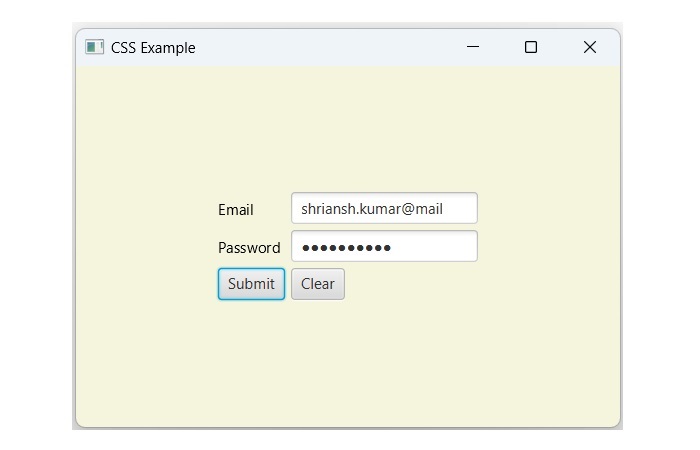
下面的程式是一個示例,它在 JavaFX 中顯示一個登入頁面。在這裡,我們使用 **標籤、文字欄位、密碼欄位** 和 **按鈕** 控制元件。將此程式碼儲存在名為 **LoginPage.java** 的檔案中。
import javafx.application.Application;
import javafx.geometry.Insets;
import javafx.geometry.Pos;
import javafx.scene.Scene;
import javafx.scene.control.Button;
import javafx.scene.control.PasswordField;
import javafx.scene.layout.GridPane;
import javafx.scene.text.Text;
import javafx.scene.control.TextField;
import javafx.stage.Stage;

public class LoginPage extends Application {
   @Override
   public void start(Stage stage) {
      //creating label email
      Text text1 = new Text("Email");

      //creating label password
      Text text2 = new Text("Password");

      //Creating Text Filed for email
      TextField textField1 = new TextField();

      //Creating Text Filed for password
      PasswordField textField2 = new PasswordField();

      //Creating Buttons
      Button button1 = new Button("Submit");
      Button button2 = new Button("Clear");

      //Creating a Grid Pane
      GridPane gridPane = new GridPane();

      //Setting size for the pane
      gridPane.setMinSize(400, 200);

      //Setting the padding
      gridPane.setPadding(new Insets(10, 10, 10, 10));

      //Setting the vertical and horizontal gaps between the columns
      gridPane.setVgap(5);
      gridPane.setHgap(5);

      //Setting the Grid alignment
      gridPane.setAlignment(Pos.CENTER);

      //Arranging all the nodes in the grid
      gridPane.add(text1, 0, 0);
      gridPane.add(textField1, 1, 0);
      gridPane.add(text2, 0, 1);
      gridPane.add(textField2, 1, 1);
      gridPane.add(button1, 0, 2);
      gridPane.add(button2, 1, 2);
      gridPane.setStyle("-fx-background-color: BEIGE;");

      //Creating a scene object
      Scene scene = new Scene(gridPane);

      //Setting title to the Stage
      stage.setTitle("CSS Example");

      //Adding scene to the stage
      stage.setScene(scene);

      //Displaying the contents of the stage
      stage.show();
   }
   public static void main(String args[]){
      launch(args);
   }
}
使用以下命令從命令提示符編譯並執行儲存的 java 檔案。
javac --module-path %PATH_TO_FX% --add-modules javafx.controls LoginPage.java
java --module-path %PATH_TO_FX% --add-modules javafx.controls LoginPage
輸出
執行後,上述程式將生成如下所示的 JavaFX 視窗。
示例
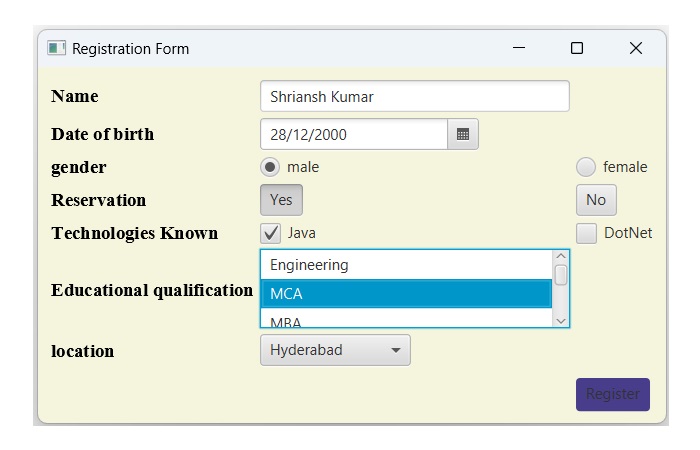
下面的程式是一個登錄檔單的示例,它演示了 JavaFX 中的控制元件,例如 **日期選擇器、單選按鈕、切換按鈕、複選框、列表檢視和選擇列表**。將此程式碼儲存在名為 **Registration.java** 的檔案中。
import javafx.application.Application;
import javafx.collections.FXCollections;
import javafx.collections.ObservableList;
import javafx.geometry.Insets;
import javafx.geometry.Pos;
import javafx.scene.Scene;
import javafx.scene.control.Button;
import javafx.scene.control.CheckBox;
import javafx.scene.control.ChoiceBox;
import javafx.scene.control.DatePicker;
import javafx.scene.control.ListView;
import javafx.scene.control.RadioButton;
import javafx.scene.layout.GridPane;
import javafx.scene.text.Text;
import javafx.scene.control.TextField;
import javafx.scene.control.ToggleGroup;
import javafx.scene.control.ToggleButton;
import javafx.stage.Stage;

public class Registration extends Application {
   @Override
   public void start(Stage stage) {
      //Label for name
      Text nameLabel = new Text("Name");

      //Text field for name
      TextField nameText = new TextField();

      //Label for date of birth
      Text dobLabel = new Text("Date of birth");

      //date picker to choose date
      DatePicker datePicker = new DatePicker();

      //Label for gender
      Text genderLabel = new Text("gender");

      //Toggle group of radio buttons
      ToggleGroup groupGender = new ToggleGroup();
      RadioButton maleRadio = new RadioButton("male");
      maleRadio.setToggleGroup(groupGender);
      RadioButton femaleRadio = new RadioButton("female");
      femaleRadio.setToggleGroup(groupGender);

      //Label for reservation
      Text reservationLabel = new Text("Reservation");

      //Toggle button for reservation
      ToggleButton Reservation = new ToggleButton();
      ToggleButton yes = new ToggleButton("Yes");
      ToggleButton no = new ToggleButton("No");
      ToggleGroup groupReservation = new ToggleGroup();
      yes.setToggleGroup(groupReservation);
      no.setToggleGroup(groupReservation);

      //Label for technologies known
      Text technologiesLabel = new Text("Technologies Known");

      //check box for education
      CheckBox javaCheckBox = new CheckBox("Java");
      javaCheckBox.setIndeterminate(false);

      //check box for education
      CheckBox dotnetCheckBox = new CheckBox("DotNet");
      javaCheckBox.setIndeterminate(false);

      //Label for education
      Text educationLabel = new Text("Educational qualification");

      //list View for educational qualification
      ObservableList<String> names = FXCollections.observableArrayList(
         "Engineering", "MCA", "MBA", "Graduation", "MTECH", "Mphil", "Phd");
      ListView<String> educationListView = new ListView<String>(names);

      //Label for location
      Text locationLabel = new Text("location");

      //Choice box for location
      ChoiceBox locationchoiceBox = new ChoiceBox();
      locationchoiceBox.getItems().addAll
         ("Hyderabad", "Chennai", "Delhi", "Mumbai", "Vishakhapatnam");

      //Label for register
      Button buttonRegister = new Button("Register");

      //Creating a Grid Pane
      GridPane gridPane = new GridPane();

      //Setting size for the pane
      gridPane.setMinSize(500, 500);

      //Setting the padding
      gridPane.setPadding(new Insets(10, 10, 10, 10));

      //Setting the vertical and horizontal gaps between the columns
      gridPane.setVgap(5);
      gridPane.setHgap(5);

      //Setting the Grid alignment
      gridPane.setAlignment(Pos.CENTER);

      //Arranging all the nodes in the grid
      gridPane.add(nameLabel, 0, 0);
      gridPane.add(nameText, 1, 0);

      gridPane.add(dobLabel, 0, 1);
      gridPane.add(datePicker, 1, 1);

      gridPane.add(genderLabel, 0, 2);
      gridPane.add(maleRadio, 1, 2);
      gridPane.add(femaleRadio, 2, 2);
      gridPane.add(reservationLabel, 0, 3);
      gridPane.add(yes, 1, 3);
      gridPane.add(no, 2, 3);

      gridPane.add(technologiesLabel, 0, 4);
      gridPane.add(javaCheckBox, 1, 4);
      gridPane.add(dotnetCheckBox, 2, 4);

      gridPane.add(educationLabel, 0, 5);
      gridPane.add(educationListView, 1, 5);

      gridPane.add(locationLabel, 0, 6);
      gridPane.add(locationchoiceBox, 1, 6);

      gridPane.add(buttonRegister, 2, 8);

      //Styling nodes
      buttonRegister.setStyle(
         "-fx-background-color: darkslateblue; -fx-textfill: white;");

      nameLabel.setStyle("-fx-font: normal bold 15px 'serif' ");
      dobLabel.setStyle("-fx-font: normal bold 15px 'serif' ");
      genderLabel.setStyle("-fx-font: normal bold 15px 'serif' ");
      reservationLabel.setStyle("-fx-font: normal bold 15px 'serif' ");
      technologiesLabel.setStyle("-fx-font: normal bold 15px 'serif' ");
      educationLabel.setStyle("-fx-font: normal bold 15px 'serif' ");
      locationLabel.setStyle("-fx-font: normal bold 15px 'serif' ");

      //Setting the back ground color
      gridPane.setStyle("-fx-background-color: BEIGE;");

      //Creating a scene object
      Scene scene = new Scene(gridPane);

      //Setting title to the Stage
      stage.setTitle("Registration Form");

      //Adding scene to the stage
      stage.setScene(scene);

      //Displaying the contents of the stage
      stage.show();
   }
   public static void main(String args[]){
      launch(args);
   }
}
使用以下命令從命令提示符編譯並執行儲存的 java 檔案。
javac --module-path %PATH_TO_FX% --add-modules javafx.controls Registration.java
java --module-path %PATH_TO_FX% --add-modules javafx.controls Registration
輸出
執行後,上述程式將生成如下所示的 JavaFX 視窗。