- JavaFX 教程
- JavaFX - 首頁
- JavaFX - 概述
- JavaFX 安裝和架構
- JavaFX - 環境
- JavaFX - 使用 Netbeans 安裝
- JavaFX - 使用 Eclipse 安裝
- JavaFX - 使用 Visual Studio Code 安裝
- JavaFX - 架構
- JavaFX - 應用程式
- JavaFX 二維形狀
- JavaFX - 二維形狀
- JavaFX - 繪製直線
- JavaFX - 繪製矩形
- JavaFX - 繪製圓角矩形
- JavaFX - 繪製圓形
- JavaFX - 繪製橢圓
- JavaFX - 繪製多邊形
- JavaFX - 繪製折線
- JavaFX - 繪製三次貝塞爾曲線
- JavaFX - 繪製二次貝塞爾曲線
- JavaFX - 繪製弧形
- JavaFX - 繪製 SVG 路徑
- JavaFX 二維物件的屬性
- JavaFX - 描邊型別屬性
- JavaFX - 描邊寬度屬性
- JavaFX - 描邊填充屬性
- JavaFX - 描邊屬性
- JavaFX - 描邊線連線屬性
- JavaFX - 描邊斜接限制屬性
- JavaFX - 描邊線端點屬性
- JavaFX - 平滑屬性
- JavaFX 路徑物件
- JavaFX - 路徑物件
- JavaFX - LineTo 路徑物件
- JavaFX - HLineTo 路徑物件
- JavaFX - VLineTo 路徑物件
- JavaFX - QuadCurveTo 路徑物件
- JavaFX - CubicCurveTo 路徑物件
- JavaFX - ArcTo 路徑物件
- JavaFX 顏色和紋理
- JavaFX - 顏色
- JavaFX - 線性漸變圖案
- JavaFX - 徑向漸變圖案
- JavaFX 文字
- JavaFX - 文字
- JavaFX 特效
- JavaFX - 特效
- JavaFX - 顏色調整特效
- JavaFX - 顏色輸入特效
- JavaFX - 圖片輸入特效
- JavaFX - 混合特效
- JavaFX - 輝光特效
- JavaFX - 泛光特效
- JavaFX - 方框模糊特效
- JavaFX - 高斯模糊特效
- JavaFX - 運動模糊特效
- JavaFX - 反射特效
- JavaFX - 棕褐色特效
- JavaFX - 陰影特效
- JavaFX - 投影陰影特效
- JavaFX - 內陰影特效
- JavaFX - 光照特效
- JavaFX - 遠光源特效
- JavaFX - 聚光燈特效
- JavaFX - 點光源特效
- JavaFX - 位移貼圖
- JavaFX - 透視變換
- JavaFX 動畫
- JavaFX - 動畫
- JavaFX - 旋轉動畫
- JavaFX - 縮放動畫
- JavaFX - 平移動畫
- JavaFX - 淡入淡出動畫
- JavaFX - 填充動畫
- JavaFX - 描邊動畫
- JavaFX - 順序動畫
- JavaFX - 並行動畫
- JavaFX - 暫停動畫
- JavaFX - 路徑動畫
- JavaFX 圖片
- JavaFX - 圖片
- JavaFX 三維形狀
- JavaFX - 三維形狀
- JavaFX - 建立長方體
- JavaFX - 建立圓柱體
- JavaFX - 建立球體
- JavaFX 事件處理
- JavaFX - 事件處理
- JavaFX - 使用便捷方法
- JavaFX - 事件過濾器
- JavaFX - 事件處理器
- JavaFX UI 控制元件
- JavaFX - UI 控制元件
- JavaFX - 列表檢視
- JavaFX - 手風琴
- JavaFX - 按鈕欄
- JavaFX - 選擇框
- JavaFX - HTML 編輯器
- JavaFX - 選單欄
- JavaFX - 分頁
- JavaFX - 進度指示器
- JavaFX - 滾動面板
- JavaFX - 分隔符
- JavaFX - 滑塊
- JavaFX - 微調器
- JavaFX - 分割面板
- JavaFX - 表格檢視
- JavaFX - 標籤頁面板
- JavaFX - 工具欄
- JavaFX - 樹檢視
- JavaFX - 標籤
- JavaFX - 複選框
- JavaFX - 單選按鈕
- JavaFX - 文字欄位
- JavaFX - 密碼欄位
- JavaFX - 檔案選擇器
- JavaFX - 超連結
- JavaFX - 工具提示
- JavaFX - 警報框
- JavaFX - 日期選擇器
- JavaFX - 文字區域
- JavaFX 圖表
- JavaFX - 圖表
- JavaFX - 建立餅狀圖
- JavaFX - 建立折線圖
- JavaFX - 建立面積圖
- JavaFX - 建立條形圖
- JavaFX - 建立氣泡圖
- JavaFX - 建立散點圖
- JavaFX - 建立堆疊面積圖
- JavaFX - 建立堆疊條形圖
- JavaFX 佈局面板
- JavaFX - 佈局面板
- JavaFX - HBox 佈局
- JavaFX - VBox 佈局
- JavaFX - BorderPane 佈局
- JavaFX - StackPane 佈局
- JavaFX - TextFlow 佈局
- JavaFX - AnchorPane 佈局
- JavaFX - TilePane 佈局
- JavaFX - GridPane 佈局
- JavaFX - FlowPane 佈局
- JavaFX CSS
- JavaFX - CSS
- JavaFX 中的媒體
- JavaFX - 處理媒體
- JavaFX - 播放影片
- JavaFX 有用資源
- JavaFX - 快速指南
- JavaFX - 有用資源
- JavaFX - 討論
JavaFX - 文字
一個 JavaFX 應用程式可以包含許多元素,包括各種媒體,如影像、影片、GIF 和各種維度的形狀、文字等。這是為了提高應用程式的使用者體驗質量。所有這些元素都由 JavaFX 場景圖上的節點表示。
前面我們學習瞭如何建立二維和三維形狀。但是你也可以在 JavaFX 應用程式中建立文字元素。文字元素由一個單獨的節點表示,並且可以根據其字型、大小、顏色和其他一些屬性進行更改。
在本章中,我們將學習如何使用 JavaFX 在應用程式上顯示文字節點。
JavaFX 文字節點
JavaFX 中的文字節點由名為 **Text** 的類表示,該類屬於 **javafx.scene.text** 包。
此類包含多個屬性,用於在 JavaFX 中建立文字並修改其外觀。此類還繼承 **Shape** 類,該類屬於 **javafx.scene.shape** 包。
因此,除了文字的屬性(如字型、對齊方式、行距、文字等)之外,它還繼承了基本的形狀節點屬性,例如 **strokeFill**、**stroke**、**strokeWidth**、**strokeType** 等。
建立文字節點
由於 **javafx.scene.text** 包的 **Text** 類表示 JavaFX 中的文字節點,因此您可以透過例項化此類來建立文字,如下所示:
Text text = new Text();
**Text** 類包含一個名為 **text** 的字串型別屬性,它表示要建立的文字。
例項化 **Text** 類後,需要使用 **setText()** 方法為該屬性設定值,如下所示。
String text = "Hello how are you"
Text.setText(text);
您還可以透過為 x 和 y 屬性指定值來設定文字的位置(原點),使用它們各自的 setter 方法,即 **setX()** 和 **setY()**,如下面的程式碼塊所示:
text.setX(50);
text.setY(50);
示例
以下程式是一個示例,演示如何在 JavaFX 中建立文字節點。將此程式碼儲存在名為 **TextExample.java** 的檔案中。
import javafx.application.Application;
import javafx.scene.Group;
import javafx.scene.Scene;
import javafx.stage.Stage;
import javafx.scene.text.Text;

public class TextExample extends Application {
   @Override
   public void start(Stage stage) {
      //Creating a Text object
      Text text = new Text();

      //Setting the text to be added.
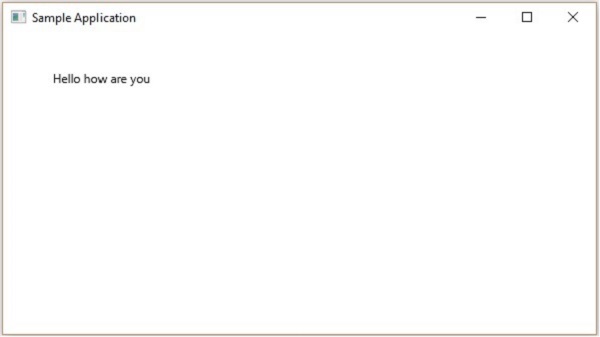
      text.setText("Hello how are you");

      //setting the position of the text
      text.setX(50);
      text.setY(50);

      //Creating a Group object
      Group root = new Group(text);

      //Creating a scene object
      Scene scene = new Scene(root, 600, 300);

      //Setting title to the Stage
      stage.setTitle("Sample Application");

      //Adding scene to the stage
      stage.setScene(scene);

      //Displaying the contents of the stage
      stage.show();
   }
   public static void main(String args[]){
      launch(args);
   }
}
使用以下命令從命令提示符編譯並執行儲存的 java 檔案。
javac --module-path %PATH_TO_FX% --add-modules javafx.controls TextExample.java
java --module-path %PATH_TO_FX% --add-modules javafx.controls TextExample
輸出
執行上述程式後,將生成一個 JavaFX 視窗,顯示指定的文字,如下所示:
示例
讓我們看另一個例子,在這個例子中,我們嘗試透過在所述文字上應用各種屬性(如字型、大小、對齊方式等)來建立文字節點。將此程式碼儲存在名為 **TextExample1.java** 的檔案中。
import javafx.application.Application;
import javafx.scene.Group;
import javafx.scene.Scene;
import javafx.stage.Stage;
import javafx.scene.text.*;

public class TextExample1 extends Application {
   @Override
   public void start(Stage stage) {
      //Creating a Text object
      Text text = new Text();
      text.setFont(new Font(20));
      text.setWrappingWidth(200);
      text.setTextAlignment(TextAlignment.JUSTIFY);
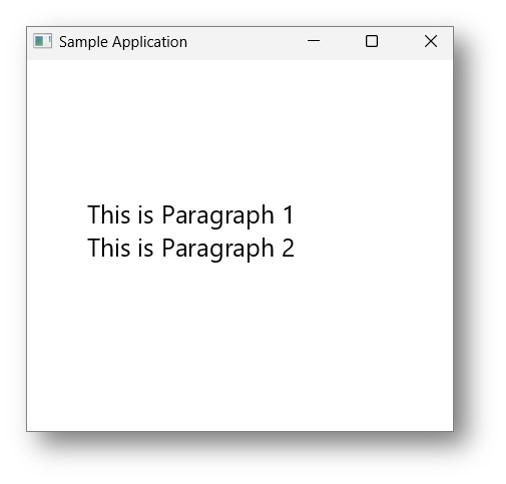
      text.setText("This is Paragraph 1\nThis is Paragraph 2");

      //setting the position of the text
      text.setX(50);
      text.setY(130);

      //Creating a Group object
      Group root = new Group(text);

      //Creating a scene object
      Scene scene = new Scene(root, 600, 300);

      //Setting title to the Stage
      stage.setTitle("Sample Application");

      //Adding scene to the stage
      stage.setScene(scene);

      //Displaying the contents of the stage
      stage.show();
   }
   public static void main(String args[]){
      launch(args);
   }
}
使用以下命令從命令提示符編譯並執行儲存的 java 檔案。
javac --module-path %PATH_TO_FX% --add-modules javafx.controls TextExample1.java
java --module-path %PATH_TO_FX% --add-modules javafx.controls TextExample1
輸出
執行上述程式後,將生成一個 JavaFX 視窗,顯示指定的文字,如下所示:
文字節點的位置和字型
您也可以在 JavaFX 應用程式中新增文字節點。但是,任何可以新增的文字都有一些預設值,例如文字的大小、字型及其顏色(黑色)。但是,有必要更改預設值,因為它們並不適用於所有場景。
例如,JavaFX 應用程式中文字節點的預設位置從螢幕開頭開始。但是,當文字內容較長並且超出顯示範圍時,就需要更改其位置以正確顯示所有內容。
更改文字的位置和字型還可以使使用者能夠根據自己的需求開發應用程式。
setFont() 方法
您可以使用 **setFont()** 方法更改文字的字型大小和顏色。此方法接受 **Font** 類的物件。
名為 **Font** 的類(屬於 **javafx.scene.text** 包)用於定義文字的字型。此類包含一個名為 **font()** 的靜態方法。
此方法接受四個引數,即:
**family** - 這是字串型別,表示我們想要應用於文字的字型的族。
**weight** - 此屬性表示字型的粗細。它接受 9 個值,即 - **FontWeight.BLACK, FontWeight.BOLD, FontWeight.EXTRA_BOLD, FontWeight.EXTRA_LIGHT, LIGHT, MEDIUM, NORMAL, SEMI_BOLD, THIN**。
**posture** - 此屬性表示字型姿態(常規或斜體)。它接受兩個值 **FontPosture.REGULAR** 和 **FontPosture.ITALIC**。
**size** - 此屬性的型別為 double,表示字型的尺寸。
您可以使用以下方法將字型設定為文字:
text.setFont(Font.font("verdana", FontWeight.BOLD, FontPosture.REGULAR, 20));
示例
在嘗試設定所需位置和字型之前,讓我們來看一個在 JavaFX 應用程式中使用文字節點的預設屬性的程式。
將此程式碼儲存在名為 **TextDefault.java** 的檔案中。
import javafx.application.Application;
import javafx.scene.Group;
import javafx.scene.Scene;
import javafx.stage.Stage;
import javafx.scene.text.*;

public class TextDefault extends Application {
   @Override
   public void start(Stage stage) {
      //Creating a Text object
      Text text = new Text();

      //Setting the text to be added.
      text.setText("Hi how are you");

      //Creating a Group object
      Group root = new Group(text);

      //Creating a scene object
      Scene scene = new Scene(root, 600, 300);

      //Setting title to the Stage
      stage.setTitle("Default text");

      //Adding scene to the stage
      stage.setScene(scene);

      //Displaying the contents of the stage
      stage.show();
   }
   public static void main(String args[]){
      launch(args);
   }
}
使用以下命令從命令提示符編譯並執行儲存的 Java 檔案。
javac --module-path %PATH_TO_FX% --add-modules javafx.controls TextDefault.java
java --module-path %PATH_TO_FX% --add-modules javafx.controls TextDefault
輸出
執行上述程式後,將生成一個 JavaFX 視窗,顯示具有其預設屬性的文字。
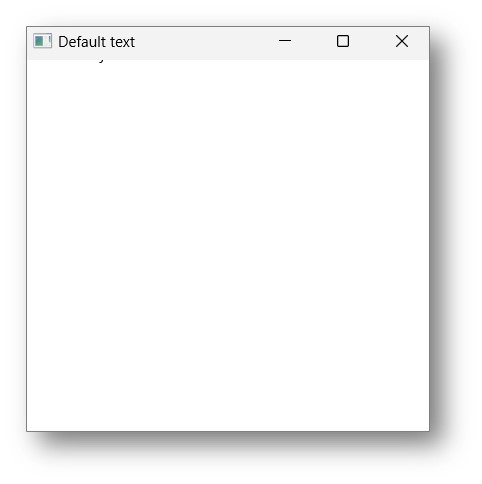
正如您所看到的,文字沒有在應用程式中正確顯示,因此提示需要設定位置和字型屬性。
示例
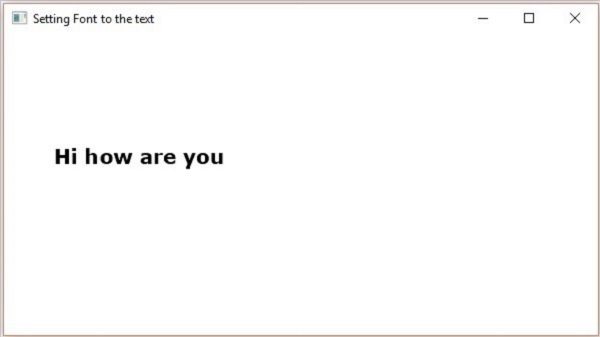
以下程式是一個示例,演示如何在 JavaFX 中設定文字節點的字型。在這裡,我們將字型設定為 Verdana,粗細為粗體,姿態為常規,大小為 20。
將此程式碼儲存在名為 **TextFontExample.java** 的檔案中。
import javafx.application.Application;
import javafx.scene.Group;
import javafx.scene.Scene;
import javafx.stage.Stage;
import javafx.scene.text.Font;
import javafx.scene.text.FontPosture;
import javafx.scene.text.FontWeight;
import javafx.scene.text.Text;

public class TextFontExample extends Application {
   @Override
   public void start(Stage stage) {
      //Creating a Text object
      Text text = new Text();

      //Setting font to the text
      text.setFont(Font.font("verdana", FontWeight.BOLD, FontPosture.REGULAR, 20));

      //setting the position of the text
      text.setX(50);
      text.setY(130);

      //Setting the text to be added.
      text.setText("Hi how are you");

      //Creating a Group object
      Group root = new Group(text);

      //Creating a scene object
      Scene scene = new Scene(root, 600, 300);

      //Setting title to the Stage
      stage.setTitle("Setting Font to the text");

      //Adding scene to the stage
      stage.setScene(scene);

      //Displaying the contents of the stage
      stage.show();
   }
   public static void main(String args[]){
      launch(args);
   }
}
使用以下命令從命令提示符編譯並執行儲存的 java 檔案。
javac --module-path %PATH_TO_FX% --add-modules javafx.controls TextFontExample.java
java --module-path %PATH_TO_FX% --add-modules javafx.controls TextFontExample
輸出
執行上述程式後,將生成一個 JavaFX 視窗,顯示具有指定字型的文字,如下所示:
文字節點的描邊和顏色
JavaFX 中的每個節點都有一些預設值,關於它們如何顯示和定位。例如,任何 3D 形狀(如長方體、圓柱體、球體等)都具有淺灰色的漫反射顏色作為其預設顏色。
您還可以更改 JavaFX Text 節點的預設值。Text 節點可以透過多種方式設計:下劃線、粗體、斜體,文字也可以使用雙線或更粗的線書寫等。所有這些改進都可以在 JavaFX 應用程式中實現。
setFill() 方法
Text 類也繼承了包中的 Shape 類。因此,您可以使用javafx.scene.shape,它也可以為文字節點設定筆畫和顏色。
您可以使用 shape(繼承)類的setFill()方法設定文字顏色,如下所示:
text.setFill(Color.BEIGE);
同樣,您可以使用setStroke()方法設定文字的筆畫顏色。而筆畫的寬度可以使用setStrokeWidth()方法設定,如下所示:
//Setting the color
text.setFill(Color.BROWN);

//Setting the Stroke
text.setStrokeWidth(2);

//Setting the stroke color
text.setStroke(Color.BLUE);
示例
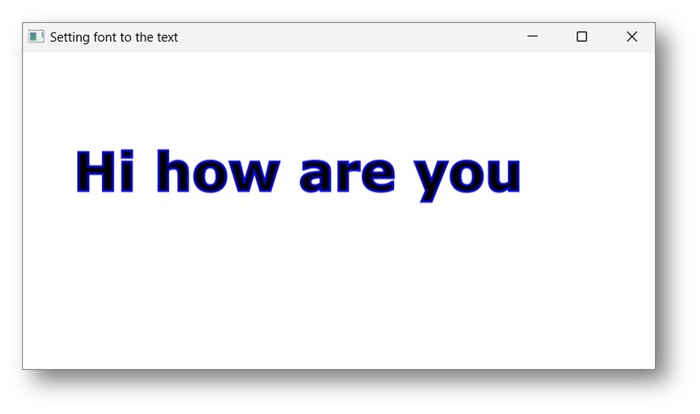
下面的程式是一個示例,演示如何設定文字節點的 strokeWidth。在此程式碼中,我們將筆畫寬度設定為“2”。
將此程式碼儲存到名為StrokeExample.java的檔案中。
import javafx.application.Application;
import javafx.scene.Group;
import javafx.scene.Scene;
import javafx.stage.Stage;
import javafx.scene.paint.Color;
import javafx.scene.text.Font;
import javafx.scene.text.FontPosture;
import javafx.scene.text.FontWeight;
import javafx.scene.text.Text;

public class StrokeExample extends Application {
   @Override
   public void start(Stage stage) {
      //Creating a Text object
      Text text = new Text();

      //Setting font to the text
      text.setFont(Font.font("verdana", FontWeight.BOLD, FontPosture.REGULAR, 50));

      //setting the position of the text
      text.setX(50);
      text.setY(130);

      //Setting the Stroke
      text.setStrokeWidth(2);

      // Setting the stroke color
      text.setStroke(Color.BLUE);

      //Setting the text to be added.
      text.setText("Hi how are you");

      //Creating a Group object
      Group root = new Group(text);

      //Creating a scene object
      Scene scene = new Scene(root, 600, 300);

      //Setting title to the Stage
      stage.setTitle("Setting font to the text");

      //Adding scene to the stage
      stage.setScene(scene);

      //Displaying the contents of the stage
      stage.show();
   }
   public static void main(String args[]){
      launch(args);
   }
}
使用以下命令從命令提示符編譯並執行儲存的 java 檔案。
javac --module-path %PATH_TO_FX% --add-modules javafx.controls StrokeExample.java
java --module-path %PATH_TO_FX% --add-modules javafx.controls StrokeExample
輸出
執行上述程式後,將生成一個 JavaFX 視窗,顯示具有指定筆畫和顏色屬性的文字,如下所示:
示例
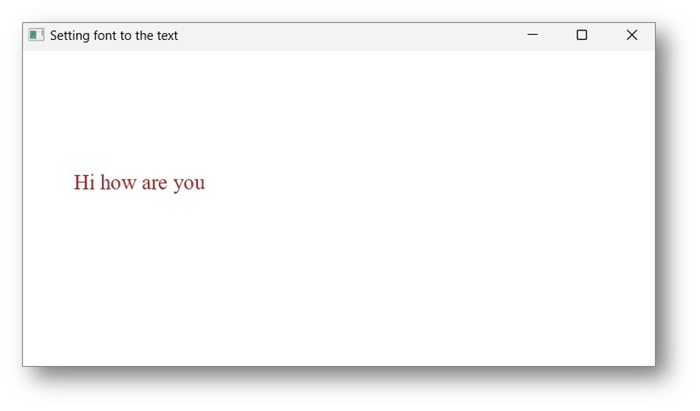
讓我們嘗試為將此程式碼儲存到名為ColorExample.java的檔案中。
import javafx.application.Application;
import javafx.scene.Group;
import javafx.scene.Scene;
import javafx.scene.paint.Color;
import javafx.stage.Stage;
import javafx.scene.text.*;

public class ColorExample extends Application {
   @Override
   public void start(Stage stage) {
      //Creating a Text object
      Text text = new Text();

      //Setting font to the text
      text.setFont(Font.font("Times New Roman", FontWeight.LIGHT, FontPosture.REGULAR, 20));

      //setting the position of the text
      text.setX(50);
      text.setY(130);

      //Setting the color
      text.setFill(Color.BROWN);

      //Setting the text to be added.
      text.setText("Hi how are you");

      //Creating a Group object
      Group root = new Group(text);

      //Creating a scene object
      Scene scene = new Scene(root, 600, 300);

      //Setting title to the Stage
      stage.setTitle("Setting font to the text");

      //Adding scene to the stage
      stage.setScene(scene);

      //Displaying the contents of the stage
      stage.show();
   }
   public static void main(String args[]){
      launch(args);
   }
}
使用以下命令從命令提示符編譯並執行儲存的 java 檔案。
javac --module-path %PATH_TO_FX% --add-modules javafx.controls ColorExample.java
java --module-path %PATH_TO_FX% --add-modules javafx.controls ColorExample
輸出
執行上述程式後,將生成一個 JavaFX 視窗,顯示具有指定筆畫和顏色屬性的文字,如下所示:
向 Text 節點應用修飾
您還可以應用修飾,例如刪除線(在文字中穿過一條線)和下劃線,可以使用Text類的方法。
您可以使用setStrikethrough()方法刪除文字。此方法接受布林值,向此方法傳遞值true即可刪除文字,如下面的程式碼框所示:
//Striking through the text
text1.setStrikethrough(true);
同樣,您可以透過向setUnderLine()方法傳遞值true來為文字新增下劃線,如下所示:
//underlining the text
text2.setUnderline(true);
示例
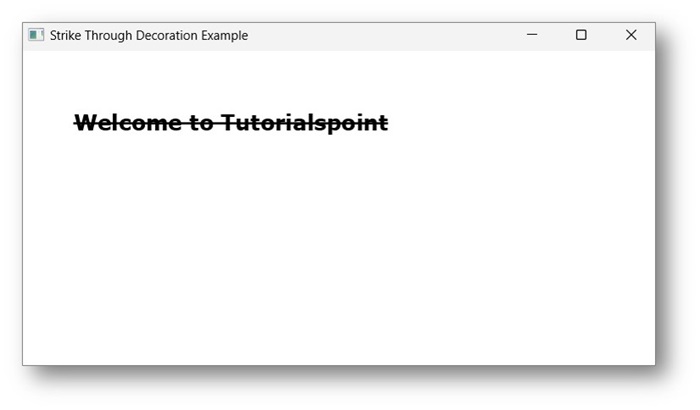
下面的程式是一個示例,演示如何將刪除線修飾應用於文字。將此程式碼儲存到名為StrikeThroughExample.java的檔案中。
import javafx.application.Application;
import javafx.scene.Group;
import javafx.scene.Scene;
import javafx.stage.Stage;
import javafx.scene.text.*;

public class StrikeThroughExample extends Application {
   @Override
   public void start(Stage stage) {
      //Creating a Text_Example object
      Text text1 = new Text("Welcome to Tutorialspoint");

      //Setting font to the text
      text1.setFont(Font.font("verdana", FontWeight.BOLD, FontPosture.REGULAR, 20));

      //setting the position of the text
      text1.setX(50);
      text1.setY(75);

      //strike through the text
      text1.setStrikethrough(true);

      //Creating a Group object
      Group root = new Group(text1);

      //Creating a scene object
      Scene scene = new Scene(root, 600, 300);

      //Setting title to the Stage
      stage.setTitle("Strike Through Decoration Example");

      //Adding scene to the stage
      stage.setScene(scene);

      //Displaying the contents of the stage
      stage.show();
   }
   public static void main(String args[]){
      launch(args);
   }
}
使用以下命令從命令提示符編譯並執行儲存的 Java 檔案。
javac --module-path %PATH_TO_FX% --add-modules javafx.controls StrikeThroughExample.java
java --module-path %PATH_TO_FX% --add-modules javafx.controls StrikeThroughExample
輸出
執行上述程式後,將生成如下所示的 JavaFX 視窗:
示例
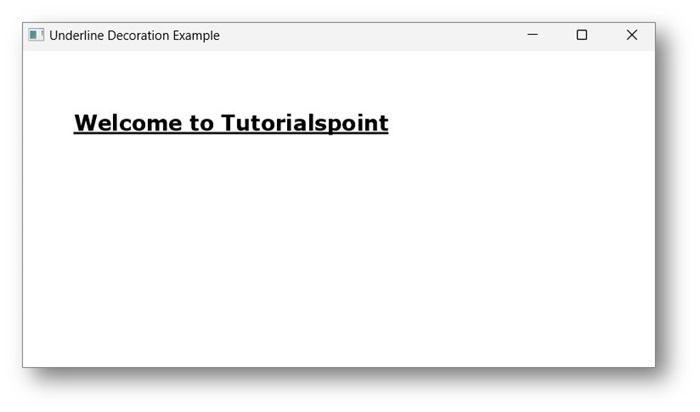
下面的程式是一個示例,演示如何將下劃線修飾應用於文字。將此程式碼儲存到名為UnderlinesExample.java的檔案中。
import javafx.application.Application;
import javafx.scene.Group;
import javafx.scene.Scene;
import javafx.stage.Stage;
import javafx.scene.text.*;

public class UnderlinesExample extends Application {
   @Override
   public void start(Stage stage) {
      //Creating a Text_Example object
      Text text1 = new Text("Welcome to Tutorialspoint");

      //Setting font to the text
      text1.setFont(Font.font("verdana", FontWeight.BOLD, FontPosture.REGULAR, 20));

      //setting the position of the text
      text1.setX(50);
      text1.setY(75);

      //underlining the text
      text1.setUnderline(true);

      //Creating a Group object
      Group root = new Group(text1);

      //Creating a scene object
      Scene scene = new Scene(root, 600, 300);

      //Setting title to the Stage
      stage.setTitle("Underline Decoration Example");

      //Adding scene to the stage
      stage.setScene(scene);

      //Displaying the contents of the stage
      stage.show();
   }
   public static void main(String args[]){
      launch(args);
   }
}
使用以下命令從命令提示符編譯並執行儲存的 Java 檔案。
javac --module-path %PATH_TO_FX% --add-modules javafx.controls UnderlinesExample.java
java --module-path %PATH_TO_FX% --add-modules javafx.controls UnderlinesExample
輸出
執行上述程式後,將生成如下所示的 JavaFX 視窗: