- JavaFX 教程
- JavaFX - 首頁
- JavaFX - 概述
- JavaFX 安裝和架構
- JavaFX - 環境
- JavaFX - 使用 Netbeans 安裝
- JavaFX - 使用 Eclipse 安裝
- JavaFX - 使用 Visual Studio Code 安裝
- JavaFX - 架構
- JavaFX - 應用程式
- JavaFX 2D 形狀
- JavaFX - 2D 形狀
- JavaFX - 繪製直線
- JavaFX - 繪製矩形
- JavaFX - 繪製圓角矩形
- JavaFX - 繪製圓形
- JavaFX - 繪製橢圓
- JavaFX - 繪製多邊形
- JavaFX - 繪製折線
- JavaFX - 繪製三次貝塞爾曲線
- JavaFX - 繪製二次貝塞爾曲線
- JavaFX - 繪製弧形
- JavaFX - 繪製 SVGPath
- JavaFX 2D 物件的屬性
- JavaFX - 描邊型別屬性
- JavaFX - 描邊寬度屬性
- JavaFX - 描邊填充屬性
- JavaFX - 描邊屬性
- JavaFX - 描邊連線屬性
- JavaFX - 描邊斜接限制屬性
- JavaFX - 描邊端點屬性
- JavaFX - 平滑屬性
- JavaFX 路徑物件
- JavaFX - 路徑物件
- JavaFX - LineTo 路徑物件
- JavaFX - HLineTo 路徑物件
- JavaFX - VLineTo 路徑物件
- JavaFX - QuadCurveTo 路徑物件
- JavaFX - CubicCurveTo 路徑物件
- JavaFX - ArcTo 路徑物件
- JavaFX 顏色和紋理
- JavaFX - 顏色
- JavaFX - 線性漸變圖案
- JavaFX - 徑向漸變圖案
- JavaFX 文字
- JavaFX - 文字
- JavaFX 效果
- JavaFX - 效果
- JavaFX - 顏色調整效果
- JavaFX - 顏色輸入效果
- JavaFX - 影像輸入效果
- JavaFX - 混合效果
- JavaFX - 綻放效果
- JavaFX - 輝光效果
- JavaFX - 方框模糊效果
- JavaFX - 高斯模糊效果
- JavaFX - 運動模糊效果
- JavaFX - 反射效果
- JavaFX - 棕褐色效果
- JavaFX - 陰影效果
- JavaFX - 投影效果
- JavaFX - 內陰影效果
- JavaFX - 照明效果
- JavaFX - Light.Distant 效果
- JavaFX - Light.Spot 效果
- JavaFX - Point.Spot 效果
- JavaFX - 位移對映
- JavaFX - 透視變換
- JavaFX 動畫
- JavaFX - 動畫
- JavaFX - 旋轉過渡
- JavaFX - 縮放過渡
- JavaFX - 平移過渡
- JavaFX - 淡入淡出過渡
- JavaFX - 填充過渡
- JavaFX - 描邊過渡
- JavaFX - 順序過渡
- JavaFX - 並行過渡
- JavaFX - 暫停過渡
- JavaFX - 路徑過渡
- JavaFX 影像
- JavaFX - 影像
- JavaFX 3D 形狀
- JavaFX - 3D 形狀
- JavaFX - 建立立方體
- JavaFX - 建立圓柱體
- JavaFX - 建立球體
- 3D 物件的屬性
- JavaFX - 剔除面屬性
- JavaFX - 繪製模式屬性
- JavaFX - 材質屬性
- JavaFX 事件處理
- JavaFX - 事件處理
- JavaFX - 使用便捷方法
- JavaFX - 事件過濾器
- JavaFX - 事件處理程式
- JavaFX UI 控制元件
- JavaFX - UI 控制元件
- JavaFX - ListView
- JavaFX - Accordion
- JavaFX - ButtonBar
- JavaFX - ChoiceBox
- JavaFX - HTMLEditor
- JavaFX - MenuBar
- JavaFX - Pagination
- JavaFX - ProgressIndicator
- JavaFX - ScrollPane
- JavaFX - Separator
- JavaFX - Slider
- JavaFX - Spinner
- JavaFX - SplitPane
- JavaFX - TableView
- JavaFX - TabPane
- JavaFX - ToolBar
- JavaFX - TreeView
- JavaFX - Label
- JavaFX - CheckBox
- JavaFX - RadioButton
- JavaFX - TextField
- JavaFX - PasswordField
- JavaFX - FileChooser
- JavaFX - Hyperlink
- JavaFX - Tooltip
- JavaFX - Alert
- JavaFX - DatePicker
- JavaFX - TextArea
- JavaFX 圖表
- JavaFX - 圖表
- JavaFX - 建立餅圖
- JavaFX - 建立折線圖
- JavaFX - 建立面積圖
- JavaFX - 建立條形圖
- JavaFX - 建立氣泡圖
- JavaFX - 建立散點圖
- JavaFX - 建立堆疊面積圖
- JavaFX - 建立堆疊條形圖
- JavaFX 佈局窗格
- JavaFX - 佈局窗格
- JavaFX - HBox 佈局
- JavaFX - VBox 佈局
- JavaFX - BorderPane 佈局
- JavaFX - StackPane 佈局
- JavaFX - TextFlow 佈局
- JavaFX - AnchorPane 佈局
- JavaFX - TilePane 佈局
- JavaFX - GridPane 佈局
- JavaFX - FlowPane 佈局
- JavaFX CSS
- JavaFX - CSS
- JavaFX 中的媒體
- JavaFX - 處理媒體
- JavaFX - 播放影片
- JavaFX 有用資源
- JavaFX - 快速指南
- JavaFX - 有用資源
- JavaFX - 討論
JavaFX - TabPane
一個TabPane充當一個或多個Tab物件的容器。術語tab指的是顯示區域頂部的部分,表示另一個網頁或內容。只有當單擊相應的選項卡時,網頁的內容才會可見。我們可以在下圖中看到三個選項卡已開啟 -
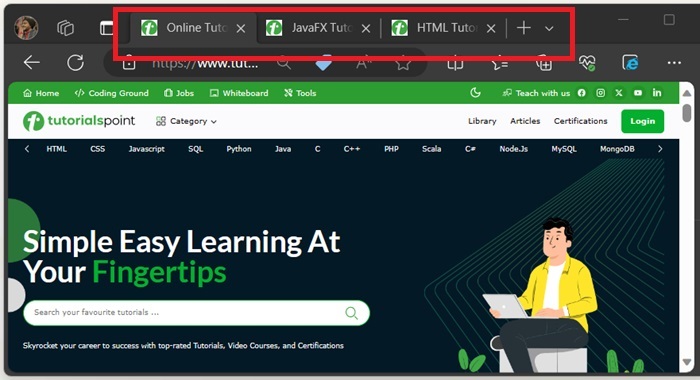
JavaFX 中的 TabPane
在 JavaFX 中,名為TabPane的類表示一個選項卡窗格。要使用選項卡窗格的功能,我們需要建立一個 TabPane 類的例項,並在其中新增我們想要顯示的選項卡。這些選項卡可以包含任何 JavaFX 節點作為選項卡的內容,例如標籤、按鈕、影像、文字欄位、影片等。我們可以使用以下任何建構函式來建立一個選項卡窗格 -
TabPane() - 用於建立一個空的選項卡窗格。
TabPane(Tab tabs) - 這是 TabPane 類的引數化建構函式,它將建立一個帶有指定選項卡集的新選項卡窗格。
在 JavaFX 中建立 TabPane 的步驟
要在 JavaFX 中建立 TabPane,請按照以下步驟操作。
步驟 1:建立所需數量的選項卡
如前所述,選項卡窗格包含一個或多個選項卡。因此,我們的第一步將是建立要在選項卡窗格中顯示的選項卡。在這裡,我們將建立三個選項卡,分別命名為 Label、Image 和 Video。在 JavaFX 中,選項卡是透過例項化名為Tab的類建立的,該類屬於javafx.scene.control包。Tab 物件具有一個 text 屬性,用於設定選項卡的標題。使用以下程式碼建立選項卡 -
// Creating a Label tab
Tab tab1 = new Tab("Label");
// Creating an Image tab
Tab tab2 = new Tab("Image");
// Creating a Video tab
Tab tab3 = new Tab("Video");
步驟 2:設定選項卡的內容
Tab 物件有一個 content 屬性,用於設定要在選項卡主體中顯示的節點。對於此操作,我們使用setContent()方法。它與Tab物件一起使用,並接受 Node 物件作為其建構函式的引數,如下面的程式碼所示 -
// setting the Label tab
tab1.setContent(new Label("This is the first tab"));
// setting the Image tab
tab2.setContent(imageView);
// setting the Video tab
tab3.setContent(vbox);
步驟 3:例項化 TabPane 類
要建立選項卡窗格,請例項化javafx.scene.control包的TabPane類,不要向其建構函式傳遞任何引數值,並使用getTabs()方法將所有選項卡新增到選項卡窗格中。
// Creating a TabPane
TabPane tabPane = new TabPane();
// Adding all the tabs to the TabPane
tabPane.getTabs().addAll(tab1, tab2, tab3);
步驟 4:啟動應用程式
建立 TabPane 並向其中新增選項卡後,請按照以下步驟正確啟動應用程式 -
首先,透過將 TabPane 物件作為引數值傳遞給其建構函式來例項化名為Scene的類。此外,將應用程式螢幕的尺寸作為可選引數傳遞給此建構函式。
然後,使用Stage類的setTitle()方法為舞臺設定標題。
現在,使用名為Stage的類的setScene()方法將 Scene 物件新增到舞臺中。
使用名為show()的方法顯示場景的內容。
最後,應用程式在launch()方法的幫助下啟動。
示例
在以下示例中,我們將建立一個 JavaFX 應用程式中的 TabPane。將此程式碼儲存在名為JavafxtabsDemo.java的檔案中。
import javafx.application.Application;
import javafx.scene.Scene;
import javafx.scene.control.Label;
import javafx.scene.control.Tab;
import javafx.scene.control.TabPane;
import javafx.scene.image.Image;
import javafx.scene.image.ImageView;
import javafx.scene.media.Media;
import javafx.scene.media.MediaPlayer;
import javafx.scene.media.MediaView;
import javafx.stage.Stage;
import java.io.File;
import javafx.scene.layout.VBox;
import javafx.scene.layout.HBox;
import javafx.scene.control.Button;
import javafx.geometry.Pos;
public class JavafxtabsDemo extends Application {
   @Override
   public void start(Stage stage) {
      // Creating a Label tab
      Tab tab1 = new Tab("Label");
      tab1.setContent(new Label("This is the first tab"));
      // Creating an Image tab
      Tab tab2 = new Tab("Image");
      Image image = new Image("tutorials_point.jpg");
      ImageView imageView = new ImageView(image);
      tab2.setContent(imageView);
      // Creating a Video tab
      Tab tab3 = new Tab("Video");
      // Passing the video file to the File object
      File videofile = new File("sampleTP.mp4");
      // creating a Media object from the File Object
      Media videomedia = new Media(videofile.toURI().toString());
      // creating a MediaPlayer object from the Media Object
      MediaPlayer mdplayer = new MediaPlayer(videomedia);
      // creating a MediaView object from the MediaPlayer Object
      MediaView viewmedia = new MediaView(mdplayer);
      //setting the fit height and width of the media view
      viewmedia.setFitHeight(350);
      viewmedia.setFitWidth(350);
      // creating video controls using the buttons
      Button pause = new Button("Pause");
      Button resume = new Button("Resume");
      // creating an HBox
      HBox box = new HBox(20);
      box.setAlignment(Pos.CENTER);
      box.getChildren().addAll(pause, resume);
      // function to handle play and pause buttons
      pause.setOnAction(act -> mdplayer.pause());
      resume.setOnAction(act -> mdplayer.play());
      // creating the root
      VBox vbox = new VBox(20);
      vbox.setAlignment(Pos.CENTER);
      vbox.getChildren().addAll(viewmedia, box);
      tab3.setContent(vbox);
      // Creating a TabPane
      TabPane tabPane = new TabPane();
      // Adding all the tabs to the TabPane
      tabPane.getTabs().addAll(tab1, tab2, tab3);
      // Create a Scene with the TabPane as its root
      Scene scene = new Scene(tabPane, 400, 400);
      // Set the Title on the Stage
      stage.setTitle("TabPane in JavaFX");
      // Set the Scene on the Stage
      stage.setScene(scene);
      stage.show();
   }
   public static void main(String[] args) {
      launch(args);
   }
}
要從命令提示符編譯和執行儲存的 Java 檔案,請使用以下命令 -
javac --module-path %PATH_TO_FX% --add-modules javafx.controls,javafx.media JavafxtabsDemo.java
java --module-path %PATH_TO_FX% --add-modules javafx.controls,javafx.media JavafxtabsDemo
輸出
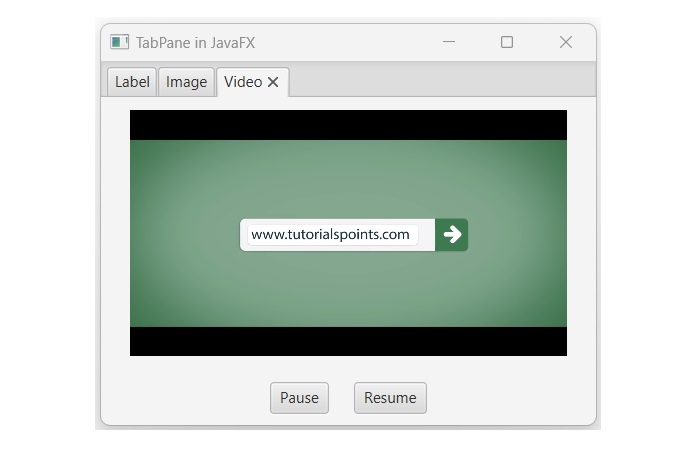
當我們執行上述程式碼時,它將生成一個包含三個選項卡的 TabPane,分別命名為 Label、Image 和 Video。