
- JavaFX 教程
- JavaFX - 首頁
- JavaFX - 概述
- JavaFX 安裝和架構
- JavaFX - 環境
- JavaFX - 使用 Netbeans 安裝
- JavaFX - 使用 Eclipse 安裝
- JavaFX - 使用 Visual Studio Code 安裝
- JavaFX - 架構
- JavaFX - 應用
- JavaFX 二維形狀
- JavaFX - 二維形狀
- JavaFX - 繪製直線
- JavaFX - 繪製矩形
- JavaFX - 繪製圓角矩形
- JavaFX - 繪製圓形
- JavaFX - 繪製橢圓
- JavaFX - 繪製多邊形
- JavaFX - 繪製折線
- JavaFX - 繪製三次貝塞爾曲線
- JavaFX - 繪製二次貝塞爾曲線
- JavaFX - 繪製弧形
- JavaFX - 繪製 SVGPath
- JavaFX 二維物件的屬性
- JavaFX - 描邊型別屬性
- JavaFX - 描邊寬度屬性
- JavaFX - 描邊填充屬性
- JavaFX - 描邊屬性
- JavaFX - 描邊連線屬性
- JavaFX - 描邊斜接限制屬性
- JavaFX - 描邊端點屬性
- JavaFX - 平滑屬性
- JavaFX 路徑物件
- JavaFX - 路徑物件
- JavaFX - LineTo 路徑物件
- JavaFX - HLineTo 路徑物件
- JavaFX - VLineTo 路徑物件
- JavaFX - QuadCurveTo 路徑物件
- JavaFX - CubicCurveTo 路徑物件
- JavaFX - ArcTo 路徑物件
- JavaFX 顏色和紋理
- JavaFX - 顏色
- JavaFX - 線性漸變圖案
- JavaFX - 徑向漸變圖案
- JavaFX 文字
- JavaFX - 文字
- JavaFX 效果
- JavaFX - 效果
- JavaFX - 顏色調整效果
- JavaFX - 顏色輸入效果
- JavaFX - 圖片輸入效果
- JavaFX - 混合效果
- JavaFX - 光暈效果
- JavaFX - 輝光效果
- JavaFX - 方框模糊效果
- JavaFX - 高斯模糊效果
- JavaFX - 運動模糊效果
- JavaFX - 反射效果
- JavaFX - 棕褐色調效果
- JavaFX - 陰影效果
- JavaFX - 投影陰影效果
- JavaFX - 內陰影效果
- JavaFX - 光照效果
- JavaFX - Light.Distant 效果
- JavaFX - Light.Spot 效果
- JavaFX - Point.Spot 效果
- JavaFX - 位移貼圖
- JavaFX - 透視變換
- JavaFX 動畫
- JavaFX - 動畫
- JavaFX - 旋轉動畫
- JavaFX - 縮放動畫
- JavaFX - 平移動畫
- JavaFX - 淡入淡出動畫
- JavaFX - 填充動畫
- JavaFX - 描邊動畫
- JavaFX - 順序動畫
- JavaFX - 並行動畫
- JavaFX - 暫停動畫
- JavaFX - 路徑動畫
- JavaFX 圖片
- JavaFX - 圖片
- JavaFX 三維形狀
- JavaFX - 三維形狀
- JavaFX - 建立長方體
- JavaFX - 建立圓柱體
- JavaFX - 建立球體
- JavaFX 事件處理
- JavaFX - 事件處理
- JavaFX - 使用便捷方法
- JavaFX - 事件過濾器
- JavaFX - 事件處理器
- JavaFX UI 控制元件
- JavaFX - UI 控制元件
- JavaFX - 列表檢視
- JavaFX - 手風琴
- JavaFX - 按鈕欄
- JavaFX - 選擇框
- JavaFX - HTMLEditor
- JavaFX - 選單欄
- JavaFX - 分頁
- JavaFX - 進度指示器
- JavaFX - 滾動窗格
- JavaFX - 分隔符
- JavaFX - 滑塊
- JavaFX - 微調器
- JavaFX - 分割窗格
- JavaFX - 表格檢視
- JavaFX - 標籤頁窗格
- JavaFX - 工具欄
- JavaFX - 樹檢視
- JavaFX - 標籤
- JavaFX - 複選框
- JavaFX - 單選按鈕
- JavaFX - 文字欄位
- JavaFX - 密碼欄位
- JavaFX - 檔案選擇器
- JavaFX - 超連結
- JavaFX - 工具提示
- JavaFX - 警報框
- JavaFX - 日期選擇器
- JavaFX - 文字區域
- JavaFX 圖表
- JavaFX - 圖表
- JavaFX - 建立餅圖
- JavaFX - 建立折線圖
- JavaFX - 建立面積圖
- JavaFX - 建立條形圖
- JavaFX - 建立氣泡圖
- JavaFX - 建立散點圖
- JavaFX - 建立堆疊面積圖
- JavaFX - 建立堆疊條形圖
- JavaFX 佈局面板
- JavaFX - 佈局面板
- JavaFX - HBox 佈局
- JavaFX - VBox 佈局
- JavaFX - BorderPane 佈局
- JavaFX - StackPane 佈局
- JavaFX - TextFlow 佈局
- JavaFX - AnchorPane 佈局
- JavaFX - TilePane 佈局
- JavaFX - GridPane 佈局
- JavaFX - FlowPane 佈局
- JavaFX CSS
- JavaFX - CSS
- JavaFX 多媒體
- JavaFX - 處理多媒體
- JavaFX - 播放影片
- JavaFX 有用資源
- JavaFX - 快速指南
- JavaFX - 有用資源
- JavaFX - 討論
JavaFX - 切變變換
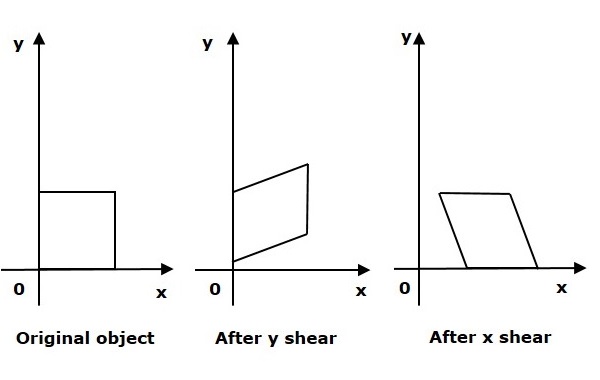
使物件形狀傾斜的變換稱為切變變換。有兩種切變變換,**X 切變**和**Y 切變**。一種移動 X 座標值,另一種移動 Y 座標值。但是,在這兩種情況下,只有一個座標改變其座標,另一個座標保持其值不變。切變也稱為**傾斜**。
示例 1
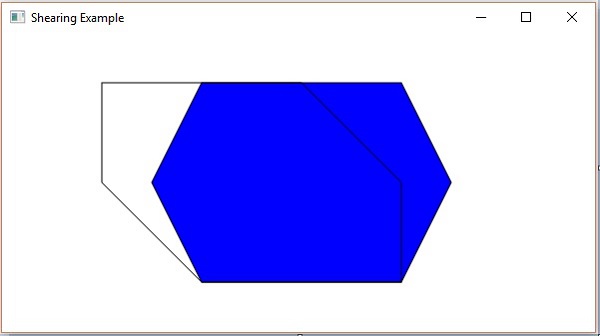
以下是演示 JavaFX 中切變變換的程式。在這裡,我們在相同位置建立了 2 個多邊形(節點),具有相同的尺寸,但顏色不同(藍色和透明)。我們還在透明多邊形上應用了切變變換。
將此程式碼儲存在名為 **XShearingExample.java** 的檔案中。
import javafx.application.Application;
import javafx.scene.Group;
import javafx.scene.Scene;
import javafx.scene.paint.Color;
import javafx.scene.shape.Polygon;
import javafx.scene.transform.Shear;
import javafx.stage.Stage;

public class XShearingExample extends Application {
   @Override
   public void start(Stage stage) {
      Polygon hexagon1 = new Polygon();

      //Adding coordinates to the hexagon
      hexagon1.getPoints().addAll(new Double[]{
         200.0, 50.0,
         400.0, 50.0,
         450.0, 150.0,
         400.0, 250.0,
         200.0, 250.0,
         150.0, 150.0,
      });
      //Setting the fill color for the hexagon
      hexagon1.setFill(Color.BLUE);

      hexagon1.setStroke(Color.BLACK);
      Polygon hexagon2 = new Polygon();

      //Adding coordinates to the hexagon
      hexagon2.getPoints().addAll(new Double[]{
         200.0, 50.0,
         400.0, 50.0,
         450.0, 150.0,
         400.0, 250.0,
         200.0, 250.0,
         150.0, 150.0,
      });
      //Setting the fill color for the hexagon
      hexagon2.setFill(Color.TRANSPARENT);
      hexagon2.setStroke(Color.BLACK);

      //Creating shear transformation
      Shear shear = new Shear();

      //Setting the pivot points
      shear.setPivotX(200);
      shear.setPivotY(250);

      //Setting the dimensions for the shear
      shear.setX(0.5);
      shear.setY(0.0);

      //Adding the transformation to the polygon
      hexagon2.getTransforms().addAll(shear);

      //Creating a Group object
      Group root = new Group(hexagon1, hexagon2);

      //Creating a scene object
      Scene scene = new Scene(root, 600, 300);

      //Setting title to the Stage
      stage.setTitle("Shearing Example ");

      //Adding scene to the stage
      stage.setScene(scene);

      //Displaying the contents of the stage
      stage.show();
   }
   public static void main(String args[]){
      launch(args);
   }
}
使用以下命令從命令提示符編譯並執行儲存的 java 檔案。
javac --module-path %PATH_TO_FX% --add-modules javafx.controls XShearingExample.java
java --module-path %PATH_TO_FX% --add-modules javafx.controls XShearingExample
輸出
執行後,上述程式將生成如下所示的 JavaFX 視窗。
示例 2
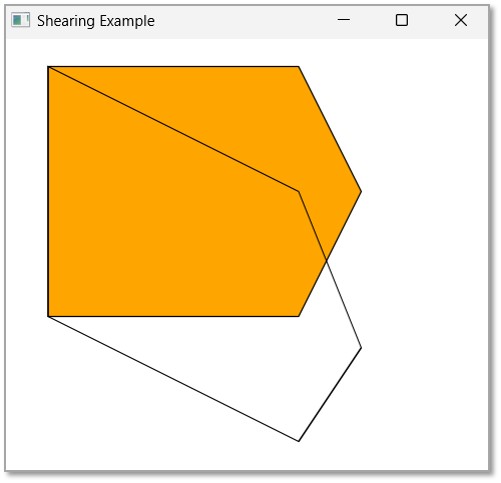
在前面的示例中,我們已經看到了如何透過相對於 X 軸傾斜六邊形來執行 X 切變。在本例中,讓我們看看對另一個 JavaFX 二維形狀(例如五邊形)執行 Y 切變。
將此程式碼儲存在名為 **YShearingExample.java** 的檔案中。
import javafx.application.Application;
import javafx.scene.Group;
import javafx.scene.Scene;
import javafx.scene.paint.Color;
import javafx.scene.shape.Polygon;
import javafx.scene.transform.Shear;
import javafx.stage.Stage;

public class YShearingExample extends Application {
   @Override
   public void start(Stage stage) {
      Polygon pentagon1 = new Polygon();

      //Adding coordinates to the pentagon
      pentagon1.getPoints().addAll(new Double[]{
         200.0, 50.0,
         400.0, 50.0,
         450.0, 150.0,
         400.0, 250.0,
         200.0, 250.0,
      });
      //Setting the fill color for the pentagon
      pentagon1.setFill(Color.ORANGE);

      pentagon1.setStroke(Color.BLACK);
      Polygon pentagon2 = new Polygon();

      //Adding coordinates to the pentagon
      pentagon2.getPoints().addAll(new Double[]{
         200.0, 50.0,
         400.0, 50.0,
         450.0, 150.0,
         400.0, 250.0,
         200.0, 250.0,
      });
      //Setting the fill color for the pentagon
      pentagon2.setFill(Color.TRANSPARENT);
      pentagon2.setStroke(Color.BLACK);

      //Creating shear transformation
      Shear shear = new Shear();

      //Setting the pivot points
      shear.setPivotX(200);
      shear.setPivotY(250);

      //Setting the dimensions for the shear
      shear.setX(0.0);
      shear.setY(0.5);

      //Adding the transformation to the polygon
      pentagon2.getTransforms().addAll(shear);

      //Creating a Group object
      Group root = new Group(pentagon1, pentagon2);

      //Creating a scene object
      Scene scene = new Scene(root, 600, 400);

      //Setting title to the Stage
      stage.setTitle("Shearing Example ");

      //Adding scene to the stage
      stage.setScene(scene);

      //Displaying the contents of the stage
      stage.show();
   }
   public static void main(String args[]){
      launch(args);
   }
}
使用以下命令從命令提示符編譯並執行儲存的 java 檔案。
javac --module-path %PATH_TO_FX% --add-modules javafx.controls YShearingExample.java
java --module-path %PATH_TO_FX% --add-modules javafx.controls YShearingExample
輸出
執行後,上述程式將生成如下所示的 JavaFX 視窗。
廣告