- Mahotas 教程
- Mahotas - 首頁
- Mahotas - 簡介
- Mahotas - 計算機視覺
- Mahotas - 歷史
- Mahotas - 特性
- Mahotas - 安裝
- Mahotas 處理影像
- Mahotas - 處理影像
- Mahotas - 載入影像
- Mahotas - 載入灰度影像
- Mahotas - 顯示影像
- Mahotas - 顯示影像形狀
- Mahotas - 儲存影像
- Mahotas - 影像的質心
- Mahotas - 影像卷積
- Mahotas - 建立 RGB 影像
- Mahotas - 影像的尤拉數
- Mahotas - 影像中零值的比例
- Mahotas - 獲取影像矩
- Mahotas - 影像中的區域性最大值
- Mahotas - 影像橢圓軸
- Mahotas - 影像拉伸 RGB
- Mahotas 顏色空間轉換
- Mahotas - 顏色空間轉換
- Mahotas - RGB 到灰度轉換
- Mahotas - RGB 到 LAB 轉換
- Mahotas - RGB 到 Sepia 轉換
- Mahotas - RGB 到 XYZ 轉換
- Mahotas - XYZ 到 LAB 轉換
- Mahotas - XYZ 到 RGB 轉換
- Mahotas - 增加伽馬校正
- Mahotas - 拉伸伽馬校正
- Mahotas 標記影像函式
- Mahotas - 標記影像函式
- Mahotas - 標記影像
- Mahotas - 過濾區域
- Mahotas - 邊界畫素
- Mahotas - 形態學操作
- Mahotas - 形態學運算元
- Mahotas - 查詢影像均值
- Mahotas - 裁剪影像
- Mahotas - 影像的偏心率
- Mahotas - 疊加影像
- Mahotas - 影像的圓度
- Mahotas - 調整影像大小
- Mahotas - 影像的直方圖
- Mahotas - 膨脹影像
- Mahotas - 腐蝕影像
- Mahotas - 分水嶺演算法
- Mahotas - 影像的開運算
- Mahotas - 影像的閉運算
- Mahotas - 填充影像中的孔洞
- Mahotas - 條件膨脹影像
- Mahotas - 條件腐蝕影像
- Mahotas - 影像的條件分水嶺演算法
- Mahotas - 影像中的區域性最小值
- Mahotas - 影像的區域最大值
- Mahotas - 影像的區域最小值
- Mahotas - 高階概念
- Mahotas - 影像閾值化
- Mahotas - 設定閾值
- Mahotas - 軟閾值
- Mahotas - Bernsen 區域性閾值化
- Mahotas - 小波變換
- 製作影像小波中心
- Mahotas - 距離變換
- Mahotas - 多邊形實用程式
- Mahotas - 區域性二值模式
- 閾值鄰域統計
- Mahotas - Haralic 特徵
- 標記區域的權重
- Mahotas - Zernike 特徵
- Mahotas - Zernike 矩
- Mahotas - 排序濾波器
- Mahotas - 2D 拉普拉斯濾波器
- Mahotas - 多數濾波器
- Mahotas - 均值濾波器
- Mahotas - 中值濾波器
- Mahotas - Otsu 方法
- Mahotas - 高斯濾波
- Mahotas - 擊中與不擊中變換
- Mahotas - 標記最大陣列
- Mahotas - 影像的平均值
- Mahotas - SURF 密集點
- Mahotas - SURF 積分
- Mahotas - Haar 變換
- 突出顯示影像最大值
- 計算線性二值模式
- 獲取標籤的邊界
- 反轉 Haar 變換
- Riddler-Calvard 方法
- 標記區域的大小
- Mahotas - 模板匹配
- 加速魯棒特徵
- 刪除帶邊框的標記
- Mahotas - Daubechies 小波
- Mahotas - Sobel 邊緣檢測
Mahotas - 計算線性二值模式
線性二值模式 (LBP) 用於分析影像中的模式。它將影像中中心畫素的強度值與其相鄰畫素進行比較,並將結果編碼成二進位制模式(0 或 1)。
想象一下,您有一幅灰度影像,其中每個畫素代表從黑色到白色的灰色陰影。LBP 將影像劃分為小區域。
對於每個區域,它都會檢視中心畫素並將其亮度與相鄰畫素進行比較。
如果相鄰畫素的亮度高於或等於中心畫素,則將其分配值為 1;否則,將其分配值為 0。此過程對所有相鄰畫素重複,從而建立二進位制模式。
在 Mahotas 中計算線性二值模式
在 Mahotas 中,我們可以使用 **features.lbp()** 函式計算影像中的線性二值模式。該函式將中心畫素的亮度與其鄰居進行比較,並根據比較結果分配二進位制值(0 或 1)。
然後將這些二進位制值組合起來,建立描述每個區域紋理的二進位制模式。透過對所有區域執行此操作,將建立一個直方圖以統計影像中每個模式的出現次數。
直方圖有助於我們瞭解影像中紋理的分佈。
mahotas.features.lbp() 函式
mahotas.features.lbp() 函式將灰度影像作為輸入,並返回每個畫素的二進位制值。然後使用二進位制值建立線性二值模式的直方圖。
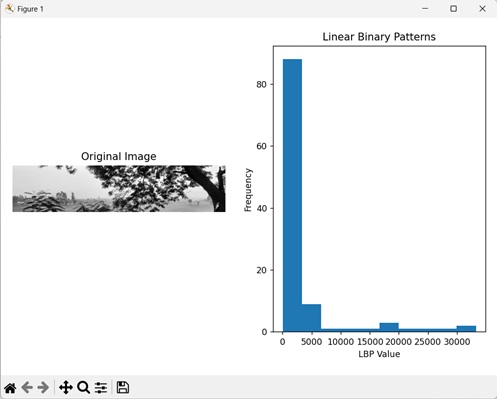
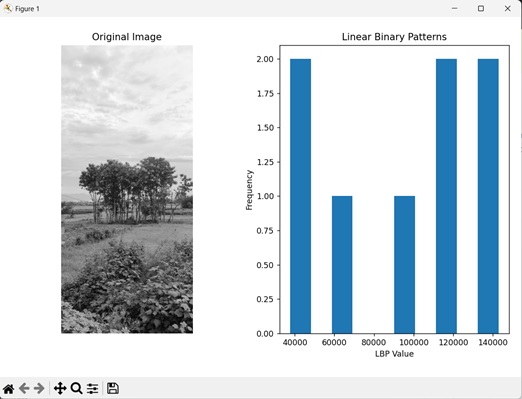
直方圖的 x 軸表示計算出的 LBP 值,而 y 軸表示 LBP 值的頻率。
語法
以下是 mahotas 中 lbp() 函式的基本語法:
mahotas.features.lbp(image, radius, points, ignore_zeros=False)
其中,
**image** - 輸入灰度影像。
**radius** - 指定用於比較畫素強度的區域的大小。
**points** - 確定計算每個畫素的 LBP 時應考慮的相鄰畫素數量。
**ignore_zeros (可選)** - 一個標誌,指定是否忽略零值畫素(預設值為 false)。
示例
在以下示例中,我們使用 mh.features.lbp() 函式計算線性二值模式。
import mahotas as mh
import numpy as np
import matplotlib.pyplot as mtplt
# Loading the image
image = mh.imread('nature.jpeg')
# Converting it to grayscale
image = mh.colors.rgb2gray(image)
# Computing linear binary patterns
lbp = mh.features.lbp(image, 5, 5)
# Creating a figure and axes for subplots
fig, axes = mtplt.subplots(1, 2)
# Displaying the original image
axes[0].imshow(image, cmap='gray')
axes[0].set_title('Original Image')
axes[0].set_axis_off()
# Displaying the linear binary patterns
axes[1].hist(lbp)
axes[1].set_title('Linear Binary Patterns')
axes[1].set_xlabel('LBP Value')
axes[1].set_ylabel('Frequency')
# Adjusting spacing between subplots
mtplt.tight_layout()
# Showing the figures
mtplt.show()
輸出
以下是上述程式碼的輸出:
忽略零值畫素
在計算線性二值模式時,我們可以忽略零值畫素。零值畫素是指強度值為 0 的畫素。
它們通常表示影像的背景,但也可能表示噪聲。在灰度影像中,零值畫素由顏色“黑色”表示。
在 mahotas 中,我們可以將 **ignore_zeros** 引數設定為布林值“True”以在 mh.features.lbp() 函式中排除零值畫素。
示例
以下示例顯示了透過忽略零值畫素計算線性二值模式。
import mahotas as mh
import numpy as np
import matplotlib.pyplot as mtplt
# Loading the image
image = mh.imread('sea.bmp')
# Converting it to grayscale
image = mh.colors.rgb2gray(image)
# Computing linear binary patterns
lbp = mh.features.lbp(image, 20, 10, ignore_zeros=True)
# Creating a figure and axes for subplots
fig, axes = mtplt.subplots(1, 2)
# Displaying the original image
axes[0].imshow(image, cmap='gray')
axes[0].set_title('Original Image')
axes[0].set_axis_off()
# Displaying the linear binary patterns
axes[1].hist(lbp)
axes[1].set_title('Linear Binary Patterns')
axes[1].set_xlabel('LBP Value')
axes[1].set_ylabel('Frequency')
# Adjusting spacing between subplots
mtplt.tight_layout()
# Showing the figures
mtplt.show()
輸出
上述程式碼的輸出如下:
特定區域的 LBP
我們還可以計算影像中特定區域的線性二值模式。特定區域是指具有任何尺寸的影像的一部分。可以透過裁剪原始影像獲得。
在 mahotas 中,要計算特定區域的線性二值模式,我們首先需要從影像中找到感興趣的區域。為此,我們分別為 x 和 y 座標指定起始和結束畫素值。然後,我們可以使用 lbp() 函式計算該區域的 LBP。
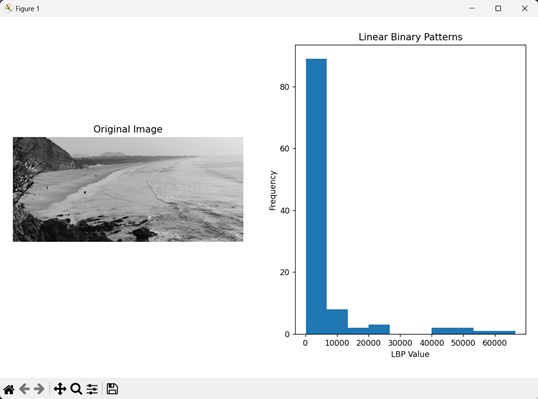
例如,如果我們將值指定為 [300:800],則該區域將從第 300 個畫素開始,並在垂直方向(y 軸)上一直延伸到第 800 個畫素。
示例
這裡,我們正在計算指定灰度影像的特定部分的 LBP。
import mahotas as mh
import numpy as np
import matplotlib.pyplot as mtplt
# Loading the image
image = mh.imread('tree.tiff')
# Converting it to grayscale
image = mh.colors.rgb2gray(image)
# Specifying a region of interest
image = image[300:800]
# Computing linear binary patterns
lbp = mh.features.lbp(image, 20, 10)
# Creating a figure and axes for subplots
fig, axes = mtplt.subplots(1, 2)
# Displaying the original image
axes[0].imshow(image, cmap='gray')
axes[0].set_title('Original Image')
axes[0].set_axis_off()
# Displaying the linear binary patterns
axes[1].hist(lbp)
axes[1].set_title('Linear Binary Patterns')
axes[1].set_xlabel('LBP Value')
axes[1].set_ylabel('Frequency')
# Adjusting spacing between subplots
mtplt.tight_layout()
# Showing the figures
mtplt.show()
輸出
執行上述程式碼後,我們將獲得以下輸出: