
- Android基礎
- Android - 首頁
- Android - 概述
- Android - 環境搭建
- Android - 架構
- Android - 應用元件
- Android - Hello World示例
- Android - 資源
- Android - 活動 (Activities)
- Android - 服務 (Services)
- Android - 廣播接收器 (Broadcast Receivers)
- Android - 內容提供器 (Content Providers)
- Android - 片段 (Fragments)
- Android - 意圖/過濾器 (Intents/Filters)
- Android - 使用者介面
- Android - UI佈局
- Android - UI控制元件
- Android - 事件處理
- Android - 樣式和主題
- Android - 自定義元件
- Android高階概念
- Android - 拖放
- Android - 通知
- 基於位置的服務
- Android - 傳送郵件
- Android - 傳送簡訊
- Android - 打電話
- 釋出Android應用程式
- Android實用示例
- Android - 警報對話方塊
- Android - 動畫
- Android - 音訊捕獲
- Android - AudioManager
- Android - 自動完成
- Android - 最佳實踐
- Android - 藍牙
- Android - 相機
- Android - 剪貼簿
- Android - 自定義字型
- Android - 資料備份
- Android - 開發者工具
- Android - 模擬器
- Android - Facebook整合
- Android - 手勢
- Android - Google地圖
- Android - 圖片特效
- Android - ImageSwitcher
- Android - 內部儲存
- Android - JetPlayer
- Android - JSON解析器
- Android - Linkedin整合
- Android - 載入動畫 (Loading Spinner)
- Android - 本地化
- Android - 登入介面
- Android - MediaPlayer
- Android - 多點觸控
- Android - 導航
- Android - 網路連線
- Android - NFC指南
- Android - PHP/MySQL
- Android - 圓形進度條 (Progress Circle)
- Android - 進度條 (ProgressBar)
- Android - 推送通知
- Android - RenderScript
- Android - RSS閱讀器
- Android - 螢幕錄製
- Android - SDK管理器
- Android - 感測器
- Android - 會話管理
- Android - Shared Preferences
- Android - SIP協議
- Android - 拼寫檢查器
- Android - SQLite資料庫
- Android - Support Library
- Android - 測試
- Android - 文字轉語音
- Android - TextureView
- Android - Twitter整合
- Android - UI設計
- Android - UI模式
- Android - UI測試
- Android - WebView佈局
- Android - Wi-Fi
- Android - 小部件 (Widgets)
- Android - XML解析器
- Android實用資源
- Android - 問答
- Android - 實用資源
- Android - 討論
Android - Twitter整合
Android允許您的應用程式連線到Twitter並分享資料或任何型別的Twitter更新。本章介紹如何將Twitter整合到您的應用程式中。
您可以透過兩種方式整合Twitter並從您的應用程式分享內容。這些方法列在下面:
- Twitter SDK (Twitter4J)
- Intent共享
整合Twitter SDK
這是連線Twitter的第一種方法。您必須註冊您的應用程式,然後接收一些應用程式ID,然後您必須下載Twitter SDK並將其新增到您的專案中。步驟如下:
註冊您的應用程式
在dev.twitter.com/apps/new建立一個新的Twitter應用程式,並填寫所有資訊。如下所示:
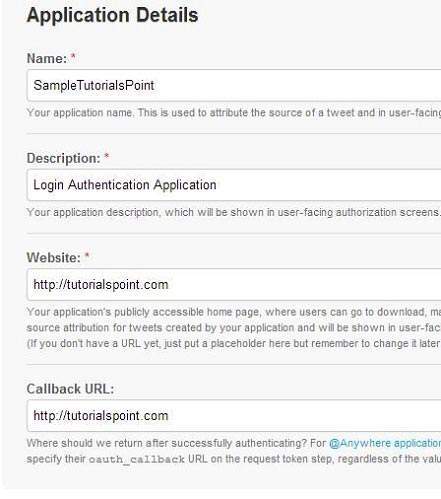
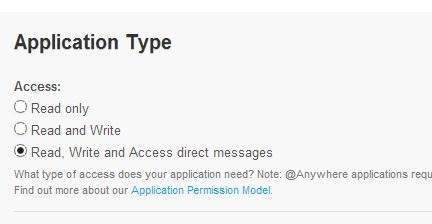
現在,在“設定”選項卡下,將訪問許可權更改為讀取、寫入和訪問訊息,然後儲存設定。如下所示:
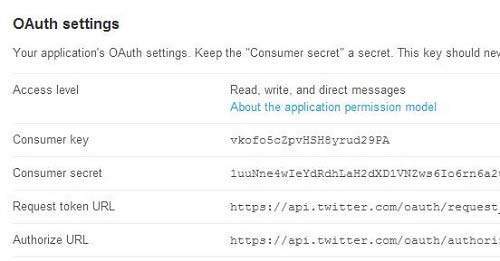
如果一切正常,您將收到一個帶有金鑰的消費者ID。只需複製應用程式ID並將其儲存到某個位置。如下圖所示:
下載SDK並整合它
從此處下載Twitter SDK here。將twitter4J jar複製到您的專案libs資料夾中。
在Twitter應用程式上釋出推文
一旦所有操作都完成,您可以執行Twitter 4J示例,這些示例可以在這裡找到 here。
為了使用Twitter,您需要例項化一個Twitter類的物件。這可以透過呼叫靜態方法**getsingleton()**來完成。其語法如下所示。
// The factory instance is re-usable and thread safe.
Twitter twitter = TwitterFactory.getSingleton();
為了更新狀態,您可以呼叫updateStatus()方法。其語法如下:
Status status = twitter.updateStatus(latestStatus);
System.out.println("Successfully updated the status to [" + status.getText() + "].");
Intent共享
Intent共享用於在應用程式之間共享資料。在這種策略中,我們不會處理SDK內容,而是讓Twitter應用程式處理它。我們將簡單地呼叫Twitter應用程式並將資料傳遞給它。透過這種方式,我們可以在Twitter上分享內容。
Android提供Intent庫來在活動和應用程式之間共享資料。為了將其用作共享Intent,我們必須將共享Intent的型別指定為**ACTION_SEND**。其語法如下所示:
Intent shareIntent = new Intent();
shareIntent.setAction(Intent.ACTION_SEND);
接下來,您需要定義要傳遞的資料型別,然後傳遞資料。其語法如下所示:
shareIntent.setType("text/plain");
shareIntent.putExtra(Intent.EXTRA_TEXT, "Hello, from tutorialspoint");
startActivity(Intent.createChooser(shareIntent, "Share your thoughts"));
除了這些方法外,還有其他可用的方法允許Intent處理。它們列在下面:
| 序號 | 方法及描述 |
|---|---|
| 1 |
addCategory(String category) 此方法向Intent新增一個新類別。 |
| 2 |
createChooser(Intent target, CharSequence title) 用於建立ACTION_CHOOSER Intent的便捷函式 |
| 3 |
getAction() 此方法檢索要執行的常規操作,例如ACTION_VIEW |
| 4 |
getCategories() 此方法返回Intent中所有類別的集合和當前縮放事件 |
| 5 |
putExtra(String name, int value) 此方法向Intent新增擴充套件資料。 |
| 6 |
toString() 此方法返回一個字串,其中包含對此物件的簡潔、易於理解的描述 |
示例
這是一個演示使用Intent共享在Twitter上共享資料的示例。它建立一個基本的應用程式,允許您在Twitter上分享一些文字。
要嘗試此示例,您可以在實際裝置或模擬器上執行它。
| 步驟 | 描述 |
|---|---|
| 1 | 您將使用Android Studio在com.example.sairamkrishna.myapplication包下建立一個Android應用程式。 |
| 2 | 修改src/MainActivity.java檔案以新增必要的程式碼。 |
| 3 | 修改res/layout/activity_main以新增相應的XML元件 |
| 4 | 執行應用程式並選擇一個正在執行的Android裝置,將應用程式安裝在其上並驗證結果 |
以下是修改後的**MainActivity.java**的內容。
package com.example.sairamkrishna.myapplication;

import android.content.Intent;
import android.net.Uri;
import android.support.v7.app.ActionBarActivity;
import android.os.Bundle;
import android.view.View;

import android.widget.Button;
import android.widget.ImageView;
import java.io.FileNotFoundException;
import java.io.InputStream;

public class MainActivity extends ActionBarActivity {
   private ImageView img;
   protected void onCreate(Bundle savedInstanceState) {
      super.onCreate(savedInstanceState);
      setContentView(R.layout.activity_main);

      img=(ImageView)findViewById(R.id.imageView);
      Button b1=(Button)findViewById(R.id.button);

      b1.setOnClickListener(new View.OnClickListener() {
         @Override
         public void onClick(View v) {
            Intent sharingIntent = new Intent(Intent.ACTION_SEND);
            Uri screenshotUri = Uri.parse("android.resource://comexample.sairamkrishna.myapplication/*");

            try {
               InputStream stream = getContentResolver().openInputStream(screenshotUri);
            } catch (FileNotFoundException e) {
               // TODO Auto-generated catch block
               e.printStackTrace();
            }
               sharingIntent.setType("image/jpeg");
               sharingIntent.putExtra(Intent.EXTRA_STREAM, screenshotUri);
               startActivity(Intent.createChooser(sharingIntent, "Share image using"));
         }
      });
   }
}
以下是修改後的xml **res/layout/activity_main.xml**的內容。
<?xml version="1.0" encoding="utf-8"?>
<RelativeLayout xmlns:android="http://schemas.android.com/apk/res/android"
   xmlns:tools="http://schemas.android.com/tools" android:layout_width="match_parent"
   android:layout_height="match_parent"
   android:paddingLeft="@dimen/activity_horizontal_margin"
   android:paddingRight="@dimen/activity_horizontal_margin"
   android:paddingTop="@dimen/activity_vertical_margin"
   android:paddingBottom="@dimen/activity_vertical_margin" tools:context=".MainActivity">

   <TextView
      android:layout_width="wrap_content"
      android:layout_height="wrap_content"
      android:id="@+id/textView"
      android:layout_alignParentTop="true"
      android:layout_centerHorizontal="true"
      android:textSize="30dp"
      android:text="Twitter share " />

   <TextView
      android:layout_width="wrap_content"
      android:layout_height="wrap_content"
      android:text="Tutorials Point"
      android:id="@+id/textView2"
      android:layout_below="@+id/textView"
      android:layout_centerHorizontal="true"
      android:textSize="35dp"
      android:textColor="#ff16ff01" />

   <ImageView
      android:layout_width="wrap_content"
      android:layout_height="wrap_content"
      android:id="@+id/imageView"
      android:layout_below="@+id/textView2"
      android:layout_centerHorizontal="true"
      android:src="@drawable/abc"/>

   <Button
      android:layout_width="wrap_content"
      android:layout_height="wrap_content"
      android:text="Share"
      android:id="@+id/button"
      android:layout_marginTop="61dp"
      android:layout_below="@+id/imageView"
      android:layout_centerHorizontal="true" />

</RelativeLayout>
以下是**AndroidManifest.xml**檔案的內容。
<?xml version="1.0" encoding="utf-8"?>
<manifest xmlns:android="http://schemas.android.com/apk/res/android"
   package="com.example.sairamkrishna.myapplication" >

   <application
      android:allowBackup="true"
      android:icon="@mipmap/ic_launcher"
      android:label="@string/app_name"
      android:theme="@style/AppTheme" >

      <activity
         android:name=".MainActivity"
         android:label="@string/app_name" >

         <intent-filter>
            <action android:name="android.intent.action.MAIN" />
            <category android:name="android.intent.category.LAUNCHER" />
         </intent-filter>

      </activity>

   </application>
</manifest>
讓我們嘗試執行您的應用程式。我假設您已將實際的Android移動裝置連線到您的計算機。要在Android Studio中執行應用程式,請開啟專案中的一個活動檔案,然後單擊工具欄中的執行 圖示。在啟動應用程式之前,Android Studio將顯示以下視窗,讓您選擇要在其中執行Android應用程式的選項。
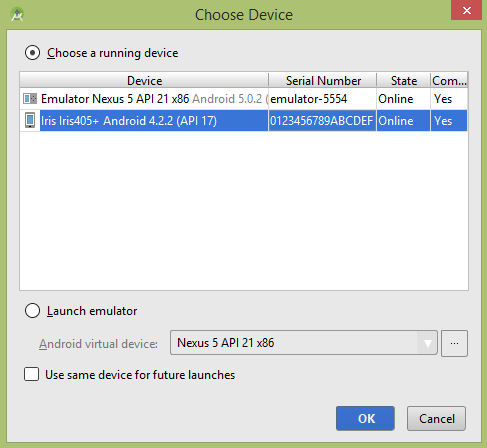
選擇您的移動裝置作為選項,然後檢查您的移動裝置,它將顯示您的預設螢幕:
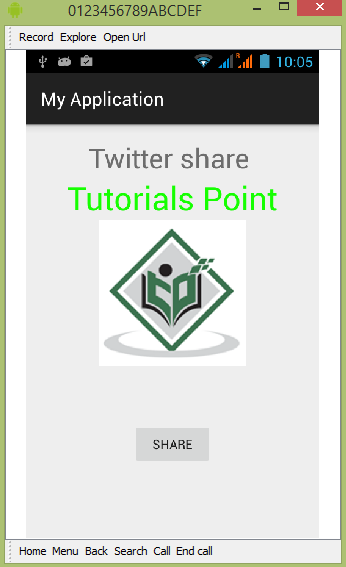
現在只需點選按鈕,您將看到一個共享提供程式列表。
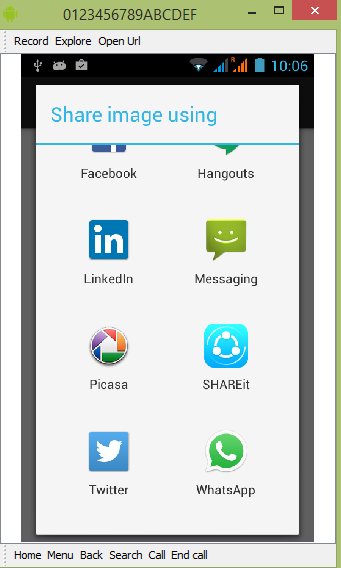
現在只需從該列表中選擇Twitter,然後寫下任何訊息。如下圖所示:
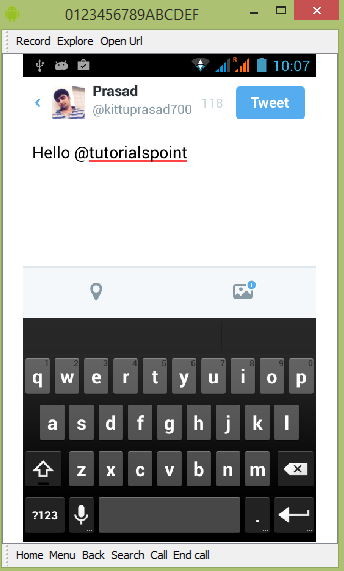
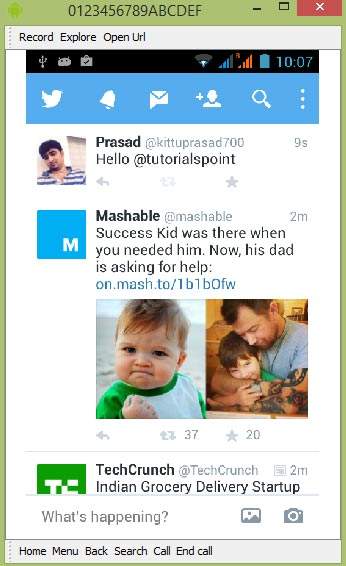
現在只需選擇“釋出”按鈕,它就會發布到您的Twitter頁面。如下所示: