

- Android 基礎
- Android - 首頁
- Android - 概覽
- Android - 環境搭建
- Android - 架構
- Android - 應用元件
- Android - Hello World 示例
- Android - 資源
- Android - 活動(Activity)
- Android - 服務(Service)
- Android - 廣播接收器(Broadcast Receiver)
- Android - 內容提供器(Content Provider)
- Android - 碎片(Fragment)
- Android - 意圖/過濾器(Intents/Filters)
- Android - 使用者介面
- Android - UI 佈局
- Android - UI 控制元件
- Android - 事件處理
- Android - 樣式和主題
- Android - 自定義元件
- Android 高階概念
- Android - 拖放
- Android - 通知
- 基於位置的服務
- Android - 傳送電子郵件
- Android - 傳送簡訊
- Android - 電話呼叫
- 釋出 Android 應用
- Android 實用示例
- Android - 警報對話方塊
- Android - 動畫
- Android - 音訊捕獲
- Android - AudioManager
- Android - 自動完成
- Android - 最佳實踐
- Android - 藍牙
- Android - 相機
- Android - 剪貼簿
- Android - 自定義字型
- Android - 資料備份
- Android - 開發者工具
- Android - 模擬器
- Android - Facebook 整合
- Android - 手勢
- Android - Google 地圖
- Android - 影像特效
- Android - ImageSwitcher
- Android - 內部儲存
- Android - JetPlayer
- Android - JSON 解析器
- Android - LinkedIn 整合
- Android - 載入 Spinne
- Android - 本地化
- Android - 登入螢幕
- Android - MediaPlayer
- Android - 多點觸控
- Android - 導航
- Android - 網路連線
- Android - NFC 指南
- Android - PHP/MySQL
- Android - 進度圓圈
- Android - 進度條
- Android - 推送通知
- Android - RenderScript
- Android - RSS 閱讀器
- Android - 螢幕錄製
- Android - SDK 管理器
- Android - 感測器
- Android - 會話管理
- Android - 共享首選項
- Android - SIP 協議
- Android - 拼寫檢查器
- Android - SQLite 資料庫
- Android - 支援庫
- Android - 測試
- Android - 文字轉語音
- Android - TextureView
- Android - Twitter 整合
- Android - UI 設計
- Android - UI 模式
- Android - UI 測試
- Android - WebView 佈局
- Android - Wi-Fi
- Android - 小部件
- Android - XML 解析器
- Android 實用資源
- Android - 問答
- Android - 實用資源
- Android - 討論
Android - MediaPlayer
Android 提供了許多控制音訊/影片檔案和流媒體播放的方法。其中一種方法是透過一個名為 **MediaPlayer** 的類。
Android 提供了 MediaPlayer 類來訪問內建的媒體播放器服務,例如播放音訊、影片等。為了使用 MediaPlayer,我們必須呼叫該類的靜態方法 **create()**。此方法返回 MediaPlayer 類的例項。其語法如下所示:
MediaPlayer mediaPlayer = MediaPlayer.create(this, R.raw.song);
第二個引數是要播放的歌曲的名稱。您必須在專案下建立一個名為 **raw** 的新資料夾,並將音樂檔案放入其中。
建立 Mediaplayer 物件後,您可以呼叫一些方法來啟動或停止音樂。這些方法列在下面。
mediaPlayer.start();
mediaPlayer.pause();
呼叫 **start()** 方法後,音樂將從頭開始播放。如果在 **pause()** 方法之後再次呼叫此方法,則音樂將從停止的地方繼續播放,而不是從頭開始。
為了從頭開始播放音樂,您必須呼叫 **reset()** 方法。其語法如下所示:
mediaPlayer.reset();
除了 start 和 pause 方法外,此類還提供了其他方法來更好地處理音訊/影片檔案。這些方法列在下面:
| 序號 | 方法及描述 |
|---|---|
| 1 |
isPlaying() 此方法僅返回 true/false,指示歌曲是否正在播放 |
| 2 |
seekTo(position) 此方法接收一個整數,並將歌曲移動到該特定位置(毫秒) |
| 3 |
getCurrentPosition() 此方法返回歌曲的當前位置(毫秒) |
| 4 |
getDuration() 此方法返回歌曲的總持續時間(毫秒) |
| 5 |
reset() 此方法重置媒體播放器 |
| 6 |
release() 此方法釋放與 MediaPlayer 物件關聯的任何資源 |
| 7 |
setVolume(float leftVolume, float rightVolume) 此方法設定此播放器的左右音量 |
| 8 |
setDataSource(FileDescriptor fd) 此方法設定音訊/影片檔案的來源 |
| 9 |
selectTrack(int index) 此方法接收一個整數,並從列表中選擇該特定索引處的軌道 |
| 10 |
getTrackInfo() 此方法返回一個軌道資訊陣列 |
示例
這是一個演示 MediaPlayer 類用法的示例。它建立了一個基本的媒體播放器,允許您快進、快退、播放和暫停歌曲。
要嘗試此示例,您需要在實際裝置上執行它才能聽到音訊聲音。
| 步驟 | 描述 |
|---|---|
| 1 | 您將使用 Android Studio IDE 在包 com.example.sairamkrishna.myapplication 下建立一個 Android 應用。 |
| 2 | 修改 src/MainActivity.java 檔案以新增 MediaPlayer 程式碼。 |
| 3 | 修改 res/layout/activity_main 以新增相應的 XML 元件 |
| 4 | 在 MediaPlayer 下建立一個名為 raw 的新資料夾,並將一個名為 song.mp3 的 mp3 音樂檔案放入其中 |
| 5 | 執行應用並選擇一個正在執行的 Android 裝置,將應用安裝到裝置上並驗證結果 |
以下是修改後的主活動檔案 **src/MainActivity.java** 的內容。
package com.example.sairamkrishna.myapplication;

import android.app.Activity;
import android.media.MediaPlayer;
import android.os.Bundle;
import android.os.Handler;
import android.view.View;

import android.widget.Button;
import android.widget.ImageView;
import android.widget.SeekBar;
import android.widget.TextView;
import android.widget.Toast;
import java.util.concurrent.TimeUnit;


public class MainActivity extends Activity {
   private Button b1,b2,b3,b4;
   private ImageView iv;
   private MediaPlayer mediaPlayer;

   private double startTime = 0;
   private double finalTime = 0;

   private Handler myHandler = new Handler();;
   private int forwardTime = 5000;
   private int backwardTime = 5000;
   private SeekBar seekbar;
   private TextView tx1,tx2,tx3;

   public static int oneTimeOnly = 0;
   @Override
   protected void onCreate(Bundle savedInstanceState) {
      super.onCreate(savedInstanceState);
      setContentView(R.layout.activity_main);

      b1 = (Button) findViewById(R.id.button);
      b2 = (Button) findViewById(R.id.button2);
      b3 = (Button)findViewById(R.id.button3);
      b4 = (Button)findViewById(R.id.button4);
      iv = (ImageView)findViewById(R.id.imageView);

      tx1 = (TextView)findViewById(R.id.textView2);
      tx2 = (TextView)findViewById(R.id.textView3);
      tx3 = (TextView)findViewById(R.id.textView4);
      tx3.setText("Song.mp3");

      mediaPlayer = MediaPlayer.create(this, R.raw.song);
      seekbar = (SeekBar)findViewById(R.id.seekBar);
      seekbar.setClickable(false);
      b2.setEnabled(false);

      b3.setOnClickListener(new View.OnClickListener() {
         @Override
         public void onClick(View v) {
            Toast.makeText(getApplicationContext(), "Playing
               sound",Toast.LENGTH_SHORT).show();
            mediaPlayer.start();

            finalTime = mediaPlayer.getDuration();
            startTime = mediaPlayer.getCurrentPosition();

            if (oneTimeOnly == 0) {
               seekbar.setMax((int) finalTime);
               oneTimeOnly = 1;
            }

            tx2.setText(String.format("%d min, %d sec",
               TimeUnit.MILLISECONDS.toMinutes((long) finalTime),
               TimeUnit.MILLISECONDS.toSeconds((long) finalTime) -
               TimeUnit.MINUTES.toSeconds(TimeUnit.MILLISECONDS.toMinutes((long)
                  finalTime)))
            );

            tx1.setText(String.format("%d min, %d sec",
               TimeUnit.MILLISECONDS.toMinutes((long) startTime),
               TimeUnit.MILLISECONDS.toSeconds((long) startTime) -
               TimeUnit.MINUTES.toSeconds(TimeUnit.MILLISECONDS.toMinutes((long)
                  startTime)))
            );

            seekbar.setProgress((int)startTime);
            myHandler.postDelayed(UpdateSongTime,100);
            b2.setEnabled(true);
            b3.setEnabled(false);
         }
      });

      b2.setOnClickListener(new View.OnClickListener() {
         @Override
         public void onClick(View v) {
            Toast.makeText(getApplicationContext(), "Pausing
               sound",Toast.LENGTH_SHORT).show();
            mediaPlayer.pause();
            b2.setEnabled(false);
            b3.setEnabled(true);
         }
      });

      b1.setOnClickListener(new View.OnClickListener() {
         @Override
         public void onClick(View v) {
            int temp = (int)startTime;

            if((temp+forwardTime)<=finalTime){
               startTime = startTime + forwardTime;
               mediaPlayer.seekTo((int) startTime);
               Toast.makeText(getApplicationContext(),"You have Jumped forward 5
                  seconds",Toast.LENGTH_SHORT).show();
            }else{
               Toast.makeText(getApplicationContext(),"Cannot jump forward 5
                  seconds",Toast.LENGTH_SHORT).show();
            }
         }
      });

      b4.setOnClickListener(new View.OnClickListener() {
         @Override
         public void onClick(View v) {
            int temp = (int)startTime;

            if((temp-backwardTime)>0){
               startTime = startTime - backwardTime;
               mediaPlayer.seekTo((int) startTime);
               Toast.makeText(getApplicationContext(),"You have Jumped backward 5
                  seconds",Toast.LENGTH_SHORT).show();
            }else{
               Toast.makeText(getApplicationContext(),"Cannot jump backward 5
                  seconds",Toast.LENGTH_SHORT).show();
            }
         }
      });
   }

   private Runnable UpdateSongTime = new Runnable() {
      public void run() {
         startTime = mediaPlayer.getCurrentPosition();
         tx1.setText(String.format("%d min, %d sec",
            TimeUnit.MILLISECONDS.toMinutes((long) startTime),
            TimeUnit.MILLISECONDS.toSeconds((long) startTime) -
            TimeUnit.MINUTES.toSeconds(TimeUnit.MILLISECONDS.
            toMinutes((long) startTime)))
         );
         seekbar.setProgress((int)startTime);
         myHandler.postDelayed(this, 100);
      }
   };
}
以下是修改後的 xml 檔案 **res/layout/activity_main.xml** 的內容。
在下面的程式碼中,**abc** 指示 tutorialspoint.com 的徽標
<?xml version="1.0" encoding="utf-8"?>
<RelativeLayout xmlns:android="http://schemas.android.com/apk/res/android"
   xmlns:tools="http://schemas.android.com/tools" android:layout_width="match_parent"
   android:layout_height="match_parent"
   android:paddingLeft="@dimen/activity_horizontal_margin"
   android:paddingRight="@dimen/activity_horizontal_margin"
   android:paddingTop="@dimen/activity_vertical_margin"
   android:paddingBottom="@dimen/activity_vertical_margin" tools:context=".MainActivity">

   <TextView android:text="Music Palyer" android:layout_width="wrap_content"
      android:layout_height="wrap_content"
      android:id="@+id/textview"
      android:textSize="35dp"
      android:layout_alignParentTop="true"
      android:layout_centerHorizontal="true" />

   <TextView
      android:layout_width="wrap_content"
      android:layout_height="wrap_content"
      android:text="Tutorials point"
      android:id="@+id/textView"
      android:layout_below="@+id/textview"
      android:layout_centerHorizontal="true"
      android:textColor="#ff7aff24"
      android:textSize="35dp" />

   <ImageView
      android:layout_width="wrap_content"
      android:layout_height="wrap_content"
      android:id="@+id/imageView"
      android:layout_below="@+id/textView"
      android:layout_centerHorizontal="true"
      android:src="@drawable/abc"/>

   <Button
      android:layout_width="wrap_content"
      android:layout_height="wrap_content"
      android:text="@string/forward"
      android:id="@+id/button"
      android:layout_alignParentBottom="true"
      android:layout_alignParentLeft="true"
      android:layout_alignParentStart="true" />

   <Button
      android:layout_width="wrap_content"
      android:layout_height="wrap_content"
      android:text="@string/pause"
      android:id="@+id/button2"
      android:layout_alignParentBottom="true"
      android:layout_alignLeft="@+id/imageView"
      android:layout_alignStart="@+id/imageView" />

   <Button
      android:layout_width="wrap_content"
      android:layout_height="wrap_content"
      android:text="@string/back"
      android:id="@+id/button3"
      android:layout_alignTop="@+id/button2"
      android:layout_toRightOf="@+id/button2"
      android:layout_toEndOf="@+id/button2" />

   <Button
      android:layout_width="wrap_content"
      android:layout_height="wrap_content"
      android:text="@string/rewind"
      android:id="@+id/button4"
      android:layout_alignTop="@+id/button3"
      android:layout_toRightOf="@+id/button3"
      android:layout_toEndOf="@+id/button3" />

   <SeekBar
      android:layout_width="wrap_content"
      android:layout_height="wrap_content"
      android:id="@+id/seekBar"
      android:layout_alignLeft="@+id/textview"
      android:layout_alignStart="@+id/textview"
      android:layout_alignRight="@+id/textview"
      android:layout_alignEnd="@+id/textview"
      android:layout_above="@+id/button" />

   <TextView
      android:layout_width="wrap_content"
      android:layout_height="wrap_content"
      android:textAppearance="?android:attr/textAppearanceSmall"
      android:text="Small Text"
      android:id="@+id/textView2"
      android:layout_above="@+id/seekBar"
      android:layout_toLeftOf="@+id/textView"
      android:layout_toStartOf="@+id/textView" />

   <TextView
      android:layout_width="wrap_content"
      android:layout_height="wrap_content"
      android:textAppearance="?android:attr/textAppearanceSmall"
      android:text="Small Text"
      android:id="@+id/textView3"
      android:layout_above="@+id/seekBar"
      android:layout_alignRight="@+id/button4"
      android:layout_alignEnd="@+id/button4" />

   <TextView
      android:layout_width="wrap_content"
      android:layout_height="wrap_content"
      android:textAppearance="?android:attr/textAppearanceMedium"
      android:text="Medium Text"
      android:id="@+id/textView4"
      android:layout_alignBaseline="@+id/textView2"
      android:layout_alignBottom="@+id/textView2"
      android:layout_centerHorizontal="true" />

</RelativeLayout>
以下是 **res/values/string.xml** 的內容。
<resources>
   <string name="app_name">My Application</string>
   <string name="back"><![CDATA[<]]></string>
   <string name="rewind"><![CDATA[<<]]></string>
   <string name="forward"><![CDATA[>>]]></string>
   <string name="pause">||</string>
</resources>
以下是 **AndroidManifest.xml** 檔案的內容。
<?xml version="1.0" encoding="utf-8"?>
<manifest xmlns:android="http://schemas.android.com/apk/res/android"
   package="com.example.sairamkrishna.myapplication" >

   <application
      android:allowBackup="true"
      android:icon="@drawable/ic_launcher"
      android:label="@string/app_name"
      android:theme="@style/AppTheme" >

      <activity
         android:name="com.example.sairamkrishna.myapplication.MainActivity"
         android:label="@string/app_name" >

         <intent-filter>
            <action android:name="android.intent.action.MAIN" />
            <category android:name="android.intent.category.LAUNCHER" />
         </intent-filter>

      </activity>

   </application>
</manifest>
讓我們嘗試執行您的應用。我假設您已將您的實際 Android 手機裝置連線到您的計算機。要從 Eclipse 執行應用,請開啟專案中的一個活動檔案,然後單擊工具欄中的執行  圖示。在啟動應用之前,Android Studio 將顯示以下螢幕
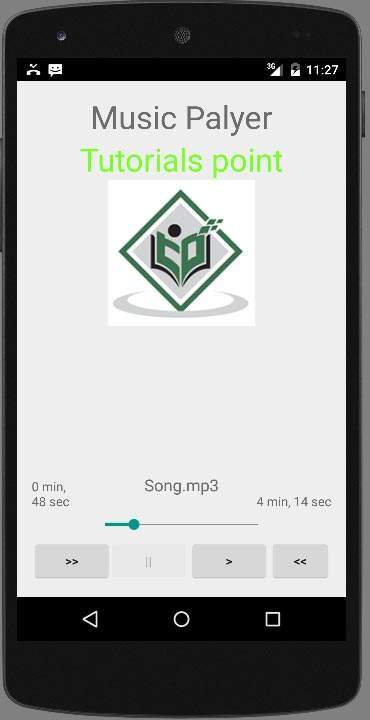
預設情況下,您會看到暫停按鈕處於停用狀態。現在按播放按鈕,它將變為停用狀態,暫停按鈕將變為啟用狀態。如下面的圖片所示:
到目前為止,音樂一直在播放。現在按暫停按鈕,檢視暫停通知。如下所示:

現在,當您再次按下播放按鈕時,歌曲將不會從頭開始播放,而是從暫停的地方繼續播放。現在按快進或快退按鈕,將歌曲快進或快退 5 秒。當歌曲無法快進時,將出現通知,內容類似於:

當您在手機上執行其他任務時,您的音樂將繼續在後臺播放。要停止它,您必須從後臺活動退出此應用。

上圖顯示了當您選擇倒退按鈕時。