
- Android 基礎
- Android - 首頁
- Android - 概述
- Android - 環境設定
- Android - 架構
- Android - 應用程式元件
- Android - Hello World 示例
- Android - 資源
- Android - 活動
- Android - 服務
- Android - 廣播接收器
- Android - 內容提供程式
- Android - 碎片
- Android - 意圖/過濾器
- Android - 使用者介面
- Android - UI 佈局
- Android - UI 控制元件
- Android - 事件處理
- Android - 樣式和主題
- Android - 自定義元件
- Android 高階概念
- Android - 拖放
- Android - 通知
- 基於位置的服務
- Android - 傳送電子郵件
- Android - 傳送簡訊
- Android - 打電話
- 釋出 Android 應用程式
- Android 有用示例
- Android - 警報對話方塊
- Android - 動畫
- Android - 音訊捕獲
- Android - AudioManager
- Android - 自動完成
- Android - 最佳實踐
- Android - 藍牙
- Android - 相機
- Android - 剪貼簿
- Android - 自定義字型
- Android - 資料備份
- Android - 開發者工具
- Android - 模擬器
- Android - Facebook 整合
- Android - 手勢
- Android - Google 地圖
- Android - 影像特效
- Android - ImageSwitcher
- Android - 內部儲存
- Android - JetPlayer
- Android - JSON 解析器
- Android - Linkedin 整合
- Android - 載入微調器
- Android - 本地化
- Android - 登入螢幕
- Android - MediaPlayer
- Android - 多點觸控
- Android - 導航
- Android - 網路連線
- Android - NFC 指南
- Android - PHP/MySQL
- Android - 進度圓圈
- Android - 進度條
- Android - 推送通知
- Android - RenderScript
- Android - RSS 閱讀器
- Android - 螢幕錄製
- Android - SDK 管理器
- Android - 感測器
- Android - 會話管理
- Android - 共享首選項
- Android - SIP 協議
- Android - 拼寫檢查器
- Android - SQLite 資料庫
- Android - 支援庫
- Android - 測試
- Android - 文字轉語音
- Android - TextureView
- Android - Twitter 整合
- Android - UI 設計
- Android - UI 模式
- Android - UI 測試
- Android - WebView 佈局
- Android - Wi-Fi
- Android - 小部件
- Android - XML 解析器
- Android 有用資源
- Android - 問答
- Android - 有用資源
- Android - 討論
Android - 相機
以下兩種方法可以在應用程式中使用相機
在應用程式中使用現有的 Android 相機應用程式
在應用程式中直接使用 Android 提供的 Camera API
在應用程式中使用現有的 Android 相機應用程式
您將使用 MediaStore.ACTION_IMAGE_CAPTURE 啟動手機上安裝的現有相機應用程式。其語法如下所示
Intent intent = new Intent(android.provider.MediaStore.ACTION_IMAGE_CAPTURE);
除了上述內容外,MediaStore 還提供了其他可用的意圖。它們列出如下
| 序號 | 意圖型別和描述 |
|---|---|
| 1 |
ACTION_IMAGE_CAPTURE_SECURE 當裝置處於安全狀態時,它會返回從相機捕獲的影像 |
| 2 |
ACTION_VIDEO_CAPTURE 它呼叫 Android 中現有的影片應用程式來捕獲影片 |
| 3 |
EXTRA_SCREEN_ORIENTATION 它用於將螢幕方向設定為垂直或橫向 |
| 4 |
EXTRA_FULL_SCREEN 它用於控制 ViewImage 的使用者介面 |
| 5 |
INTENT_ACTION_VIDEO_CAMERA 此意圖用於以影片模式啟動相機 |
| 6 |
EXTRA_SIZE_LIMIT 它用於指定影片或影像捕獲大小的大小限制 |
現在,您將使用函式 startActivityForResult() 啟動此活動並等待其結果。其語法如下所示
startActivityForResult(intent,0)
此方法已在活動類中定義。我們從主活動中呼叫它。活動類中定義了一些執行相同工作的函式,但在您不是從活動而是從其他地方呼叫時使用。它們列出如下
| 序號 | 活動函式描述 |
|---|---|
| 1 |
startActivityForResult(Intent intent, int requestCode, Bundle options) 它啟動一個活動,但可以隨它一起攜帶額外的選項包 |
| 2 |
startActivityFromChild(Activity child, Intent intent, int requestCode) 當您的活動是其他任何活動的子活動時,它會啟動該活動 |
| 3 |
startActivityFromChild(Activity child, Intent intent, int requestCode, Bundle options) 它的工作方式與上面相同,但它可以隨它一起攜帶捆綁形式的額外值 |
| 4 |
startActivityFromFragment(Fragment fragment, Intent intent, int requestCode) 它從您當前所在的片段啟動活動 |
| 5 |
startActivityFromFragment(Fragment fragment, Intent intent, int requestCode, Bundle options) 它不僅從片段啟動活動,還可以隨它一起攜帶額外值 |
無論您使用哪個函式啟動活動,它們都會返回結果。可以透過覆蓋函式 onActivityResult 獲取結果。
示例
以下是一個示例,演示如何啟動現有的相機應用程式以捕獲影像並以點陣圖形式顯示結果。
要嘗試此示例,您需要在支援相機的實際裝置上執行它。
| 步驟 | 描述 |
|---|---|
| 1 | 您將使用 Android Studio IDE 建立一個 Android 應用程式,並在 com.example.sairamkrishna.myapplication 下將其命名為 Camera。 |
| 2 | 修改 src/MainActivity.java 檔案以新增啟動相機的意圖程式碼。 |
| 3 | 修改佈局 XML 檔案 res/layout/activity_main.xml |
| 4 | 新增相機許可權並執行應用程式,選擇正在執行的 Android 裝置並在其上安裝應用程式並驗證結果。 |
以下是修改後的主活動檔案 src/MainActivity.java 的內容。
package com.example.sairamkrishna.myapplication;

import android.Manifest;
import android.app.Activity;
import android.app.AlertDialog;

import android.content.Context;
import android.content.DialogInterface;
import android.content.Intent;
import android.content.SharedPreferences;
import android.content.pm.PackageManager;

import android.net.Uri;
import android.os.Bundle;
import android.provider.Settings;

import android.support.v4.app.ActivityCompat;
import android.support.v4.content.ContextCompat;
import android.support.v7.app.AppCompatActivity;
import android.support.v7.widget.Toolbar;

public class MainActivity extends AppCompatActivity {
   public static final int MY_PERMISSIONS_REQUEST_CAMERA = 100;
   public static final String ALLOW_KEY = "ALLOWED";
   public static final String CAMERA_PREF = "camera_pref";

   @Override
   protected void onCreate(Bundle savedInstanceState) {
      super.onCreate(savedInstanceState);
      setContentView(R.layout.activity_main);

      if (ContextCompat.checkSelfPermission(this, Manifest.permission.CAMERA) != PackageManager.PERMISSION_GRANTED) {
         if (getFromPref(this, ALLOW_KEY)) {
            showSettingsAlert();
         } else if (ContextCompat.checkSelfPermission(this,
            Manifest.permission.CAMERA)

            != PackageManager.PERMISSION_GRANTED) {

               // Should we show an explanation?
               if (ActivityCompat.shouldShowRequestPermissionRationale(this,
                  Manifest.permission.CAMERA)) {
                  showAlert();
               } else {
                  // No explanation needed, we can request the permission.
                  ActivityCompat.requestPermissions(this,
                     new String[]{Manifest.permission.CAMERA},
                     MY_PERMISSIONS_REQUEST_CAMERA);
               }
            }
      } else {
         openCamera();
      }

   }
   public static void saveToPreferences(Context context, String key, Boolean allowed) {
      SharedPreferences myPrefs = context.getSharedPreferences(CAMERA_PREF,
         Context.MODE_PRIVATE);
      SharedPreferences.Editor prefsEditor = myPrefs.edit();
      prefsEditor.putBoolean(key, allowed);
      prefsEditor.commit();
   }

   public static Boolean getFromPref(Context context, String key) {
      SharedPreferences myPrefs = context.getSharedPreferences(CAMERA_PREF,
         Context.MODE_PRIVATE);
      return (myPrefs.getBoolean(key, false));
   }

   private void showAlert() {
      AlertDialog alertDialog = new AlertDialog.Builder(MainActivity.this).create();
      alertDialog.setTitle("Alert");
      alertDialog.setMessage("App needs to access the Camera.");

      alertDialog.setButton(AlertDialog.BUTTON_NEGATIVE, "DONT ALLOW",
         new DialogInterface.OnClickListener() {
            public void onClick(DialogInterface dialog, int which) {
               dialog.dismiss();
               finish();
            }
      });

      alertDialog.setButton(AlertDialog.BUTTON_POSITIVE, "ALLOW",
         new DialogInterface.OnClickListener() {

            public void onClick(DialogInterface dialog, int which) {
               dialog.dismiss();
               ActivityCompat.requestPermissions(MainActivity.this,
               new String[]{Manifest.permission.CAMERA},
               MY_PERMISSIONS_REQUEST_CAMERA);
            }
      });
      alertDialog.show();
   }

   private void showSettingsAlert() {
      AlertDialog alertDialog = new AlertDialog.Builder(MainActivity.this).create();
      alertDialog.setTitle("Alert");
      alertDialog.setMessage("App needs to access the Camera.");

      alertDialog.setButton(AlertDialog.BUTTON_NEGATIVE, "DONT ALLOW",
         new DialogInterface.OnClickListener() {

            public void onClick(DialogInterface dialog, int which) {
               dialog.dismiss();
               //finish();
            }
      });

      alertDialog.setButton(AlertDialog.BUTTON_POSITIVE, "SETTINGS",
         new DialogInterface.OnClickListener() {

            public void onClick(DialogInterface dialog, int which) {
               dialog.dismiss();
               startInstalledAppDetailsActivity(MainActivity.this);
            }
      });

      alertDialog.show();
   }

   @Override
   public void onRequestPermissionsResult(int requestCode, String permissions[], int[] grantResults) {
      switch (requestCode) {
         case MY_PERMISSIONS_REQUEST_CAMERA: {
            for (int i = 0, len = permissions.length; i < len; i++) {
               String permission = permissions[i];

               if (grantResults[i] == PackageManager.PERMISSION_DENIED) {
                  boolean
                  showRationale =
                     ActivityCompat.shouldShowRequestPermissionRationale(
                     this, permission);

                  if (showRationale) {
                     showAlert();
                  } else if (!showRationale) {
                     // user denied flagging NEVER ASK AGAIN
                     // you can either enable some fall back,
                     // disable features of your app
                     // or open another dialog explaining
                     // again the permission and directing to
                     // the app setting
                     saveToPreferences(MainActivity.this, ALLOW_KEY, true);
                  }
               }
            }
         }

         // other 'case' lines to check for other
         // permissions this app might request
      }
   }

   @Override
   protected void onResume() {
      super.onResume();
   }

   public static void startInstalledAppDetailsActivity(final Activity context) {
      if (context == null) {
         return;
      }

      final Intent i = new Intent();
      i.setAction(Settings.ACTION_APPLICATION_DETAILS_SETTINGS);
      i.addCategory(Intent.CATEGORY_DEFAULT);
      i.setData(Uri.parse("package:" + context.getPackageName()));
      i.addFlags(Intent.FLAG_ACTIVITY_NEW_TASK);
      i.addFlags(Intent.FLAG_ACTIVITY_NO_HISTORY);
      i.addFlags(Intent.FLAG_ACTIVITY_EXCLUDE_FROM_RECENTS);
      context.startActivity(i);
   }

   private void openCamera() {
      Intent intent = new Intent("android.media.action.IMAGE_CAPTURE");
      startActivity(intent);
   }
}
以下是 res/layout/activity_main.xml 檔案 的內容:
<?xml version="1.0" encoding="utf-8"?>
<RelativeLayout xmlns:android="http://schemas.android.com/apk/res/android"
   xmlns:tools="http://schemas.android.com/tools"
      android:layout_width="match_parent"
   android:layout_height="match_parent"
   android:paddingLeft="@dimen/activity_horizontal_margin"
   android:paddingRight="@dimen/activity_horizontal_margin"
   android:paddingTop="@dimen/activity_vertical_margin"
   android:paddingBottom="@dimen/activity_vertical_margin" tools:context=".MainActivity">
</RelativeLayout>
以下是 res/values/strings.xml 的內容,用於定義一個新的常量
<resources>
   <string name="app_name">My Application</string>
</resources>
以下是 AndroidManifest.xml 的預設內容:
<?xml version="1.0" encoding="utf-8"?>
<manifest xmlns:android="http://schemas.android.com/apk/res/android"
   package="com.example.sairamkrishna.myapplication" >
  <uses-permission android:name="android.permission.CAMERA" />
   <application
      android:allowBackup="true"
      android:icon="@drawable/ic_launcher"
      android:label="@string/app_name"
      android:theme="@style/AppTheme" >

      <activity
         android:name="com.example.sairamkrishna.myapplication.MainActivity"
         android:label="@string/app_name" >

         <intent-filter>
            <action android:name="android.intent.action.MAIN" />
            <category android:name="android.intent.category.LAUNCHER" />
         </intent-filter>

     </activity>

   </application>
</manifest>
讓我們嘗試執行您的應用程式。我假設您已將您的實際 Android 移動裝置連線到您的計算機。要從 Android Studio 執行應用程式,請開啟專案的一個活動檔案,然後從工具欄中單擊執行  圖示。在啟動應用程式之前,Android Studio 將顯示以下視窗,以選擇要在其中執行 Android 應用程式的選項。
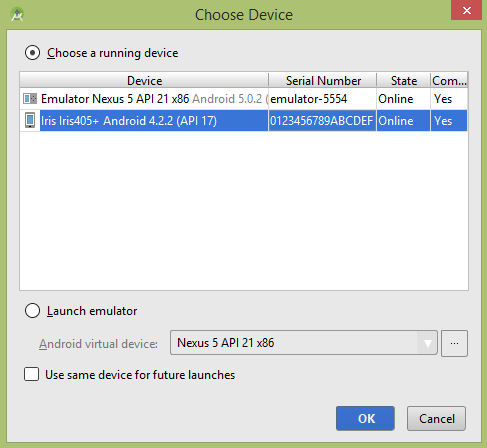
選擇您的移動裝置作為選項,然後檢查您的移動裝置,它將開啟相機並顯示以下螢幕: