

- Android 基礎
- Android - 首頁
- Android - 概述
- Android - 環境搭建
- Android - 架構
- Android - 應用元件
- Android - HelloWorld 示例
- Android - 資源
- Android - 活動 (Activities)
- Android - 服務 (Services)
- Android - 廣播接收器 (Broadcast Receivers)
- Android - 內容提供器 (Content Providers)
- Android - 碎片 (Fragments)
- Android - 意圖/過濾器 (Intents/Filters)
- Android - 使用者介面
- Android - UI 佈局
- Android - UI 控制元件
- Android - 事件處理
- Android - 樣式和主題
- Android - 自定義元件
- Android 高階概念
- Android - 拖放
- Android - 通知
- 基於位置的服務
- Android - 傳送郵件
- Android - 傳送簡訊
- Android - 打電話
- 釋出 Android 應用
- Android 實用示例
- Android - 警報對話方塊
- Android - 動畫
- Android - 音訊採集
- Android - AudioManager
- Android - 自動完成
- Android - 最佳實踐
- Android - 藍牙
- Android - 相機
- Android - 剪貼簿
- Android - 自定義字型
- Android - 資料備份
- Android - 開發者工具
- Android - 模擬器
- Android - Facebook 整合
- Android - 手勢
- Android - Google 地圖
- Android - 圖片特效
- Android - ImageSwitcher
- Android - 內部儲存
- Android - JetPlayer
- Android - JSON 解析器
- Android - LinkedIn 整合
- Android - 載入 Spinne
- Android - 本地化
- Android - 登入介面
- Android - MediaPlayer
- Android - 多點觸控
- Android - 導航
- Android - 網路連線
- Android - NFC 指南
- Android - PHP/MySQL
- Android - 進度圓圈
- Android - ProgressBar
- Android - 推送通知
- Android - RenderScript
- Android - RSS 閱讀器
- Android - 螢幕錄製
- Android - SDK 管理器
- Android - 感測器
- Android - 會話管理
- Android - Shared Preferences
- Android - SIP 協議
- Android - 拼寫檢查器
- Android - SQLite 資料庫
- Android - 支援庫
- Android - 測試
- Android - 文字轉語音
- Android - TextureView
- Android - Twitter 整合
- Android - UI 設計
- Android - UI 模式
- Android - UI 測試
- Android - WebView 佈局
- Android - Wi-Fi
- Android - 小部件
- Android - XML 解析器
- Android 實用資源
- Android - 問答
- Android - 實用資源
- Android - 討論
Android - 通知
通知是在應用程式正常 UI 之外顯示給使用者的訊息。當您告訴系統發出通知時,它首先以圖示形式出現在通知區域。要檢視通知的詳細資訊,使用者會開啟通知抽屜。通知區域和通知抽屜都是系統控制的區域,使用者可以隨時檢視。
Android 的Toast類提供了一種方便的方式向用戶顯示警報,但問題是這些警報不是持久的,這意味著警報會在螢幕上閃爍幾秒鐘然後消失。
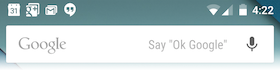
要檢視通知的詳細資訊,您必須選擇該圖示,這將顯示包含通知詳細資訊的通知抽屜。在使用帶有虛擬裝置的模擬器時,您必須單擊並向下拖動狀態列以展開它,這將為您提供如下詳細資訊。這將只有64 dp高,稱為普通檢視。
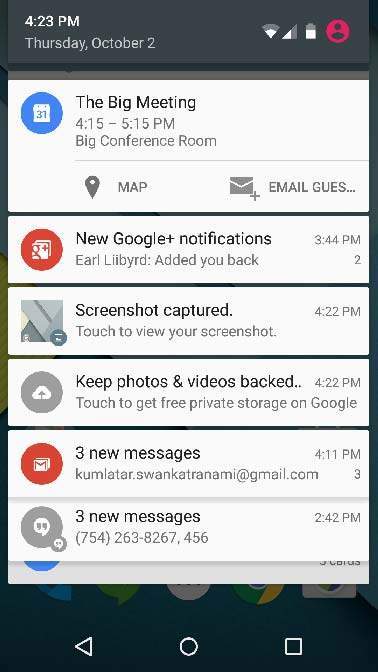
上述展開形式可以具有大檢視,其中包含有關通知的更多詳細資訊。您可以在通知中新增最多六行附加內容。以下螢幕截圖顯示了此類通知。
建立和傳送通知
您可以透過簡單的方法建立通知。按照應用程式中的以下步驟建立通知:
步驟 1 - 建立通知構建器
第一步是使用NotificationCompat.Builder.build()建立一個通知構建器。您將使用通知構建器來設定各種通知屬性,例如其小型和大型圖示、標題、優先順序等。
NotificationCompat.Builder mBuilder = new NotificationCompat.Builder(this)
步驟 2 - 設定通知屬性
一旦您擁有Builder物件,就可以根據您的需求使用Builder物件設定其通知屬性。但這至少必須設定以下內容:
一個小圖示,由setSmallIcon()設定
一個標題,由setContentTitle()設定
詳細資訊文字,由setContentText()設定
mBuilder.setSmallIcon(R.drawable.notification_icon);
mBuilder.setContentTitle("Notification Alert, Click Me!");
mBuilder.setContentText("Hi, This is Android Notification Detail!");
您可以設定許多可選屬性來設定您的通知。要了解有關它們的更多資訊,請參閱NotificationCompat.Builder的參考文件。
步驟 3 - 附加操作
這是可選部分,如果您想將操作附加到通知,則需要此部分。操作允許使用者直接從通知轉到應用程式中的活動,在那裡他們可以檢視一個或多個事件或執行更多工作。
操作由包含啟動應用程式中活動的Intent的PendingIntent定義。要將PendingIntent與手勢關聯,請呼叫NotificationCompat.Builder的相應方法。例如,如果您希望在使用者單擊通知抽屜中的通知文字時啟動活動,則可以透過呼叫setContentIntent()新增PendingIntent。
PendingIntent 物件可幫助您代表您的應用程式執行操作,通常在稍後的時間執行,而無需關心您的應用程式是否正在執行。
我們藉助堆疊構建器物件,它將包含已啟動活動的虛擬回退堆疊。這確保從活動向後導航將從您的應用程式引導到主螢幕。
Intent resultIntent = new Intent(this, ResultActivity.class);
TaskStackBuilder stackBuilder = TaskStackBuilder.create(this);
stackBuilder.addParentStack(ResultActivity.class);

// Adds the Intent that starts the Activity to the top of the stack
stackBuilder.addNextIntent(resultIntent);
PendingIntent resultPendingIntent = stackBuilder.getPendingIntent(0,PendingIntent.FLAG_UPDATE_CURRENT);
mBuilder.setContentIntent(resultPendingIntent);
步驟 4 - 釋出通知
最後,透過呼叫NotificationManager.notify()傳送您的通知,將Notification物件傳遞給系統。請確保在發出通知之前,在構建器物件上呼叫NotificationCompat.Builder.build()方法。此方法將組合已設定的所有選項並返回一個新的Notification物件。
NotificationManager mNotificationManager = (NotificationManager) getSystemService(Context.NOTIFICATION_SERVICE);

// notificationID allows you to update the notification later on.
mNotificationManager.notify(notificationID, mBuilder.build());
NotificationCompat.Builder 類
NotificationCompat.Builder 類允許更輕鬆地控制所有標誌,並有助於構建典型的通知佈局。以下是作為 NotificationCompat.Builder 類一部分的一些重要且最常用的方法。
| 序號 | 常量和描述 |
|---|---|
| 1 |
Notification build() 組合所有已設定的選項並返回一個新的 Notification 物件。 |
| 2 |
NotificationCompat.Builder setAutoCancel (boolean autoCancel) 設定此標誌將使通知在使用者在面板中單擊它時自動取消。 |
| 3 |
NotificationCompat.Builder setContent (RemoteViews views) 提供一個自定義 RemoteViews 來代替標準 RemoteViews。 |
| 4 |
NotificationCompat.Builder setContentInfo (CharSequence info) 在通知的右側設定大文字。 |
| 5 |
NotificationCompat.Builder setContentIntent (PendingIntent intent) 單擊通知時提供要傳送的 PendingIntent。 |
| 6 |
NotificationCompat.Builder setContentText (CharSequence text) 在標準通知中設定通知的文字(第二行)。 |
| 7 |
NotificationCompat.Builder setContentTitle (CharSequence title) 在標準通知中設定通知的文字(第一行)。 |
| 8 |
NotificationCompat.Builder setDefaults (int defaults) 設定將使用的預設通知選項。 |
| 9 |
NotificationCompat.Builder setLargeIcon (Bitmap icon) 設定在滴答器和通知中顯示的大圖示。 |
| 10 |
NotificationCompat.Builder setNumber (int number) 在通知的右側設定大數字。 |
| 11 |
NotificationCompat.Builder setOngoing (boolean ongoing) 設定這是否是正在進行的通知。 |
| 12 |
NotificationCompat.Builder setSmallIcon (int icon) 設定在通知佈局中使用的較小圖示。 |
| 13 |
NotificationCompat.Builder setStyle (NotificationCompat.Style style) 新增一個豐富的通知樣式,以便在構建時應用。 |
| 14 |
NotificationCompat.Builder setTicker (CharSequence tickerText) 設定通知首次到達時在狀態列中顯示的文字。 |
| 15 |
NotificationCompat.Builder setVibrate (long[] pattern) 設定要使用的振動模式。 |
| 16 |
NotificationCompat.Builder setWhen (long when) 設定事件發生的事件。面板中的通知按此時間排序。 |
示例
以下示例顯示了使用在 Android 4.1 中引入的NotificationCompat.Builder類的 Android 通知的功能。
| 步驟 | 描述 |
|---|---|
| 1 | 您將使用 Android Studio IDE 建立一個 Android 應用程式,並將其命名為tutorialspoint,放在包com.example.notificationdemo下。 |
| 2 | 修改src/MainActivity.java檔案並新增程式碼以通知(""),如果使用者單擊按鈕,它將呼叫 Android 通知服務。 |
| 3 | 建立一個新的 Java 檔案src/NotificationView.java,它將用於顯示作為新活動一部分的新佈局,該新活動將在使用者單擊任何通知時啟動。 |
| 4 | 修改佈局 XML 檔案res/layout/activity_main.xml,以便在相對佈局中新增通知按鈕。 |
| 5 | 建立一個新的佈局 XML 檔案res/layout/notification.xml。這將用作新活動的佈局檔案,該活動將在使用者單擊任何通知時啟動。 |
| 6 | 無需更改預設字串常量。Android Studio 會處理預設字串常量。 |
| 7 | 執行應用程式以啟動 Android 模擬器並驗證對應用程式所做的更改的結果。 |
以下是修改後的主活動檔案src/com.example.notificationdemo/MainActivity.java的內容。此檔案可以包含每個基本生命週期方法。
package com.example.notificationdemo;

import android.app.Activity;
import android.app.NotificationManager;
import android.app.PendingIntent;
import android.content.Context;
import android.content.Intent;
import android.support.v4.app.NotificationCompat;
import android.os.Bundle;
import android.view.View;
import android.widget.Button;

public class MainActivity extends Activity {
   Button b1;
   @Override
   protected void onCreate(Bundle savedInstanceState) {
      super.onCreate(savedInstanceState);
      setContentView(R.layout.activity_main);

      b1 = (Button)findViewById(R.id.button);
      b1.setOnClickListener(new View.OnClickListener() {
         @Override
         public void onClick(View v) {
            addNotification();
         }
      });
   }

   private void addNotification() {
      NotificationCompat.Builder builder =
         new NotificationCompat.Builder(this)
         .setSmallIcon(R.drawable.abc)
         .setContentTitle("Notifications Example")
         .setContentText("This is a test notification");

      Intent notificationIntent = new Intent(this, MainActivity.class);
      PendingIntent contentIntent = PendingIntent.getActivity(this, 0, notificationIntent,
         PendingIntent.FLAG_UPDATE_CURRENT);
      builder.setContentIntent(contentIntent);

      // Add as notification
      NotificationManager manager = (NotificationManager) getSystemService(Context.NOTIFICATION_SERVICE);
      manager.notify(0, builder.build());
   }
}
以下是res/layout/notification.xml檔案的內容:
<?xml version="1.0" encoding="utf-8"?>
<LinearLayout xmlns:android="http://schemas.android.com/apk/res/android"
   android:orientation="vertical"
   android:layout_width="fill_parent"
   android:layout_height="fill_parent" >

   <TextView
      android:layout_width="fill_parent"
      android:layout_height="400dp"
      android:text="Hi, Your Detailed notification view goes here...." />
</LinearLayout>
以下是修改後的主活動檔案src/com.example.notificationdemo/NotificationView.java的內容。
package com.example.notificationdemo;

import android.os.Bundle;
import android.app.Activity;

public class NotificationView extends Activity{
   @Override
   public void onCreate(Bundle savedInstanceState){
      super.onCreate(savedInstanceState);
      setContentView(R.layout.notification);
   }
}
以下是res/layout/activity_main.xml檔案的內容:
<RelativeLayout xmlns:android="http://schemas.android.com/apk/res/android"
   xmlns:tools="http://schemas.android.com/tools"
   android:layout_width="match_parent"
   android:layout_height="match_parent"
   android:paddingBottom="@dimen/activity_vertical_margin"
   android:paddingLeft="@dimen/activity_horizontal_margin"
   android:paddingRight="@dimen/activity_horizontal_margin"
   android:paddingTop="@dimen/activity_vertical_margin"
   tools:context="MainActivity">

   <TextView
      android:id="@+id/textView1"
      android:layout_width="wrap_content"
      android:layout_height="wrap_content"
      android:text="Notification Example"
      android:layout_alignParentTop="true"
      android:layout_centerHorizontal="true"
      android:textSize="30dp" />

   <TextView
      android:id="@+id/textView2"
      android:layout_width="wrap_content"
      android:layout_height="wrap_content"
      android:text="Tutorials point "
      android:textColor="#ff87ff09"
      android:textSize="30dp"
      android:layout_below="@+id/textView1"
      android:layout_centerHorizontal="true"
      android:layout_marginTop="48dp" />

   <ImageButton
      android:layout_width="wrap_content"
      android:layout_height="wrap_content"
      android:id="@+id/imageButton"
      android:src="@drawable/abc"
      android:layout_below="@+id/textView2"
      android:layout_centerHorizontal="true"
      android:layout_marginTop="42dp" />

   <Button
      android:layout_width="wrap_content"
      android:layout_height="wrap_content"
      android:text="Notification"
      android:id="@+id/button"
      android:layout_marginTop="62dp"
      android:layout_below="@+id/imageButton"
      android:layout_centerHorizontal="true" />

</RelativeLayout>
以下是res/values/strings.xml檔案的內容,用於定義兩個新的常量:
<?xml version="1.0" encoding="utf-8"?>
<resources>
   <string name="action_settings">Settings</string>
   <string name="app_name">tutorialspoint </string>
</resources>
以下是AndroidManifest.xml的預設內容:
<?xml version="1.0" encoding="utf-8"?>
<manifest xmlns:android="http://schemas.android.com/apk/res/android"
   package="com.example.notificationdemo" >

   <application
      android:allowBackup="true"
      android:icon="@drawable/ic_launcher"
      android:label="@string/app_name"
      android:theme="@style/AppTheme" >

      <activity
         android:name="com.example.notificationdemo.MainActivity"
         android:label="@string/app_name" >

         <intent-filter>
            <action android:name="android.intent.action.MAIN" />
            <category android:name="android.intent.category.LAUNCHER" />
         </intent-filter>

      </activity>

      <activity android:name=".NotificationView"
         android:label="Details of notification"
         android:parentActivityName=".MainActivity">
         <meta-data
         android:name="android.support.PARENT_ACTIVITY"
         android:value=".MainActivity"/>
      </activity>

   </application>
</manifest>
讓我們嘗試執行您的tutorialspoint應用程式。我假設您在進行環境設定時建立了您的AVD。要從 Android Studio 執行 APP,請開啟專案的活動檔案之一,然後單擊工具欄中的執行 圖示。Android Studio 將應用程式安裝到您的 AVD 並啟動它,如果您的設定和應用程式一切正常,它將顯示以下模擬器視窗:
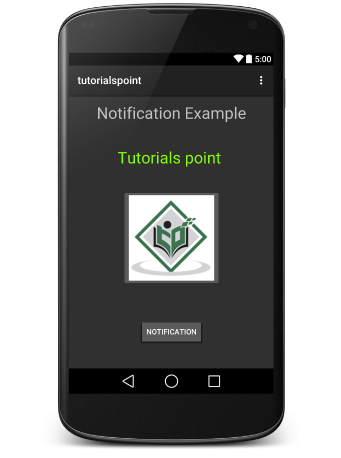
現在單擊按鈕,您將在頂部看到一條訊息“新訊息提醒!”會暫時顯示,之後您將看到螢幕頂部左角有一個小圖示。
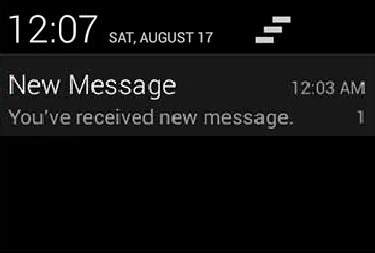
現在讓我們展開檢視,長按小圖示,一秒鐘後它將顯示日期資訊,這時您應該在不鬆開滑鼠的情況下向下拖動狀態列。您會看到狀態列將展開,您將看到以下螢幕:
大檢視通知
以下程式碼片段演示瞭如何更改前面程式碼片段中建立的通知以使用收件箱大檢視樣式。我將更新 displayNotification() 修改方法以顯示此功能:
protected void displayNotification() {
   Log.i("Start", "notification");

   /* Invoking the default notification service */
   NotificationCompat.Builder  mBuilder = new NotificationCompat.Builder(this);

   mBuilder.setContentTitle("New Message");
   mBuilder.setContentText("You've received new message.");
   mBuilder.setTicker("New Message Alert!");
   mBuilder.setSmallIcon(R.drawable.woman);

   /* Increase notification number every time a new notification arrives */
   mBuilder.setNumber(++numMessages);

   /* Add Big View Specific Configuration */
   NotificationCompat.InboxStyle inboxStyle = new NotificationCompat.InboxStyle();

   String[] events = new String[6];
   events[0] = new String("This is first line....");
   events[1] = new String("This is second line...");
   events[2] = new String("This is third line...");
   events[3] = new String("This is 4th line...");
   events[4] = new String("This is 5th line...");
   events[5] = new String("This is 6th line...");

   // Sets a title for the Inbox style big view
   inboxStyle.setBigContentTitle("Big Title Details:");

   // Moves events into the big view
   for (int i=0; i < events.length; i++) {
      inboxStyle.addLine(events[i]);
   }

   mBuilder.setStyle(inboxStyle);

   /* Creates an explicit intent for an Activity in your app */
   Intent resultIntent = new Intent(this, NotificationView.class);

   TaskStackBuilder stackBuilder = TaskStackBuilder.create(this);
   stackBuilder.addParentStack(NotificationView.class);

   /* Adds the Intent that starts the Activity to the top of the stack */
   stackBuilder.addNextIntent(resultIntent);
   PendingIntent resultPendingIntent =stackBuilder.getPendingIntent(0,PendingIntent.FLAG_UPDATE_CURRENT);

   mBuilder.setContentIntent(resultPendingIntent);
   mNotificationManager = (NotificationManager) getSystemService(Context.NOTIFICATION_SERVICE);

   /* notificationID allows you to update the notification later on. */
   mNotificationManager.notify(notificationID, mBuilder.build());
}
現在,如果您嘗試執行您的應用程式,您將在展開的檢視中找到以下結果:
