- Windows 10 開發教程
- Windows 10 - 家庭版
- Windows 10 - 簡介
- Windows 10 – UWP
- Windows 10 – 第一個應用
- Windows 10 - 應用商店
- Windows 10 - XAML 控制元件
- Windows 10 - 資料繫結
- Windows 10 - XAML 效能
- Windows 10 - 自適應設計
- Windows 10 - 自適應 UI
- Windows 10 - 自適應程式碼
- Windows 10 - 檔案管理
- Windows 10 - SQLite 資料庫
- Windows 10 – 通訊
- Windows 10 - 應用本地化
- Windows 10 - 應用生命週期
- Windows 10 - 後臺執行
- Windows 10 - 應用服務
- Windows 10 - Web 平臺
- Windows 10 - 連線體驗
- Windows 10 - 導航
- Windows 10 - 網路
- Windows 10 - 雲服務
- Windows 10 - 即時磁貼
- Windows 10 - 共享契約
- Windows 10 - 移植到 Windows
- Windows 10 有用資源
- Windows 10 - 快速指南
- Windows 10 - 有用資源
- Windows 10 - 討論
Windows 10 開發 - 共享契約
在本章中,我們將學習如何在應用程式之間共享資料。使用者經常遇到他們希望與他人共享或在其他應用程式中使用的資訊。如今,使用者希望利用技術與他人聯絡和共享。
使用者可能希望共享 -
- 與他們的社交網路的連結
- 將圖片複製到報告中
- 將檔案上傳到雲端儲存
如今的應用程式需要確保它們使用的資料也可供使用者共享和交換。共享是一個輕量級功能,易於新增到您的 UWP 應用程式中。應用程式可以透過多種方式與其他應用程式交換資料。
在 UWP 應用程式中,共享功能可以透過以下方式支援;
首先,應用程式可以是源應用程式,提供使用者想要共享的內容。
其次,應用程式可以是目標應用程式,使用者將其選擇為共享內容的目標。
一個應用程式也可以同時是源應用程式和目標應用程式。
共享內容
從作為源應用程式的應用程式共享內容非常簡單。要執行任何共享操作,您將需要 **DataPackage** 類物件。此物件包含使用者想要共享的資料。
**DataPackage** 物件可以包含以下型別的內容 -
- 純文字
- 統一資源識別符號 (URI)
- HTML
- 格式化文字
- 點陣圖
- 檔案
- 開發者定義的資料
共享資料時,您可以包含上述一種或多種格式。要在您的應用程式中支援共享,您首先需要獲取 **DataTransferManager** 類的例項。
然後,它將註冊一個事件處理程式,該處理程式在每次發生 **DataRequested** 事件時呼叫。
DataTransferManager dataTransferManager = DataTransferManager.GetForCurrentView();
dataTransferManager.DataRequested += new TypedEventHandler<DataTransferManager,
   DataRequestedEventArgs>(this.ShareTextHandler);
當您的應用程式收到 **DataRequest** 物件時,您的應用程式就可以新增使用者想要共享的內容。
private void ShareTextHandler(DataTransferManager sender, DataRequestedEventArgs e){
   DataRequest request = e.Request;

   // The Title is mandatory
   request.Data.Properties.Title = "Share Text Example";
   request.Data.Properties.Description = "A demonstration that shows how to share text.";
   request.Data.SetText("Hello World!");
}
您的應用程式共享的任何內容都必須包含兩個屬性 -
- 一個標題屬性,它是必需的並且必須設定。
- 內容本身。
接收共享內容
如果您希望您的應用程式能夠接收共享內容,那麼您需要做的第一件事是宣告它支援 **共享契約**。聲明後,系統將允許您的應用程式接收內容。
新增對共享契約的支援 -
雙擊 **package.appmanifest** 檔案。
轉到 **宣告** 選項卡。從 **可用宣告** 列表中選擇 **共享目標**,然後單擊 **新增** 按鈕。
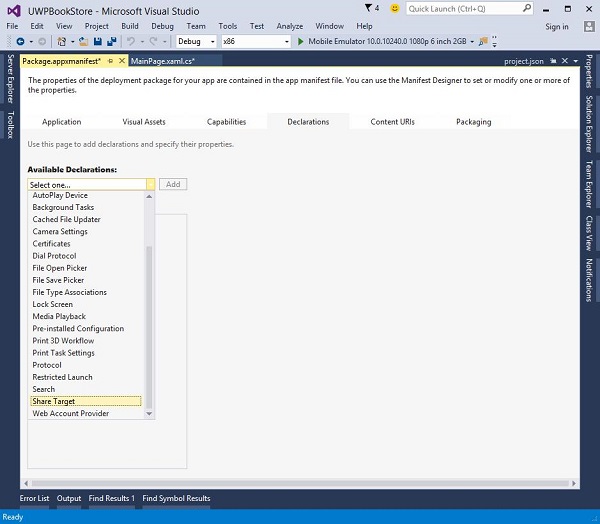
如果您希望您的應用程式接收任何型別的檔案作為共享內容,則可以指定檔案型別和資料格式。
要指定您支援的資料格式,請轉到 **宣告** 頁面的 **資料格式** 部分,然後單擊 **新增新項**。
鍵入您支援的資料格式的名稱。例如,**“文字”**。
要指定您支援的檔案型別,請在 **宣告** 頁面的 **支援的檔案型別** 部分中,單擊 **新增新項**。
鍵入您要支援的檔名副檔名,例如 **.pdf**
如果您要支援 **所有檔案** 型別,請選中 **支援任何檔案型別** 複選框。
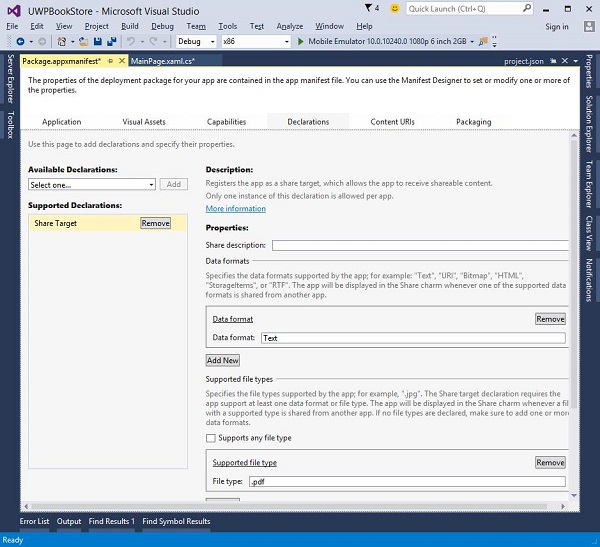
當用戶選擇您的應用程式作為共享資料的目標應用程式時,將觸發 **OnShareTargetActivated** 事件。
您的應用程式需要處理此事件以處理使用者想要共享的資料。
protected override async void OnShareTargetActivated(ShareTargetActivatedEventArgs args) {
   // Code to handle activation goes here.
}
使用者想要與任何應用程式共享的所有資料都包含在 **ShareOperation** 物件中。您還可以檢查它包含的資料的格式。
下面是處理純文字格式的 **共享內容** 的程式碼片段。
ShareOperation shareOperation = args.ShareOperation;

if (shareOperation.Data.Contains(StandardDataFormats.Text)) {
   string text = await shareOperation.Data.GetTextAsync();

   // To output the text from this example, you need a TextBlock control
   // with a name of "sharedContent".
   sharedContent.Text = "Text: " + text;
}
讓我們透過建立一個新的 UWP 專案來檢視一個簡單的示例,該專案將共享一個網頁連結。
下面是在其中建立了一個帶有某些屬性的按鈕的 XAML 程式碼。
<Page
   x:Class = "UWPSharingDemo.MainPage"
   xmlns = "http://schemas.microsoft.com/winfx/2006/xaml/presentation"
   xmlns:x = "http://schemas.microsoft.com/winfx/2006/xaml"
   xmlns:local = "using:UWPSharingDemo"
   xmlns:d = "http://schemas.microsoft.com/expression/blend/2008"
   xmlns:mc = "http://schemas.openxmlformats.org/markup-compatibility/2006"
   mc:Ignorable = "d">

   <Grid Background = "{ThemeResource ApplicationPageBackgroundThemeBrush}">

      <StackPanel Orientation = "Vertical">
         <TextBlock Text = "Share Web Link" Style = "{StaticResource
            HeaderTextBlockStyle}" Margin = "30"></TextBlock>

         <Button Content = "Invoke share contract" Margin = "10"
            Name = "InvokeShareContractButton" Click = "InvokeShareContractButton_Click"
            ></Button>
      </StackPanel>

   </Grid>

</Page>
下面是實現了按鈕單擊事件的 C# 程式碼,以及 URI 共享程式碼。
using System;

using Windows.ApplicationModel.DataTransfer;
using Windows.UI.Xaml;
using Windows.UI.Xaml.Controls;

// The Blank Page item template is documented at
   http://go.microsoft.com/fwlink/?LinkId=402352&clcid=0x409

namespace UWPSharingDemo {

   /// <summary>
      /// An empty page that can be used on its own or navigated to within a Frame.
   /// </summary>

   public sealed partial class MainPage : Page {

      DataTransferManager dataTransferManager;

      public MainPage() {
         this.InitializeComponent();
         dataTransferManager = DataTransferManager.GetForCurrentView();
         dataTransferManager.DataRequested += dataTransferManager_DataRequested;
      }

      void dataTransferManager_DataRequested(DataTransferManager sender,
         DataRequestedEventArgs args) {
            Uri sharedWebLink = new Uri("https://msdn.microsoft.com");

            if (sharedWebLink != null) {
               DataPackage dataPackage = args.Request.Data;
               dataPackage.Properties.Title = "Sharing MSDN link";

               dataPackage.Properties.Description = "The Microsoft Developer Network (MSDN)
                  is designed to help developers write applications using Microsoft
                  products and technologies.";

               dataPackage.SetWebLink(sharedWebLink);
            }
      }

      private void InvokeShareContractButton_Click(object sender, RoutedEventArgs e) {
         DataTransferManager.ShowShareUI();
      }

   }
}
編譯並執行上述程式碼後,您將在模擬器上看到以下頁面。
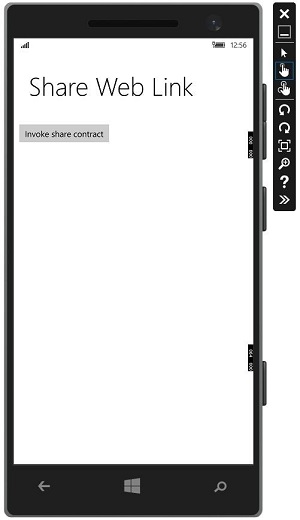
單擊按鈕後,它將提供在哪個應用程式上共享的選項。
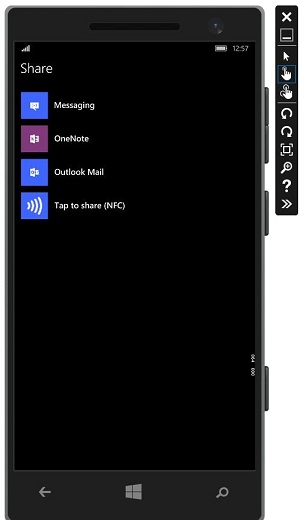
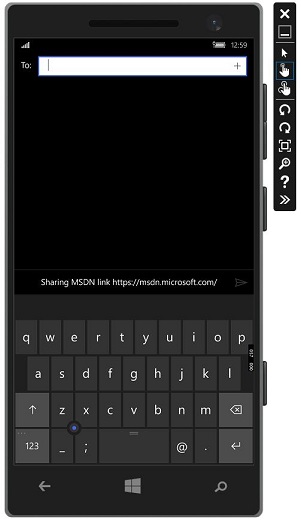
單擊訊息,將顯示以下視窗,您可以從中將連結傳送給任何人。