- Windows 10 開發教程
- Windows 10 - 首頁
- Windows 10 - 簡介
- Windows 10 – UWP
- Windows 10 – 第一個應用
- Windows 10 - 應用商店
- Windows 10 - XAML 控制元件
- Windows 10 - 資料繫結
- Windows 10 - XAML 效能
- Windows 10 - 自適應設計
- Windows 10 - 自適應 UI
- Windows 10 - 自適應程式碼
- Windows 10 - 檔案管理
- Windows 10 - SQLite 資料庫
- Windows 10 – 通訊
- Windows 10 - 應用本地化
- Windows 10 - 應用生命週期
- Windows 10 - 後臺執行
- Windows 10 - 應用服務
- Windows 10 - Web 平臺
- Windows 10 - 連線體驗
- Windows 10 - 導航
- Windows 10 - 網路
- Windows 10 - 雲服務
- Windows 10 - 動態磁貼
- Windows 10 - 共享契約
- Windows 10 - 移植到 Windows
- Windows 10 有用資源
- Windows 10 - 快速指南
- Windows 10 - 有用資源
- Windows 10 - 討論
Windows 10 開發 - 資料繫結
資料繫結是 XAML 應用程式中的一種機制,它為使用部分類的 Windows 執行時應用提供了一種簡單易用的方法來顯示和互動資料。在此機制中,資料的管理完全與資料在 UI 中的顯示方式分離。
資料繫結允許資料在 UI 元素和使用者介面上的資料物件之間流動。當建立繫結並且資料或業務模型發生更改時,它會自動將更新反映到 UI 元素,反之亦然。也可以繫結到頁面上的另一個元素,而不是標準資料來源。資料繫結可以是 -
- 單向資料繫結
- 雙向資料繫結
- 元素繫結
單向資料繫結
在單向繫結中,資料從其源(持有資料的物件)繫結到其目標(顯示資料的物件)。
讓我們來看一個簡單的單向資料繫結示例。下面是建立了四個文字塊並設定了一些屬性的 XAML 程式碼。
<Page
   x:Class = "OneWayDataBinding.MainPage"
   xmlns = "http://schemas.microsoft.com/winfx/2006/xaml/presentation"
   xmlns:x = "http://schemas.microsoft.com/winfx/2006/xaml"
   xmlns:local = "using:OneWayDataBinding"
   xmlns:d = "http://schemas.microsoft.com/expression/blend/2008"
   xmlns:mc = "http://schemas.openxmlformats.org/markup-compatibility/2006"
   mc:Ignorable = "d">

   <Grid Background = "{ThemeResource ApplicationPageBackgroundThemeBrush}">
      <StackPanel Name = "Display">
         <StackPanel Orientation = "Horizontal" Margin = "50, 50, 0, 0">
            <TextBlock Text = "Name: " Margin = "10" Width = "100"/>
            <TextBlock Margin = "10" Width = "100" Text = "{Binding Name}"/>
         </StackPanel>

         <StackPanel Orientation = "Horizontal" Margin = "50,0,50,0">
            <TextBlock Text = "Title: " Margin = "10" Width = "100"/>
            <TextBlock Margin = "10" Width = "200" Text = "{Binding Title}" />
         </StackPanel>

      </StackPanel>
   </Grid>

</Page>
兩個文字塊的 Text 屬性靜態設定為“Name”和“Title”,而其他兩個文字塊的 Text 屬性則繫結到“Name”和“Title”,它們是 Employee 類的類變數,如下所示。
using Windows.UI.Xaml.Controls;

// The Blank Page item template is documented at
   http://go.microsoft.com/fwlink/?LinkId=402352&clcid=0x409

namespace OneWayDataBinding {

   /// <summary>
      /// An empty page that can be used on its own or navigated to within a Frame.
   /// </summary>

   public sealed partial class MainPage : Page {
      public MainPage(){
         this.InitializeComponent();
         DataContext = Employee.GetEmployee();
      }
   }

   public class Employee {
      public string Name { get; set; }
      public string Title { get; set; }

      public static Employee GetEmployee() {
         var emp = new Employee() {
            Name = "Waqar Ahmed",
            Title = "Development Manager"
         };

         return emp;
      }

   }
}
在Employee 類中,我們有變數Name和Title,以及一個靜態方法,其中employee 物件被初始化並返回該 employee 物件。因此,我們繫結到屬性 Name 和 Title,但我們尚未選擇屬性所屬的物件。簡單的方法是在MainPage建構函式中將物件分配給DataContext,我們在其中繫結其屬性。
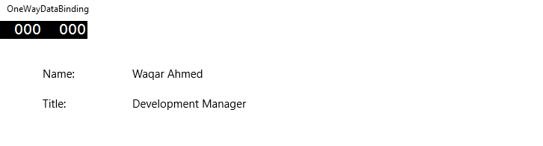
執行此應用程式時,您可以在MainWindow中立即看到您已成功繫結到該 Employee 物件的 Name 和 Title。
雙向資料繫結
在雙向繫結中,使用者能夠透過使用者介面修改資料,並使資料在源中更新。例如,如果源在使用者檢視檢視時發生更改,則希望檢視更新。
讓我們來看下面給出的示例,其中建立了兩個標籤、兩個文字框和一個按鈕,並設定了一些屬性和事件。
<Page
   x:Class = "TwoWayDataBinding.MainPage"
   xmlns = "http://schemas.microsoft.com/winfx/2006/xaml/presentation"
   xmlns:x = "http://schemas.microsoft.com/winfx/2006/xaml"
   xmlns:local = "using:TwoWayDataBinding"
   xmlns:d = "http://schemas.microsoft.com/expression/blend/2008"
   xmlns:mc = "http://schemas.openxmlformats.org/markup-compatibility/2006"
   mc:Ignorable = "d">

   <Grid Background = "{ThemeResource ApplicationPageBackgroundThemeBrush}">

      <Grid.RowDefinitions>
         <RowDefinition Height = "Auto" />
         <RowDefinition Height = "Auto" />
         <RowDefinition Height = "*" />
      </Grid.RowDefinitions>

      <Grid.ColumnDefinitions>
         <ColumnDefinition Width = "Auto" />
         <ColumnDefinition Width = "200" />
      </Grid.ColumnDefinitions>

      <TextBlock Name = "nameLabel" Margin = "200,20,0,0">Name:</TextBlock>

      <TextBox Name = "nameText" Grid.Column = "1" Margin = "10,20,0,0"
         Text = "{Binding Name, Mode = TwoWay}"/>

      <TextBlock Name = "ageLabel" Margin = "200,20,0,0"
         Grid.Row = "1">Age:</TextBlock>

      <TextBox Name = "ageText" Grid.Column = "1" Grid.Row = "1" Margin = "10,20,0,0"
         Text = "{Binding Age, Mode = TwoWay}"/>

      <StackPanel Grid.Row = "2" Grid.ColumnSpan = "2">
         <Button Content = "Display" Click = "Button_Click"
            Margin = "200,20,0,0"/>
         <TextBlock x:Name = "txtblock" Margin = "200,20,0,0"/>
      </StackPanel>

   </Grid>

</Page>
我們可以觀察到以下內容 -
兩個文字框的 Text 屬性繫結到"Name"和"Age",它們是Person 類的類變數,如下所示。
在Person 類中,我們只有兩個變數 - Name 和 Age,並且其物件在MainWindow類中初始化。
在 XAML 程式碼中,我們繫結到屬性 - Name和Age,但我們尚未選擇屬性所屬的物件。
更簡單的方法是在 C# 程式碼中將物件分配給DataContext,如下所示在MainWindow建構函式中。
using Windows.UI.Xaml;
using Windows.UI.Xaml.Controls;

// The Blank Page item template is documented at
   http://go.microsoft.com/fwlink/?LinkId=402352&clcid=0x409

namespace TwoWayDataBinding {

   /// <summary>
      /// An empty page that can be used on its own or navigated to within a Frame.
   /// </summary>

   public sealed partial class MainPage : Page {
      Person person = new Person { Name = "Salman", Age = 26 };

      public MainPage() {
         this.InitializeComponent();
         this.DataContext = person;
      }

      private void Button_Click(object sender, RoutedEventArgs e) {
         string message = person.Name + " is " + person.Age + " years old";
         txtblock.Text = message;
      }

   }

   public class Person {
      private string nameValue;

      public string Name {
         get { return nameValue; }
         set { nameValue = value; }
      }

      private double ageValue;

      public double Age {
         get { return ageValue; }

         set {
            if (value != ageValue) {
               ageValue = value;
            }
         }
      }

   }

}
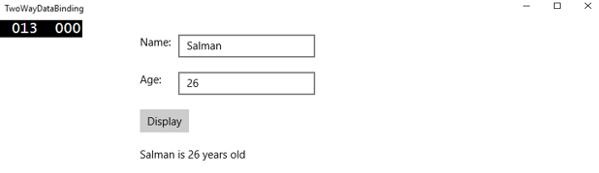
編譯並執行上述程式碼後,您將看到以下視窗。點選顯示按鈕。
讓我們更改 Name 和 Age,然後再次點選顯示按鈕。
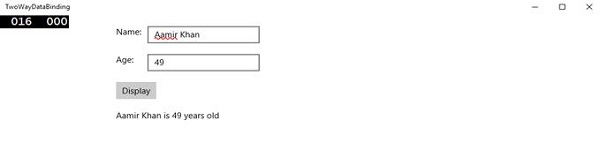
您可以看到,在點選“顯示”按鈕時,文字框的文字沒有用於在TextBlock上顯示資料,而是使用了類變數。
我建議您在兩種情況下都執行上述程式碼,以便更好地理解。
元素繫結
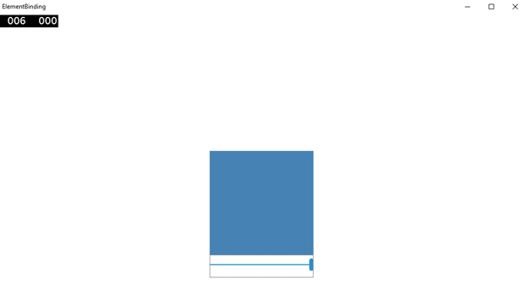
也可以繫結到頁面上的另一個元素,而不是標準資料來源。讓我們建立一個名為ElementBinding的應用程式,其中建立了一個滑塊和一個矩形,並使用滑塊繫結矩形的寬度和高度。下面是 XAML 中的程式碼。
<Page
   x:Class = "ElementBinding.MainPage"
   xmlns = "http://schemas.microsoft.com/winfx/2006/xaml/presentation"
   xmlns:x = "http://schemas.microsoft.com/winfx/2006/xaml"
   xmlns:local = "using:ElementBinding"
   xmlns:d = "http://schemas.microsoft.com/expression/blend/2008"
   xmlns:mc = "http://schemas.openxmlformats.org/markup-compatibility/2006"
   mc:Ignorable = "d">

   <Grid Background = "{ThemeResource ApplicationPageBackgroundThemeBrush}">
      <StackPanel VerticalAlignment = "Center" HorizontalAlignment = "Center">

         <Rectangle Height = "100" Width = "100" Fill = "SteelBlue"
            RenderTransformOrigin = "0.5,0.5" Margin = "50">

            <Rectangle.RenderTransform>
               <CompositeTransform ScaleX = "{Binding Value, ElementName = MySlider}"
                  ScaleY = "{Binding Value, ElementName = MySlider}"/>
            </Rectangle.RenderTransform>

         </Rectangle>

         <Slider Minimum = ".5" Maximum = "2.0" StepFrequency = ".1"
            x:Name = "MySlider" />

      </StackPanel>
   </Grid>

</Page>
編譯並執行上述程式碼後,您將看到以下視窗。
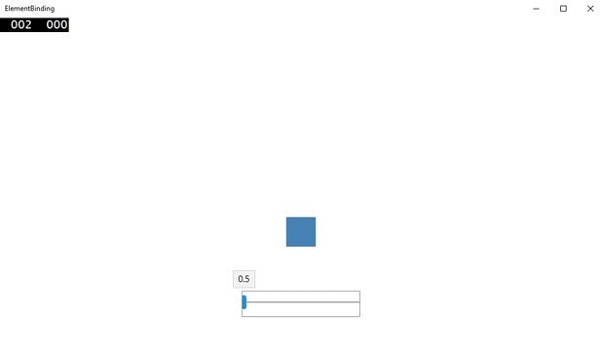
使用滑塊,您可以更改矩形的大小,如下所示。