
- Windows 10 開發教程
- Windows 10 - 首頁
- Windows 10 - 簡介
- Windows 10 – UWP
- Windows 10 – 第一個應用
- Windows 10 - 應用商店
- Windows 10 - XAML 控制元件
- Windows 10 - 資料繫結
- Windows 10 - XAML 效能
- Windows 10 - 自適應設計
- Windows 10 - 自適應 UI
- Windows 10 - 自適應程式碼
- Windows 10 - 檔案管理
- Windows 10 - SQLite 資料庫
- Windows 10 – 通訊
- Windows 10 - 應用本地化
- Windows 10 - 應用生命週期
- Windows 10 - 後臺執行
- Windows 10 - 應用服務
- Windows 10 - Web 平臺
- Windows 10 - 連線體驗
- Windows 10 - 導航
- Windows 10 - 網路
- Windows 10 - 雲服務
- Windows 10 - 即時磁貼
- Windows 10 - 共享契約
- Windows 10 - 移植到 Windows
- Windows 10 有用資源
- Windows 10 - 快速指南
- Windows 10 - 有用資源
- Windows 10 - 討論
Windows 10 開發 - 第一個應用
本章節,我們將使用 Windows 10 上的 XAML 和 C# 在通用 Windows 平臺 (UWP) 中建立第一個簡單的應用程式 **“Hello world”**。我們將演示如何在 Visual Studio 中建立的單個 UWP 應用程式如何在任何 Windows 10 裝置上執行和執行。
讓我們按照以下步驟開始建立應用程式。
啟動 Visual Studio 2015。
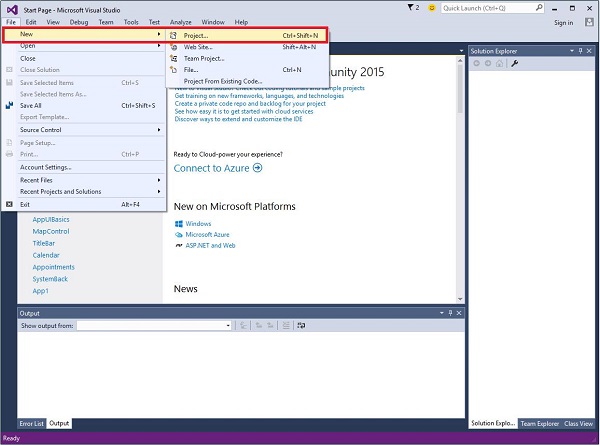
單擊 **檔案** 選單,然後選擇 **新建 > 專案**。
將顯示以下 **新建專案** 對話方塊視窗。您可以在對話方塊左側窗格中看到不同型別的模板。
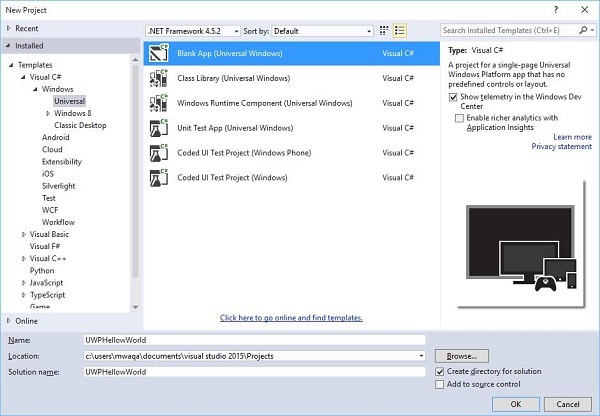
在左側窗格中,您可以看到樹狀檢視。從 **模板 > Visual C# > Windows** 中選擇 **通用模板**。
從中心窗格中,選擇 **空白應用 (通用 Windows)** 模板。
在 **名稱** 欄位中輸入 **UWPHelloWorld** 為專案命名。
單擊 **確定** 建立新的 UWP 專案。
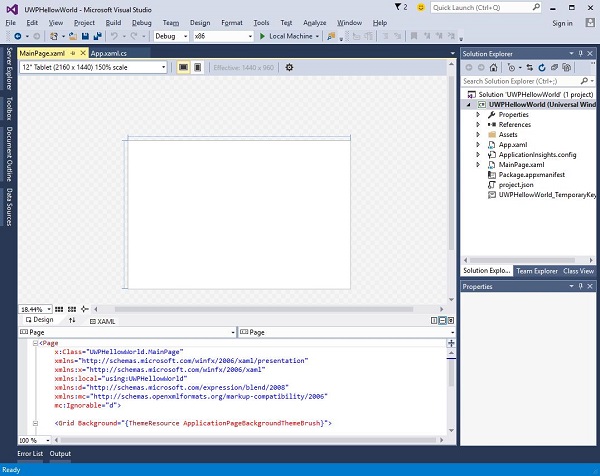
您可以在 **解決方案資源管理器** 中看到新建立的專案。
這是一個空白應用程式,但它包含許多檔案,這是任何 UWP 應用程式的最低要求。
執行應用程式時,將執行 **MainPage.xaml** 和 **MainPage.xaml.cs**。
預設情況下,**MainPage.xaml** 檔案包含以下資訊。
<Page
   x:Class = ”UWPHellowWorld.MainPage”
   xmlns = ”http://schemas.microsoft.com/winfx/2006/xaml/presentation”
   xmlns:x = ”http://schemas.microsoft.com/winfx/2006/xaml”
   xmlns:local = ”using:UWPHellowWorld”
   xmlns:d = ”http://schemas.microsoft.com/expression/blend/2008”
   xmlns:mc = ”http://schemas.openxmlformats.org/markup-compatibility/2006”
   mc:Ignorable = ”d”>

   <Grid Background = ”{ThemeResource ApplicationPageBackgroundThemeBrush}”>
   </Grid>

</Page>
以下是 **MainPage.xaml.cs** 中提供的預設資訊。
using System;
using System.Collections.Generic;
using System.IO;
using System.Linq;
using System.Runtime.InteropServices.WindowsRuntime;

using Windows.Foundation;
using Windows.Foundation.Collections;

using Windows.UI.Xaml;
using Windows.UI.Xaml.Controls;
using Windows.UI.Xaml.Controls.Primitives;
using Windows.UI.Xaml.Data;
using Windows.UI.Xaml.Input;
using Windows.UI.Xaml.Media;
using Windows.UI.Xaml.Navigation;

// The Blank Page item template is documented at
   http://go.microsoft.com/fwlink/?LinkId=402352&clcid=0x409

namespace UWPHellowWorld {

   /// <summary>
      /// An empty page that can be used on its own or navigated to within a Frame.
   /// </summary>

   public sealed partial class MainPage : Page {
      public MainPage(){
         this.InitializeComponent();
      }
   }

}
讓我們新增一些文字塊、文字框和按鈕,如下面的 XAML 程式碼所示。
<Page
   x:Class = ”UWPHellowWorld.MainPage”
   xmlns = ”http://schemas.microsoft.com/winfx/2006/xaml/presentation”
   xmlns:x = ”http://schemas.microsoft.com/winfx/2006/xaml”
   xmlns:local = ”using:UWPHellowWorld”
   xmlns:d = ”http://schemas.microsoft.com/expression/blend/2008”
   xmlns:mc = ”http://schemas.openxmlformats.org/markup-compatibility/2006”
   mc:Ignorable = ”d”>

   <Grid Background = ”{ThemeResource ApplicationPageBackgroundThemeBrush}”>

      <StackPanel HorizontalAlignment = ”Center”>
         <TextBlock Text = ”Hello, world!”  Margin = ”20”  Width = ”200”
            HorizontalAlignment = ”Left”/>

         <TextBlock Text = ”Write your name.” Margin = ”20” Width = ”200”
            HorizontalAlignment = ”Left”/>

         <TextBox x:Name = ”txtbox”  Width = ”280” Margin = ”20”
            HorizontalAlignment = ”Left”/>

         <Button x:Name = ”button” Content = ”Click Me” Margin = ”20”
            Click = ”button_Click”/>

         <TextBlock x:Name = ”txtblock” HorizontalAlignment = ”Left”
            Margin = ”20”/>
      </StackPanel>

   </Grid>

</Page>
- 以下是 C# 中的按鈕點選事件。
using System;
using System.Collections.Generic;
using System.IO;
using System.Linq;

using System.Runtime.InteropServices.WindowsRuntime;
using Windows.Foundation;
using Windows.Foundation.Collections;

using Windows.UI.Xaml;
using Windows.UI.Xaml.Controls;
using Windows.UI.Xaml.Controls.Primitives;
using Windows.UI.Xaml.Data;
using Windows.UI.Xaml.Input;
using Windows.UI.Xaml.Media;
using Windows.UI.Xaml.Navigation;

// The Blank Page item template is documented at
   http://go.microsoft.com/fwlink/?LinkId=402352&clcid=0x409

namespace UWPHellowWorld {

   /// <summary>
      /// An empty page that can be used on its own or navigated to within a Frame.
   /// </summary>

   public sealed partial class MainPage : Page {
      public MainPage() {
         this.InitializeComponent();
      }

      private void button_Click(object sender, RoutedEventArgs e) {
         if (txtbox.Text != “”)
            txtblock.Text = “Hello: “ + txtbox.Text;
         else
            txtblock.Text = “You have not write your name”;
      }

   }

}
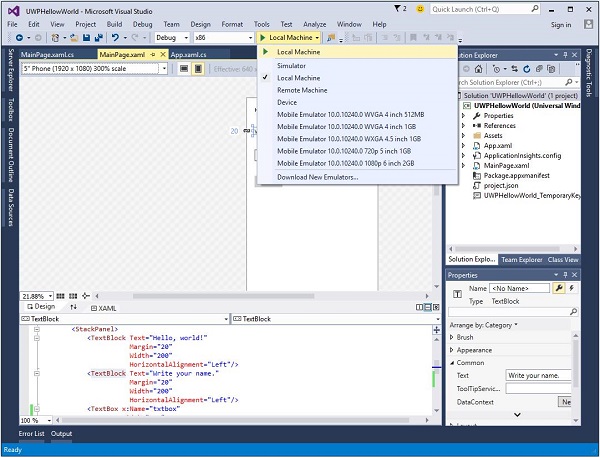
在 UWP 專案中,**裝置預覽** 選項可在 **設計視窗** 中使用,藉助它您可以輕鬆更改佈局,以適應您為應用程式定位的裝置系列中所有裝置的螢幕尺寸。
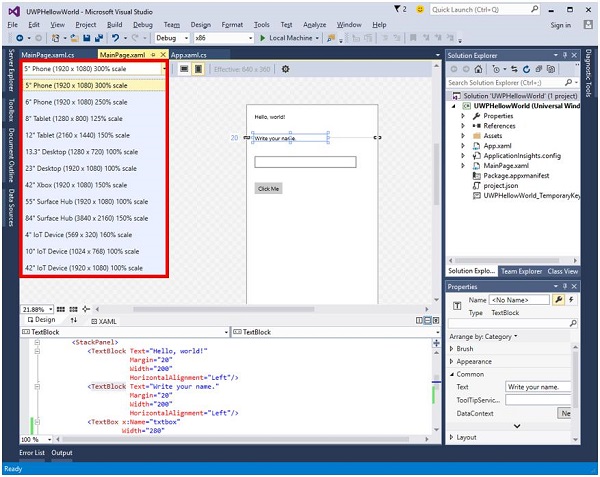
您可以在本地計算機、模擬器或模擬器或遠端裝置上執行和測試您的應用程式。您可以從如下所示的選單中選擇目標裝置:
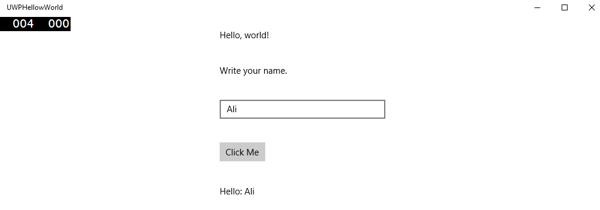
讓我們在本地計算機上執行上述程式碼,您將看到以下視窗。現在,在文字框中輸入任何名稱,然後單擊 **單擊我** 按鈕。
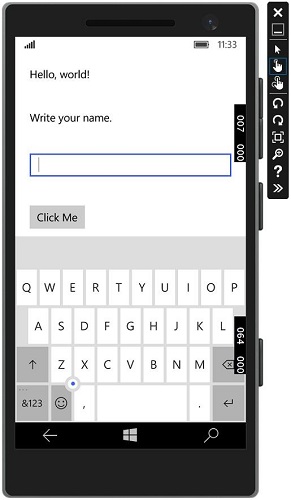
現在,如果您想在模擬器上測試您的應用程式,您可以從選單中選擇特定模擬器並執行您的應用程式。您將看到以下模擬器:
我們建議您使用不同的裝置執行上述應用程式。