- Windows 10 開發教程
- Windows 10 - 家庭版
- Windows 10 - 簡介
- Windows 10 – UWP
- Windows 10 – 第一個應用
- Windows 10 - 應用商店
- Windows 10 - XAML 控制元件
- Windows 10 - 資料繫結
- Windows 10 - XAML 效能
- Windows 10 - 自適應設計
- Windows 10 - 自適應 UI
- Windows 10 - 自適應程式碼
- Windows 10 - 檔案管理
- Windows 10 - SQLite 資料庫
- Windows 10 – 通訊
- Windows 10 - 應用本地化
- Windows 10 - 應用生命週期
- Windows 10 - 後臺執行
- Windows 10 - 應用服務
- Windows 10 - Web 平臺
- Windows 10 - 連線體驗
- Windows 10 - 導航
- Windows 10 - 網路
- Windows 10 - 雲服務
- Windows 10 - 動態磁貼
- Windows 10 - 共享契約
- Windows 10 - 移植到 Windows
- Windows 10 有用資源
- Windows 10 - 快速指南
- Windows 10 - 有用資源
- Windows 10 - 討論
Windows 10 開發 - 連線體驗
眾所周知,在 Windows 10 中,我們可以建立一個可在多個 Windows 10 裝置上執行和執行的應用程式。假設我們有這些不同的裝置,並且我們希望讓它感覺就像一個應用程式,即使它在不同的裝置上執行。
在通用 Windows 平臺 (UWP) 中,您可以在所有 Windows 10 裝置上執行單個應用程式,並且可以給使用者一種它是一個應用程式的感覺。這被稱為 **連線體驗**。
連線體驗的重要特性:
Windows 10 是邁向更個性化計算時代的第一步,在這個時代,您的應用程式、服務和內容可以輕鬆無縫地在裝置之間移動。
透過連線體驗,您可以輕鬆共享與該應用程式相關的資料和個人設定,並且它將在所有裝置上可用。
在本章中,我們將學習:
這些共享資料或設定將儲存在哪裡,以便該應用程式可以在您的裝置上使用。
如何識別使用者;即在不同裝置上使用同一應用程式的是同一個使用者。
Windows 10 邁出了大膽的一步。當您使用 Microsoft 帳戶 (MSA) 或企業 (工作) 帳戶登入 Windows 10 時,假設:
對於 MSA 帳戶,您可以免費訪問 OneDrive;對於企業帳戶,您可以訪問 Active Directory (AD) 和 Azure Active Directory (AAD)(這是雲版本)。
您可以訪問不同的應用程式和資源。
裝置和應用程式處於漫遊狀態和設定中。
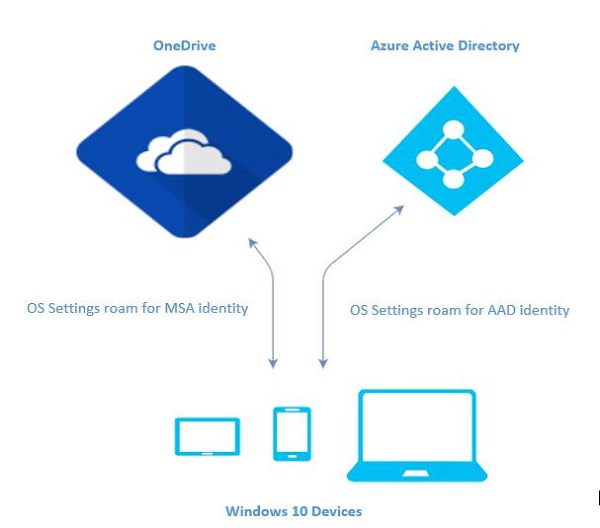
Windows 10 中的漫遊
當您登入到電腦時,您可以設定一些首選項,例如鎖定螢幕或背景顏色,或個性化您的各種設定。如果您有多臺執行 Windows 10 的電腦或裝置,則當您使用同一帳戶登入其他裝置時,一臺裝置上的首選項和設定將從雲端同步。
在 Windows 10 中,當您設定或個性化應用程式設定後,這些設定將透過 UWP 中提供的漫遊 API 進行漫遊。當您在其他裝置上再次運行同一應用程式時,它將首先檢索設定並將這些設定應用於該裝置上的應用程式。
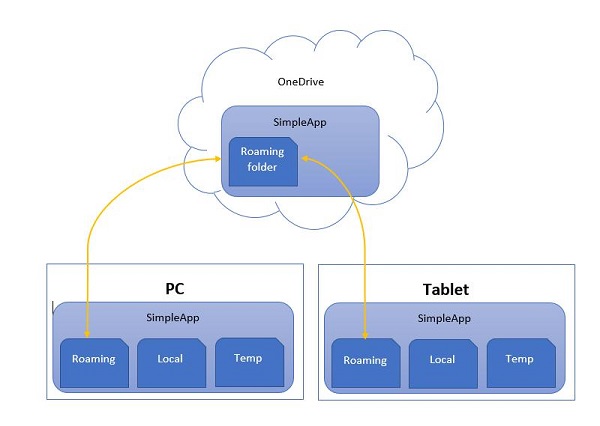
上傳到雲端的漫遊資料限制為 100KB。如果超過此限制,則同步將停止,並將只像本地資料夾一樣執行。
**RoamingSettings** API 以字典的形式公開,應用程式可以在其中儲存資料。
Windows.Storage.ApplicationDataContainer roamingSettings =
   Windows.Storage.ApplicationData.Current.RoamingSettings;

// Retrivve value from RoamingSettings
var colorName = roamingSettings.Values["PreferredBgColor"].ToString();

// Set values to RoamingSettings
roamingSettings.Values["PreferredBgColor"] = "Green";
當 **RoamingSettings** 中的資料更改時,它會觸發 **DataChanged** 事件,您可以在其中重新整理設定。
Windows.Storage.ApplicationData.Current.DataChanged += RoamingDataChanged;

private void RoamingDataChanged(Windows.Storage.ApplicationData sender, object args) {
   // Something has changed in the roaming data or settings
}
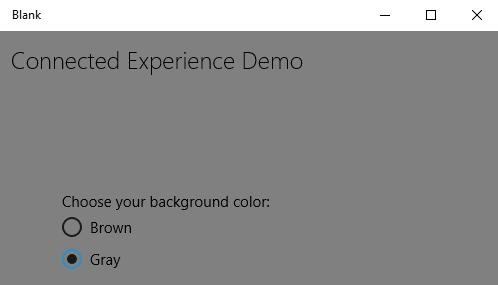
讓我們來看一個例子,在這個例子中,我們將設定應用程式的背景顏色,這些設定將透過 UWP 中提供的漫遊 API 進行漫遊。
以下是新增不同控制元件的 XAML 程式碼。
<Page
   x:Class = "RoamingSettingsDemo.Views.MainPage"
   xmlns = "http://schemas.microsoft.com/winfx/2006/xaml/presentation"
   xmlns:x = "http://schemas.microsoft.com/winfx/2006/xaml"
   xmlns:local = "using:RoamingSettingsDemo.Views"
   xmlns:d = "http://schemas.microsoft.com/expression/blend/2008"
   xmlns:mc = "http://schemas.openxmlformats.org/markup-compatibility/2006"
   mc:Ignorable = "d">

   <Grid x:Name = "MainGrid" Background = "{ThemeResource ApplicationPageBackgroundThemeBrush}">
      <Grid.RowDefinitions>
         <RowDefinition Height = "80" />
         <RowDefinition />
      </Grid.RowDefinitions>

      <StackPanel Orientation = "Horizontal" VerticalAlignment = "Top" Margin = "12,12,0,0">
         <TextBlock Style = "{StaticResource HeaderTextBlockStyle}"
            FontSize = "24" Text = "Connected Experience Demo" />
      </StackPanel>

      <Grid Grid.Row = "1" Margin = "0,80,0,0">
         <StackPanel Margin = "62,0,0,0">
            <TextBlock x:Name = "textBlock" HorizontalAlignment = "Left"
               TextWrapping = "Wrap" Text = "Choose your background color:"
               VerticalAlignment = "Top"/>

            <RadioButton x:Name = "BrownRadioButton" Content = "Brown"
               Checked = "radioButton_Checked" />

            <RadioButton x:Name = "GrayRadioButton" Content = "Gray"
               Checked = "radioButton_Checked"/>
         </StackPanel>
      </Grid>

   </Grid>

</Page>
以下是 **RoamingSettings** 和不同事件的 C# 實現。
using System;
using System.Collections.Generic;
using System.IO;
using System.Linq;
using System.Runtime.InteropServices.WindowsRuntime;

using Windows.Foundation;
using Windows.Foundation.Collections;

using Windows.UI;
using Windows.UI.Xaml;
using Windows.UI.Xaml.Controls;
using Windows.UI.Xaml.Controls.Primitives;
using Windows.UI.Xaml.Data;
using Windows.UI.Xaml.Input;
using Windows.UI.Xaml.Media;
using Windows.UI.Xaml.Navigation;

// The RoamingSettingsDemo Page item template is documented at
   http://go.microsoft.com/fwlink/?LinkId=234238

namespace RoamingSettingsDemo.Views {

   /// <summary>
      /// An empty page that can be used on its own or navigated to within a Frame.
   /// </summary>

   public sealed partial class MainPage : Page {

      public MainPage() {
         this.InitializeComponent();
      }

      protected override void OnNavigatedTo(NavigationEventArgs e) {
         SetBackgroundFromSettings();
         Windows.Storage.ApplicationData.Current.DataChanged += RoamingDataChanged;
      }

      protected override void OnNavigatedFrom(NavigationEventArgs e) {
         Windows.Storage.ApplicationData.Current.DataChanged -= RoamingDataChanged;
      }

      private void RoamingDataChanged(Windows.Storage.ApplicationData sender, object args) {

         // Something has changed in the roaming data or settings
         var ignore = Dispatcher.RunAsync(Windows.UI.Core.CoreDispatcherPriority.Normal,
            () ⇒ SetBackgroundFromSettings());
      }

      private void SetBackgroundFromSettings() {

         // Get the roaming settings
         Windows.Storage.ApplicationDataContainer roamingSettings =
            Windows.Storage.ApplicationData.Current.RoamingSettings;

         if (roamingSettings.Values.ContainsKey("PreferBrownBgColor")) {
            var colorName = roamingSettings.Values["PreferBrownBgColor"].ToString();

            if (colorName == "Gray") {
               MainGrid.Background = new SolidColorBrush(Colors.Gray);
               GrayRadioButton.IsChecked = true;
            } else if (colorName == "Brown") {
               MainGrid.Background = new SolidColorBrush(Colors.Brown);
               BrownRadioButton.IsChecked = true;
            }
         }

      }

      private void radioButton_Checked(object sender, RoutedEventArgs e){
         if (GrayRadioButton.IsChecked.HasValue &&
            (GrayRadioButton.IsChecked.Value == true)) {
               Windows.Storage.ApplicationData.Current.RoamingSettings.
                  Values["PreferBrownBgCo lor"] = "Gray";
         } else {
            Windows.Storage.ApplicationData.Current.RoamingSettings.
               Values["PreferBrownBgCo lor"] = "Brown";
         }

         SetBackgroundFromSettings();
      }

   }
}
編譯並執行上述程式碼後,您將看到以下視窗。
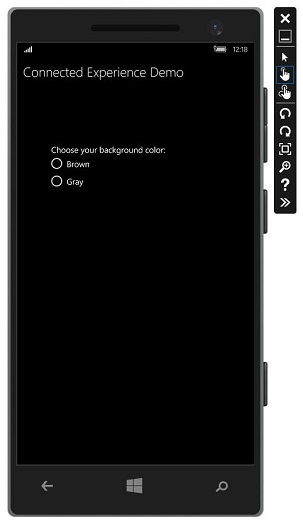
讓我們選擇灰色作為背景顏色並關閉此應用程式。
現在,當您在此裝置或任何其他裝置上執行此應用程式時,您將看到背景顏色已更改為灰色。這表明該應用程式已成功檢索 **RoamingSettings** 中的背景顏色更改資訊。