
- Windows 10 開發教程
- Windows 10 - 首頁
- Windows 10 - 簡介
- Windows 10 – UWP
- Windows 10 – 第一個應用
- Windows 10 - 應用商店
- Windows 10 - XAML 控制元件
- Windows 10 - 資料繫結
- Windows 10 - XAML 效能
- Windows 10 - 自適應設計
- Windows 10 - 自適應 UI
- Windows 10 - 自適應程式碼
- Windows 10 - 檔案管理
- Windows 10 - SQLite 資料庫
- Windows 10 – 通訊
- Windows 10 - 應用本地化
- Windows 10 - 應用生命週期
- Windows 10 - 後臺執行
- Windows 10 - 應用服務
- Windows 10 - Web 平臺
- Windows 10 - 連線體驗
- Windows 10 - 導航
- Windows 10 - 網路
- Windows 10 - 雲服務
- Windows 10 - 即時磁貼
- Windows 10 - 共享契約
- Windows 10 - 移植到 Windows
- Windows 10 有用資源
- Windows 10 - 快速指南
- Windows 10 - 有用資源
- Windows 10 - 討論
Windows 10 開發 - 導航
在通用 Windows 平臺 (UWP) 應用程式中,導航是一種靈活的導航結構、導航元素和系統級功能模型。它能夠為在應用、頁面和內容之間移動提供各種直觀的使用者體驗。
在某些情況下和場景中,所有內容和功能都可以輕鬆地放入單個頁面中,開發人員無需建立多個頁面。但是,在大多數應用程式中,多個頁面用於不同內容和功能之間的互動。
當應用程式具有多個頁面時,開發人員提供正確的導航體驗非常重要。
頁面模型
通常,在通用 Windows 平臺 (UWP) 應用程式中,使用單頁面導航模型。
重要功能包括:
單頁面導航模型維護應用程式的所有上下文以及其他內容和資料到中央框架中。
您可以將應用程式的內容劃分為多個頁面。但是,當從一個頁面移動到另一個頁面時,您的應用程式會將頁面載入到主頁面表單中。
應用程式的主頁面不會被解除安裝,程式碼和資料也不會被解除安裝,這使得管理狀態更容易,並在頁面之間提供更流暢的過渡動畫。
多頁面導航也用於在不同頁面或螢幕之間導航,而無需擔心應用程式上下文。在多頁面導航中,每個頁面都有自己的一組功能、使用者介面和資料等。
多頁面導航通常用於網站內的網頁。
導航結構
在多頁面導航中,每個頁面都有自己的一組功能、使用者介面和資料等。例如,照片應用程式可能有一個頁面用於捕捉照片,然後當用戶想要編輯照片時,它會導航到另一個頁面,並且為了維護影像庫,它還有另一個頁面。
應用程式的導航結構由這些頁面的組織方式定義。
以下是構建應用程式導航的方式:
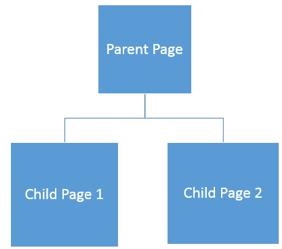
層次結構
在這種型別的導航結構中:
頁面被組織成樹狀結構。
每個子頁面只有一個父頁面,但父頁面可以擁有一個或多個子頁面。
要到達子頁面,您必須經過父頁面。
同級
在這種型別的導航中:
- 頁面並排存在。
- 您可以按任何順序從一個頁面轉到另一個頁面。
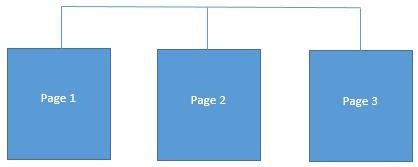
在大多數多頁面應用程式中,這兩種結構同時使用。某些頁面被組織成同級,而某些頁面被組織成層次結構。
讓我們舉一個包含三個頁面的例子。
建立一個名為UWPNavigation的空白 UWP 應用程式。
透過在解決方案資源管理器中右鍵單擊專案並從選單中選擇新增 > 新建項選項,新增另外兩個空白頁面,這將開啟以下對話方塊視窗。
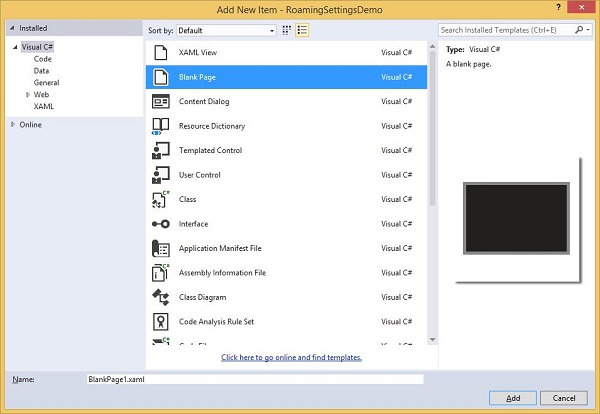
從中間窗格中選擇空白頁面,然後單擊新增按鈕。
現在按照上述步驟再新增一個頁面。
您將在解決方案資源管理器中看到三個頁面:MainPage、BlankPage1和BlankPage2。
下面是MainPage的 XAML 程式碼,其中添加了兩個按鈕。
<Page
   x:Class = "UWPNavigation.MainPage"
   xmlns = "http://schemas.microsoft.com/winfx/2006/xaml/presentation"
   xmlns:x = "http://schemas.microsoft.com/winfx/2006/xaml"
   xmlns:local = "using:UWPNavigation"
   xmlns:d = "http://schemas.microsoft.com/expression/blend/2008"
   xmlns:mc = "http://schemas.openxmlformats.org/markup-compatibility/2006"
   mc:Ignorable = "d">

   <Grid Background = "{ThemeResource ApplicationPageBackgroundThemeBrush}">
      <Hub Header = "Hi, this Main Page"/>
      <Button Content = "Go to Page 1" Margin = "64,131,0,477" Click = "Button_Click"/>
      <Button Content = "Go to Page 2" Margin = "64,210,0,398" Click = "Button_Click_1"/>
   </Grid>

</Page>
下面是MainPage上兩個按鈕的 C# 程式碼,它將導航到其他兩個頁面。
using Windows.UI.Xaml;
using Windows.UI.Xaml.Controls;

// The Blank Page item template is documented at
   http://go.microsoft.com/fwlink/?LinkId=402352&clcid=0x409

namespace UWPNavigation {

   /// <summary>
      /// An empty page that can be used on its own or navigated to within a Frame.
   /// </summary>

   public sealed partial class MainPage : Page {
      public MainPage() {
         this.InitializeComponent();
      }

      private void Button_Click(object sender, RoutedEventArgs e){
         this.Frame.Navigate(typeof(BlankPage1));
      }

      private void Button_Click_1(object sender, RoutedEventArgs e) {
         this.Frame.Navigate(typeof(BlankPage2));
      }

   }
}
下面顯示了空白頁面 1的 XAML 程式碼。
<Page
   x:Class = "UWPNavigation.BlankPage1"
   xmlns = "http://schemas.microsoft.com/winfx/2006/xaml/presentation"
   xmlns:x = "http://schemas.microsoft.com/winfx/2006/xaml"
   xmlns:local = "using:UWPNavigation"
   xmlns:d = "http://schemas.microsoft.com/expression/blend/2008"
   xmlns:mc = "http://schemas.openxmlformats.org/markup-compatibility/2006"
   mc:Ignorable = "d">

   <Grid Background = "{ThemeResource ApplicationPageBackgroundThemeBrush}">
      <Hub Header = "Hi, this is page 1"/>
      <Button Content = "Go to Main Page" Margin = "64,94,0,514" Click = "Button_Click"/>
   </Grid>

</Page>
下面顯示了空白頁面 1上按鈕 - 點選事件的 C# 程式碼,它將導航到主頁面。
using System;
using Windows.UI.Xaml;
using Windows.UI.Xaml.Controls;

// The Blank Page item template is documented at
   http://go.microsoft.com/fwlink/?LinkId=234238

namespace UWPNavigation {

   /// <summary>
      /// An empty page that can be used on its own or navigated to within a Frame.
   /// </summary>

   public sealed partial class BlankPage1 : Page {

      public BlankPage1() {
         this.InitializeComponent();
      }

      private void Button_Click(object sender, RoutedEventArgs e) {
         this.Frame.Navigate(typeof(MainPage));
      }

   }
}
下面顯示了空白頁面 2的 XAML 程式碼。
<Page
   x:Class = "UWPNavigation.BlankPage2"
   xmlns = "http://schemas.microsoft.com/winfx/2006/xaml/presentation"
   xmlns:x = "http://schemas.microsoft.com/winfx/2006/xaml"
   xmlns:local = "using:UWPNavigation"
   xmlns:d = "http://schemas.microsoft.com/expression/blend/2008"
   xmlns:mc = "http://schemas.openxmlformats.org/markup-compatibility/2006"
   mc:Ignorable = "d">

   <Grid Background = "{ThemeResource ApplicationPageBackgroundThemeBrush}">
      <Hub Header = "Hi, this is page 2"/>
      <Button Content = "Go to Main Page" Margin = "64,94,0,514" Click = "Button_Click"/>
   </Grid>

</Page>
下面顯示了空白頁面 2上按鈕點選事件的 C# 程式碼,它將導航到主頁面。
using Windows.UI.Xaml;
using Windows.UI.Xaml.Controls;

// The Blank Page item template is documented at
   http://go.microsoft.com/fwlink/?LinkId=234238

namespace UWPNavigation {

   /// <summary>
      /// An empty page that can be used on its own or navigated to within a Frame.
   /// </summary>

   public sealed partial class BlankPage2 : Page {

      public BlankPage2(){
         this.InitializeComponent();
      }

      private void Button_Click(object sender, RoutedEventArgs e) {
         this.Frame.Navigate(typeof(MainPage));
      }

   }
}
編譯並執行上述程式碼後,您將看到以下視窗。
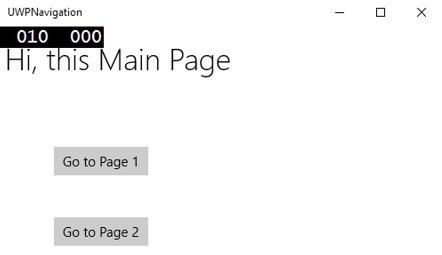
單擊任何按鈕時,它將導航到相應的頁面。讓我們點選“轉到頁面 1”,然後將顯示以下頁面。
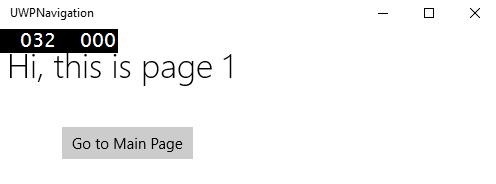
單擊“轉到主頁面”按鈕時,它將導航回主頁面。