- ReactJS 教程
- ReactJS - 首頁
- ReactJS - 簡介
- ReactJS - 路線圖
- ReactJS - 安裝
- ReactJS - 特性
- ReactJS - 優點與缺點
- ReactJS - 架構
- ReactJS - 建立 React 應用
- ReactJS - JSX
- ReactJS - 元件
- ReactJS - 巢狀元件
- ReactJS - 使用新建立的元件
- ReactJS - 元件集合
- ReactJS - 樣式
- ReactJS - 屬性 (props)
- ReactJS - 使用屬性建立元件
- ReactJS - props 驗證
- ReactJS - 建構函式
- ReactJS - 元件生命週期
- ReactJS - 事件管理
- ReactJS - 建立一個事件感知元件
- ReactJS - 在 Expense Manager 應用中引入事件
- ReactJS - 狀態管理
- ReactJS - 狀態管理 API
- ReactJS - 無狀態元件
- ReactJS - 使用 React Hooks 進行狀態管理
- ReactJS - 使用 React Hooks 進行元件生命週期管理
- ReactJS - 佈局元件
- ReactJS - 分頁
- ReactJS - Material UI
- ReactJS - Http 客戶端程式設計
- ReactJS - 表單程式設計
- ReactJS - 受控元件
- ReactJS - 非受控元件
- ReactJS - Formik
- ReactJS - 條件渲染
- ReactJS - 列表
- ReactJS - Keys
- ReactJS - 路由
- ReactJS - Redux
- ReactJS - 動畫
- ReactJS - Bootstrap
- ReactJS - Map
- ReactJS - 表格
- ReactJS - 使用 Flux 管理狀態
- ReactJS - 測試
- ReactJS - CLI 命令
- ReactJS - 構建和部署
- ReactJS - 示例
- Hooks
- ReactJS - Hooks 簡介
- ReactJS - 使用 useState
- ReactJS - 使用 useEffect
- ReactJS - 使用 useContext
- ReactJS - 使用 useRef
- ReactJS - 使用 useReducer
- ReactJS - 使用 useCallback
- ReactJS - 使用 useMemo
- ReactJS - 自定義 Hooks
- ReactJS 高階
- ReactJS - 可訪問性
- ReactJS - 程式碼分割
- ReactJS - Context
- ReactJS - 錯誤邊界
- ReactJS - 轉發 Refs
- ReactJS - 片段
- ReactJS - 高階元件
- ReactJS - 整合其他庫
- ReactJS - 效能最佳化
- ReactJS - Profiler API
- ReactJS - Portals
- ReactJS - 無 ES6 ECMAScript 的 React
- ReactJS - 無 JSX 的 React
- ReactJS - 調和
- ReactJS - Refs 和 DOM
- ReactJS - Render Props
- ReactJS - 靜態型別檢查
- ReactJS - Strict Mode
- ReactJS - Web Components
- 其他概念
- ReactJS - 日期選擇器
- ReactJS - Helmet
- ReactJS - 內聯樣式
- ReactJS - PropTypes
- ReactJS - BrowserRouter
- ReactJS - DOM
- ReactJS - 輪播圖
- ReactJS - 圖示
- ReactJS - 表單元件
- ReactJS - 參考 API
- ReactJS 有用資源
- ReactJS - 快速指南
- ReactJS - 有用資源
- ReactJS - 討論
ReactJS - Material UI
React 社群提供了大量的先進 UI 元件框架。Material UI 是流行的 React UI 框架之一。本章我們將學習如何在專案中使用 Material UI 庫。
安裝
Material UI 可以使用 npm 包安裝。
npm install @material-ui/core
Material UI 建議使用 Roboto 字型用於 UI。要使用 Roboto 字型,請使用 Gooogleapi 連結包含它。
<link rel="stylesheet" href="https://fonts.googleapis.com/css?family=Roboto:300,400,500,700&display=swap" />
要使用字型圖示,請使用來自 googleapis 的圖示連結:
<link rel="stylesheet" href="https://fonts.googleapis.com/icon?family=Material+Icons" />
要使用 SVG 圖示,請安裝 @material-ui/icons 包:
npm install @material-ui/icons
工作示例
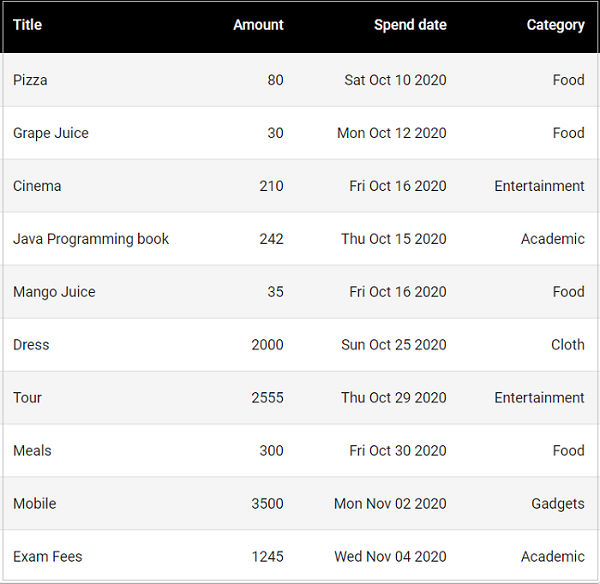
讓我們重新建立支出列表應用程式,並使用 Material UI 元件代替 html 表格。
步驟 1 - 首先,使用 Create React App 或 Rollup bundler 建立一個新的 React 應用程式,react-materialui-app,方法是按照建立 React 應用程式章節中的說明進行操作。
步驟 2 - 安裝 React Transition Group 庫:
cd /go/to/project npm install @material-ui/core @material-ui/icons --save
在您喜歡的編輯器中開啟應用程式。
在應用程式的根目錄下建立 src 資料夾。
在 src 資料夾下建立 components 資料夾。
在 src/components 資料夾中建立一個檔案,ExpenseEntryItemList.js,以建立 ExpenseEntryItemList 元件
匯入 React 庫和樣式表。
import React from 'react';
步驟 2 - 接下來,匯入 Material-UI 庫。
import { withStyles } from '@material-ui/core/styles';
import Table from '@material-ui/core/Table';
import TableBody from '@material-ui/core/TableBody';
import TableCell from '@material-ui/core/TableCell';
import TableContainer from '@material-ui/core/TableContainer';
import TableHead from '@material-ui/core/TableHead';
import TableRow from '@material-ui/core/TableRow';
import Paper from '@material-ui/core/Paper';
建立 ExpenseEntryItemList 類並呼叫建構函式。
class ExpenseEntryItemList extends React.Component {
   constructor(props) {
      super(props);
   }
}
<link rel="stylesheet" href="https://fonts.googleapis.com/css?family=Roboto:300,400,500,700&display=swap" />
建立一個 render() 函式。
render() {
}
在 render 方法中為表格行和表格單元格應用樣式。
const StyledTableCell = withStyles((theme) => ({
   head: {
      backgroundColor: theme.palette.common.black,
      color: theme.palette.common.white,
   },
   body: {
      fontSize: 14,
   },
}))(TableCell);
const StyledTableRow = withStyles((theme) => ({
   root: {
      '&:nth-of-type(odd)': {
         backgroundColor: theme.palette.action.hover,
      },
   },
}))(TableRow);
使用 map 方法生成一系列 Material UI StyledTableRow,每個代表列表中的單個支出條目。
const lists = this.props.items.map((item) =>
   <StyledTableRow key={item.id}>
      <StyledTableCell component="th" scope="row">
         {item.name}
      </StyledTableCell>
      <StyledTableCell align="right">{item.amount}</StyledTableCell>
      <StyledTableCell align="right">
         {new Date(item.spendDate).toDateString()}
      </StyledTableCell>
      <StyledTableCell align="right">{item.category}</StyledTableCell>
   </StyledTableRow>
);
這裡,key 標識每一行,並且它在列表中必須是唯一的。
步驟 3 - 在 render() 方法中,建立一個 Material UI 表格,並將列表表示式包含在 rows 部分中並返回它。
return (
<TableContainer component={Paper}>
   <Table aria-label="customized table">
      <TableHead>
         <TableRow>
            <StyledTableCell>Title</StyledTableCell>
            <StyledTableCell align="right">Amount</StyledTableCell>
            <StyledTableCell align="right">Spend date</StyledTableCell>
            <StyledTableCell align="right">Category</StyledTableCell>
         </TableRow>
      </TableHead>
      <TableBody>
         {lists}
      </TableBody>
   </Table>
</TableContainer> );
最後,匯出元件。
export default ExpenseEntryItemList;
現在,我們已經成功建立了使用 Material UI 元件渲染支出條目的元件。
元件的完整原始碼如下:
import React from 'react';

import { withStyles } from '@material-ui/core/styles';
import Table from '@material-ui/core/Table';
import TableBody from '@material-ui/core/TableBody';
import TableCell from '@material-ui/core/TableCell';
import TableContainer from '@material-ui/core/TableContainer';
import TableHead from '@material-ui/core/TableHead';
import TableRow from '@material-ui/core/TableRow';
import Paper from '@material-ui/core/Paper';

class ExpenseEntryItemList extends React.Component {
   constructor(props) {
      super(props);
   }
   render() {
      const StyledTableCell = withStyles((theme) => ({
         head: {
            backgroundColor: theme.palette.common.black,
            color: theme.palette.common.white,
         },
         body: {
            fontSize: 14,
         },
      }))(TableCell);
      const StyledTableRow = withStyles((theme) => ({
         root: {
            '&:nth-of-type(odd)': {
               backgroundColor: theme.palette.action.hover,
            },
         },
      }))(TableRow);
      const lists = this.props.items.map((item) =>
         <StyledTableRow key={item.id}>
            <StyledTableCell component="th" scope="row">
               {item.name}
            </StyledTableCell>
            <StyledTableCell align="right">{item.amount}</StyledTableCell>
            <StyledTableCell align="right">{new Date(item.spendDate).toDateString()}</StyledTableCell>
            <StyledTableCell align="right">{item.category}</StyledTableCell>
         </StyledTableRow>
      );
      return (
      <TableContainer component={Paper}>
         <Table aria-label="customized table">
            <TableHead>
               <TableRow>
                  <StyledTableCell>Title</StyledTableCell>
                  <StyledTableCell align="right">Amount</StyledTableCell>
                  <StyledTableCell align="right">Spend date</StyledTableCell>
                  <StyledTableCell align="right">Category</StyledTableCell>
               </TableRow>
            </TableHead>
            <TableBody>
               {lists}
            </TableBody>
         </Table>
      </TableContainer> );
   }
}
export default ExpenseEntryItemList;
index.js
開啟 index.js 並匯入 React 庫和我們新建立的 ExpenseEntryItemList 元件。
import React from 'react';
import ReactDOM from 'react-dom';
import ExpenseEntryItemList from './components/ExpenseEntryItemList';
在 index.js 檔案中宣告一個列表(支出條目列表)並用一些隨機值填充它。
const items = [
   { id: 1, name: "Pizza", amount: 80, spendDate: "2020-10-10", category: "Food" },
   { id: 1, name: "Grape Juice", amount: 30, spendDate: "2020-10-12", category: "Food" },
   { id: 1, name: "Cinema", amount: 210, spendDate: "2020-10-16", category: "Entertainment" },
   { id: 1, name: "Java Programming book", amount: 242, spendDate: "2020-10-15", category: "Academic" },
   { id: 1, name: "Mango Juice", amount: 35, spendDate: "2020-10-16", category: "Food" },
   { id: 1, name: "Dress", amount: 2000, spendDate: "2020-10-25", category: "Cloth" },
   { id: 1, name: "Tour", amount: 2555, spendDate: "2020-10-29", category: "Entertainment" },
   { id: 1, name: "Meals", amount: 300, spendDate: "2020-10-30", category: "Food" },
   { id: 1, name: "Mobile", amount: 3500, spendDate: "2020-11-02", category: "Gadgets" },
   { id: 1, name: "Exam Fees", amount: 1245, spendDate: "2020-11-04", category: "Academic" }
]
透過 items 屬性傳遞專案來使用 ExpenseEntryItemList 元件。
ReactDOM.render(
   <React.StrictMode>
      <ExpenseEntryItemList items={items} />
   </React.StrictMode>,
   document.getElementById('root')
);
index.js 的完整程式碼如下:
import React from 'react';
import ReactDOM from 'react-dom';
import ExpenseEntryItemList from './components/ExpenseEntryItemList';

const items = [
   { id: 1, name: "Pizza", amount: 80, spendDate: "2020-10-10", category: "Food" },
   { id: 1, name: "Grape Juice", amount: 30, spendDate: "2020-10-12", category: "Food" },
   { id: 1, name: "Cinema", amount: 210, spendDate: "2020-10-16", category: "Entertainment" },
   { id: 1, name: "Java Programming book", amount: 242, spendDate: "2020-10-15", category: "Academic" },
   { id: 1, name: "Mango Juice", amount: 35, spendDate: "2020-10-16", category: "Food" },
   { id: 1, name: "Dress", amount: 2000, spendDate: "2020-10-25", category: "Cloth" },
   { id: 1, name: "Tour", amount: 2555, spendDate: "2020-10-29", category: "Entertainment" },
   { id: 1, name: "Meals", amount: 300, spendDate: "2020-10-30", category: "Food" },
   { id: 1, name: "Mobile", amount: 3500, spendDate: "2020-11-02", category: "Gadgets" },
   { id: 1, name: "Exam Fees", amount: 1245, spendDate: "2020-11-04", category: "Academic" }
]
ReactDOM.render(
   <React.StrictMode>
      <ExpenseEntryItemList items={items} />
   </React.StrictMode>,
   document.getElementById('root')
);
使用 npm 命令啟動應用程式。
npm start
index.html
在 public 資料夾中開啟 index.html 檔案,幷包含 Material UI 字型和圖示。
<!DOCTYPE html>
<html lang="en">
   <head>
      <meta charset="utf-8">
      <title>Material UI App</title>
      <link rel="stylesheet" href="https://fonts.googleapis.com/css?family=Roboto:300,400,500,700&display=swap" />
      <link rel="stylesheet" href="https://fonts.googleapis.com/icon?family=Material+Icons" />
   </head>
   <body>
      <div id="root"></div>
      <script type="text/JavaScript" src="./index.js"></script>
   </body>
</html>
開啟瀏覽器並在位址列中輸入 https://:3000 並按 Enter 鍵。