
- WPF 教程
- WPF - 首頁
- WPF - 概述
- WPF - 環境設定
- WPF - Hello World
- WPF - XAML 概述
- WPF - 元素樹
- WPF - 依賴屬性
- WPF - 路由事件
- WPF - 控制元件
- WPF - 佈局
- WPF - 佈局巢狀
- WPF - 輸入
- WPF - 命令列
- WPF - 資料繫結
- WPF - 資源
- WPF - 模板
- WPF - 樣式
- WPF - 觸發器
- WPF - 除錯
- WPF - 自定義控制元件
- WPF - 異常處理
- WPF - 本地化
- WPF - 互動
- WPF - 2D 圖形
- WPF - 3D 圖形
- WPF - 多媒體
- WPF 有用資源
- WPF - 快速指南
- WPF - 有用資源
- WPF - 討論
WPF - 資料網格檢視
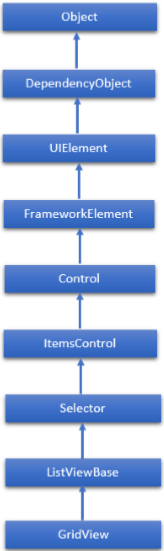
GridView 是一種以行和列顯示資料項的控制元件。實際上,ListView 顯示資料。預設情況下,它包含一個 GridView。GridView 類的繼承層次結構如下:
| 序號 | 屬性及說明 |
|---|---|
| 1 | 背景 獲取或設定一個畫刷,該畫刷提供控制元件的背景。(繼承自 Control) |
| 2 | 邊框粗細 獲取或設定控制元件的邊框粗細。(繼承自 Control) |
| 3 | 資料上下文 當 FrameworkElement 參與資料繫結時,獲取或設定其資料上下文。(繼承自 FrameworkElement) |
| 4 | 字體系列 獲取或設定用於在控制元件中顯示文字的字型。(繼承自 Control) |
| 5 | 字型大小 獲取或設定此控制元件中文字的大小。(繼承自 Control) |
| 6 | 字型樣式 獲取或設定呈現文字的樣式。(繼承自 Control) |
| 7 | 字型粗細 獲取或設定指定字型的粗細。(繼承自 Control) |
| 8 | 前景色 獲取或設定一個畫刷,該畫刷描述前景色。(繼承自 Control) |
| 9 | 組樣式 獲取 GroupStyle 物件的集合,這些物件定義每組級別的外觀。(繼承自 ItemsControl) |
| 10 | 標題 獲取或設定列表標題的內容。(繼承自 ListViewBase) |
| 11 | 高度 獲取或設定 FrameworkElement 的建議高度。(繼承自 FrameworkElement) |
| 12 | 水平對齊 獲取或設定當 FrameworkElement 在佈局父級(如面板或專案控制元件)中進行組合時應用的水平對齊特性。(繼承自 FrameworkElement) |
| 13 | 水平內容對齊 獲取或設定控制元件內容的水平對齊方式。(繼承自 Control) |
| 14 | 專案 獲取用於生成控制元件內容的集合。(繼承自 ItemsControl) |
| 15 | 專案源 獲取或設定用於生成 ItemsControl 內容的物件源。(繼承自 ItemsControl) |
| 16 | 專案模板 獲取或設定用於顯示每個專案的 DataTemplate。(繼承自 ItemsControl) |
| 17 | 邊距 獲取或設定 FrameworkElement 的外部邊距。(繼承自 FrameworkElement) |
| 18 | 名稱 獲取或設定物件的標識名稱。當 XAML 處理器從 XAML 標記建立物件樹時,執行時程式碼可以透過此名稱引用 XAML 宣告的物件。(繼承自 FrameworkElement) |
| 19 | 不透明度 獲取或設定物件的透明度。(繼承自 UIElement) |
| 20 | 資源 獲取本地定義的資源字典。在 XAML 中,您可以透過 XAML 隱式集合語法,將資源項作為 frameworkElement.Resources 屬性元素的子物件元素來建立。(繼承自 FrameworkElement) |
| 21 | 選中索引 獲取或設定所選專案的索引。(繼承自 Selector) |
| 22 | 選中專案 獲取或設定所選專案。(繼承自 Selector) |
| 23 | 選中專案 獲取當前選定的專案。(繼承自 ListViewBase) |
| 24 | 選中範圍 獲取 ItemIndexRange 物件的集合,這些物件描述列表中當前選定的專案。(繼承自 ListViewBase) |
| 25 | 選中值 獲取或設定所選專案的 value,透過使用 SelectedValuePath 獲取。(繼承自 Selector) |
| 26 | 樣式 獲取或設定在佈局和渲染期間應用於此物件的例項樣式。(繼承自 FrameworkElement) |
| 27 | 垂直對齊 獲取或設定當 FrameworkElement 在父物件(如面板或專案控制元件)中進行組合時應用的垂直對齊特性。(繼承自 FrameworkElement) |
| 28 | 垂直內容對齊 獲取或設定控制元件內容的垂直對齊方式。(繼承自 Control) |
| 29 | 寬度 獲取或設定 FrameworkElement 的寬度。(繼承自 FrameworkElement) |
| 序號 | 事件及說明 |
|---|---|
| 1 | DataContextChanged 當 FrameworkElement.DataContext 屬性的值更改時發生。(繼承自 FrameworkElement) |
| 2 | 拖動進入 當輸入系統報告以該元素作為目標的基礎拖動事件時發生。(繼承自 UIElement) |
| 3 | 拖動離開 當輸入系統報告以該元素作為源的基礎拖動事件時發生。(繼承自 UIElement) |
| 4 | 拖動經過 當輸入系統報告以該元素作為潛在放置目標的基礎拖動事件時發生。(繼承自 UIElement) |
| 5 | 拖動開始 當拖動操作開始時發生。(繼承自 UIElement) |
| 6 | 放置 當輸入系統報告以該元素作為放置目標的基礎放置事件時發生。(繼承自 UIElement) |
| 7 | 影像載入失敗 當影像檢索或格式出現錯誤時發生。 |
| 8 | 影像載入完成 當影像源下載並解碼且沒有錯誤時發生。您可以使用此事件來確定影像源的自然大小。 |
| 9 | 鍵盤按下 當 UIElement 具有焦點時按下鍵盤鍵時發生。(繼承自 UIElement) |
| 10 | 鍵盤彈起 當 UIElement 具有焦點時釋放鍵盤鍵時發生。(繼承自 UIElement) |
| 序號 | 方法及說明 |
|---|---|
| 1 | 排列 定位子物件並確定 UIElement 的大小。實現其子元素自定義佈局的父物件應從其佈局覆蓋實現中呼叫此方法,以形成遞迴佈局更新。(繼承自 UIElement) |
| 2 | 清除值 清除依賴屬性的本地值。(繼承自 DependencyObject) |
| 3 | 查詢名稱 檢索具有指定識別符號名稱的物件。(繼承自 FrameworkElement) |
| 4 | 獲取值 從 DependencyObject 返回依賴屬性的當前有效值。(繼承自 DependencyObject) |
| 5 | 讀取本地值 如果設定了本地值,則返回依賴屬性的本地值。(繼承自 DependencyObject) |
| 6 | 設定繫結 使用提供的繫結物件將繫結附加到 FrameworkElement。(繼承自 FrameworkElement) |
| 7 | 設定值 設定 DependencyObject 上依賴屬性的本地值。(繼承自 DependencyObject) |
示例
讓我們透過一個示例來更好地理解這個概念。首先建立一個名為 **WPFGridView** 的新 WPF 專案。
從工具箱中拖動一個網格檢視控制元件。
以下示例顯示了類似表格中的資料。
以下 XAML 程式碼建立並實現了一個 GridView。
<Window x:Class = "WPFGridView.MainWindow"
   xmlns = "http://schemas.microsoft.com/winfx/2006/xaml/presentation"
   xmlns:x = "http://schemas.microsoft.com/winfx/2006/xaml"
   Title = "MainWindow" Height = "350" Width = "525">

   <Grid>
      <ListView HorizontalAlignment = "Left" Height = "299" Margin = "10,10,0,0"
         VerticalAlignment = "Top" Width = "497"Name = "MenList">

         <ListView.View>
            <GridView>
               <GridViewColumn Header = "Name" DisplayMemberBinding = "{Binding Name}"
                  Width = "100"/>

               <GridViewColumn Header = "ID" DisplayMemberBinding = "{Binding ID}"
                  Width = "100"/>

               <GridViewColumn Header = "Age" DisplayMemberBinding = "{Binding Age}"
                  Width = "100"/>

            </GridView>
         </ListView.View>

      </ListView>
   </Grid>

</Window>
以下是 **C# 實現**,其中實現了 Person 類。
using System;
using System.Windows;
using System.Windows.Controls;

namespace WPFGridView {
   /// <summary>
      /// Interaction logic for MainWindow.xaml
   /// </summary>

   public partial class MainWindow : Window {

      public MainWindow() {
         InitializeComponent();

         MenList.Items.Add(new Person() {Name = "Ali", ID = "123A", Age = 20 });
         MenList.Items.Add(new Person() {Name = "Akram",ID= "456X", Age = 35 });
         MenList.Items.Add(new Person() {Name = "Salman",ID="333E", Age = 49 });
      }
   }

   class Person {
      public string Name { get; set; }
      public string ID { get; set; }
      public int Age { get; set; }
   }

}
編譯並執行上述程式碼後,將生成以下輸出。
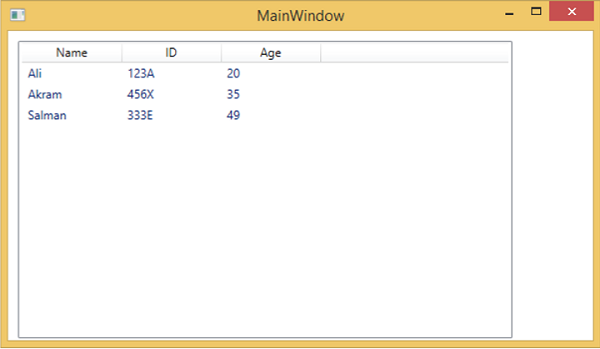
建議您執行上述示例程式碼,並嘗試 GridView 的其他屬性和事件。