
- WPF 教程
- WPF - 首頁
- WPF - 概述
- WPF - 環境設定
- WPF - Hello World
- WPF - XAML 概述
- WPF - 元素樹
- WPF - 依賴屬性
- WPF - 路由事件
- WPF - 控制元件
- WPF - 佈局
- WPF - 佈局巢狀
- WPF - 輸入
- WPF - 命令列
- WPF - 資料繫結
- WPF - 資源
- WPF - 模板
- WPF - 樣式
- WPF - 觸發器
- WPF - 除錯
- WPF - 自定義控制元件
- WPF - 異常處理
- WPF - 本地化
- WPF - 互動
- WPF - 2D 圖形
- WPF - 3D 圖形
- WPF - 多媒體
- WPF 有用資源
- WPF - 快速指南
- WPF - 有用資源
- WPF - 討論
WPF - 多媒體
WPF 應用程式使用MediaElement支援影片和音訊。它允許您將音訊和影片整合到應用程式中。MediaElement 類的工作方式類似於 Image 類。您只需將其指向媒體,它就會呈現出來。主要區別在於它將是移動影像,但如果您將其指向僅包含音訊且不包含影片的檔案(例如 MP3),它將在不顯示任何螢幕內容的情況下播放該檔案。
WPF 支援所有型別的影片/音訊格式,具體取決於機器配置。如果媒體檔案在媒體播放器中播放,它也將在同一臺機器上的 WPF 中工作。
示例
讓我們來看一個示例,瞭解如何在應用程式中整合多媒體。
建立一個名為WPFMultimedia的新 WPF 專案。
以下 XAML 程式碼建立了一個媒體元素和三個按鈕,並使用一些屬性對其進行初始化。
<Window x:Class = "WPFMultimedia.MainWindow"
   xmlns = "http://schemas.microsoft.com/winfx/2006/xaml/presentation"
   xmlns:x = "http://schemas.microsoft.com/winfx/2006/xaml"
   xmlns:d = "http://schemas.microsoft.com/expression/blend/2008"
   xmlns:mc = "http://schemas.openxmlformats.org/markup-compatibility/2006"
   xmlns:local = "clr-namespace:WPFMultimedia"
   mc:Ignorable = "d" Title = "MainWindow" Height = "350" Width = "604">

   <Grid>
      <StackPanel HorizontalAlignment = "Center" VerticalAlignment = "Center">
         <MediaElement Name = "myMedia" Source = "D:\MicrosoftMVA.mp4"
            LoadedBehavior = "Manual" Width = "591" Height = "274" />
         <StackPanel Orientation = "Horizontal" Margin = "0,10,0,0">
            <Button Content = "Play" Margin = "0,0,10,0" Padding = "5" Click = "mediaPlay" />
            <Button Content = "Pause" Margin = "0,0,10,0" Padding = "5" Click = "mediaPause" />
            <Button x:Name = "muteButt" Content = "Mute" Padding = "5" Click = "mediaMute" />
         </StackPanel>
      </StackPanel>
   </Grid>

</Window>
以下是不同按鈕的 C# 中的 Click 事件實現。
using System;
using System.Windows;

namespace WPFMultimedia {

   public partial class MainWindow : Window {

      public MainWindow() {
         InitializeComponent();
         myMedia.Volume = 100;
         myMedia.Play();
      }

      void mediaPlay(Object sender, EventArgs e) {
         myMedia.Play();
      }

      void mediaPause(Object sender, EventArgs e) {
         myMedia.Pause();
      }

      void mediaMute(Object sender, EventArgs e) {

         if (myMedia.Volume == 100) {
            myMedia.Volume = 0;
            muteButt.Content = "Listen";
         }
         else {
            myMedia.Volume = 100;
            muteButt.Content = "Mute";
         }
      }
   }
}
編譯並執行上述程式碼後,它將生成以下視窗。您可以播放影片並使用三個按鈕控制其播放。
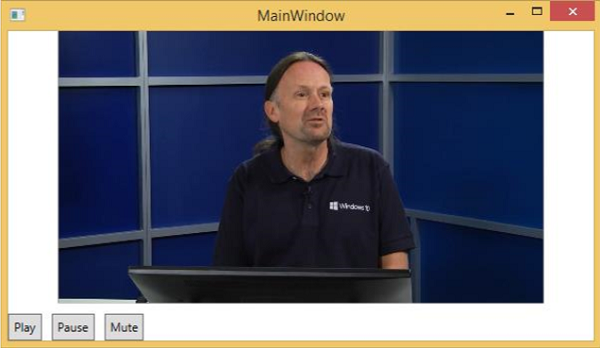
使用這些按鈕,您可以暫停、靜音和播放影片。
語音合成器
WPF 具有將文字轉換為語音的功能。此 API 包含在 System.Speech 名稱空間中。SpeechSynthesizer 類將文字轉換為口語。
示例
讓我們看一個簡單的例子。
建立一個名為WPFTextToSpeech的新 WPF 專案。
我們需要將 System.Speech 程式集新增為引用,才能使SpeechSynthesizer類正常工作。
右鍵單擊“引用”並選擇“新增引用”。

將開啟“引用管理器”對話方塊。現在選中“System.Speech”複選框。

單擊“確定”按鈕。您可以在“引用”中看到 System.Speech 程式集。

現在從工具箱中將一個按鈕和一個文字框拖到設計視窗中。
以下 XAML 程式碼建立了一個按鈕和一個文字框,並使用一些屬性對其進行初始化。
<Window x:Class = "WPFTextToSpeech.MainWindow"
   xmlns = "http://schemas.microsoft.com/winfx/2006/xaml/presentation"
   xmlns:x = "http://schemas.microsoft.com/winfx/2006/xaml"
   xmlns:d = "http://schemas.microsoft.com/expression/blend/2008"
   xmlns:mc = "http://schemas.openxmlformats.org/markup-compatibility/2006"
   xmlns:local = "clr-namespace:WPFTextToSpeech"
   mc:Ignorable = "d" Title = "MainWindow" Height = "350" Width = "604">

   <Grid>
      <Button x:Name = "button" Content = "Speak"
         HorizontalAlignment = "Left" Margin = "218,176,0,0"
         VerticalAlignment = "Top" Width = "75"/>

      <TextBox x:Name = "textBox" HorizontalAlignment = "Left"
         Height = "23" Margin = "60,104,0,0" TextWrapping = "Wrap"
         VerticalAlignment = "Top" Width = "418"/>
   </Grid>

</Window>
以下是 C# 中的簡單實現,它將文字框內的文字轉換為口語。
using System.Speech.Synthesis;
using System.Windows;

namespace WPFTextToSpeech {
   /// <summary>
      /// Interaction logic for MainWindow.xaml
   /// </summary>

   public partial class MainWindow : Window {

      public MainWindow() {
         InitializeComponent();
      }

      private void button_Click(object sender, RoutedEventArgs e) {

         if (textBox.Text != "") {
            SpeechSynthesizer speechSynthesizer = new SpeechSynthesizer();
            speechSynthesizer.Speak(textBox.Text);
         }
         else {
            MessageBox.Show("Write some thing in the textbox!");
         }
      }
   }
}
編譯並執行上述程式碼後,它將生成以下視窗。現在,在文字框中輸入 Hello World 並單擊“Speak”按鈕。

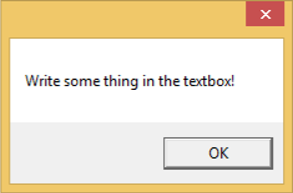
它將發出“Hello World”的聲音。如果您未在文字框中輸入任何內容,則它將顯示以下訊息。
我們建議您執行上述示例。