
- WPF 教程
- WPF - 首頁
- WPF - 概述
- WPF - 環境設定
- WPF - Hello World
- WPF - XAML 概述
- WPF - 元素樹
- WPF - 依賴屬性
- WPF - 路由事件
- WPF - 控制元件
- WPF - 佈局
- WPF - 佈局巢狀
- WPF - 輸入
- WPF - 命令列
- WPF - 資料繫結
- WPF - 資源
- WPF - 模板
- WPF - 樣式
- WPF - 觸發器
- WPF - 除錯
- WPF - 自定義控制元件
- WPF - 異常處理
- WPF - 本地化
- WPF - 互動
- WPF - 2D 圖形
- WPF - 3D 圖形
- WPF - 多媒體
- WPF 有用資源
- WPF - 快速指南
- WPF - 有用資源
- WPF - 討論
WPF - 互動
在 WPF 中,互動顯示檢視如何與該檢視中位於的控制元件互動。最常見的互動型別有兩種:
- 行為
- 拖放
行為
行為是在 Expression Blend 3 中引入的,它可以將某些功能封裝到可重用的元件中。要新增其他行為,您可以將這些元件附加到控制元件。行為提供了更大的靈活性,可以輕鬆設計複雜的使用者互動。
讓我們來看一個簡單的示例,其中 ControlStoryBoardAction 行為附加到控制元件。
建立一個名為 WPFBehavior 的新 WPF 專案。
以下 XAML 程式碼建立了一個橢圓和兩個按鈕來控制橢圓的移動。
<Window
   xmlns = "http://schemas.microsoft.com/winfx/2006/xaml/presentation"
   xmlns:x = "http://schemas.microsoft.com/winfx/2006/xaml"
   xmlns:d = "http://schemas.microsoft.com/expression/blend/2008"
   xmlns:mc = "http://schemas.openxmlformats.org/markup-compatibility/2006"
   xmlns:local = "clr-namespace:WPFBehaviors"
   xmlns:i = "http://schemas.microsoft.com/expression/2010/interactivity"
   xmlns:ei = "http://schemas.microsoft.com/expression/2010/interactions"
   x:Class = "WPFBehaviors.MainWindow"
   mc:Ignorable = "d" Title = "MainWindow" Height = "350" Width = "604">

   <Window.Resources>
      <Storyboard x:Key = "Storyboard1" RepeatBehavior = "Forever" AutoReverse = "True">

         <DoubleAnimationUsingKeyFrames Storyboard.TargetProperty =
            "(UIElement.RenderTransform).(TransformGroup.Children )[3].(TranslateTransform.X)"
            Storyboard.TargetName = "ellipse">
            <EasingDoubleKeyFrame KeyTime = "0:0:1" Value = "301.524"/>
            <EasingDoubleKeyFrame KeyTime = "0:0:2" Value = "2.909"/>
         </DoubleAnimationUsingKeyFrames>

         <DoubleAnimationUsingKeyFrames Storyboard.TargetProperty =
            "(UIElement.RenderTransform).(TransformGroup.Children )[3].(TranslateTransform.Y)"
            Storyboard.TargetName = "ellipse">
            <EasingDoubleKeyFrame KeyTime = "0:0:1" Value = "-0.485"/>
            <EasingDoubleKeyFrame KeyTime = "0:0:2" Value = "0"/>
         </DoubleAnimationUsingKeyFrames>

         <ObjectAnimationUsingKeyFrames Storyboard.TargetProperty = "(ContentControl.Content)"
            Storyboard.TargetName = "button">
            <DiscreteObjectKeyFrame KeyTime = "0" Value = "Play"/>
         </ObjectAnimationUsingKeyFrames>

         <ObjectAnimationUsingKeyFrames Storyboard.TargetProperty = "(ContentControl.Content)"
            Storyboard.TargetName = "button1">
            <DiscreteObjectKeyFrame KeyTime = "0" Value = "Stop"/>
            <DiscreteObjectKeyFrame KeyTime = "0:0:2" Value = "Stop"/>
         </ObjectAnimationUsingKeyFrames>
      </Storyboard>
   </Window.Resources>

   <Window.Triggers>
      <EventTrigger RoutedEvent = "FrameworkElement.Loaded">
         <BeginStoryboard Storyboard = "{StaticResource Storyboard1}"/>
      </EventTrigger>
   </Window.Triggers>

   <Grid>
      <Ellipse x:Name = "ellipse" Fill = "#FFAAAAC5" HorizontalAlignment = "Left"
         Height = "50.901" Margin = "49.324,70.922,0,0" Stroke = "Black"
         VerticalAlignment = "Top" Width = "73.684" RenderTransformOrigin = "0.5,0.5">
         <Ellipse.RenderTransform>
            <TransformGroup>
               <ScaleTransform/>
               <SkewTransform/>
               <RotateTransform/>
               <TranslateTransform/>
            </TransformGroup>
         </Ellipse.RenderTransform>
      </Ellipse>

      <Button x:Name = "button" Content = "Play" HorizontalAlignment = "Left" Height = "24.238"
         Margin = "63.867,0,0,92.953" VerticalAlignment = "Bottom" Width = "74.654">
         <i:Interaction.Triggers>
            <i:EventTrigger EventName = "Click">
               <ei:ControlStoryboardAction Storyboard = "{StaticResource Storyboard1}"/>
            </i:EventTrigger>
         </i:Interaction.Triggers>
      </Button>

      <Button x:Name = "button1" Content = "Stop" HorizontalAlignment = "Left" Height = "24.239"
         Margin = "160.82,0,0,93.922" VerticalAlignment = "Bottom" Width = "75.138">
         <i:Interaction.Triggers>
            <i:EventTrigger EventName = "Click">
               <ei:ControlStoryboardAction ControlStoryboardOption = "Stop"
                  Storyboard = "{StaticResource Storyboard1}"/>
            </i:EventTrigger>
         </i:Interaction.Triggers>
      </Button>

   </Grid>
</Window>
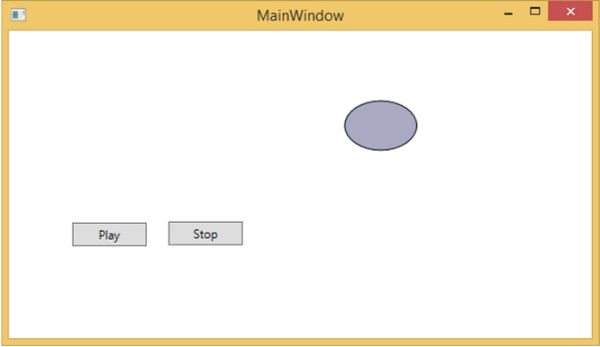
編譯並執行上述程式碼後,將生成以下包含一個橢圓和兩個按鈕的視窗。
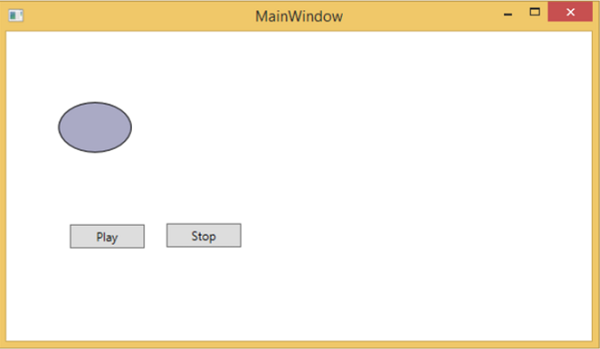
按下播放按鈕時,它將從左向右開始移動,然後返回其原始位置。停止按鈕將停止橢圓的移動。
拖放
使用者介面上的拖放功能可以顯著提高應用程式的效率和生產力。很少有應用程式使用拖放功能,因為人們認為它很難實現。在某種程度上,處理拖放功能確實很難,但在 WPF 中,您可以很容易地處理它。
讓我們來看一個簡單的例子來了解它是如何工作的。我們將建立一個應用程式,您可以在其中將顏色從一個矩形拖放到另一個矩形。
建立一個名為 WPFDragAndDrop 的新 WPF 專案。
將五個矩形拖到設計視窗,並設定如下 XAML 檔案所示的屬性。
<Window x:Class = "WPFDragAndDrop.MainWindow"
   xmlns = "http://schemas.microsoft.com/winfx/2006/xaml/presentation"
   xmlns:x = "http://schemas.microsoft.com/winfx/2006/xaml"
   xmlns:d = "http://schemas.microsoft.com/expression/blend/2008"
   xmlns:mc = "http://schemas.openxmlformats.org/markup-compatibility/2006"
   xmlns:local = "clr-namespace:WPFDragAndDrop"
   mc:Ignorable = "d" Title = "MainWindow" Height = "402.551" Width = "604">

   <Grid>
      <Rectangle Name = "Target" Fill = "AliceBlue" HorizontalAlignment = "Left"
         Height = "345" Margin = "10,10,0,0" Stroke = "Black"
         VerticalAlignment = "Top" Width = "387" AllowDrop = "True" Drop = "Target_Drop"/>

      <Rectangle Fill = "Beige" HorizontalAlignment = "Left" Height = "65"
         Margin = "402,10,0,0" Stroke = "Black" VerticalAlignment = "Top"
         Width = "184" MouseLeftButtonDown = "Rect_MLButtonDown"/>

      <Rectangle Fill = "LightBlue" HorizontalAlignment = "Left" Height = "65"
         Margin = "402,80,0,0" Stroke = "Black" VerticalAlignment = "Top"
         Width = "184" MouseLeftButtonDown = "Rect_MLButtonDown"/>

      <Rectangle Fill = "LightCoral" HorizontalAlignment = "Left" Height = "65"
         Margin = "402,150,0,0" Stroke = "Black" VerticalAlignment = "Top"
         Width = "184" MouseLeftButtonDown = "Rect_MLButtonDown"/>

      <Rectangle Fill = "LightGray" HorizontalAlignment = "Left" Height = "65"
         Margin = "402,220,0,0" Stroke = "Black" VerticalAlignment = "Top"
         Width = "184" MouseLeftButtonDown = "Rect_MLButtonDown"/>

      <Rectangle Fill = "OliveDrab" HorizontalAlignment = "Left" Height = "65"
         Margin = "402,290,0,-7" Stroke = "Black" VerticalAlignment = "Top"
         Width = "184" MouseLeftButtonDown = "Rect_MLButtonDown"/>
   </Grid>

</Window>
第一個矩形是目標矩形,因此使用者可以將顏色從另一個矩形拖放到目標矩形。
以下是 C# 中拖放的事件實現。
using System.Windows;
using System.Windows.Input;
using System.Windows.Media;
using System.Windows.Shapes;

namespace WPFDragAndDrop {
   /// <summary>
      /// Interaction logic for MainWindow.xaml
   /// </summary>

   public partial class MainWindow : Window {

      public MainWindow() {
         InitializeComponent();
      }

      private void Rect_MLButtonDown(object sender, MouseButtonEventArgs e) {
         Rectangle rc = sender as Rectangle;
         DataObject data = new DataObject(rc.Fill);
         DragDrop.DoDragDrop(rc, data,DragDropEffects.Move);
      }

      private void Target_Drop(object sender, DragEventArgs e) {
         SolidColorBrush scb = (SolidColorBrush)e.Data.GetData(typeof(SolidColorBrush));
         Target.Fill = scb;
      }
   }
}
執行應用程式後,將生成以下視窗。
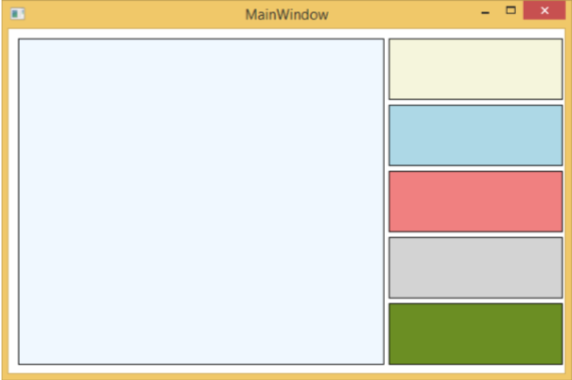
如果將顏色從右側的矩形拖動並將其放在左側的大矩形上,您將立即看到其效果。
讓我們拖動右側的第 4 個。
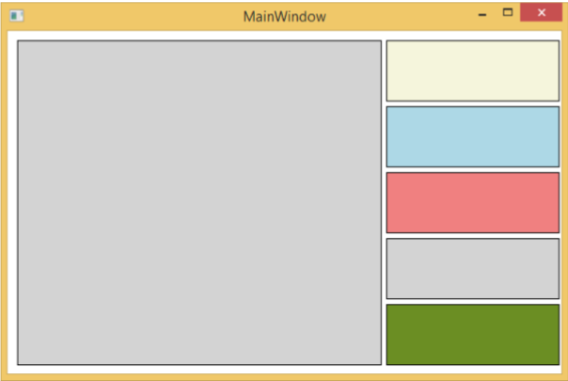
您可以看到目標矩形的顏色已更改。我們建議您執行上述程式碼並試驗其功能。
廣告