
- Angular 教程
- Angular - 首頁
- Angular - 概述
- Angular - 特性
- Angular - 優點與缺點
- Angular 基礎
- Angular - 環境搭建
- Angular - 第一個應用
- Angular - MVC 架構
- Angular 元件
- Angular - 元件
- Angular - 元件生命週期
- Angular - 檢視封裝
- Angular - 元件互動
- Angular - 元件樣式
- Angular - 巢狀元件
- Angular - 內容投影
- Angular - 動態元件
- Angular - 元素
- Angular 模板
- Angular - 模板
- Angular - 文字插值
- Angular - 模板語句
- Angular - 模板中的變數
- Angular - SVG 作為模板
- Angular 資料繫結
- Angular - 資料繫結及型別
- Angular - 資料繫結
- Angular - 事件繫結
- Angular - 屬性繫結
- Angular - 屬性繫結
- Angular - 類和樣式繫結
- Angular 指令
- Angular - 指令
- Angular - 內建指令
- Angular 管道
- Angular - 管道
- Angular - 使用管道轉換資料
- Angular 依賴注入
- Angular - 依賴注入
- Angular HTTP 客戶端程式設計
- Angular - 服務
- Angular - HTTP 客戶端
- Angular - 請求
- Angular - 響應
- Angular - GET 請求
- Angular - PUT 請求
- Angular - DELETE 請求
- Angular - JSON-P
- Angular - 使用 HTTP 進行 CRUD 操作
- Angular 路由
- Angular - 路由
- Angular - 導航
- Angular - Angular Material
- Angular 動畫
- Angular - 動畫
- Angular 表單
- Angular - 表單
- Angular - 表單驗證
- Angular Service Workers & PWA
- Angular - Service Workers & PWA
- Angular 測試
- Angular - 測試概述
- Angular NgModule
- Angular - 模組介紹
- Angular 高階
- Angular - 身份驗證與授權
- Angular - 國際化
- Angular - 可訪問性
- Angular - Web Workers
- Angular - 伺服器端渲染
- Angular - Ivy 編譯器
- Angular - 使用 Bazel 構建
- Angular - 向後相容性
- Angular - 響應式程式設計
- Angular - 指令和元件之間的資料共享
- Angular 工具
- Angular - CLI
- Angular 其他
- Angular - 第三方控制元件
- Angular - 配置
- Angular - 資料顯示
- Angular - 裝飾器和元資料
- Angular - 基本示例
- Angular - 錯誤處理
- Angular - 測試和專案構建
- Angular - 生命週期鉤子
- Angular - 使用者輸入
- Angular - 最新動態?
- Angular 有用資源
- Angular - 快速指南
- Angular - 有用資源
- Angular - 討論
Angular - 基本示例
在這裡,我們將學習關於Angular的完整步驟工作示例。
讓我們建立一個Angular應用程式來檢查我們日常的支出。讓我們選擇ExpenseManager作為我們的新應用程式名稱。
建立應用程式
使用以下命令建立新應用程式。
cd /path/to/workspace
ng new expense-manager
這裡:
new是ng CLI應用程式的一個命令。它將用於建立新的應用程式。它會問一些基本問題以便建立新的應用程式。讓應用程式選擇預設選項就足夠了。關於如下提到的路由問題,請指定No。
Would you like to add Angular routing? No
回答完基本問題後,ng CLI應用程式會在expense-manager資料夾下建立一個新的Angular應用程式。
讓我們進入我們新建立的應用程式資料夾。
cd expense-manager
讓我們使用以下命令啟動應用程式。
ng serve
讓我們開啟瀏覽器並訪問https://:4200。瀏覽器將顯示如下所示的應用程式:

讓我們更改應用程式的標題以更好地反映我們的應用程式。開啟src/app/app.component.ts並按如下所示更改程式碼:
export class AppComponent {
   title = 'Expense Manager';
}
最終的應用程式將在瀏覽器中呈現,如下所示:
新增元件
使用ng generate component命令建立新元件,如下所示:
ng generate component expense-entry
輸出
輸出如下:
CREATE src/app/expense-entry/expense-entry.component.html (28 bytes)
CREATE src/app/expense-entry/expense-entry.component.spec.ts (671 bytes)
CREATE src/app/expense-entry/expense-entry.component.ts (296 bytes)
CREATE src/app/expense-entry/expense-entry.component.css (0 bytes)
UPDATE src/app/app.module.ts (431 bytes)
這裡:
- ExpenseEntryComponent建立在src/app/expense-entry資料夾下。
- 元件類、模板和樣式表已建立。
- AppModule已使用新元件更新。
向ExpenseEntryComponent (src/app/expense-entry/expense-entry.component.ts)元件新增title屬性。
import { Component, OnInit } from '@angular/core';

@Component({
   selector: 'app-expense-entry',
   templateUrl: './expense-entry.component.html',
   styleUrls: ['./expense-entry.component.css']
})
export class ExpenseEntryComponent implements OnInit {
   title: string;
   constructor() { }

   ngOnInit() {
      this.title = "Expense Entry"
   }
}
使用以下內容更新模板src/app/expense-entry/expense-entry.component.html。
<p>{{ title }}</p>
開啟
src/app/app.component.html
幷包含新建立的元件。<h1>{{ title }}</h1>
<app-expense-entry></app-expense-entry>
這裡:
app-expense-entry是選擇器值,可以用作常規HTML標籤。
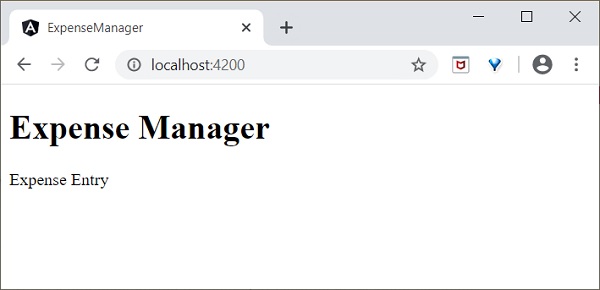
應用程式的輸出如下所示:
包含Bootstrap
讓我們使用styles選項將Bootstrap包含到我們的ExpenseManager應用程式中,並更改預設模板以使用Bootstrap元件。
開啟命令提示符並轉到ExpenseManager應用程式。
cd /go/to/expense-manager
使用以下命令安裝bootstrap和JQuery庫
npm install --save bootstrap@4.5.0 jquery@3.5.1
這裡:
我們安裝了JQuery,因為Bootstrap廣泛使用JQuery來實現高階元件。
在angular.json中設定bootstrap和jquery庫路徑。
{
   "projects": {
      "expense-manager": {
         "architect": {
            "build": {
               "builder":"@angular-devkit/build-angular:browser", "options": {
                  "outputPath": "dist/expense-manager",
                  "index": "src/index.html",
                  "main": "src/main.ts",
                  "polyfills": "src/polyfills.ts",
                  "tsConfig": "tsconfig.app.json",
                  "aot": false,
                  "assets": [
                     "src/favicon.ico",
                     "src/assets"
                  ],
                  "styles": [
                     "./node_modules/bootstrap/dist/css/bootstrap.css", "src/styles.css"
                  ],
                  "scripts": [
                     "./node_modules/jquery/dist/jquery.js", "./node_modules/bootstrap/dist/js/bootstrap.js"
                  ]
               },
            },
         }
   }},
   "defaultProject": "expense-manager"
}
這裡:
scripts選項用於包含JavaScript庫。透過scripts註冊的JavaScript將可用於應用程式中的所有Angular元件。
開啟app.component.html並將內容更改為如下所示
<!-- Navigation -->
<nav class="navbar navbar-expand-lg navbar-dark bg-dark static-top">
   <div class="container">
      <a class="navbar-brand" href="#">{{ title }}</a> <button class="navbar-toggler" type="button" data-toggle="collapse" data-target="#navbarResponsive" aria-controls="navbarResponsive" aria-expanded="false" aria-label="Toggle navigation">
         <span class="navbar-toggler-icon">
         </span>
      </button>
      <div class="collapse navbar-collapse" id="navbarResponsive">
         <ul class="navbar-nav ml-auto">
            <li class="nav-item active">
            <a class="nav-link" href="#">Home
               <span class="sr-only">(current)
               </span>
            </a>
            </li>
            <li class="nav-item">
            <a class="nav-link" href="#">Report</a>
            </li>
            <li class="nav-item">
            <a class="nav-link" href="#">Add Expense</a>
            </li>
            <li class="nav-item">
            <a class="nav-link" href="#">About</a>
            </li>
         </ul>
      </div>
   </div>
</nav>
<app-expense-entry></app-expense-entry>
這裡:
使用了Bootstrap導航和容器。
開啟src/app/expense-entry/expense-entry.component.html並放置以下內容。
<!-- Page Content -->
<div class="container">
   <div class="row">
      <div class="col-lg-12 text-center" style="padding-top: 20px;">
         <div class="container" style="padding-left: 0px; padding-right: 0px;">
            <div class="row">
            <div class="col-sm" style="text-align: left;"> {{ title }}
            </div>
            <div class="col-sm" style="text-align: right;">
               <button type="button" class="btn btn-primary">Edit</button>
            </div>
            </div>
         </div>
         <div class="container box" style="margin-top: 10px;">
         <div class="row">
         <div class="col-2" style="text-align: right;">
            <strong><em>Item:</em></strong>
         </div>
         <div class="col" style="text-align: left;">
            Pizza
         </div>
         </div>
         <div class="row">
         <div class="col-2" style="text-align: right;">
            <strong><em>Amount:</em></strong>
         </div>
         <div class="col" style="text-align: left;">
            20
         </div>
         </div>
         <div class="row">
         <div class="col-2" style="text-align: right;">
            <strong><em>Category:</em></strong>
         </div>
         <div class="col" style="text-align: left;">
            Food
         </div>
         </div>
         <div class="row">
         <div class="col-2" style="text-align: right;">
            <strong><em>Location:</em></strong>
         </div>
         <div class="col" style="text-align: left;">
            Zomato
         </div>
         </div>
         <div class="row">
         <div class="col-2" style="text-align: right;">
            <strong><em>Spend On:</em></strong>
         </div>
         <div class="col" style="text-align: left;">
            June 20, 2020
         </div>
         </div>
      </div>
   </div>
</div>
</div>
重啟應用程式。
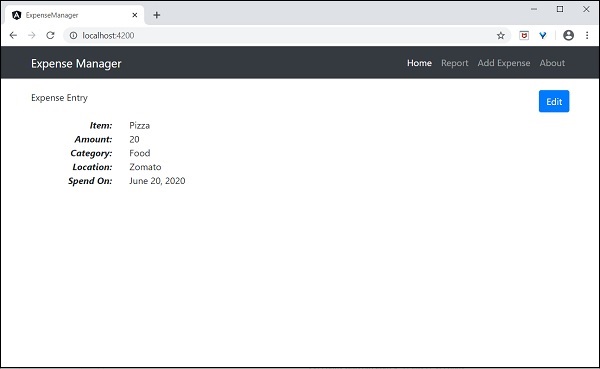
應用程式的輸出如下所示:
我們將在下一章改進應用程式以處理動態支出條目。
新增介面
建立ExpenseEntry介面(src/app/expense-entry.ts)並新增id、amount、category、Location、spendOn和createdOn。
export interface ExpenseEntry {
   id: number;
   item: string;
   amount: number;
   category: string;
   location: string;
   spendOn: Date;
   createdOn: Date;
}
將ExpenseEntry匯入到ExpenseEntryComponent。
import { ExpenseEntry } from '../expense-entry';
建立一個ExpenseEntry物件,expenseEntry,如下所示:
export class ExpenseEntryComponent implements OnInit {
   title: string;
   expenseEntry: ExpenseEntry;
   constructor() { }

   ngOnInit() {
      this.title = "Expense Entry";

      this.expenseEntry = {

         id: 1,
         item: "Pizza",
         amount: 21,
         category: "Food",
         location: "Zomato",
         spendOn: new Date(2020, 6, 1, 10, 10, 10),
         createdOn: new Date(2020, 6, 1, 10, 10, 10),
      };
   }
}
使用expenseEntry物件更新元件模板src/app/expense-entry/expense-entry.component.html,如下所示:
<!-- Page Content -->
<div class="container">
   <div class="row">
      <div class="col-lg-12 text-center" style="padding-top: 20px;">
         <div class="container" style="padding-left: 0px; padding-right: 0px;">
            <div class="row">
               <div class="col-sm" style="text-align: left;">
                  {{ title }}
               </div>
               <div class="col-sm" style="text-align: right;">
                  <button type="button" class="btn btn-primary">Edit</button>
               </div>
            </div>
         </div>
         <div class="container box" style="margin-top: 10px;">
            <div class="row">
               <div class="col-2" style="text-align: right;">
                  <strong><em>Item:</em></strong>
               </div>
               <div class="col" style="text-align: left;">
                  {{ expenseEntry.item }}
               </div>
            </div>
            <div class="row">
               <div class="col-2" style="text-align: right;">
                  <strong><em>Amount:</em></strong>
               </div>
               <div class="col" style="text-align: left;">
                  {{ expenseEntry.amount }}
               </div>
            </div>
            <div class="row">
               <div class="col-2" style="text-align: right;">
                  <strong><em>Category:</em></strong>
               </div>
               <div class="col" style="text-align: left;">

                  {{ expenseEntry.category }}
               </div>
            </div>
            <div class="row">
               <div class="col-2" style="text-align: right;">
                  <strong><em>Location:</em></strong>
               </div>
               <div class="col" style="text-align: left;">
                  {{ expenseEntry.location }}
               </div>
            </div>
            <div class="row">
               <div class="col-2" style="text-align: right;">
                  <strong><em>Spend On:</em></strong>
               </div>
               <div class="col" style="text-align: left;">
                  {{ expenseEntry.spendOn }}
               </div>
            </div>
         </div>
      </div>
   </div>
</div>
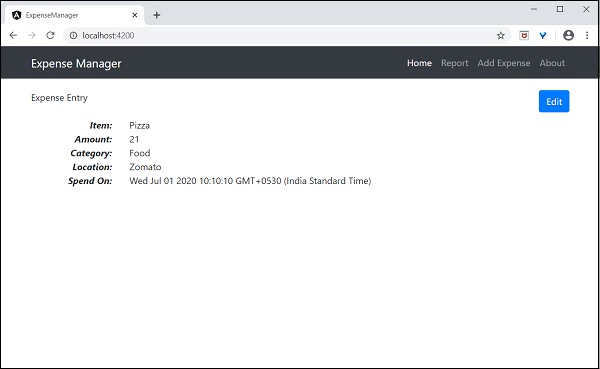
應用程式的輸出如下所示:
使用指令
讓我們在我們的ExpenseManager應用程式中新增一個新元件來列出支出條目。
開啟命令提示符並轉到專案根資料夾。
cd /go/to/expense-manager
啟動應用程式。
ng serve
使用以下命令建立一個新元件,ExpenseEntryListComponent:
ng generate component ExpenseEntryList
輸出
輸出如下:
CREATE src/app/expense-entry-list/expense-entry-list.component.html (33 bytes)
CREATE src/app/expense-entry-list/expense-entry-list.component.spec.ts (700 bytes)
CREATE src/app/expense-entry-list/expense-entry-list.component.ts (315 bytes)
CREATE src/app/expense-entry-list/expense-entry-list.component.css (0 bytes)
UPDATE src/app/app.module.ts (548 bytes)
這裡,該命令建立了ExpenseEntryList元件並在AppModule中更新了必要的程式碼。
將ExpenseEntry匯入到ExpenseEntryListComponent元件(src/app/expense-entry-list/expense-entry-list.component)
import { ExpenseEntry } from '../expense-entry';
新增一個方法getExpenseEntries()以在ExpenseEntryListComponent (src/app/expense-entry-list/expense-entry-list.component)中返回支出條目的列表(模擬項)
getExpenseEntries() : ExpenseEntry[] {
   let mockExpenseEntries : ExpenseEntry[] = [
      { id: 1,
         item: "Pizza",
         amount: Math.floor((Math.random() * 10) + 1),
         category: "Food",
         location: "Mcdonald",
         spendOn: new Date(2020, 4, Math.floor((Math.random() * 30) + 1), 10, 10, 10),
         createdOn: new Date(2020, 4, Math.floor((Math.random() * 30) + 1), 10, 10, 10) },
      { id: 1,
         item: "Pizza",
         amount: Math.floor((Math.random() * 10) + 1),
         category: "Food",
         location: "KFC",
         spendOn: new Date(2020, 4, Math.floor((Math.random() * 30) + 1), 10, 10, 10),
         createdOn: new Date(2020, 4, Math.floor((Math.random() * 30) + 1), 10, 10, 10) },
      { id: 1,
         item: "Pizza",
         amount: Math.floor((Math.random() * 10) + 1),
         category: "Food",
         location: "Mcdonald",
         spendOn: new Date(2020, 4, Math.floor((Math.random() * 30) + 1), 10, 10, 10),
         createdOn: new Date(2020, 4, Math.floor((Math.random() * 30) + 1), 10, 10, 10) },
      { id: 1,
         item: "Pizza",
         amount: Math.floor((Math.random() * 10) + 1),
         category: "Food",
         location: "KFC",
         spendOn: new Date(2020, 4, Math.floor((Math.random() * 30) + 1), 10, 10, 10),
         createdOn: new Date(2020, 4, Math.floor((Math.random() * 30) + 1), 10, 10, 10) },
      { id: 1,
         item: "Pizza",
         amount: Math.floor((Math.random() * 10) + 1),
         category: "Food",
         location: "KFC",
         spendOn: new Date(2020, 4, Math.floor((Math.random() * 30) + 1), 10, 10, 10),
         createdOn: new Date(2020, 4, Math.floor((Math.random() * 30) + 1), 10, 10, 10)
      },
   ];
   return mockExpenseEntries;
}
宣告一個區域性變數expenseEntries並載入如下所示的模擬支出條目列表:
title: string;
expenseEntries: ExpenseEntry[];
constructor() { }
ngOnInit() {
   this.title = "Expense Entry List";
   this.expenseEntries = this.getExpenseEntries();
}
開啟模板檔案(src/app/expense-entry-list/expense-entry-list.component.html)並在表格中顯示模擬條目。
<!-- Page Content -->
<div class="container">
   <div class="row">
      <div class="col-lg-12 text-center" style="padding-top: 20px;">
         <div class="container" style="padding-left: 0px; padding-right: 0px;">
            <div class="row">
               <div class="col-sm" style="text-align: left;">
                  {{ title }}
               </div>
               <div class="col-sm" style="text-align: right;">
                  <button type="button" class="btn btn-primary">Edit</button>
               </div>
            </div>
         </div>
         <div class="container box" style="margin-top: 10px;">
            <table class="table table-striped">
               <thead>
                  <tr>
                     <th>Item</th>
                     <th>Amount</th>
                     <th>Category</th>
                     <th>Location</th>
                     <th>Spent On</th>
                  </tr>
               </thead>
               <tbody>
                  <tr *ngFor="let entry of expenseEntries">
                     <th scope="row">{{ entry.item }}</th>
                     <th>{{ entry.amount }}</th>
                     <td>{{ entry.category }}</td>
                     <td>{{ entry.location }}</td>
                     <td>{{ entry.spendOn | date: 'short' }}</td>
                  </tr>
               </tbody>
            </table>
         </div>
      </div>
   </div>
</div>
這裡:
使用了Bootstrap表格。table和table-striped將根據Bootstrap樣式標準設定表格樣式。
使用ngFor迴圈遍歷expenseEntries並生成表格行。
開啟AppComponent模板src/app/app.component.html幷包含ExpenseEntryListComponent並刪除ExpenseEntryComponent,如下所示:
...
<app-expense-entry-list></app-expense-entry-list>
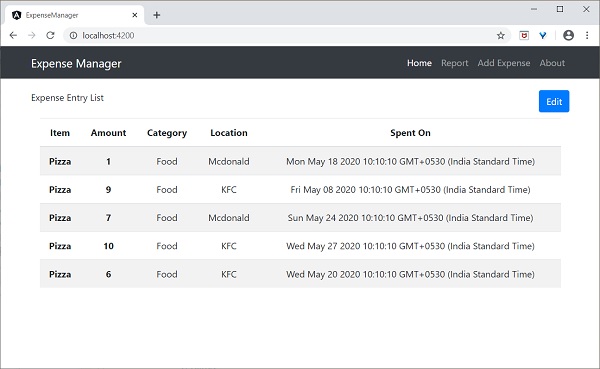
最後,應用程式的輸出如下所示。
使用管道
讓我們在我們的ExpenseManager應用程式中使用管道
開啟ExpenseEntryListComponent的模板src/app/expense-entry-list/expense-entry-list.component.html並在entry.spendOn中包含管道,如下所示:
<td>{{ entry.spendOn | date: 'short' }}</td>
這裡,我們使用了日期管道以簡短格式顯示支出日期。
最後,應用程式的輸出如下所示:

新增除錯服務
執行以下命令生成Angular服務DebugService。
ng g service debug
這將建立兩個Typescript檔案(除錯服務及其測試),如下所示:
CREATE src/app/debug.service.spec.ts (328 bytes)
CREATE src/app/debug.service.ts (134 bytes)
讓我們分析DebugService服務的內容。
import { Injectable } from '@angular/core'; @Injectable({
   providedIn: 'root'
})
export class DebugService {
   constructor() { }
}
這裡:
@Injectable裝飾器附加到DebugService類,這使得DebugService能夠在應用程式的Angular元件中使用。
providerIn選項及其值root使DebugService能夠在應用程式的所有元件中使用。
讓我們新增一個方法Info,它將訊息列印到瀏覽器控制檯。
info(message : String) : void {
   console.log(message);
}
讓我們在ExpenseEntryListComponent中初始化服務並使用它來列印訊息。
import { Component, OnInit } from '@angular/core'; import { ExpenseEntry } from '../expense-entry'; import { DebugService } from '../debug.service'; @Component({
   selector: 'app-expense-entry-list',
   templateUrl: './expense-entry-list.component.html', styleUrls: ['./expense-entry-list.component.css']
})
export class ExpenseEntryListComponent implements OnInit {
   title: string;
   expenseEntries: ExpenseEntry[];
   constructor(private debugService: DebugService) { }
   ngOnInit() {
      this.debugService.info("Expense Entry List
      component initialized");
      this.title = "Expense Entry List";
      this.expenseEntries = this.getExpenseEntries();
   }
   // other coding
}
這裡:
DebugService使用建構函式引數初始化。設定型別為DebugService的引數(debugService)將觸發依賴注入以建立新的DebugService物件並將其設定到ExpenseEntryListComponent元件中。
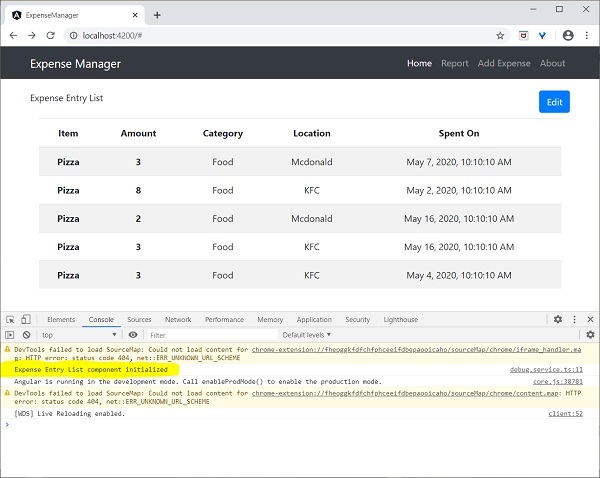
在ngOnInit方法中呼叫DebugService的info方法會在瀏覽器控制檯中列印訊息。
可以使用開發者工具檢視結果,它看起來類似如下所示:
讓我們擴充套件應用程式以瞭解服務的範圍。
讓我們使用以下命令建立一個DebugComponent。
ng generate component debug
CREATE src/app/debug/debug.component.html (20 bytes) CREATE src/app/debug/debug.component.spec.ts (621 bytes)
CREATE src/app/debug/debug.component.ts (265 bytes) CREATE src/app/debug/debug.component.css (0 bytes) UPDATE src/app/app.module.ts (392 bytes)
讓我們從根模組中刪除DebugService。
// src/app/debug.service.ts
import { Injectable } from '@angular/core'; @Injectable()
export class DebugService {
   constructor() {
   }
   info(message : String) : void {
      console.log(message);
   }
}
在ExpenseEntryListComponent元件下注冊DebugService。
// src/app/expense-entry-list/expense-entry-list.component.ts @Component({
   selector: 'app-expense-entry-list',
   templateUrl: './expense-entry-list.component.html',
   styleUrls: ['./expense-entry-list.component.css']
   providers: [DebugService]
})
這裡,我們使用了providers元資料(ElementInjector)來註冊服務。
開啟DebugComponent (src/app/debug/debug.component.ts) 並匯入DebugService並在元件的建構函式中設定一個例項。
import { Component, OnInit } from '@angular/core'; import { DebugService } from '../debug.service';
@Component({
   selector: 'app-debug',
   templateUrl: './debug.component.html',
   styleUrls: ['./debug.component.css']
})
export class DebugComponent implements OnInit {
   constructor(private debugService: DebugService) { }
   ngOnInit() {
      this.debugService.info("Debug component gets service from Parent");
   }
}
這裡,我們沒有註冊DebugService。因此,如果用作父元件,則DebugService將不可用。如果在父元件中使用,則如果父元件可以訪問該服務,則該服務可能從父元件獲得。
開啟ExpenseEntryListComponent模板(src/app/expense-entry-list/expense-entry-list.component.html)幷包含如下所示的內容部分
// existing content
<app-debug></app-debug>
<ng-content></ng-content>
這裡,我們包含了一個內容部分和DebugComponent部分。
讓我們在AppComponent模板中將debug元件作為內容包含在ExpenseEntryListComponent元件中。開啟AppComponent模板並將app-expense-entry-list更改如下:
// navigation code
<app-expense-entry-list>
<app-debug></app-debug>
</app-expense-entry-list>
這裡,我們包含了DebugComponent作為內容。
讓我們檢查應用程式,它將在頁面末尾顯示DebugService模板,如下所示:
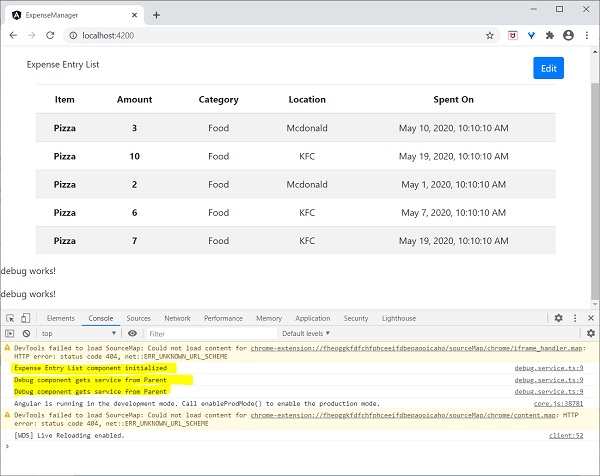
此外,我們還可以看到控制檯中的兩個來自debug元件的除錯資訊。這表明debug元件從其父元件獲取服務。
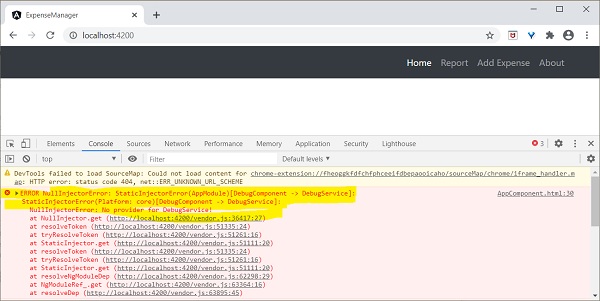
讓我們更改在ExpenseEntryListComponent中注入服務的方式以及它如何影響服務的範圍。將providers注入器更改為viewProviders注入。viewProviders不會將服務注入到內容子級中,因此它應該會失敗。
viewProviders: [DebugService]
檢查應用程式,您將看到其中一個debug元件(用作內容子級)丟擲錯誤,如下所示:
讓我們從模板中刪除debug元件並恢復應用程式。
開啟ExpenseEntryListComponent模板(src/app/expense-entry-list/expense-entry-list.component.html)並刪除以下內容
<app-debug></app-debug>
<ng-content></ng-content>
開啟AppComponent模板並將app-expense-entry-list更改如下:
// navigation code
<app-expense-entry-list>
</app-expense-entry-list>
在ExpenseEntryListComponent中將viewProviders設定更改為providers。
providers: [DebugService]
重新執行應用程式並檢查結果。
建立支出服務
讓我們在我們的ExpenseManager應用程式中建立一個新的服務ExpenseEntryService來與Expense REST API互動。ExpenseEntryService將獲取最新的支出條目、插入新的支出條目、修改現有的支出條目並刪除不需要的支出條目。
開啟命令提示符並轉到專案根資料夾。
cd /go/to/expense-manager
啟動應用程式。
ng serve
執行以下命令生成Angular服務ExpenseService。
ng generate service ExpenseEntry
這將建立兩個Typescript檔案(支出條目服務及其測試),如下所示:
CREATE src/app/expense-entry.service.spec.ts (364 bytes)
CREATE src/app/expense-entry.service.ts (141 bytes)
開啟 **ExpenseEntryService** (src/app/expense-entry.service.ts) 並從 rxjs 庫匯入 **ExpenseEntry、throwError** 和 **catchError**,從 @angular/common/http 包匯入 **HttpClient、HttpHeaders** 和 **HttpErrorResponse**。
import { Injectable } from '@angular/core';
import { ExpenseEntry } from './expense-entry'; import { throwError } from 'rxjs';
import { catchError } from 'rxjs/operators';
import { HttpClient, HttpHeaders, HttpErrorResponse } from
'@angular/common/http';
將 HttpClient 服務注入到我們的服務中。
constructor(private httpClient : HttpClient) { }
建立一個變數 **expenseRestUrl** 來指定 **Expense Rest API** 端點。
private expenseRestUrl = 'https://:8000/api/expense';
建立一個變數 **httpOptions** 來設定 Http Header 選項。這將在 Angular **HttpClient** 服務呼叫 Http Rest API 時使用。
private httpOptions = {
   headers: new HttpHeaders( { 'Content-Type': 'application/json' })
};
完整的程式碼如下:
import { Injectable } from '@angular/core';
import { ExpenseEntry } from './expense-entry';
import { Observable, throwError } from 'rxjs';
import { catchError, retry } from 'rxjs/operators';
import { HttpClient, HttpHeaders, HttpErrorResponse } from '@angular/common/http';

@Injectable({
   providedIn: 'root'
})
export class ExpenseEntryService {
      private expenseRestUrl = 'api/expense';
      private httpOptions = {
         headers: new HttpHeaders( { 'Content-Type': 'application/json' })
      };

   constructor(
      private httpClient : HttpClient) { }
}
使用 HttpClient 服務進行 Http 程式設計
啟動 Expense REST API 應用程式,如下所示:
cd /go/to/expense-rest-api
node .\server.js
在 **ExpenseEntryService** (src/app/expense-entry.service.ts) 服務中新增 **getExpenseEntries()** 和 **httpErrorHandler()** 方法。
getExpenseEntries() : Observable<ExpenseEntry[]> {
   return this.httpClient.get<ExpenseEntry[]>(this.expenseRestUrl, this.httpOptions)
   .pipe(retry(3),catchError(this.httpErrorHandler));
}

getExpenseEntry(id: number) : Observable<ExpenseEntry> {
   return this.httpClient.get<ExpenseEntry>(this.expenseRestUrl + "/" + id, this.httpOptions)
   .pipe(
      retry(3),
      catchError(this.httpErrorHandler)
   );
}

private httpErrorHandler (error: HttpErrorResponse) {
      if (error.error instanceof ErrorEvent) {
      console.error("A client side error occurs. The error message is " + error.message);
      } else {
      console.error(
            "An error happened in server. The HTTP status code is "  + error.status + " and the error returned is " + error.message);
      }

      return throwError("Error occurred. Pleas try again");
}
這裡:
**getExpenseEntries()** 使用支出端點呼叫 **get()** 方法,並配置錯誤處理程式。此外,它還配置 **httpClient** 在失敗的情況下最多嘗試 3 次。最後,它返回伺服器響應作為型別化 **(ExpenseEntry[])** Observable 物件。
**getExpenseEntry** 與 getExpenseEntries() 類似,只是它傳遞 ExpenseEntry 物件的 id 並獲取 ExpenseEntry Observable 物件。
**ExpenseEntryService** 的完整程式碼如下:
import { Injectable } from '@angular/core';
import { ExpenseEntry } from './expense-entry';

import { Observable, throwError } from 'rxjs';
import { catchError, retry } from 'rxjs/operators';
import { HttpClient, HttpHeaders, HttpErrorResponse } from '@angular/common/http';

@Injectable({

   providedIn: 'root'
})
export class ExpenseEntryService {
   private expenseRestUrl = 'https://:8000/api/expense';
   private httpOptions = {
      headers: new HttpHeaders( { 'Content-Type': 'application/json' })
   };

   constructor(private httpClient : HttpClient) { }

   getExpenseEntries() : Observable {
      return this.httpClient.get(this.expenseRestUrl, this.httpOptions)
      .pipe(
         retry(3),
         catchError(this.httpErrorHandler)
      );
   }

   getExpenseEntry(id: number) : Observable {
      return this.httpClient.get(this.expenseRestUrl + "/" + id, this.httpOptions)
      .pipe(
         retry(3),
         catchError(this.httpErrorHandler)
      );
   }

   private httpErrorHandler (error: HttpErrorResponse) {
      if (error.error instanceof ErrorEvent) {
         console.error("A client side error occurs. The error message is " + error.message);
      } else {
         console.error(
            "An error happened in server. The HTTP status code is "  + error.status + " and the error returned is " + error.message);
      }

      return throwError("Error occurred. Pleas try again");
   }
}
開啟 **ExpenseEntryListComponent** (src-entry-list-entry-list.component.ts) 並透過建構函式注入 **ExpenseEntryService**,如下所示
constructor(private debugService: DebugService, private restService :
ExpenseEntryService ) { }
修改 **getExpenseEntries()** 函式。呼叫 **ExpenseEntryService** 中的 getExpenseEntries() 方法,而不是返回模擬項。
getExpenseItems() {
   this.restService.getExpenseEntries()
      .subscribe( data =− this.expenseEntries = data );
}
**ExpenseEntryListComponent** 的完整程式碼如下:
import { Component, OnInit } from '@angular/core';
import { ExpenseEntry } from '../expense-entry';
import { DebugService } from '../debug.service';
import { ExpenseEntryService } from '../expense-entry.service';

@Component({
   selector: 'app-expense-entry-list',
   templateUrl: './expense-entry-list.component.html',
   styleUrls: ['./expense-entry-list.component.css'],
   providers: [DebugService]
})
export class ExpenseEntryListComponent implements OnInit {
   title: string;
   expenseEntries: ExpenseEntry[];
   constructor(private debugService: DebugService, private restService : ExpenseEntryService ) { }

   ngOnInit() {
      this.debugService.info("Expense Entry List component initialized");
      this.title = "Expense Entry List";

      this.getExpenseItems();
   }

   getExpenseItems() {
      this.restService.getExpenseEntries()
      .subscribe( data => this.expenseEntries = data );
   }
}
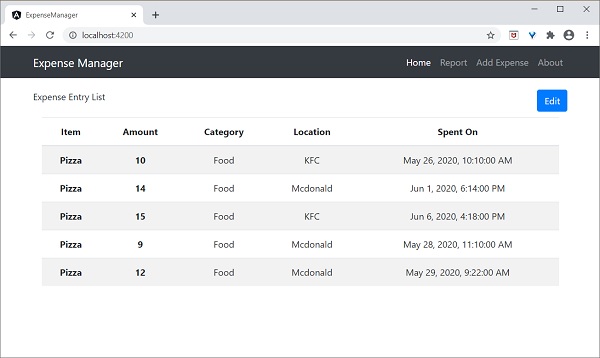
最後,檢查應用程式,您將看到以下響應。
新增支出功能
讓我們在 **ExpenseEntryService** 中新增一個新方法 **addExpenseEntry()** 來新增新的支出條目,如下所示:
addExpenseEntry(expenseEntry: ExpenseEntry): Observable<ExpenseEntry> {
   return this.httpClient.post<ExpenseEntry>(this.expenseRestUrl, expenseEntry, this.httpOptions)
   .pipe(
      retry(3),
      catchError(this.httpErrorHandler)
   );
}
更新支出條目功能
讓我們在 **ExpenseEntryService** 中新增一個新方法 **updateExpenseEntry()** 來更新現有的支出條目,如下所示
updateExpenseEntry(expenseEntry: ExpenseEntry): Observable<ExpenseEntry> {
   return this.httpClient.put<ExpenseEntry>(this.expenseRestUrl + "/" + expenseEntry.id, expenseEntry, this.httpOptions)
   .pipe(
      retry(3),
      catchError(this.httpErrorHandler)
   );
}
刪除支出條目功能
讓我們在 **ExpenseEntryService** 中新增一個新方法 **deleteExpenseEntry()** 來刪除現有的支出條目,如下所示:
deleteExpenseEntry(expenseEntry: ExpenseEntry | number) : Observable<ExpenseEntry> {
   const id = typeof expenseEntry == 'number' ? expenseEntry : expenseEntry.id
   const url = `${this.expenseRestUrl}/${id}`;

   return this.httpClient.delete<ExpenseEntry>(url, this.httpOptions)
   .pipe(
      retry(3),
      catchError(this.httpErrorHandler)
   );
}
新增路由
使用以下命令生成路由模組,如果之前未完成。
ng generate module app-routing --module app --flat
輸出
輸出如下所示:
CREATE src/app/app-routing.module.ts (196 bytes)
UPDATE src/app/app.module.ts (785 bytes)
這裡:
CLI 生成 **AppRoutingModule**,然後在 **AppModule** 中配置它。
更新 **AppRoutingModule (src/app/app.module.ts)**,如下所示:
import { NgModule } from '@angular/core';
import { Routes, RouterModule } from '@angular/router'; import { ExpenseEntryComponent } from './expense-entry/expense-entry.component';
import { ExpenseEntryListComponent } from './expense-entry-list/expense-entry-list.component';
const routes: Routes = [
   { path: 'expenses', component: ExpenseEntryListComponent },
   { path: 'expenses/detail/:id', component: ExpenseEntryComponent },
   { path: '', redirectTo: 'expenses', pathMatch: 'full' }];
@NgModule({
   imports: [RouterModule.forRoot(routes)],
   exports: [RouterModule] })
export class AppRoutingModule { }
在這裡,我們為支出列表和支出詳細資訊元件添加了路由。
更新 **AppComponent** 模板 **(src/app/app.component.html)** 以包含 **router-outlet** 和 **routerLink**。
<!-- Navigation -->
<nav class="navbar navbar-expand-lg navbar-dark bg-dark static-top">
<div class="container">
   <a class="navbar-brand" href="#">{{ title }}</a> <button class="navbar-toggler" type="button" data-toggle="collapse" data-target="#navbarResponsive" aria-controls="navbarResponsive" aria-expanded="false" aria-label="Toggle navigation">
      <span class="navbar-toggler-icon"></span>
   </button>
   <div class="collapse navbar-collapse" id="navbarResponsive">
      <ul class="navbar-nav ml-auto">
         <li class="nav-item active">
            <a class="nav-link" href="#">Home
               <span class="sr-only" routerLink="/">(current)</span>
            </a>
         </li>
         <li class="nav-item">
            <a class="nav-link" routerLink="/expenses">Report</a>
         </li>
         <li class="nav-item">
            <a class="nav-link" href="#">Add Expense</a>
         </li>
         <li class="nav-item">
            <a class="nav-link" href="#">About</a>
         </li>
      </ul>
   </div>
</div>
</nav>
<router-outlet></router-outlet>
開啟 **ExpenseEntryListComponent** 模板 (src/app/expense-entry-list/expense-entry-list.component.html) 併為每個支出條目包含檢視選項。
<table class="table table-striped">
   <thead>
      <tr>
         <th>Item</th>
         <th>Amount</th>
         <th>Category</th>
         <th>Location</th>
         <th>Spent On</th>
         <th>View</th>
      </tr>
   </thead>
   <tbody>
      <tr *ngFor="let entry of expenseEntries">
         <th scope="row">{{ entry.item }}</th>
         <th>{{ entry.amount }}</th>
         <td>{{ entry.category }}</td>
         <td>{{ entry.location }}</td>
         <td>{{ entry.spendOn | date: 'medium' }}</td>
         <td><a routerLink="../expenses/detail/{{ entry.id }}">View</a></td>
      </tr>
   </tbody>
</table>
在這裡,我們更新了支出列表表,並添加了一列來顯示檢視選項。
開啟 **ExpenseEntryComponent (src/app/expense-entry/expense-entry.component.ts)** 並新增功能以獲取當前選定的支出條目。這可以透過首先透過 **paramMap** 獲取 id,然後使用 **ExpenseEntryService** 中的 **getExpenseEntry()** 方法來完成。
this.expenseEntry$ = this.route.paramMap.pipe(
   switchMap(params => {
      this.selectedId = Number(params.get('id'));
      return
this.restService.getExpenseEntry(this.selectedId); }));
   this.expenseEntry$.subscribe( (data) => this.expenseEntry = data );
更新 ExpenseEntryComponent 並新增轉到支出列表的選項。
goToList() {
   this.router.navigate(['/expenses']);
}
ExpenseEntryComponent 的完整程式碼如下:
import { Component, OnInit } from '@angular/core'; import { ExpenseEntry } from '../expense-entry'; import { ExpenseEntryService } from '../expense-entry.service';
import { Router, ActivatedRoute } from '@angular/router';
import { Observable } from 'rxjs';
import { switchMap } from 'rxjs/operators';
@Component({
   selector: 'app-expense-entry',
   templateUrl: './expense-entry.component.html',
   styleUrls: ['./expense-entry.component.css']
})
export class ExpenseEntryComponent implements OnInit {
   title: string;
   expenseEntry$ : Observable<ExpenseEntry>;
   expenseEntry: ExpenseEntry = {} as ExpenseEntry;
   selectedId: number;
   constructor(private restService : ExpenseEntryService, private router : Router, private route :
ActivatedRoute ) { }
   ngOnInit() {
      this.title = "Expense Entry";
   this.expenseEntry$ = this.route.paramMap.pipe(
      switchMap(params => {
         this.selectedId = Number(params.get('id'));
         return
this.restService.getExpenseEntry(this.selectedId); }));
   this.expenseEntry$.subscribe( (data) => this.expenseEntry = data );
   }
   goToList() {
      this.router.navigate(['/expenses']);
   }
}
開啟 **ExpenseEntryComponent (src/app/expense-entry/expense-entry.component.html)** 模板並新增一個新按鈕以導航回支出列表頁面。
<div class="col-sm" style="text-align: right;">
   <button type="button" class="btn btn-primary" (click)="goToList()">Go to List</button>
   <button type="button" class="btn btn-primary">Edit</button>
</div>
在這裡,我們在“編輯”按鈕之前添加了“轉到列表”按鈕。
使用以下命令執行應用程式:
ng serve
應用程式的最終輸出如下所示:
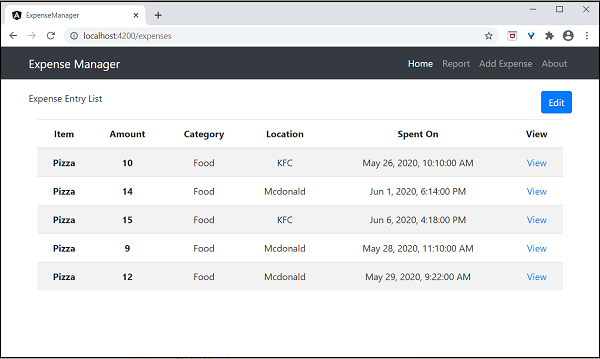
單擊第一個條目的檢視選項將導航到詳細資訊頁面並顯示所選的支出條目,如下所示:
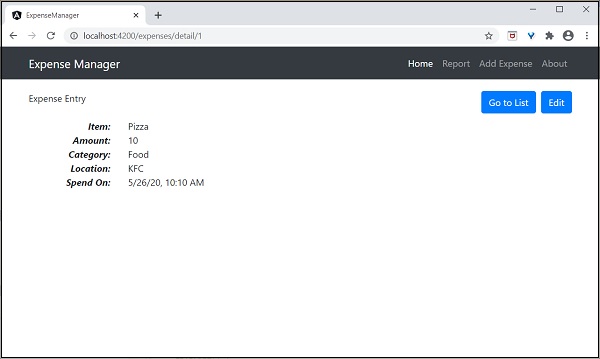
啟用登入和登出功能
建立一個新服務 AuthService 來驗證使用者。
ng generate service auth
CREATE src/app/auth.service.spec.ts (323 bytes)
CREATE src/app/auth.service.ts (133 bytes)
開啟 **AuthService** 幷包含以下程式碼。
import { Injectable } from '@angular/core';

import { Observable, of } from 'rxjs';
import { tap, delay } from 'rxjs/operators';

@Injectable({
   providedIn: 'root'
})
export class AuthService {

   isUserLoggedIn: boolean = false;

   login(userName: string, password: string): Observable {
      console.log(userName);
      console.log(password);
      this.isUserLoggedIn = userName == 'admin' && password == 'admin';
      localStorage.setItem('isUserLoggedIn', this.isUserLoggedIn ? "true" : "false");

   return of(this.isUserLoggedIn).pipe(
      delay(1000),
      tap(val => {
         console.log("Is User Authentication is successful: " + val);
      })
   );
   }

   logout(): void {
   this.isUserLoggedIn = false;
      localStorage.removeItem('isUserLoggedIn');
   }

   constructor() { }
}
這裡:
我們編寫了兩個方法,**login** 和 **logout**。
**login** 方法的目的是驗證使用者,如果使用者成功驗證,則將其資訊儲存在 **localStorage** 中,然後返回 true。
身份驗證驗證是使用者名稱和密碼應為 **admin**。
我們沒有使用任何後端。相反,我們使用 Observable 模擬了 1 秒的延遲。
**logout** 方法的目的是使使用者無效並刪除儲存在 **localStorage** 中的資訊。
使用以下命令建立一個 **login** 元件:
ng generate component login
CREATE src/app/login/login.component.html (20 bytes)
CREATE src/app/login/login.component.spec.ts (621 bytes)
CREATE src/app/login/login.component.ts (265 bytes)
CREATE src/app/login/login.component.css (0 bytes)
UPDATE src/app/app.module.ts (1207 bytes)
開啟 **LoginComponent** 幷包含以下程式碼:
import { Component, OnInit } from '@angular/core';

import { FormGroup, FormControl } from '@angular/forms';
import { AuthService } from '../auth.service';
import { Router } from '@angular/router';

@Component({
   selector: 'app-login',
   templateUrl: './login.component.html',
   styleUrls: ['./login.component.css']
})
export class LoginComponent implements OnInit {

   userName: string;
   password: string;
   formData: FormGroup;

   constructor(private authService : AuthService, private router : Router) { }

   ngOnInit() {
      this.formData = new FormGroup({
         userName: new FormControl("admin"),
         password: new FormControl("admin"),
      });
   }

   onClickSubmit(data: any) {
      this.userName = data.userName;
      this.password = data.password;

      console.log("Login page: " + this.userName);
      console.log("Login page: " + this.password);

      this.authService.login(this.userName, this.password)
         .subscribe( data => {
            console.log("Is Login Success: " + data);

           if(data) this.router.navigate(['/expenses']);
      });
   }
}
這裡:
使用響應式表單。
匯入 AuthService 和 Router 並將其配置在建構函式中。
建立 FormGroup 的例項,幷包含兩個 FormControl 例項,一個用於使用者名稱,另一個用於密碼。
建立 onClickSubmit 來使用 authService 驗證使用者,如果成功,則導航到支出列表。
開啟 **LoginComponent** 模板幷包含以下模板程式碼。
<!-- Page Content -->
<div class="container">
   <div class="row">
      <div class="col-lg-12 text-center" style="padding-top: 20px;">
         <div class="container box" style="margin-top: 10px; padding-left: 0px; padding-right: 0px;">
            <div class="row">
               <div class="col-12" style="text-align: center;">
                                    <form [formGroup]="formData" (ngSubmit)="onClickSubmit(formData.value)"
                                          class="form-signin">
                                    <h2 class="form-signin-heading">Please sign in</h2>
                                    <label for="inputEmail" class="sr-only">Email address</label>
                                    <input type="text" id="username" class="form-control"
                                          formControlName="userName" placeholder="Username" required autofocus>
                                    <label for="inputPassword" class="sr-only">Password</label>
                                    <input type="password" id="inputPassword" class="form-control"
                                          formControlName="password" placeholder="Password" required>
                                    <button class="btn btn-lg btn-primary btn-block" type="submit">Sign in</button>
                                    </form>
               </div>
            </div>
         </div>
      </div>
   </div>
</div>
這裡:
建立了一個響應式表單並設計了一個登入表單。
將 **onClickSubmit** 方法附加到表單提交操作。
開啟 **LoginComponent** 樣式幷包含以下 CSS 程式碼。
.form-signin {
   max-width: 330px;

   padding: 15px;
   margin: 0 auto;
}

input {
   margin-bottom: 20px;
}
這裡,添加了一些樣式來設計登入表單。
使用以下命令建立一個登出元件:
ng generate component logout
CREATE src/app/logout/logout.component.html (21 bytes)
CREATE src/app/logout/logout.component.spec.ts (628 bytes)
CREATE src/app/logout/logout.component.ts (269 bytes)
CREATE src/app/logout/logout.component.css (0 bytes)
UPDATE src/app/app.module.ts (1368 bytes)
開啟 **LogoutComponent** 幷包含以下程式碼。
import { Component, OnInit } from '@angular/core';

import { AuthService } from '../auth.service';
import { Router } from '@angular/router';

@Component({
   selector: 'app-logout',
   templateUrl: './logout.component.html',
   styleUrls: ['./logout.component.css']
})
export class LogoutComponent implements OnInit {

   constructor(private authService : AuthService, private router: Router) { }

   ngOnInit() {
      this.authService.logout();
      this.router.navigate(['/']);
   }

}
這裡:
- 使用 AuthService 的 logout 方法。
- 登出使用者後,頁面將重定向到主頁 (/)。
使用以下命令建立一個守衛:
ng generate guard expense
CREATE src/app/expense.guard.spec.ts (364 bytes)
CREATE src/app/expense.guard.ts (459 bytes)
開啟 ExpenseGuard 幷包含以下程式碼:
import { Injectable } from '@angular/core';
import { CanActivate, ActivatedRouteSnapshot, RouterStateSnapshot, Router, UrlTree } from '@angular/router';
import { Observable } from 'rxjs';

import { AuthService } from './auth.service';

@Injectable({
   providedIn: 'root'
})
export class ExpenseGuard implements CanActivate {

   constructor(private authService: AuthService, private router: Router) {}

   canActivate(
   next: ActivatedRouteSnapshot,
   state: RouterStateSnapshot): boolean | UrlTree {
      let url: string = state.url;

          return this.checkLogin(url);
      }

      checkLogin(url: string): true | UrlTree {
         console.log("Url: " + url)
         let val: string = localStorage.getItem('isUserLoggedIn');

         if(val != null && val == "true"){
            if(url == "/login")
               this.router.parseUrl('/expenses');
            else
               return true;
         } else {
            return this.router.parseUrl('/login');
         }
      }
}
這裡:
- checkLogin 將檢查 localStorage 是否包含使用者資訊,如果可用,則返回 true。
- 如果使用者已登入並轉到登入頁面,它將把使用者重定向到支出頁面
- 如果使用者未登入,則使用者將被重定向到登入頁面。
開啟 **AppRoutingModule (src/app/app-routing.module.ts)** 並更新以下程式碼:
import { NgModule } from '@angular/core';
import { Routes, RouterModule } from '@angular/router';
import { ExpenseEntryComponent } from './expense-entry/expense-entry.component';
import { ExpenseEntryListComponent } from './expense-entry-list/expense-entry-list.component';
import { LoginComponent } from './login/login.component';
import { LogoutComponent } from './logout/logout.component';

import { ExpenseGuard } from './expense.guard';

const routes: Routes = [
   { path: 'login', component: LoginComponent },
   { path: 'logout', component: LogoutComponent },
   { path: 'expenses', component: ExpenseEntryListComponent, canActivate: [ExpenseGuard]},
   { path: 'expenses/detail/:id', component: ExpenseEntryComponent, canActivate: [ExpenseGuard]},
   { path: '', redirectTo: 'expenses', pathMatch: 'full' }
];

@NgModule({
  imports: [RouterModule.forRoot(routes)],
  exports: [RouterModule]
})
export class AppRoutingModule { }
這裡:
- 匯入 LoginComponent 和 LogoutComponent。
- 匯入 ExpenseGuard。
- 建立了兩個新路由,login 和 logout,分別用於訪問 LoginComponent 和 LogoutComponent。
- 為 ExpenseEntryComponent 和 ExpenseEntryListComponent 新增新的選項 canActivate。
開啟 **AppComponent** 模板並新增兩個登入和登出連結。
<div class="collapse navbar-collapse" id="navbarResponsive">
   <ul class="navbar-nav ml-auto">
      <li class="nav-item active">
         <a class="nav-link" href="#">Home
            <span class="sr-only" routerLink="/">(current)</span>

         </a>
      </li>
      <li class="nav-item">
         <a class="nav-link" routerLink="/expenses">Report</a>
      </li>
      <li class="nav-item">
         <a class="nav-link" href="#">Add Expense</a>
      </li>
      <li class="nav-item">

         <a class="nav-link" href="#">About</a>
      </li>
      <li class="nav-item">
                  <div *ngIf="isUserLoggedIn; else isLogOut">
                        <a class="nav-link" routerLink="/logout">Logout</a>
                  </div>

                  <ng-template #isLogOut>
                              <a class="nav-link" routerLink="/login">Login</a>
                  </ng-template>
      </li>
   </ul>
</div>
開啟 **AppComponent** 並更新以下程式碼:
import { Component } from '@angular/core';

import { AuthService } from './auth.service';

@Component({
   selector: 'app-root',
   templateUrl: './app.component.html',
   styleUrls: ['./app.component.css']
})
export class AppComponent {

   title = 'Expense Manager';
   isUserLoggedIn = false;

   constructor(private authService: AuthService) {}

   ngOnInit() {
      let storeData = localStorage.getItem("isUserLoggedIn");
      console.log("StoreData: " + storeData);

      if( storeData != null && storeData == "true")
         this.isUserLoggedIn = true;
      else


         this.isUserLoggedIn = false;
   }
}
在這裡,我們添加了識別使用者狀態的邏輯,以便我們可以顯示登入/登出功能。
開啟 **AppModule (src/app/app.module.ts)** 並配置 **ReactiveFormsModule**
import { ReactiveFormsModule } from '@angular/forms';
imports: [
   ReactiveFormsModule
]
現在,執行應用程式,應用程式將開啟登入頁面。
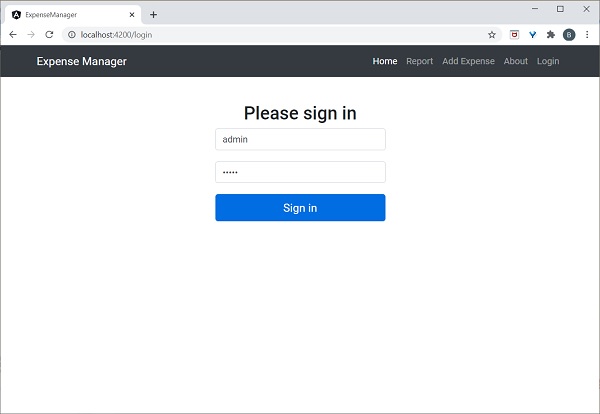
輸入 admin 和 admin 作為使用者名稱和密碼,然後單擊提交。應用程式將處理登入並將使用者重定向到支出列表頁面,如下所示:
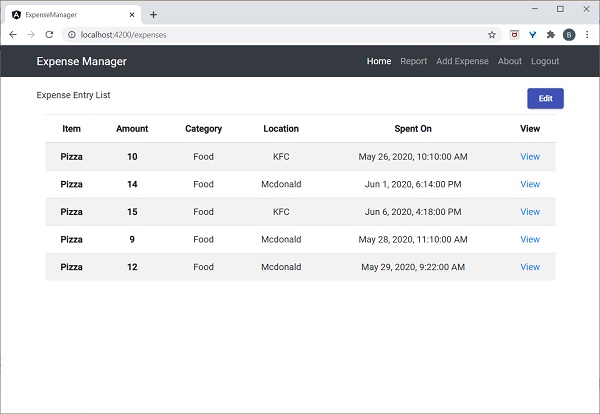
最後,您可以單擊登出並退出應用程式。
新增/編輯/刪除支出
新增一個新的元件 **EditEntryComponent** 來新增新的支出條目並使用以下命令編輯現有的支出條目
ng generate component EditEntry
CREATE src/app/edit-entry/edit-entry.component.html (25 bytes)
CREATE src/app/edit-entry/edit-entry.component.spec.ts (650 bytes)
CREATE src/app/edit-entry/edit-entry.component.ts (284 bytes)
CREATE src/app/edit-entry/edit-entry.component.css (0 bytes)
UPDATE src/app/app.module.ts (1146 bytes)
使用以下程式碼更新 **EditEntryComponent**:
import { Component, OnInit } from '@angular/core';

import { FormGroup, FormControl, Validators } from '@angular/forms';

import { ExpenseEntry } from '../expense-entry';
import { ExpenseEntryService } from '../expense-entry.service';

import { Router, ActivatedRoute } from '@angular/router';


@Component({
   selector: 'app-edit-entry',
   templateUrl: './edit-entry.component.html',
   styleUrls: ['./edit-entry.component.css']
})
export class EditEntryComponent implements OnInit {
   id: number;
   item: string;
   amount: number;
   category: string;
   location: string;
   spendOn: Date;

   formData: FormGroup;
   selectedId: number;
   expenseEntry: ExpenseEntry;

   constructor(private expenseEntryService : ExpenseEntryService, private router: Router, private route: ActivatedRoute) { }

   ngOnInit() {
      this.formData = new FormGroup({
         id: new FormControl(),
         item: new FormControl('', [Validators.required]),
         amount: new FormControl('', [Validators.required]),
         category: new FormControl(),
         location: new FormControl(),
         spendOn: new FormControl()
      });

      this.selectedId = Number(this.route.snapshot.paramMap.get('id'));

      if(this.selectedId != null && this.selectedId != 0) {
         this.expenseEntryService.getExpenseEntry(this.selectedId)
            .subscribe( (data) =>
               {
                  this.expenseEntry = data;
                  this.formData.controls['id'].setValue(this.expenseEntry.id);
                  this.formData.controls['item'].setValue(this.expenseEntry.item);
                  this.formData.controls['amount'].setValue(this.expenseEntry.amount);
                  this.formData.controls['category'].setValue(this.expenseEntry.category);
                  this.formData.controls['location'].setValue(this.expenseEntry.location);


                  this.formData.controls['spendOn'].setValue(this.expenseEntry.spendOn);
               })
      }


   }

   get itemValue() {
   return this.formData.get('item');
   }

   get amountValue() {
   return this.formData.get('amount');
   }

    onClickSubmit(data: any) {
   console.log('onClickSubmit fired');
   this.id = data.id;
   this.item = data.item;
   this.amount = data.amount;
   this.category = data.category;
   this.location = data.location;
   this.spendOn = data.spendOn;

   let expenseEntry : ExpenseEntry = {
      id: this.id,
       item: this.item,
       amount: this.amount,
       category: this.category,
       location: this.location,
       spendOn: this.spendOn,
       createdOn: new Date(2020, 5, 20)
   }
   console.log(expenseEntry);

      if(expenseEntry.id == null || expenseEntry.id == 0) {
         console.log('add fn fired');
      this.expenseEntryService.addExpenseEntry(expenseEntry)
         .subscribe( data => { console.log(data); this.router.navigate(['/expenses']); });
   } else {
         console.log('edit fn fired');
      this.expenseEntryService.updateExpenseEntry(expenseEntry)
         .subscribe( data => { console.log(data); this.router.navigate(['/expenses']); });
   }
    }
}
這裡:
在 **ngOnInit** 方法中使用 **FormControl** 和 **FormGroup** 類建立表單 **formData**,並帶有適當的驗證規則。
在 **ngOnInit** 方法中載入要編輯的支出條目。
建立了兩個方法 **itemValue** 和 **amountValue** 分別獲取使用者輸入的專案和金額值,用於驗證。
建立方法 **onClickSubmit** 來儲存(新增/更新)支出條目。
使用 Expense 服務新增和更新支出條目。
使用支出表單更新 **EditEntryComponent** 模板,如下所示:
<!-- Page Content -->
<div class="container">
   <div class="row">
   <div class="col-lg-12 text-center" style="padding-top: 20px;">
       <div class="container" style="padding-left: 0px; padding-right: 0px;">
       </div>
       <div class="container box" style="margin-top: 10px;">
<form [formGroup]="formData" (ngSubmit)="onClickSubmit(formData.value)" class="form" novalidate>
  <div class="form-group">
    <label for="item">Item</label>
    <input type="hidden" class="form-control" id="id" formControlName="id">
    <input type="text" class="form-control" id="item" formControlName="item">
    <div
   *ngIf="!itemValue?.valid && (itemValue?.dirty ||itemValue?.touched)">
   <div [hidden]="!itemValue.errors.required">
      Item is required
   </div>
   </div>
  </div>
  <div class="form-group">
    <label for="amount">Amount</label>
    <input type="text" class="form-control" id="amount" formControlName="amount">
    <div
   *ngIf="!amountValue?.valid && (amountValue?.dirty ||amountValue?.touched)">
   <div [hidden]="!amountValue.errors.required">
      Amount is required
   </div>
   </div>
  </div>
  <div class="form-group">
    <label for="category">Category</label>
    <select class="form-control" id="category" formControlName="category">
      <option>Food</option>
      <option>Vegetables</option>
      <option>Fruit</option>
      <option>Electronic Item</option>

      <option>Bill</option>
    </select>
  </div>
  <div class="form-group">
    <label for="location">location</label>
    <input type="text" class="form-control" id="location" formControlName="location">
  </div>
  <div class="form-group">
    <label for="spendOn">spendOn</label>
    <input type="text" class="form-control" id="spendOn" formControlName="spendOn">
  </div>
<button class="btn btn-lg btn-primary btn-block" type="submit" [disabled]="!formData.valid">Submit</button>
</form>
       </div>
   </div>
    </div>
</div>
這裡:
建立了一個表單並將其繫結到類中建立的表單 **formData**。
將 **item** 和 **amount** 驗證為必需值。
驗證成功後呼叫 **onClickSubmit** 函式。
開啟 **EditEntryComponent** 樣式表並更新以下程式碼:
.form {
   max-width: 330px;
   padding: 15px;
   margin: 0 auto;
}

.form label {
   text-align: left;
   width: 100%;
}

input {
   margin-bottom: 20px;
}
在這裡,我們對支出條目表單進行了樣式設定。
使用以下命令新增 **AboutComponent**
ng generate component About
CREATE src/app/about/about.component.html (20 bytes)

CREATE src/app/about/about.component.spec.ts (621 bytes)
CREATE src/app/about/about.component.ts (265 bytes)
CREATE src/app/about/about.component.css (0 bytes)
UPDATE src/app/app.module.ts (1120 bytes)
開啟 **AboutComponent** 並新增標題,如下所示:
import { Component, OnInit } from '@angular/core';

@Component({
   selector: 'app-about',
   templateUrl: './about.component.html',
   styleUrls: ['./about.component.css']
})
export class AboutComponent implements OnInit {
   title = "About";
   constructor() { }

   ngOnInit() {
   }

}
開啟 **AboutComponent** 模板並更新內容,如下所示:
<!-- Page Content -->
<div class="container">
   <div class="row">
   <div class="col-lg-12 text-center" style="padding-top: 20px;">
       <div class="container" style="padding-left: 0px; padding-right: 0px;">
      <div class="row">
          <div class="col-sm" style="text-align: left;">
         <h1>{{ title }}</h1>
          </div>
      </div>
       </div>
       <div class="container box" style="margin-top: 10px;">
      <div class="row">
          <div class="col" style="text-align: left;">
         <p>Expense management Application</p>
          </div>
      </div>
       </div>
   </div>
    </div>
</div>
新增新增和編輯支出條目的路由,如下所示
import { NgModule } from '@angular/core';

import { Routes, RouterModule } from '@angular/router';
import { ExpenseEntryComponent } from './expense-entry/expense-entry.component';
import { ExpenseEntryListComponent } from './expense-entry-list/expense-entry-list.component';
import { LoginComponent } from './login/login.component';
import { LogoutComponent } from './logout/logout.component';
import { EditEntryComponent } from './edit-entry/edit-entry.component';
import { AboutComponent } from './about/about.component';

import { ExpenseGuard } from './expense.guard';

const routes: Routes = [
   { path: 'about', component: AboutComponent },
   { path: 'login', component: LoginComponent },
   { path: 'logout', component: LogoutComponent },
   { path: 'expenses', component: ExpenseEntryListComponent, canActivate: [ExpenseGuard]},
   { path: 'expenses/detail/:id', component: ExpenseEntryComponent, canActivate: [ExpenseGuard]},
   { path: 'expenses/add', component: EditEntryComponent, canActivate: [ExpenseGuard]},
   { path: 'expenses/edit/:id', component: EditEntryComponent, canActivate: [ExpenseGuard]},
   { path: '', redirectTo: 'expenses', pathMatch: 'full' }
];

@NgModule({
      imports: [RouterModule.forRoot(routes)],
      exports: [RouterModule]
})
export class AppRoutingModule { }
在這裡,我們添加了 **about、add expense** 和 **edit expense** 路由。
在 **ExpenseEntryListComponent** 模板中新增 **Edit** 和 **Delete** 連結。
<table class="table table-striped">
   <thead>
         <tr>
         <th>Item</th>
         <th>Amount</th>
         <th>Category</th>
         <th>Location</th>
         <th>Spent On</th>
         <th>View</th>
               <th>Edit</th>
               <th>Delete</th>
         </tr>
   </thead>
   <tbody>
      <tr *ngFor="let entry of expenseEntries">

      <th scope="row">{{ entry.item }}</th>
      <th>{{ entry.amount }}</th>
      <td>{{ entry.category }}</td>
      <td>{{ entry.location }}</td>
      <td>{{ entry.spendOn | date: 'medium' }}</td>
      <td><a routerLink="../expenses/detail/{{ entry.id }}">View</a></td>
      <td><a routerLink="../expenses/edit/{{ entry.id }}">Edit</a></td>
      <td><a href="#" (click)="deleteExpenseEntry($event, entry.id)">Delete</a></td>
      </tr>
   </tbody>
</table>
在這裡,我們包含了另外兩列。一列用於顯示編輯連結,另一列用於顯示刪除連結。
如下所示更新 **ExpenseEntryListComponent** 中的 **deleteExpenseEntry** 方法
deleteExpenseEntry(evt, id) {
   evt.preventDefault();
   if(confirm("Are you sure to delete the entry?")) {
      this.restService.deleteExpenseEntry(id)
         .subscribe( data => console.log(data) );

      this.getExpenseItems();
   }
}
在這裡,我們要求確認刪除,如果使用者確認,則呼叫支出服務中的 **deleteExpenseEntry** 方法來刪除選定的支出項。
將 **ExpenseEntryListComponent** 模板頂部的 **Edit** 連結更改為 **Add** 連結,如下所示:
<div class="col-sm" style="text-align: right;">
   <button class="btn btn-primary" routerLink="/expenses/add">ADD</button>
   <!-- <button type="button" class="btn btn-primary">Edit</button> -->
</div>
在 **ExpenseEntryComponent** 模板中新增 **Edit** 連結。
<div class="col-sm" style="text-align: right;">
   <button type="button" class="btn btn-primary" (click)="goToList()">Go to List</button>
    <button type="button" class="btn btn-primary" (click)="goToEdit()">Edit</button>
</div>
開啟 **ExpenseEntryComponent** 並新增 **goToEdit()** 方法,如下所示:
goToEdit() {
   this.router.navigate(['/expenses/edit', this.selectedId]);
}
更新 **AppComponent** 模板中的導航連結。
<!-- Navigation -->
<nav class="navbar navbar-expand-lg navbar-dark bg-dark static-top">
   <div class="container">
      <a class="navbar-brand" href="#">{{ title }}</a>
      <button class="navbar-toggler" type="button" data-toggle="collapse" data-target="#navbarResponsive" aria-controls="navbarResponsive" aria-expanded="false" aria-label="Toggle navigation">
         <span class="navbar-toggler-icon"></span>
      </button>
      <div class="collapse navbar-collapse" id="navbarResponsive">
         <ul class="navbar-nav ml-auto">
            <li class="nav-item active">
               <a class="nav-link" href="#">Home
                  <span class="sr-only" routerLink="/">(current)</span>
               </a>
            </li>
            <li class="nav-item">
               <a class="nav-link" routerLink="/expenses/add">Add Expense</a>
            </li>
            <li class="nav-item">
               <a class="nav-link" routerLink="/about">About</a>
            </li>
            <li class="nav-item">
                        <div *ngIf="isUserLoggedIn; else isLogOut">
                              <a class="nav-link" routerLink="/logout">Logout</a>
                        </div>

                        <ng-template #isLogOut>
                                    <a class="nav-link" routerLink="/login">Login</a>
                        </ng-template>
            </li>
         </ul>
      </div>
   </div>
</nav>

<router-outlet></router-outlet>
在這裡,我們更新了 **add expense** 連結和 **about** 連結。
執行應用程式,輸出將類似於以下所示:
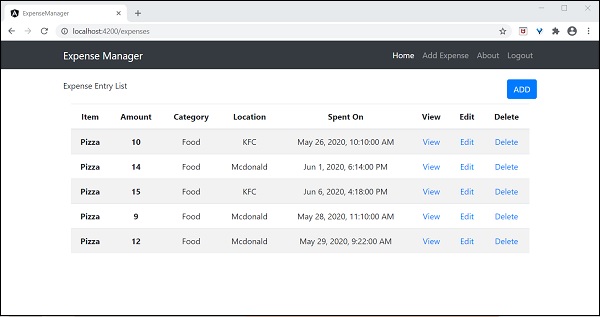
嘗試使用支出列表頁面中的 **Add** 連結新增新的支出。輸出將類似於以下所示

填寫表單,如下所示:

如果資料未正確填寫,驗證程式碼將發出警報,如下所示:
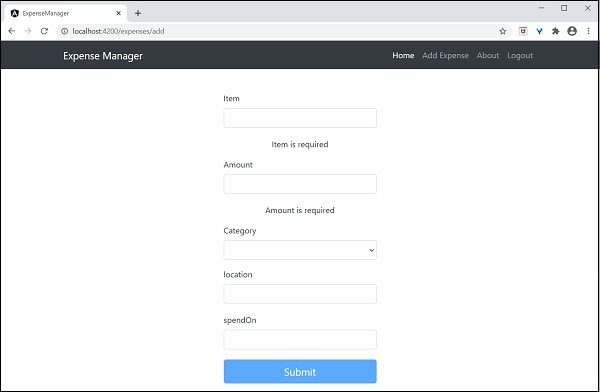
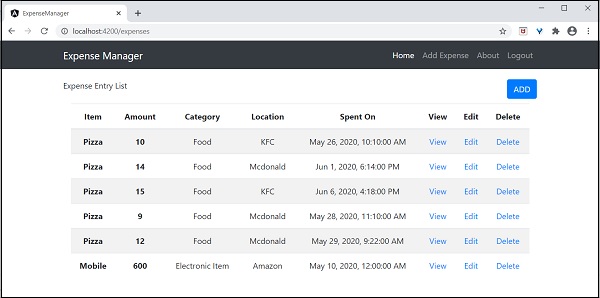
單擊 **Submit**。它將觸發提交事件,資料將儲存到後端並重定向到列表頁面,如下所示:
嘗試使用支出列表頁面中的“編輯”連結編輯現有支出。輸出將類似於以下所示:
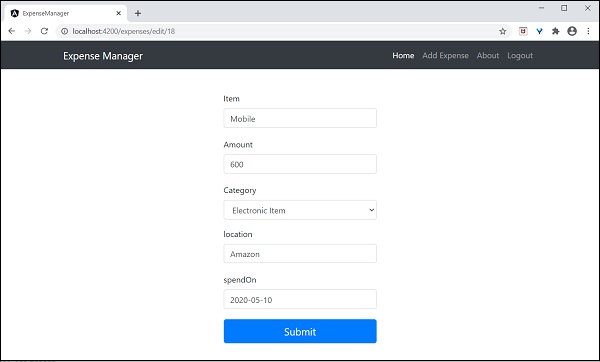
單擊 **Submit**。它將觸發提交事件,資料將儲存到後端並重定向到列表頁面。
要刪除專案,請單擊刪除連結。它將確認刪除,如下所示:

最後,我們實現了在應用程式中管理支出所需的所有功能。