

- Selenium 教程
- Selenium - 首頁
- Selenium - 概述
- Selenium - 元件
- Selenium - 自動化測試
- Selenium - 環境設定
- Selenium - 遠端控制
- Selenium IDE 教程
- Selenium - IDE 簡介
- Selenium - 特性
- Selenium - 限制
- Selenium - 安裝
- Selenium - 建立測試
- Selenium - 建立指令碼
- Selenium - 控制流
- Selenium - 儲存變數
- Selenium - 警報和彈出視窗
- Selenium - Selenese 命令
- Selenium - Actions 命令
- Selenium - Accessors 命令
- Selenium - Assertions 命令
- Selenium - Assert/Verify 方法
- Selenium - 定位策略
- Selenium - 指令碼除錯
- Selenium - 驗證點
- Selenium - 模式匹配
- Selenium - JSON 資料檔案
- Selenium - 瀏覽器執行
- Selenium - 使用者擴充套件
- Selenium - 程式碼匯出
- Selenium - 程式碼輸出
- Selenium - JavaScript 函式
- Selenium - 外掛
- Selenium WebDriver 教程
- Selenium - 簡介
- Selenium WebDriver vs RC
- Selenium - 安裝
- Selenium - 第一個測試指令碼
- Selenium - 驅動程式會話
- Selenium - 瀏覽器選項
- Selenium - Chrome 選項
- Selenium - Edge 選項
- Selenium - Firefox 選項
- Selenium - Safari 選項
- Selenium - 雙擊
- Selenium - 右鍵單擊
- Python 中的 HTML 報告
- 處理編輯框
- Selenium - 單個元素
- Selenium - 多個元素
- Selenium Web 元素
- Selenium - 檔案上傳
- Selenium - 定位器策略
- Selenium - 相對定位器
- Selenium - 查詢器
- Selenium - 查詢所有連結
- Selenium - 使用者互動
- Selenium - WebElement 命令
- Selenium - 瀏覽器互動
- Selenium - 瀏覽器命令
- Selenium - 瀏覽器導航
- Selenium - 警報和彈出視窗
- Selenium - 表單處理
- Selenium - 視窗和標籤頁
- Selenium - 處理連結
- Selenium - 輸入框
- Selenium - 單選按鈕
- Selenium - 複選框
- Selenium - 下拉框
- Selenium - 處理 IFrame
- Selenium - 處理 Cookie
- Selenium - 日期時間選擇器
- Selenium - 動態 Web 表格
- Selenium - Actions 類
- Selenium - Action 類
- Selenium - 鍵盤事件
- Selenium - 鍵上/下
- Selenium - 複製和貼上
- Selenium - 處理特殊鍵
- Selenium - 滑鼠事件
- Selenium - 拖放
- Selenium - 筆事件
- Selenium - 滾動操作
- Selenium - 等待策略
- Selenium - 顯式/隱式等待
- Selenium - 支援特性
- Selenium - 多選
- Selenium - 等待支援
- Selenium - 選擇支援
- Selenium - 顏色支援
- Selenium - ThreadGuard
- Selenium - 錯誤和日誌記錄
- Selenium - 異常處理
- Selenium - 其他
- Selenium - 處理 Ajax 呼叫
- Selenium - JSON 資料檔案
- Selenium - CSV 資料檔案
- Selenium - Excel 資料檔案
- Selenium - 跨瀏覽器測試
- Selenium - 多瀏覽器測試
- Selenium - 多視窗測試
- Selenium - JavaScript 執行器
- Selenium - 無頭執行
- Selenium - 捕獲螢幕截圖
- Selenium - 捕獲影片
- Selenium - 頁面物件模型
- Selenium - 頁面工廠
- Selenium - 記錄和回放
- Selenium - 框架
- Selenium - 瀏覽上下文
- Selenium - DevTools
- Selenium Grid 教程
- Selenium - 概述
- Selenium - 架構
- Selenium - 元件
- Selenium - 配置
- Selenium - 建立測試指令碼
- Selenium - 測試執行
- Selenium - 端點
- Selenium - 自定義節點
- Selenium 報告工具
- Selenium - 報告工具
- Selenium - TestNG
- Selenium - JUnit
- Selenium - Allure
- Selenium 和其他技術
- Selenium - Java 教程
- Selenium - Python 教程
- Selenium - C# 教程
- Selenium - Javascript 教程
- Selenium - Kotlin 教程
- Selenium - Ruby 教程
- Selenium - Maven 和 Jenkins
- Selenium - 資料庫測試
- Selenium - LogExpert 日誌記錄
- Selenium - Log4j 日誌記錄
- Selenium - Robot Framework
- Selenium - AutoIT
- Selenium - Flash 測試
- Selenium - Apache Ant
- Selenium - Github 教程
- Selenium - SoapUI
- Selenium - Cucumber
- Selenium - IntelliJ
- Selenium - XPath
Selenium WebDriver - 表單處理
Selenium Webdriver 可用於處理網頁上的表單。在 HTML 術語中,表單元素由名為Form 的標籤名標識。此外,它還應該具有提交表單的功能,用於表單提交的元素應該具有名為input 的標籤名,以及值為submit 的屬性type。需要注意的是,網頁上的表單可能包含文字框、連結、複選框、單選按鈕和其他 Web 元素,這些元素可以幫助使用者在網頁上輸入詳細資訊。
網頁上表單的識別
右鍵單擊 Chrome 瀏覽器中開啟的頁面。單擊“檢查”按鈕。之後,整個頁面的HTML 程式碼將可見。要檢查頁面上的表單元素,請單擊 HTML 程式碼頂部左側的向上箭頭,如下所示。
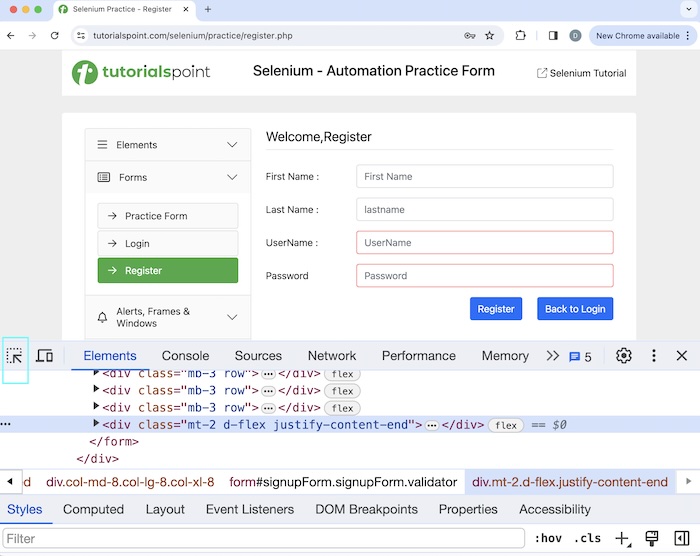
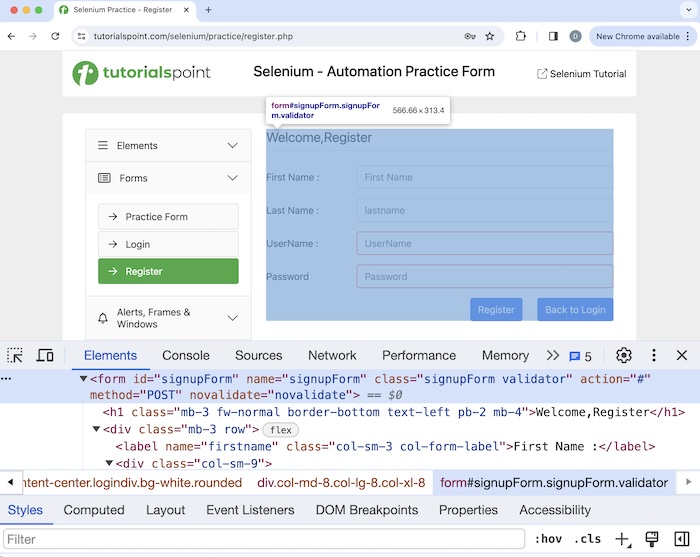
單擊並將箭頭指向表單內的任何元素(例如,“註冊”按鈕)後,其 HTML 程式碼將可用,反映了form 標籤名。
在上圖表單中,我們可以使用註冊按鈕提交包含詳細資訊的表單。單擊並將箭頭指向註冊按鈕後,其 HTML 程式碼將出現,反映了input 標籤名及其值為submit 的type 屬性。
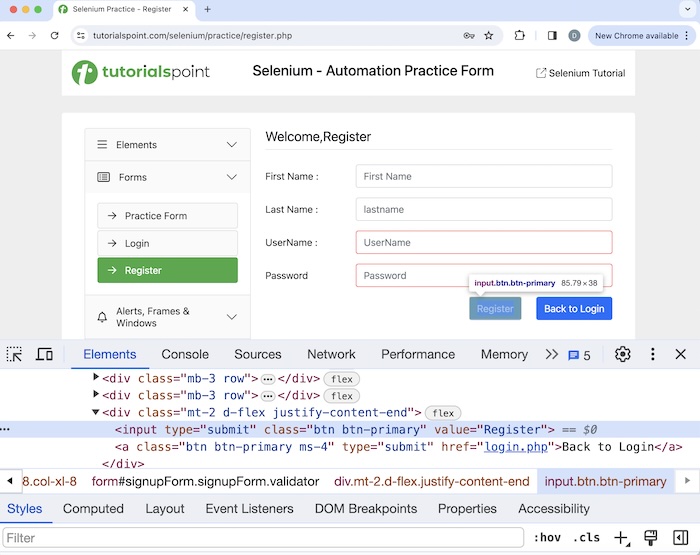
<input type="submit" class="btn btn-primary" value="Register">
我們可以使用 submit() 和 click() 方法提交表單。普通按鈕和提交按鈕之間的基本區別在於,普通按鈕只能與 click() 方法互動,而提交按鈕可以使用 click() 和 submit() 方法互動。
語法
使用 submit 方法的語法:
WebDriver driver = new ChromeDriver();

// identify input box 1
WebElement inputBx = driver.findElement
   (By.xpath("<value of xpath>"));
inputBx.sendKeys("Selenium");

// submit form
WebElement btn = driver.findElement
   (By.xpath("<value of xpath>"));
btn.submit();
此外,普通按鈕具有input 標籤名,其type 屬性的值應為button。在下面的頁面中,讓我們看看網頁上Click Me按鈕的HTML程式碼。
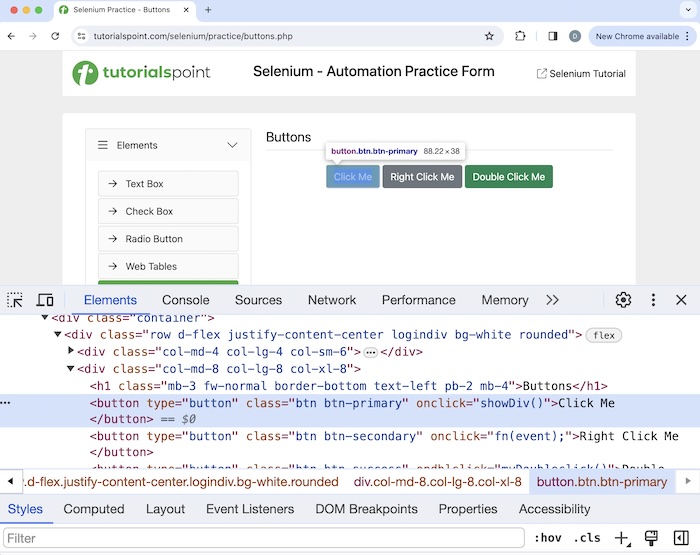
<button type="button" class="btn btn-primary"
   onclick="showDiv()">Click Me</button>
示例 1 - 使用 submit() 方法
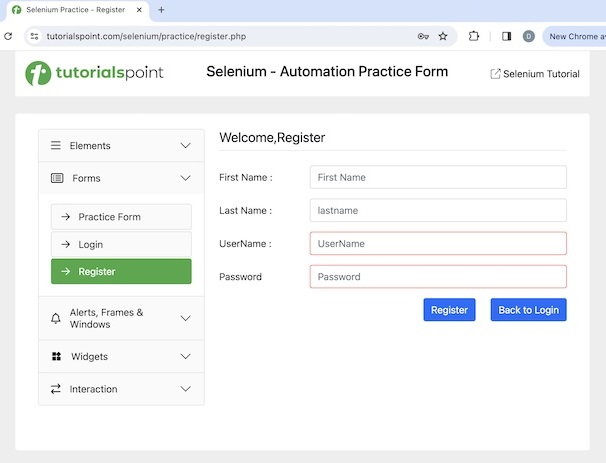
讓我們以下面頁面中的表單為例,該表單包含 Web 元素 - 標籤、輸入框、按鈕、密碼等等。
語法
WebDriver driver = new ChromeDriver();

// identify input box 1
WebElement inputBx = driver.findElement
   (By.xpath("<value of xpath>"));
inputBx.sendKeys("Selenium");

// get value entered
System.out.println("Value entered in FirstName: " + inputBx.getAttribute("value"));

// identify input box 2
WebElement inputBx2 = driver.findElement
   (By.xpath("<value of xpath>"));
inputBx2.sendKeys("Tutorials");

// get value entered
System.out.println("Value entered in LastName: " + inputBx2.getAttribute("value"));

// identify input box 3
WebElement inputBx3 = driver.findElement
   (By.xpath("<value of xpath>"));
inputBx3.sendKeys("Tutorialspoint");

// identify input box 4
WebElement inputBx4 = driver.findElement
   (By.xpath("<value of xpath>"));
inputBx3.sendKeys("Tutorialspoint");

// submit form
WebElement btn = driver.findElement
   (By.xpath("<value of xpath>"));
btn.submit();
程式碼實現
package org.example;

import org.openqa.selenium.By;
import org.openqa.selenium.WebDriver;
import org.openqa.selenium.WebElement;
import org.openqa.selenium.chrome.ChromeDriver;
import java.util.concurrent.TimeUnit;

public class FormElements {
   public static void main(String[] args) {

      // Initiate the Webdriver
      WebDriver driver = new ChromeDriver();

      // adding implicit wait of 15 secs
      driver.manage().timeouts().implicitlyWait(15, TimeUnit.SECONDS);

      // Opening the webpage where we will identify form
      driver.get("https://tutorialspoint.tw/selenium/practice/register.php");

      // identify input box 1
      WebElement inputBx = driver.findElement(By.xpath("//*[@id='firstname']"));
      inputBx.sendKeys("Selenium");

      // get value entered
      System.out.println("Value entered in FirstName: " + inputBx.getAttribute("value"));

      // identify input box 2
      WebElement inputBx2 = driver.findElement(By.xpath("//*[@id='lastname']"));
      inputBx2.sendKeys("Tutorials");

      // get value entered
      System.out.println("Value entered in LastName: " + inputBx2.getAttribute("value"));

      // identify input box 3
      WebElement inputBx3 = driver.findElement(By.xpath("//*[@id='username']"));
      inputBx3.sendKeys("Tutorialspoint");

      // get value entered
      System.out.println("Value entered in UserName: " + inputBx3.getAttribute("value"));

      // identify input box 4
      WebElement inputBx4 = driver.findElement(By.xpath("//*[@id='password']"));
      inputBx3.sendKeys("Tutorialspoint");

      // submit form with submit method
      WebElement btn = driver.findElement(By.xpath("//*[@id='signupForm']/div[5]/input"));
      btn.submit();

      // Close browser
      driver.quit();
   }
}
輸出
Value entered in FirstName: Selenium
Value entered in LastName: Tutorials
Value entered in UserName: Tutorialspoint

Process finished with exit code 0
在上面的示例中,我們填寫了包含輸入框的表單,然後在控制檯中獲取輸入的值(密碼欄位除外),顯示訊息 - FirstName 中輸入的值:Selenium,LastName 中輸入的值:Tutorials,以及UserName 中輸入的值:Tutorialspoint。
最後,收到訊息Process finished with exit code 0,表示程式碼成功執行。
示例 2 - 使用 click() 方法
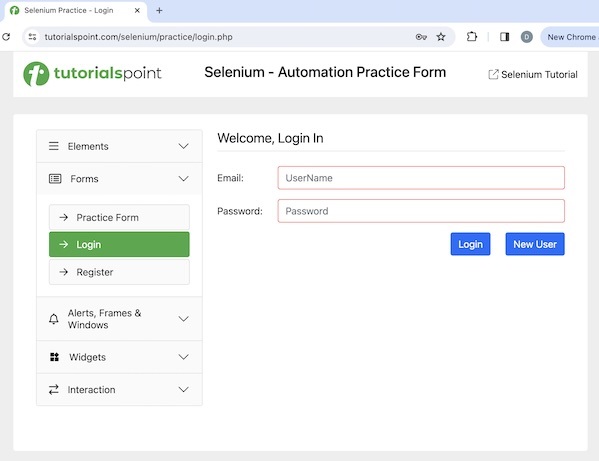
讓我們再以下面頁面中的表單為例,該表單包含 Web 元素 - 標籤、輸入框、按鈕、密碼等等。
語法
使用 click() 方法的語法:
WebDriver driver = new ChromeDriver();

// identify input box 1
WebElement inputBx = driver.findElement(By.xpath("<value of xpath>"));
inputBx.sendKeys("Selenium");

// get value entered
System.out.println("Value entered in FirstName: " + inputBx.getAttribute("value"));

// identify input box 2
WebElement inputBx2 = driver.findElement(By.xpath("<value of xpath>"));
inputBx2.sendKeys("Selenium");

// submit form
WebElement btn = driver.findElement(By.xpath("<value of xpath>"));
btn.click();
程式碼實現
package org.example;

import org.openqa.selenium.By;
import org.openqa.selenium.WebDriver;
import org.openqa.selenium.WebElement;
import org.openqa.selenium.chrome.ChromeDriver;
import java.util.concurrent.TimeUnit;

public class FormElement {
   public static void main(String[] args) {

      // Initiate the Webdriver
      WebDriver driver = new ChromeDriver();

      // adding implicit wait of 15 secs
      driver.manage().timeouts().implicitlyWait(15, TimeUnit.SECONDS);

      // Opening the webpage where we will identify form
      driver.get("https://tutorialspoint.tw/selenium/practice/login.php");

      // identify input box 1
      WebElement inputBx = driver.findElement(By.xpath("//*[@id='email']"));
      inputBx.sendKeys("Selenium");

      // get value entered
      System.out.println("Value entered in Email: " + inputBx.getAttribute("value"));

      // identify input box 2
      WebElement inputBx2 = driver.findElement(By.xpath("//*[@id='password']"));
      inputBx2.sendKeys("Tutorials");

      // submit form with click() method
      WebElement btn = driver.findElement(By.xpath("//*[@id='signInForm']/div[3]/input"));
      btn.click();

      // Closing browser
      driver.quit();
   }
}
輸出
Value entered in Email: Selenium
在上面的示例中,我們填寫了包含輸入框的表單,然後在控制檯中獲取輸入的值(密碼欄位除外),顯示訊息 - Email 中輸入的值:Selenium。
結論
本教程全面介紹了 Selenium WebDriver 表單處理。我們從描述如何在網頁上識別表單開始,並逐步講解了如何使用 Selenium Webdriver 處理表單的示例。這使您能夠深入瞭解 Selenium WebDriver 表單處理。最好繼續練習您學到的知識,並探索其他與 Selenium 相關的知識,以加深您的理解並拓寬您的視野。