

- Selenium 教程
- Selenium - 首頁
- Selenium - 概述
- Selenium - 元件
- Selenium - 自動化測試
- Selenium - 環境設定
- Selenium - 遠端控制
- Selenium IDE 教程
- Selenium - IDE 簡介
- Selenium - 特性
- Selenium - 限制
- Selenium - 安裝
- Selenium - 建立測試
- Selenium - 建立指令碼
- Selenium - 控制流
- Selenium - 儲存變數
- Selenium - 警報和彈出視窗
- Selenium - Selenese 命令
- Selenium - Actions 命令
- Selenium - Accessors 命令
- Selenium - Assertions 命令
- Selenium - Assert/Verify 方法
- Selenium - 定位策略
- Selenium - 指令碼除錯
- Selenium - 驗證點
- Selenium - 模式匹配
- Selenium - JSON 資料檔案
- Selenium - 瀏覽器執行
- Selenium - 使用者擴充套件
- Selenium - 程式碼匯出
- Selenium - 程式碼輸出
- Selenium - JavaScript 函式
- Selenium - 外掛
- Selenium WebDriver 教程
- Selenium - 簡介
- Selenium WebDriver vs RC
- Selenium - 安裝
- Selenium - 第一個測試指令碼
- Selenium - 驅動程式會話
- Selenium - 瀏覽器選項
- Selenium - Chrome 選項
- Selenium - Edge 選項
- Selenium - Firefox 選項
- Selenium - Safari 選項
- Selenium - 雙擊
- Selenium - 右鍵單擊
- Python 中的 HTML 報告
- 處理編輯框
- Selenium - 單個元素
- Selenium - 多個元素
- Selenium Web 元素
- Selenium - 檔案上傳
- Selenium - 定位器策略
- Selenium - 相對定位器
- Selenium - 查詢器
- Selenium - 查詢所有連結
- Selenium - 使用者互動
- Selenium - WebElement 命令
- Selenium - 瀏覽器互動
- Selenium - 瀏覽器命令
- Selenium - 瀏覽器導航
- Selenium - 警報和彈出視窗
- Selenium - 處理表單
- Selenium - 視窗和選項卡
- Selenium - 處理連結
- Selenium - 輸入框
- Selenium - 單選按鈕
- Selenium - 複選框
- Selenium - 下拉框
- Selenium - 處理 iframe
- Selenium - 處理 Cookie
- Selenium - 日期時間選擇器
- Selenium - 動態 Web 表格
- Selenium - Actions 類
- Selenium - Action 類
- Selenium - 鍵盤事件
- Selenium - 鍵向上/向下
- Selenium - 複製和貼上
- Selenium - 處理特殊鍵
- Selenium - 滑鼠事件
- Selenium - 拖放
- Selenium - 筆事件
- Selenium - 滾動操作
- Selenium - 等待策略
- Selenium - 顯式/隱式等待
- Selenium - 支援功能
- Selenium - 多選
- Selenium - 等待支援
- Selenium - 選擇支援
- Selenium - 顏色支援
- Selenium - ThreadGuard
- Selenium - 錯誤和日誌記錄
- Selenium - 異常處理
- Selenium - 雜項
- Selenium - 處理 Ajax 呼叫
- Selenium - JSON 資料檔案
- Selenium - CSV 資料檔案
- Selenium - Excel 資料檔案
- Selenium - 跨瀏覽器測試
- Selenium - 多瀏覽器測試
- Selenium - 多視窗測試
- Selenium - JavaScript 執行器
- Selenium - 無頭執行
- Selenium - 捕獲螢幕截圖
- Selenium - 捕獲影片
- Selenium - 頁面物件模型
- Selenium - 頁面工廠
- Selenium - 記錄和回放
- Selenium - 框架
- Selenium - 瀏覽上下文
- Selenium - DevTools
- Selenium Grid 教程
- Selenium - 概述
- Selenium - 架構
- Selenium - 元件
- Selenium - 配置
- Selenium - 建立測試指令碼
- Selenium - 測試執行
- Selenium - 端點
- Selenium - 自定義節點
- Selenium 報告工具
- Selenium - 報告工具
- Selenium - TestNG
- Selenium - JUnit
- Selenium - Allure
- Selenium 和其他技術
- Selenium - Java 教程
- Selenium - Python 教程
- Selenium - C# 教程
- Selenium - Javascript 教程
- Selenium - Kotlin 教程
- Selenium - Ruby 教程
- Selenium - Maven 和 Jenkins
- Selenium - 資料庫測試
- Selenium - LogExpert 日誌記錄
- Selenium - Log4j 日誌記錄
- Selenium - Robot Framework
- Selenium - AutoIT
- Selenium - Flash 測試
- Selenium - Apache Ant
- Selenium - Github 教程
- Selenium - SoapUI
- Selenium - Cucumber
- Selenium - IntelliJ
- Selenium - XPath
- Selenium 雜項概念
- Selenium - IE 驅動程式
- Selenium - 自動化框架
- Selenium - 關鍵字驅動框架
- Selenium - 資料驅動框架
- Selenium - 混合驅動框架
- Selenium - SSL 證書錯誤
- Selenium - 替代方案
- Selenium 有用資源
- Selenium - 問答
- Selenium - 快速指南
- Selenium - 有用資源
- Selenium - 自動化實踐
- Selenium - 討論
Selenium WebDriver - Action 類
Selenium Webdriver 可用於執行鍵盤和滑鼠操作。這包括諸如拖放、單擊、雙擊、右鍵單擊、使用控制鍵、其他鍵操作等操作。所有這些操作都是透過指定的使用者交換 API 執行的,在 Selenium Webdriver 中稱為 Actions 類。
Action 類方法
下面列出了 Actions 類中的一些可用方法:
- click() - 此方法用於在滑鼠當前位置執行單擊。
- build() - 此方法用於建立一個包含所有要執行的操作的動作組合。
- perform() - 此方法用於執行操作,而無需先呼叫 build()。
- release() - 此方法用於在滑鼠當前位置釋放滑鼠操作。
- release(WebElement e) - 此方法用於在作為引數傳遞的 webElement e 的中間釋放滑鼠操作。
- doubleClick(WebElement e) - 此方法用於在作為引數傳遞的 webElement e 的中間執行雙擊。
- click(WebElement e) - 此方法用於在作為引數傳遞的 webElement e 的中間執行單擊。
- doubleClick() - 此方法用於在滑鼠當前位置執行雙擊。
- contextClick() - 此方法用於在滑鼠當前位置執行右鍵單擊。
- contextClick(WebElement e) - 此方法用於在作為引數傳遞的 webElement e 的中間執行右鍵單擊。
- moveToElement(WebElement e) - 此方法用於將滑鼠移動到作為引數傳遞的 webElement e 的中間。
- moveToElement(WebElement e, int x-offset, int y-offset) - 此方法用於將滑鼠移動到視點中元素的偏移位置。webElement e、x 和 y 偏移值作為引數傳遞。
- clickAndHold() - 此方法用於在滑鼠當前位置執行單擊(不釋放)。
- clickAndHold(WebElement e) - 此方法用於在作為引數傳遞的 webElement e 的中間執行單擊(不釋放)。
- keyDown(CharSequence key) - 此方法用於執行修飾鍵按下,作為引數傳遞。
- keyDown(WebElement e, CharSequence key) - 此方法用於在聚焦元素後執行修飾鍵按下。webElement e 和要按下的鍵作為引數傳遞。
- keyUp(CharSequence key) - 此方法用於執行修飾鍵釋放,作為引數傳遞。
- keyUp(WebElement e, CharSequence key) - 此方法用於在聚焦元素後執行修飾鍵釋放。webElement e 和要釋放的鍵作為引數傳遞。
- sendKeys(CharSequence key) - 此方法用於將鍵傳送到焦點元素。要傳送的鍵作為引數傳遞。
- sendKeys(WebElement e, CharSequence key) - 此方法用於將鍵傳送到作為引數傳遞的 webElement。
請注意,在使用 Actions 類的這些方法時,需要新增匯入語句:
import org.openqa.selenium.interactions.Actions in our tests.
示例 1 - 單擊、右鍵單擊和雙擊
讓我們以以下頁面為例,我們將透過分別單擊網頁上的單擊我、右鍵單擊我和雙擊我按鈕來執行單擊、右鍵單擊和雙擊。
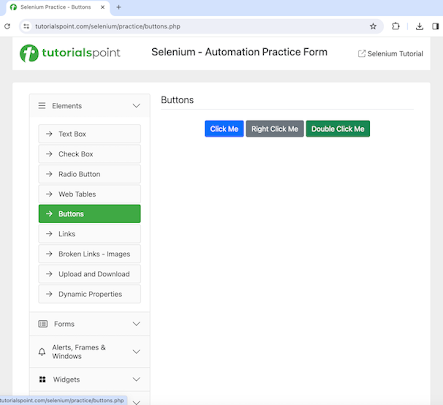
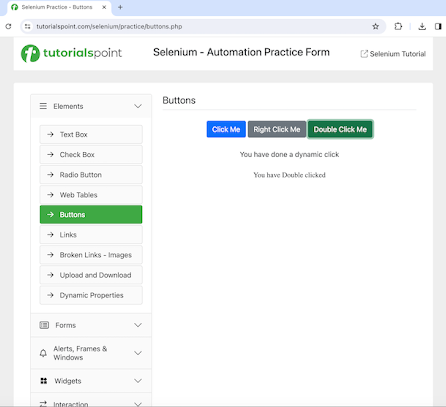
在分別執行單擊我、右鍵單擊我和雙擊我按鈕後,我們將在頁面上分別收到訊息您有一個動態點選和您已雙擊。
程式碼實現
package org.example;

import org.openqa.selenium.By;
import org.openqa.selenium.WebDriver;
import org.openqa.selenium.WebElement;
import org.openqa.selenium.chrome.ChromeDriver;
import org.openqa.selenium.interactions.Actions;
import java.util.concurrent.TimeUnit;

public class ActionsMouse {
   public static void main(String[] args) throws InterruptedException {

      // Initiate the Webdriver
      WebDriver driver = new ChromeDriver();

      // adding implicit wait of 15 secs
      driver.manage().timeouts().implicitlyWait(15, TimeUnit.SECONDS);

      // Opening the webpage
      driver.get("https://tutorialspoint.tw/selenium/practice/buttons.php");

      // identify element with xpath for click
      WebElement m = driver.findElement
         (By.xpath("/html/body/main/div/div/div[2]/button[1]"));

      // object of Actions class to move then click
      Actions a = new Actions(driver);
      a.moveToElement(m).click().build().perform();

      // get text after click
      WebElement t = driver.findElement(By.xpath("//*[@id='welcomeDiv']"));
      System.out.println("Text after click: " + t.getText());

      // identify element with xpath for double click
      WebElement n = driver.findElement
         (By.xpath("/html/body/main/div/div/div[2]/button[3]"));

      // double click
      a.moveToElement(n).doubleClick().build().perform();

      // get text after double click
      WebElement x = driver.findElement(By.xpath("//*[@id='doublec']"));
      System.out.println("Text after double click: " + x.getText());

      // identify element with xpath for right click
      WebElement y = driver.findElement
         (By.xpath("/html/body/main/div/div/div[2]/button[2]"));

      // right click
      a.moveToElement(y).contextClick().build().perform();

      // Closing browser
      driver.quit();
   }
}
輸出
Text after click: You have done a dynamic click
Text after double click: You have Double clicked

Process finished with exit code 0
在上面的示例中,我們執行了單擊、雙擊和右鍵單擊,然後在控制檯中收到了訊息 - 單擊後的文字:您已執行動態單擊和雙擊後的文字:您已雙擊。
最後,收到訊息程序已完成,退出程式碼為 0,表示程式碼已成功執行。
示例 2 - 滑鼠懸停
讓我們再舉一個例子,最初選單Navbar為黑色。
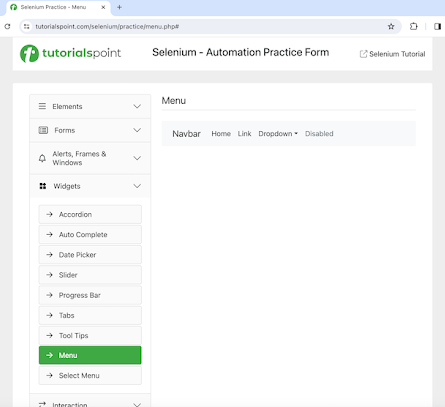
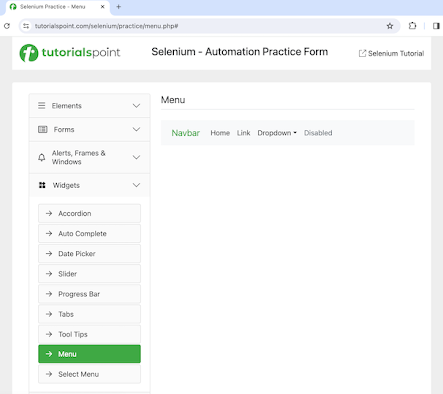
但是,當懸停並按住它時,選單 Navbar 的顏色從黑色變為綠色,如下面的影像所示。
程式碼實現
package org.example;

import org.openqa.selenium.By;
import org.openqa.selenium.WebDriver;
import org.openqa.selenium.WebElement;
import org.openqa.selenium.chrome.ChromeDriver;
import org.openqa.selenium.interactions.Actions;
import java.util.concurrent.TimeUnit;

public class ActionsClickandHold {
   public static void main(String[] args) throws InterruptedException {

      // Initiate the Webdriver
      WebDriver driver = new ChromeDriver();

      // adding implicit wait of 15 secs
      driver.manage().timeouts().implicitlyWait(15, TimeUnit.SECONDS);

      // Opening the webpage
      driver.get("https://tutorialspoint.tw/selenium/practice/menu.php#");

      // identify element with xpath for click and hold
      WebElement m = driver.findElement
         (By.xpath("/html/body/main/div/div/div[2]/nav/div/a"));

      // get element color in rgba format
      String s = m.getCssValue("color");
      System.out.println("rgba code for color element: " + s );

      // object of Actions class to click and hold
      Actions a = new Actions(driver);
      a.clickAndHold(m).build().perform();

      // get element color in rgba format
      String c = m.getCssValue("color");
      System.out.println("rgba code for color for element after click and hold: " + c);

      // Closing browser
      driver.quit();
   }
}
輸出
rgba code for color element: rgba(51, 51, 51, 1)
rgba code for color for element after click and hold: rgba(64, 169, 68, 1)

Process finished with exit code 0
示例 3 - 拖放
讓我們以以下頁面為例,我們將把帶有文字將我拖到我的目標的源框拖到帶有文字在此處放置的目標框。
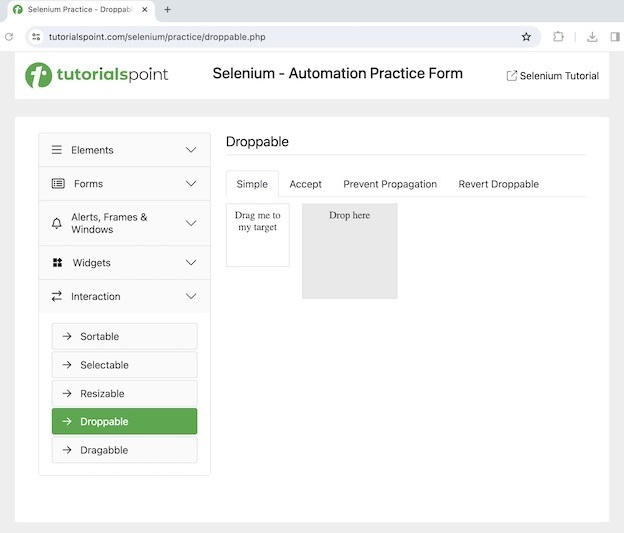
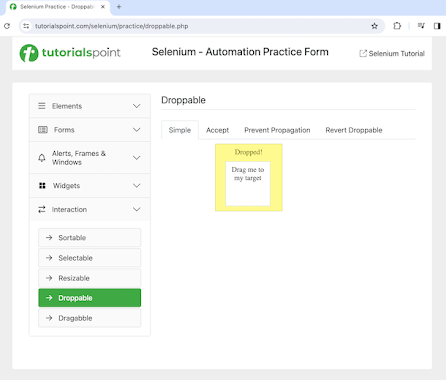
一旦整個操作完成,我們將在網頁上獲得文字已放置!,如下面的影像中突出顯示的那樣。
程式碼實現
package org.example;

import org.openqa.selenium.By;
import org.openqa.selenium.WebDriver;
import org.openqa.selenium.WebElement;
import org.openqa.selenium.chrome.ChromeDriver;
import org.openqa.selenium.interactions.Actions;
import java.util.concurrent.TimeUnit;

public class DragAndDrp {
   public static void main(String[] args) throws InterruptedException {

      // Initiate the Webdriver
      WebDriver driver = new ChromeDriver();

      // adding implicit wait of 15 secs
      driver.manage().timeouts().implicitlyWait(15, TimeUnit.SECONDS);

      // URL launch for accessing drag and drop elements
      driver.get("https://tutorialspoint.tw/selenium/practice/droppable.php");

      // identify source and target elements for drag and drop
      WebElement sourceElement= driver.findElement(By.id("draggable"));
      WebElement targetElement= driver.findElement(By.id("droppable"));

      // drag and drop operations without build and perform methods
      Actions a = new Actions(driver);
      a.dragAndDrop(sourceElement, targetElement).build().perform();

      // identify text after element is dropped
      WebElement text = driver.findElement(By.xpath("//*[@id='droppable']/p"));
      System.out.println("Text is : " + text.getText());

      // quitting browser after drag and drop operations completed
      driver.quit();
   }
}
輸出
Text is after dragging: Dropped!

Process finished with exit code 0
在上面的示例中,我們首先從源定位器到目標定位器執行了拖放操作,並且還在控制檯中收到了訊息 - 文字為:已放置!(在本文中,此應用程式中的拖放操作完成後會收到此訊息)。
最後,收到訊息程序已完成,退出程式碼為 0,表示程式碼已成功執行。
示例 4 - 鍵操作
讓我們再舉一個例子,我們將在輸入框中使用 Action 類的 Key Up Key Down 方法輸入大寫字母的文字SELENIUM。請注意,在將值傳送到 sendKeys() 方法時,我們將傳遞selenium 以及按下 SHIFT 鍵。因此,我們將在輸入框中獲得輸入的輸出為SELENIUM。
package org.example;

import org.openqa.selenium.By;
import org.openqa.selenium.Keys;
import org.openqa.selenium.WebDriver;
import org.openqa.selenium.WebElement;
import org.openqa.selenium.chrome.ChromeDriver;
import org.openqa.selenium.interactions.Actions;
import java.util.concurrent.TimeUnit;

public class KeyAction {
   public static void main(String[] args) throws InterruptedException {

      // Initiate the Webdriver
      WebDriver driver = new ChromeDriver();

      // adding implicit wait of 15 secs
      driver.manage().timeouts().implicitlyWait(15, TimeUnit.SECONDS);

      // Opening the webpage where we will identify an element
      driver.get("https://tutorialspoint.tw/selenium/practice/text-box.php");

      // Identify the first input box with xpath locator
      WebElement e = driver.findElement(By.xpath("//*[@id='fullname']"));

      // Actions class
      Actions a = new Actions(driver);

      // moving to an input box and clicking on it
      a.moveToElement(e).click();

      // key UP and DOWN action for SHIFT
      a.keyDown(Keys.SHIFT);
      a.sendKeys("Selenium").keyUp(Keys.SHIFT).build().perform();

      // get value entered
      System.out.println("Text entered: " + e.getAttribute("value"));

      // Closing browser
      driver.quit();
   }
}
輸出
Text entered: SELENIUM

Process finished with exit code 0
在上面的例子中,我們在輸入框中輸入了文字selenium 以及按下 SHIFT 鍵,因此得到了大寫的輸入文字,並在控制檯中顯示訊息 - Text entered: SELENIUM。
最後,收到訊息程序已完成,退出程式碼為 0,表示程式碼已成功執行。
結論
本教程到此結束,我們全面介紹了 Selenium Webdriver Action 類。我們從描述 Action 類開始,逐步講解了 Action 類的各種方法,並透過示例說明了如何執行點選、右鍵點選、雙擊、滑鼠懸停、拖放以及與 Selenium 結合的按鍵操作。這使您能夠深入瞭解 Action 類。建議您多練習所學內容,並探索其他與 Selenium 相關的知識,以加深理解並拓寬視野。