
- Google Plus 教程
- Google Plus - 首頁
- Google Plus - 簡介
- Google Plus - 人脈
- Google Plus - 圈子
- Google Plus - 社群
- Google Plus - 環聊
- Google Plus - 活動
- Google Plus - 釋出內容
- Google Plus - 上傳帖子
- Google Plus - 編輯帖子
- Google Plus - 刪除帖子
- Google Plus - 轉發帖子
- Google Plus - 報告帖子
- 提升使用者參與度
- Google Plus - 檢視通知
- Google Plus - 新增管理員
- Google Plus - 設定設定
- Google Plus - 通知設定
- Google Plus - 圈子設定
- Google Plus - 照片和影片設定
- Google Plus - 個人資料設定
- Google Plus - 刪除帳戶
- Google Plus - 洞察
- Google Plus - 最佳化流程
- Google Plus - 最佳化頁面
- Google Plus - 認領個性化網址
- Google Plus - +Post 廣告
- Google Plus - 整合流程
- Google Plus - 徽章
- Google Plus - 建立徽章
- 連線 YouTube
- Google Plus - 社交連結
- Google Plus 有用資源
- Google Plus - 快速指南
- Google Plus - 有用資源
- Google Plus - 討論
Google Plus - 照片和影片設定
使用此設定,我們可以控制哪些圈子或哪些人可以看到我們的影片/圖片。這些設定非常簡單,可以隨時更改。
如何啟用/停用照片或影片設定
讓我們看看如何在 Google+ 中啟用或停用照片或影片設定。
步驟 1 - 開啟 Google+ 帳戶。
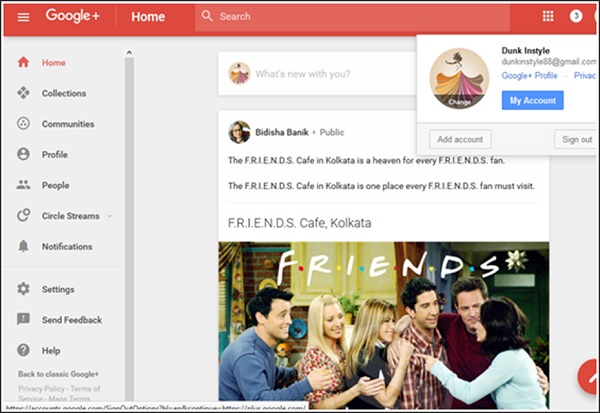
步驟 2 - 點選頁面左角的漢堡包  圖示。
圖示。
步驟 3 - 點選設定。
步驟 4 - 在“常規”標題下,點選“經典 Google+”選項。
步驟 5 - 然後,轉到“照片和影片”選項。
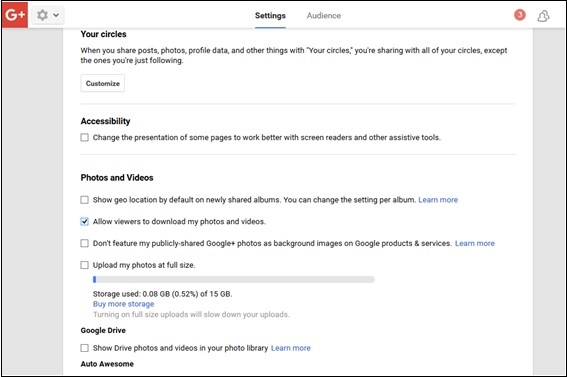
步驟 6 - 選中或取消選中“預設顯示您的地理位置”選項。這允許圈子和朋友看到照片拍攝地點。
步驟 7 - 選中或取消選中“允許檢視者下載我的照片和影片”選項。這將允許或限制使用者從我們的個人資料下載照片/影片。
步驟 8 - 根據需要選中或取消選中將公開共享的圖片作為背景功能顯示在某些 Google 產品(如 Chromecast、Google Fiber、裝置桌布等)上的選項。
步驟 9 - 檢查是否以全尺寸上傳照片。
步驟 10 - 選中或取消選中驅動器照片/影片是否應顯示在我們的 Google+ 圖書館中。
步驟 11 - 根據需要選中或取消選中,讓 Google+ 是否自動從現有照片建立新的影像和電影。
廣告