
- Google Plus 教程
- Google Plus - 首頁
- Google Plus - 簡介
- Google Plus - 人脈
- Google Plus - 圈子
- Google Plus - 社群
- Google Plus - 環聊
- Google Plus - 活動
- Google Plus - 釋出內容
- Google Plus - 上傳帖子
- Google Plus - 編輯帖子
- Google Plus - 刪除帖子
- Google Plus - 重新分享帖子
- Google Plus - 報告帖子
- 培養使用者參與度
- Google Plus - 檢視通知
- Google Plus - 新增管理員
- Google Plus - 設定設定
- Google Plus - 通知設定
- Google Plus - 圈子設定
- Google Plus - 照片和影片設定
- Google Plus - 個人資料設定
- Google Plus - 刪除帳戶
- Google Plus - 洞察
- Google Plus - 最佳化流程
- Google Plus - 最佳化頁面
- Google Plus - 認領個性化網址
- Google Plus - +Post 廣告
- Google Plus - 整合流程
- Google Plus - 徽章
- Google Plus - 建立徽章
- 連線 YouTube
- Google Plus - 社交連結
- Google Plus 有用資源
- Google Plus - 快速指南
- Google Plus - 有用資源
- Google Plus - 討論
Google Plus - 新增封面圖片
本章將討論如何在您的 Google+ 帳戶中新增封面圖片。
步驟 1 - 開啟 Google+ 帳戶。
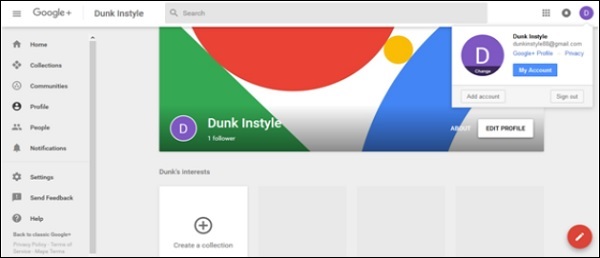
步驟 2 - 點選位於 Google+ 頁面左角的下拉選單(漢堡圖示)。
步驟 3 - 在選項中點選“個人資料”。
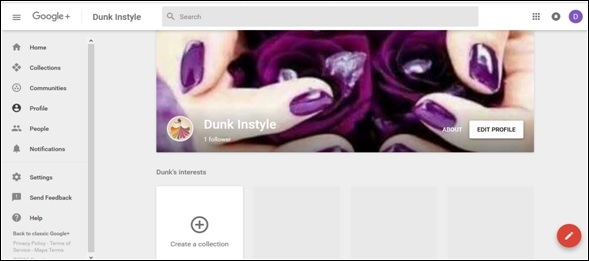
步驟 4 - 點選“編輯個人資料”選項。
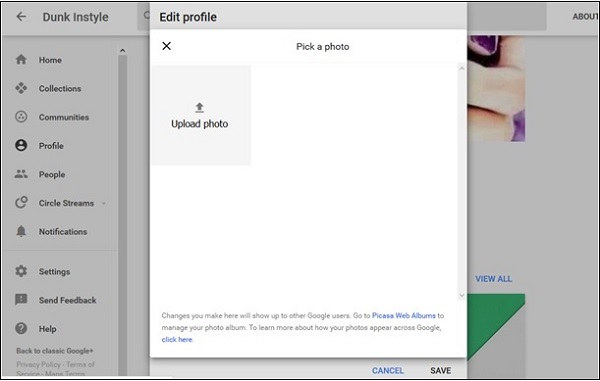
步驟 5 - 從以下選項中選擇。
上傳照片(從計算機驅動器拖動照片)
照片/相簿(從現有照片中選擇)
網路攝像頭(使用網路攝像頭拍攝新照片)
步驟 6 - 根據需要裁剪和旋轉照片。
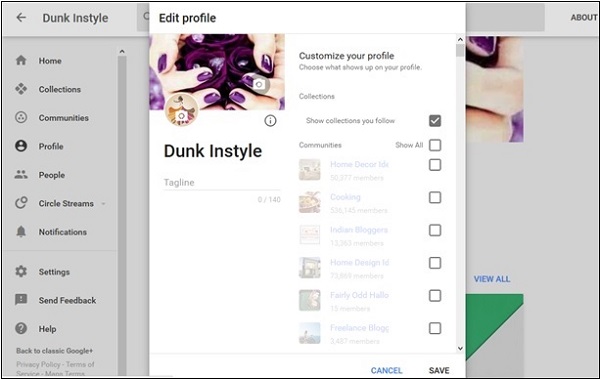
步驟 7 - 最後,點選“儲存”選項。
廣告