
- Google Plus 教程
- Google Plus - 首頁
- Google Plus - 簡介
- Google Plus - 人脈拓展
- Google Plus - 圈子
- Google Plus - 社群
- Google Plus - 環聊
- Google Plus - 活動
- Google Plus - 釋出內容
- Google Plus - 上傳帖子
- Google Plus - 編輯帖子
- Google Plus - 刪除帖子
- Google Plus - 重新分享帖子
- Google Plus - 報告帖子
- 培養使用者參與度
- Google Plus - 檢視通知
- Google Plus - 新增管理員
- Google Plus - 設定
- Google Plus - 通知設定
- Google Plus - 圈子設定
- Google Plus - 照片和影片設定
- Google Plus - 個人資料設定
- Google Plus - 刪除帳戶
- Google Plus - 洞察
- Google Plus - 最佳化流程
- Google Plus - 最佳化頁面
- Google Plus - 認領個性化網址
- Google Plus - +帖子廣告
- Google Plus - 整合流程
- Google Plus - 徽章
- Google Plus - 建立徽章
- 與 YouTube 連線
- Google Plus - 社交連結
- Google Plus 有用資源
- Google Plus - 快速指南
- Google Plus - 有用資源
- Google Plus - 討論
Google Plus - 活動
Google+ 活動頁面有助於組織即將舉行的活動或場合。它幫助任何使用 Gmail 的使用者將特定活動新增到他們的日曆中。只需點選一下即可填充有關特定活動的所有資訊。
該活動會自動新增到已收到邀請且已在圈子中的使用者的 Google 日曆中。我們可以同時邀請很多人,甚至整個圈子/社群。點選“+邀請姓名、圈子”並選擇隱私為“公開”。這樣做,任何人都可以找到該活動並訪問詳細資訊。
活動會自動與賓客的日曆同步。所有參與者都可以將照片/影片分享到共享相簿。賓客甚至可以告知他們是否會參加活動。如果活動日期發生變化,賓客將透過電子郵件收到通知。他們將收到有關地點、日期、時間等變化的通知。
建立 Google+ 活動
步驟 1 - 開啟 Google+ 帳戶。
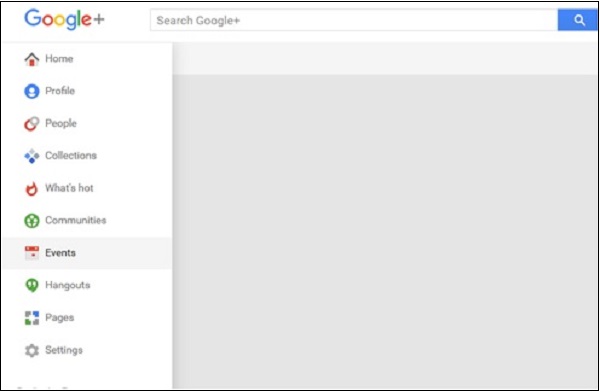
步驟 2 - 點選“活動”選項卡。
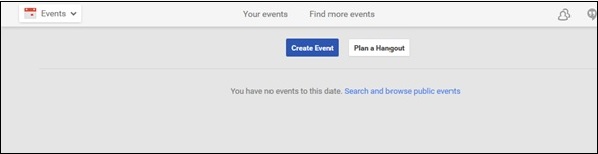
步驟 3 - 點選“建立活動”。
步驟 4 - 填寫有關活動的所有資訊,例如“標題”、“開始/結束日期”、“地點”、“描述”。
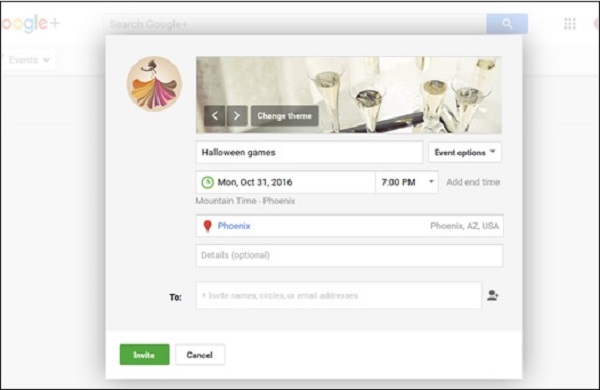
步驟 5 - 上傳封面圖片。確保封面圖片能夠體現活動內容。
步驟 6 - 選中/取消選中以下選項。
賓客可以邀請其他人。
賓客可以新增照片。
隱藏賓客列表。
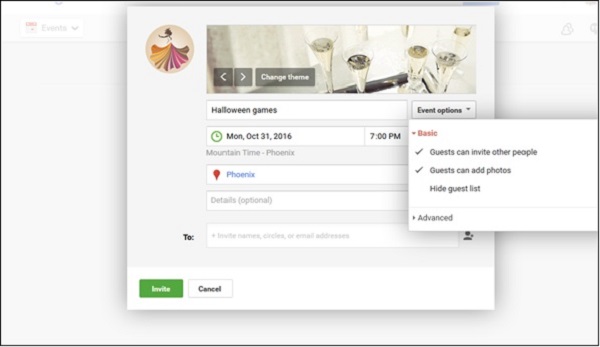
步驟 7 - 透過“高階”選項卡新增更多描述。
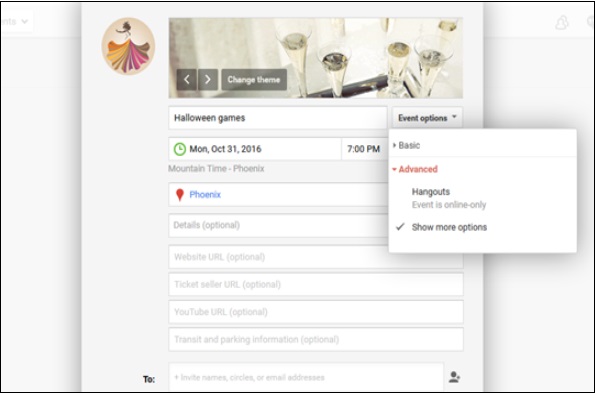
步驟 8 - 點選綠色的“邀請”按鈕邀請我們希望參加活動的人。
步驟 9 - 釋出活動。
廣告