- iOS 教程
- iOS - 首頁
- iOS - 入門
- iOS - 環境設定
- iOS - Objective-C 基礎
- iOS - 第一個 iPhone 應用程式
- iOS - 操作和出口
- iOS - 代理
- iOS - UI 元素
- iOS - 加速計
- iOS - 通用應用程式
- iOS - 相機管理
- iOS - 位置處理
- iOS - SQLite 資料庫
- iOS - 傳送電子郵件
- iOS - 音訊和影片
- iOS - 檔案處理
- iOS - 訪問地圖
- iOS - 應用內購買
- iOS - iAd 整合
- iOS - GameKit
- iOS - 故事板
- iOS - 自動佈局
- iOS - Twitter 和 Facebook
- iOS - 記憶體管理
- iOS - 應用程式除錯
- iOS 有用資源
- iOS - 快速指南
- iOS - 有用資源
- iOS - 討論
輸入型別 - 文字欄位
為什麼輸入型別?
鍵盤輸入型別幫助我們從使用者那裡獲取所需的輸入。它刪除不需要的鍵幷包含所需的鍵。我們可以使用 UITextField 的 keyboard 屬性設定使用者可以提供的輸入型別。
例如:textField. keyboardType = UIKeyboardTypeDefault
鍵盤輸入型別
| 序號 | 輸入型別和描述 |
|---|---|
| 1 | UIKeyboardTypeASCIICapable 鍵盤包含所有標準 ASCII 字元。 |
| 2 | UIKeyboardTypeNumbersAndPunctuation 鍵盤顯示數字和標點符號。 |
| 3 | UIKeyboardTypeURL 鍵盤針對 URL 輸入進行了最佳化。 |
| 4 | UIKeyboardTypeNumberPad 鍵盤用於 PIN 輸入並顯示數字鍵盤。 |
| 5 | UIKeyboardTypePhonePad 鍵盤針對輸入電話號碼進行了最佳化。 |
| 6 | UIKeyboardTypeNamePhonePad 鍵盤用於輸入姓名或電話號碼。 |
| 7 | UIKeyboardTypeEmailAddress 鍵盤針對輸入電子郵件地址進行了最佳化。 |
| 8 | UIKeyboardTypeDecimalPad 鍵盤用於輸入十進位制數字。 |
| 9 | UIKeyboardTypeTwitter 鍵盤針對 Twitter 進行了最佳化,包含 @ 和 # 符號。 |
新增自定義方法 addTextFieldWithDifferentKeyboard
-(void) addTextFieldWithDifferentKeyboard {

   UITextField *textField1= [[UITextField alloc]initWithFrame:
   CGRectMake(20, 50, 280, 30)];
   textField1.delegate = self;
   textField1.borderStyle = UITextBorderStyleRoundedRect;
   textField1.placeholder = @"Default Keyboard";
   [self.view addSubview:textField1];

   UITextField *textField2 = [[UITextField alloc]initWithFrame:
   CGRectMake(20, 100, 280, 30)];
   textField2.delegate = self;
   textField2.borderStyle = UITextBorderStyleRoundedRect;
   textField2.keyboardType = UIKeyboardTypeASCIICapable;
   textField2.placeholder = @"ASCII keyboard";
   [self.view addSubview:textField2];

   UITextField *textField3 = [[UITextField alloc]initWithFrame:
   CGRectMake(20, 150, 280, 30)];
   textField3.delegate = self;
   textField3.borderStyle = UITextBorderStyleRoundedRect;
   textField3.keyboardType = UIKeyboardTypePhonePad;
   textField3.placeholder = @"Phone pad keyboard";
   [self.view addSubview:textField3];

   UITextField *textField4 = [[UITextField alloc]initWithFrame:
   CGRectMake(20, 200, 280, 30)];
   textField4.delegate = self;
   textField4.borderStyle = UITextBorderStyleRoundedRect;
   textField4.keyboardType = UIKeyboardTypeDecimalPad;
   textField4.placeholder = @"Decimal pad keyboard";
   [self.view addSubview:textField4];

   UITextField *textField5= [[UITextField alloc]initWithFrame:
   CGRectMake(20, 250, 280, 30)];
   textField5.delegate = self;
   textField5.borderStyle = UITextBorderStyleRoundedRect;
   textField5.keyboardType = UIKeyboardTypeEmailAddress;
   textField5.placeholder = @"Email keyboard";
   [self.view addSubview:textField5];

   UITextField *textField6= [[UITextField alloc]initWithFrame:
   CGRectMake(20, 300, 280, 30)];
   textField6.delegate = self;
   textField6.borderStyle = UITextBorderStyleRoundedRect;
   textField6.keyboardType = UIKeyboardTypeURL;
   textField6.placeholder = @"URL keyboard";
   [self.view addSubview:textField6];
}
更新 ViewController.m 中的 viewDidLoad 如下:
(void)viewDidLoad {
   [super viewDidLoad];
   //The custom method to create textfield with different keyboard input
   [self addTextFieldWithDifferentKeyboard];
   //Do any additional setup after loading the view, typically from a nib
}
輸出
當我們執行應用程式時,我們將獲得以下輸出:
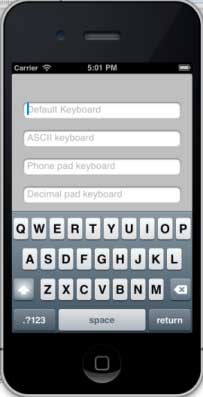
我們將看到在選擇每個文字欄位時顯示不同的鍵盤。
ios_ui_elements.htm
廣告