- iOS 教程
- iOS - 首頁
- iOS - 入門
- iOS - 環境設定
- iOS - Objective-C 基礎
- iOS - 第一個 iPhone 應用程式
- iOS - 動作和出口
- iOS - 代理
- iOS - UI 元素
- iOS - 加速度計
- iOS - 通用應用程式
- iOS - 相機管理
- iOS - 位置處理
- iOS - SQLite 資料庫
- iOS - 傳送電子郵件
- iOS - 音訊和影片
- iOS - 檔案處理
- iOS - 訪問地圖
- iOS - 應用內購買
- iOS - iAd 整合
- iOS - GameKit
- iOS - 故事板
- iOS - 自動佈局
- iOS - Twitter 和 Facebook
- iOS - 記憶體管理
- iOS - 應用程式除錯
- iOS 有用資源
- iOS - 快速指南
- iOS - 有用資源
- iOS - 討論
iOS - 通用應用程式
通用應用程式是指為 iPhone 和 iPad 設計的,在一個二進位制檔案中執行的應用程式。通用應用程式允許程式碼重用並快速更新。
通用應用程式 – 涉及的步驟
步驟 1 − 建立一個簡單的基於檢視的應用程式。
步驟 2 − 將檔名ViewController.xib檔案更改為ViewController_iPhone.xib,如下所示,在右側的檔案檢查器中。

步驟 3 − 選擇檔案 → 新建 → 檔案... 然後選擇子部分“使用者介面”並選擇檢視。單擊下一步。
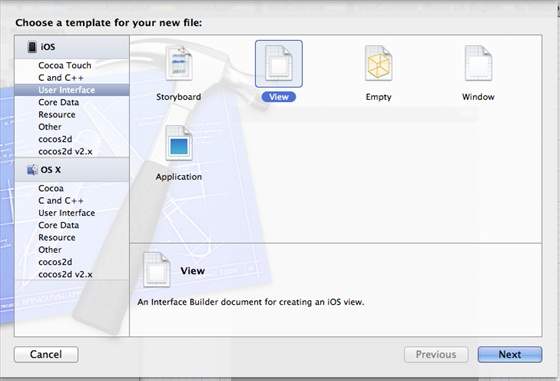
步驟 4 − 選擇裝置系列為iPad,然後單擊下一步。

步驟 5 − 將檔案儲存為ViewController_iPad.xib並選擇建立。
步驟 6 − 在ViewController_iPhone.xib和ViewController_iPad.xib中,在螢幕中央新增一個標籤。
步驟 7 − 在ViewController_iPad.xib中,選擇身份檢查器並將自定義類設定為ViewController。

步驟 8 − 如下更新 AppDelegate.m 中的 application:DidFinishLaunching:withOptions 方法 −
- (BOOL)application:(UIApplication *)application
   didFinishLaunchingWithOptions:(NSDictionary *)launchOptions {
   self.window = [[UIWindow alloc] initWithFrame:[[UIScreen
   mainScreen] bounds]];

   // Override point for customization after application launch.
   if (UI_USER_INTERFACE_IDIOM() == UIUserInterfaceIdiomPhone) {
      self.viewController = [[ViewController alloc]
      initWithNibName:@"ViewController_iPhone" bundle:nil];
   } else {
      self.viewController = [[ViewController alloc] initWithNibName:
      @"ViewController_iPad" bundle:nil];
   }
   self.window.rootViewController = self.viewController;
   [self.window makeKeyAndVisible];
   return YES;
}
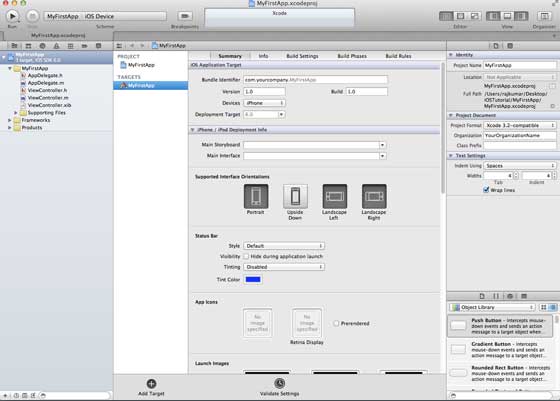
步驟 9 − 將專案摘要中的裝置更新為通用,如下所示 −
輸出
當我們執行應用程式時,我們將獲得以下輸出 −

當我們在 iPad 模擬器中執行應用程式時,我們將獲得以下輸出 −

廣告