- iOS 教程
- iOS - 主頁
- iOS - 入門指南
- iOS - 環境設定
- iOS - Objective-C 基礎
- iOS - 建立第一個 iPhone 應用程式
- iOS - 操作和控制元件
- iOS - 委託
- iOS - UI 元素
- iOS - 加速度計
- iOS - 通用應用程式
- iOS - 相機管理
- iOS - 定位處理
- iOS - SQLite 資料庫
- iOS - 傳送電子郵件
- iOS - 音訊和影片
- iOS - 檔案處理
- iOS - 訪問地圖
- iOS - 應用內購買
- iOS - iAd 整合
- iOS - GameKit
- iOS - 故事板
- iOS - 自動佈局
- iOS - Twitter 和 Facebook
- iOS - 記憶體管理
- iOS - 應用程式除錯
- iOS 實用資源
- iOS - 快速指南
- iOS - 實用資源
- iOS - 討論
iOS - 按鈕
按鈕使用
按鈕用於處理使用者操作。它會擷取觸控事件並向目標物件傳送訊息。
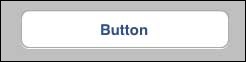
圓角矩形按鈕
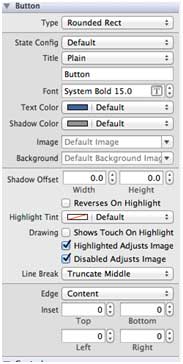
xib 中的按鈕屬性
你可以在工具區域(視窗右側)的屬性檢查器中更改 xib 中的按鈕屬性。
按鈕型別
- UIButtonTypeCustom
- UIButtonTypeRoundedRect
- UIButtonTypeDetailDisclosure
- UIButtonTypeInfoLight
- UIButtonTypeInfoDark
- UIButtonTypeContactAdd
重要屬性
- imageView
- titleLabel
重要方法
+ (id)buttonWithType:(UIButtonType)buttonType
- (UIImage *)backgroundImageForState:(UIControlState)state
- (UIImage *)imageForState:(UIControlState)state
- (void)setTitle:(NSString *)title forState:(UIControlState)state
- (void)addTarget:(id)target action:(SEL)action forControlEvents: (UIControlEvents) controlEvents
新增自定義方法 addDifferentTypesOfButton
-(void)addDifferentTypesOfButton {
   // A rounded Rect button created by using class method
   UIButton *roundRectButton = [UIButton buttonWithType:
   UIButtonTypeRoundedRect];
   [roundRectButton setFrame:CGRectMake(60, 50, 200, 40)];

   // sets title for the button
   [roundRectButton setTitle:@"Rounded Rect Button" forState:
   UIControlStateNormal];
   [self.view addSubview:roundRectButton];

   UIButton *customButton = [UIButton buttonWithType: UIButtonTypeCustom];
   [customButton setBackgroundColor: [UIColor lightGrayColor]];
   [customButton setTitleColor:[UIColor blackColor] forState:
   UIControlStateHighlighted];

   //sets background image for normal state
   [customButton setBackgroundImage:[UIImage imageNamed:
   @"Button_Default.png"]
   forState:UIControlStateNormal];

   //sets background image for highlighted state
   [customButton setBackgroundImage:[UIImage imageNamed:
   @"Button_Highlighted.png"]
   forState:UIControlStateHighlighted];
   [customButton setFrame:CGRectMake(60, 100, 200, 40)];
   [customButton setTitle:@"Custom Button" forState:UIControlStateNormal];
   [self.view addSubview:customButton];

   UIButton *detailDisclosureButton = [UIButton buttonWithType:
   UIButtonTypeDetailDisclosure];
   [detailDisclosureButton setFrame:CGRectMake(60, 150, 200, 40)];
   [detailDisclosureButton setTitle:@"Detail disclosure" forState:
   UIControlStateNormal];
   [self.view addSubview:detailDisclosureButton];

   UIButton *contactButton = [UIButton buttonWithType:
   UIButtonTypeContactAdd];
   [contactButton setFrame:CGRectMake(60, 200, 200, 40)];
   [self.view addSubview:contactButton];

   UIButton *infoDarkButton = [UIButton buttonWithType:
   UIButtonTypeInfoDark];
   [infoDarkButton setFrame:CGRectMake(60, 250, 200, 40)];
   [self.view addSubview:infoDarkButton];

   UIButton *infoLightButton = [UIButton buttonWithType:
   UIButtonTypeInfoLight];
   [infoLightButton setFrame:CGRectMake(60, 300, 200, 40)];
   [self.view addSubview:infoLightButton];
}
注意 -
我們必須向我們的專案新增兩張名為“Button_Default.png”和“Button_Highlighted.png”的圖片,我們可以將這些圖片拖拽到我們的導航器區域,其中列出了我們的專案檔案。
如下所示,更新 ViewController.m 中的 viewDidLoad
(void)viewDidLoad {
   [super viewDidLoad];

   //The custom method to create our different types of button is called
	[self addDifferentTypesOfButton];
	//Do any additional setup after loading the view, typically from a nib
}
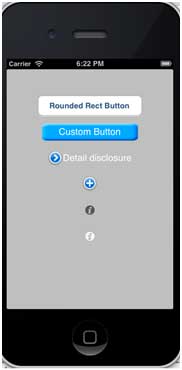
輸出
當我們執行該應用程式時,我們將會獲得以下輸出 -
ios_ui_elements.htm
廣告
© .
All rights reserved.