
- ASP.NET WP 教程
- ASP.NET WP - 首頁
- ASP.NET WP - 概述
- ASP.NET WP - 環境設定
- ASP.NET WP - 快速入門
- ASP.NET WP - 檢視引擎
- 專案資料夾結構
- ASP.NET WP - 全域性頁面
- ASP.NET WP - 程式設計概念
- ASP.NET WP - 佈局
- ASP.NET WP - 使用表單
- ASP.NET WP - 頁面物件模型
- ASP.NET WP - 資料庫
- ASP.NET WP - 向資料庫新增資料
- ASP.NET WP - 編輯資料庫資料
- ASP.NET WP - 刪除資料庫資料
- ASP.NET WP - WebGrid
- ASP.NET WP - 圖表
- ASP.NET WP - 檔案操作
- ASP.NET WP - 圖片操作
- ASP.NET WP - 影片操作
- ASP.NET WP - 新增郵件功能
- ASP.NET WP - 新增搜尋功能
- 向網站新增社交網路功能
- ASP.NET WP - 快取
- ASP.NET WP - 安全性
- ASP.NET WP - 釋出
- ASP.NET WP 有用資源
- ASP.NET WP - 快速指南
- ASP.NET WP - 有用資源
- ASP.NET WP - 討論
ASP.NET WP - 編輯資料庫資料
本章將介紹如何建立一個網頁,使用者可以在其中編輯資料庫中已有的資料。
在這個過程中,我們將建立兩個頁面,它們與之前為資料插入建立的頁面類似。
第一個頁面顯示客戶列表,並允許使用者選擇要更改的客戶。
第二個頁面允許使用者實際進行編輯並儲存更改。
如何編輯資料庫中已有的資料?
讓我們在專案中建立一個新的 CSHTML 檔案。
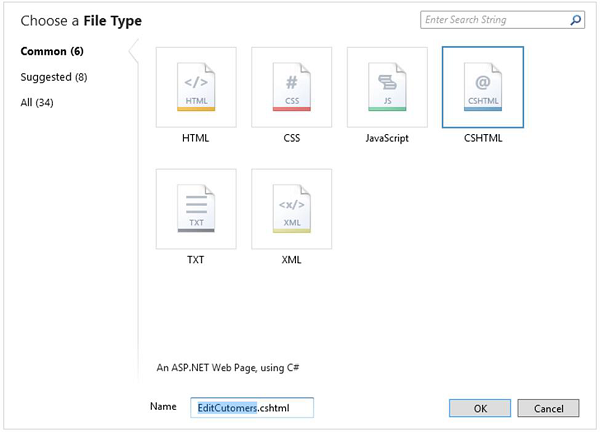
在“名稱”欄位中輸入 **EditCustomers.cshtml** 並單擊“確定”。
現在用以下程式碼替換 EditCustomers.cshtml 檔案。
@{
   var db = Database.Open("WebPagesCustomers");
   var selectQueryString = "SELECT * FROM Customers ORDER BY FirstName";
}

<!DOCTYPE html>
<html>
   <head>
      <title>Customers List</title>
      <style>
         table, th, td {
            border: solid 1px #bbbbbb;
            border-collapse: collapse;
            padding: 2px;
         }
      </style>

   </head>
   <body>
      <h1>Customers List</h1>
      <table>
         <thead>
            <tr>
               <th> </th>
               <th>First Name</th>
               <th>Last Name</th>
               <th>Address</th>
            </tr>
         </thead>

         <tbody>
            @foreach(var row in db.Query(selectQueryString)){
               <tr>
                  <td><a href = "@Href("~/UpdateCustomers", row.Id)">Edit</a></td>
                  <td>@row.FirstName</td>
                  <td>@row.LastName</td>
                  <td>@row.Address</td>
               </tr>
            }
         </tbody>
      </table>

   </body>
</html>
**EditCustomers.cshtml** 頁面和 **ListCustomers.cshtml** 頁面的唯一區別在於它包含一個額外的列,顯示“編輯”連結。
單擊該編輯連結後,它將帶您進入 **UpdateCustomer.cshtml** 頁面,該頁面尚未建立。因此,我們需要建立 UpdateCustomer.cshtml 檔案並將其替換為以下程式碼。
@{
   Validation.RequireField("FirstName", "First Name is required.");
   Validation.RequireField("LastName", "Last Name is required.");
   Validation.RequireField("Address", "Address is required.");

   var FirstName = "";
   var LastName = "";
   var Address = "";
   var CustomerId = UrlData[0];

   if (CustomerId.IsEmpty()) {
      Response.Redirect("~/EditCustomers");
   }
   var db = Database.Open("WebPagesCustomers");

   if (IsPost && Validation.IsValid()) {
      var updateQueryString = "UPDATE Customers SET FirstName = @0, LastName = @1,
         Address = @2 WHERE Id = @3" ;
      FirstName = Request["FirstName"];
      LastName = Request["LastName"];
      Address = Request["Address"];
      db.Execute(updateQueryString, FirstName, LastName, Address, CustomerId);

      // Display the page that lists products.
      Response.Redirect(@Href("~/EditCustomers"));
   } else {
      var selectQueryString = "SELECT * FROM Customers WHERE ID = @0";
      var row = db.QuerySingle(selectQueryString, CustomerId);
      FirstName = row.FirstName;
      LastName = row.LastName;
      Address = row.Address;
   }
}

<!DOCTYPE html>
<html>
   <head>
      <title>Update Customer</title>
      <style type = "text/css">
         label {
            float:left;
            width: 8em;
            text-align: right;
            margin-right: 0.5em;
         }
         fieldset {
            padding: 1em;
            border: 1px solid;
            width: 50em;
         }
         legend {
            padding: 2px 4px;
            border: 1px solid;
            font-weight:bold;
         }
         .validation-summary-errors {
            font-weight:bold;
            color:red;
            font-size: 11pt;
         }
      </style>

   </head>
   <body>
      <h1>Update Customer</h1>
      @Html.ValidationSummary("Errors with your submission:")

      <form method = "post" action = "">
         <fieldset>
            <legend>Update Customer</legend>
            <div>
               <label>First Name:</label>
               <input name = "FirstName" type = "text" size = "50" value = "@FirstName"/>
            </div>

            <div>
               <label>Last Name:</label>
               <input name = "LastName" type = "text" size = "50" value = "@LastName" />
            </div>

            <div>
               <label>Address:</label>
               <input name = "Address" type = "text" size = "50" value = "@Address" />
            </div>

            <div>
               <label> </label>
               <input type = "submit" value = "Save" class = "submit" />
            </div>

         </fieldset>
      </form>

   </body>
</html>
現在讓我們執行應用程式並指定以下 URL:**https://:36905/EditCustomers**,您將看到以下網頁。
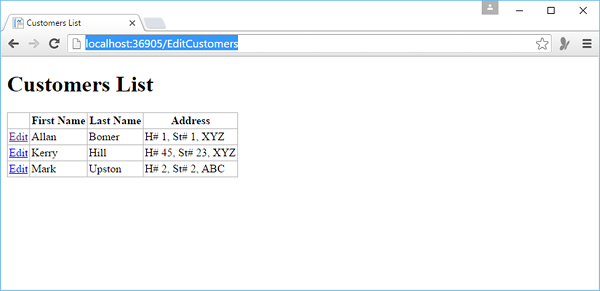
如您所見,它與 **ListCustomer** 網頁相同,但每條記錄都額外有一個“編輯”連結。現在,讓我們單擊任何客戶的“編輯”連結,例如第一個,您將看到以下頁面。
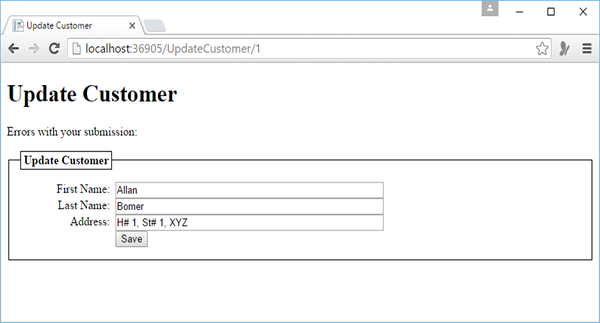
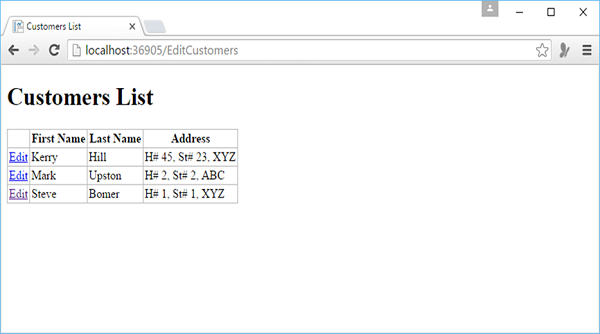
讓我們將名字從 Allan 更改為 Steve 並單擊“儲存”。
您將看到以下頁面,其中更新了名字,現在它位於末尾,因為我們已根據名字對列表進行了排序。
廣告