- ASP.NET WP 教程
- ASP.NET WP - 首頁
- ASP.NET WP - 概述
- ASP.NET WP - 環境設定
- ASP.NET WP - 入門
- ASP.NET WP - 檢視引擎
- 專案資料夾結構
- ASP.NET WP - 全域性頁面
- ASP.NET WP - 程式設計概念
- ASP.NET WP - 佈局
- ASP.NET WP - 使用表單
- ASP.NET WP - 頁面物件模型
- ASP.NET WP - 資料庫
- ASP.NET WP - 將資料新增到資料庫
- ASP.NET WP - 編輯資料庫資料
- ASP.NET WP - 刪除資料庫資料
- ASP.NET WP - WebGrid
- ASP.NET WP - 圖表
- ASP.NET WP - 使用檔案
- ASP.NET WP - 使用影像
- ASP.NET WP - 使用影片
- ASP.NET WP - 新增電子郵件
- ASP.NET WP - 新增搜尋
- 向網站新增社交網路功能
- ASP.NET WP - 快取
- ASP.NET WP - 安全性
- ASP.NET WP - 釋出
- ASP.NET WP 有用資源
- ASP.NET WP - 快速指南
- ASP.NET WP - 有用資源
- ASP.NET WP - 討論
ASP.NET WP - 新增電子郵件
在本節中,我們將介紹如何向網站新增電子郵件以及如何從網頁傳送電子郵件。您可能需要從網站傳送電子郵件的原因有很多。
您可以向用戶傳送確認訊息。
您還可以向自己傳送通知。例如,當有新使用者註冊網站時。
使用**WebMail 幫助程式**傳送電子郵件非常簡單。要使用此 WebMail 幫助程式,您必須能夠訪問 SMTP 伺服器(SMTP 代表簡單郵件傳輸協議)。
SMTP 伺服器是一種僅將郵件轉發到收件人伺服器的電子郵件伺服器。
如果您使用託管服務提供商來託管您的網站,那麼他們會設定您的電子郵件,並可以告訴您您的 SMTP 伺服器名稱。
如果您在公司網路內部工作,管理員或 IT 部門通常可以為您提供有關可以使用哪個 SMTP 伺服器的資訊。
如果您在家工作,您甚至可以使用普通電子郵件提供商進行測試,他們可以告訴您其 SMTP 伺服器的名稱。
要使用 SMTP 伺服器,您將需要以下內容:
SMTP 伺服器的名稱。
埠號大多數情況下為 25。但是,您的 ISP 可能會要求您使用埠 587。
憑據,例如使用者名稱和密碼。
讓我們來看一個簡單的示例,其中我們將傳送一封電子郵件。首先,我們需要建立一個新的 CSHTML 檔案。
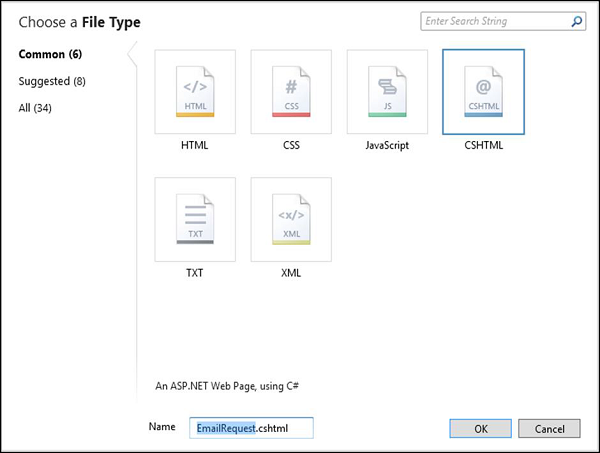
在“名稱”欄位中輸入**EmailRequest.cshtml**,然後單擊“確定”。
現在,將以下程式碼替換到 EmailRequest.cshtml 檔案中。
<!DOCTYPE html>
<html>

   <head>
      <title>Request for Assistance</title>
   </head>

   <body>
      <h2>Submit Email Request for Assistance</h2>
      <form method = "post" action = "ProcessRequest.cshtml">
         <div>
            Your name:
            <input type = "text" name = "customerName" />
         </div>

         <div>
            Your email address:
            <input type = "text" name = "customerEmail" />
         </div>

         <div>
            Details about your problem: <br />
            <textarea name = "customerRequest" cols = "45" rows = "4"></textarea>
         </div>

         <div>
            <input type = "submit" value = "Submit" />
         </div>
      </form>

   </body>
</html>
如您在上面的程式碼中看到的,表單的 action 屬性設定為**ProcessRequest.cshtml**,這意味著表單將提交到該頁面。所以讓我們建立另一個 CSHTML 檔案 ProcessRequest.cshtml 並替換以下程式碼。
@{
   var customerName = Request["customerName"];
   var customerEmail = Request["customerEmail"];
   var customerRequest = Request["customerRequest"];
   var errorMessage = "";
   var debuggingFlag = false;

   try {
      // Initialize WebMail helper
      WebMail.SmtpServer = "smtp.mail.yahoo.com";
      WebMail.SmtpPort = 465;
      WebMail.UserName = "waqasm78@yahoo.com";
      WebMail.Password = "**********";
      WebMail.From = "waqasm78@yahoo.com";

      // Send email
      WebMail.Send(to: customerEmail,
         subject: "Help request from - " + customerName,
         body: customerRequest
      );
   }catch (Exception ex ) {
      errorMessage = ex.Message;
   }
}

<!DOCTYPE html>
<html>

   <head>
      <title>Request for Assistance</title>
   </head>

   <body>
      <p>Sorry to hear that you are having trouble, <b>@customerName</b>.</p>

      @if(errorMessage == ""){
         <p>An email message has been sent to our customer service department regarding
            the following problem:</p>
         <p><b>@customerRequest</b></p>
      } else{
         <p><b>The email was <em>not</em> sent.</b></p>
         <p>Please check that the code in the ProcessRequest page has
            correct settings for the SMTP server name, a user name,
            a password, and a "from" address.</p>

         if(debuggingFlag){
            <p>The following error was reported:</p>
            <p><em>@errorMessage</em></p>
         }
      }

   </body>
</html>
如果您使用的是雅虎電子郵件提供商,則需要在上述程式中替換以下程式碼才能使其執行。
// Initialize WebMail helper
   WebMail.SmtpServer = "smtp.mail.yahoo.com";
   WebMail.SmtpPort = 465;
   WebMail.UserName = "waqasm78@yahoo.com";
   WebMail.Password = "**********";
   WebMail.From = "waqasm78@yahoo.com";
您需要在**WebMail.Password**屬性中鍵入您自己的密碼。
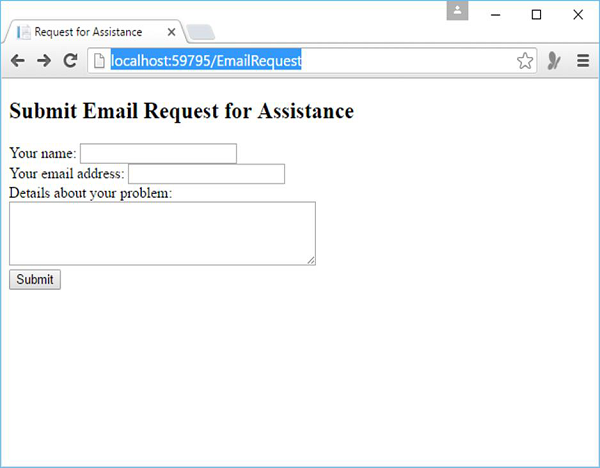
現在讓我們執行應用程式並指定以下 URL - **https://:59795/EmailRequest**,您將看到以下網頁。
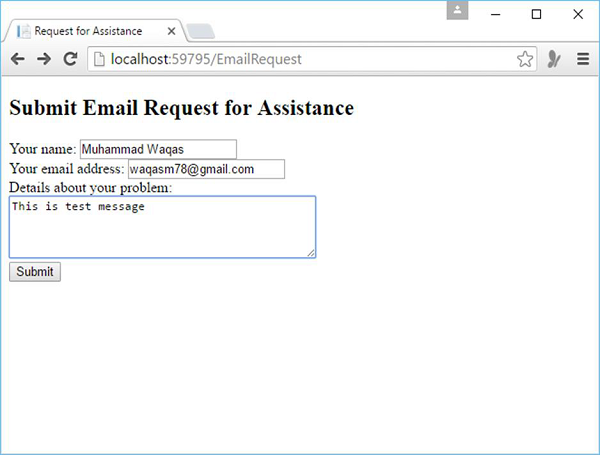
現在在所有提到的欄位中輸入一些資訊,如下面的螢幕截圖所示。
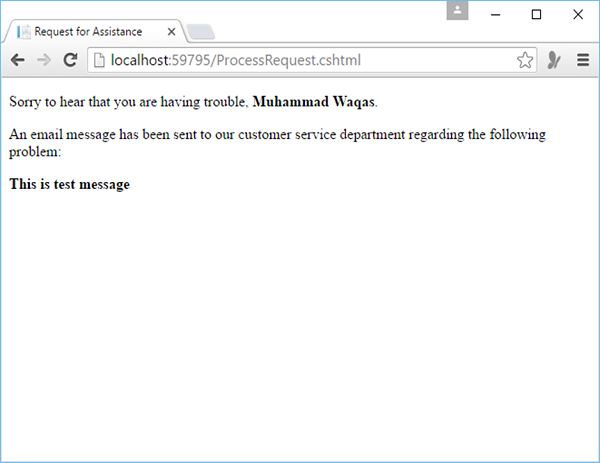
單擊提交,然後當電子郵件成功傳送時,您將看到以下訊息。