
- ASP.NET WP 教程
- ASP.NET WP - 首頁
- ASP.NET WP - 概述
- ASP.NET WP - 環境設定
- ASP.NET WP - 入門
- ASP.NET WP - 檢視引擎
- 專案資料夾結構
- ASP.NET WP - 全域性頁面
- ASP.NET WP - 程式設計概念
- ASP.NET WP - 佈局
- ASP.NET WP - 使用表單
- ASP.NET WP - 頁面物件模型
- ASP.NET WP - 資料庫
- ASP.NET WP - 向資料庫新增資料
- ASP.NET WP - 編輯資料庫資料
- ASP.NET WP - 刪除資料庫資料
- ASP.NET WP - WebGrid
- ASP.NET WP - 圖表
- ASP.NET WP - 使用檔案
- ASP.NET WP - 使用影像
- ASP.NET WP - 使用影片
- ASP.NET WP - 新增電子郵件
- ASP.NET WP - 新增搜尋
- 向網站新增社交網路功能
- ASP.NET WP - 快取
- ASP.NET WP - 安全性
- ASP.NET WP - 釋出
- ASP.NET WP 有用資源
- ASP.NET WP - 快速指南
- ASP.NET WP - 有用資源
- ASP.NET WP - 討論
ASP.NET WP - 向資料庫新增資料
在本節中,我們將介紹如何建立一個頁面,允許使用者向資料庫中的 Customers 表新增資料。
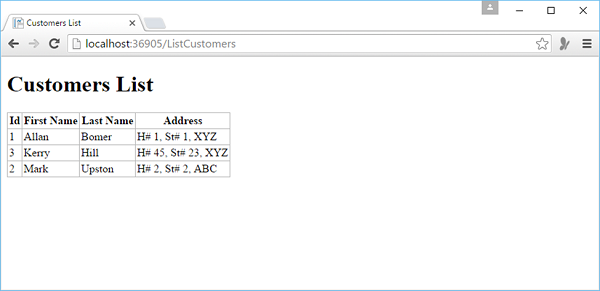
在本例中,您還將瞭解當記錄插入後,頁面如何使用我們在上一節中建立的 ListCustomers.cshtml 頁面顯示更新後的表格。
在此頁面中,我們還添加了驗證,以確保使用者輸入的資料對資料庫有效。例如,使用者已為所有必填列輸入資料。
如何向資料庫中的 Customer 表新增資料?
讓我們向您的網站新增一個新的 CSHTML 檔案。
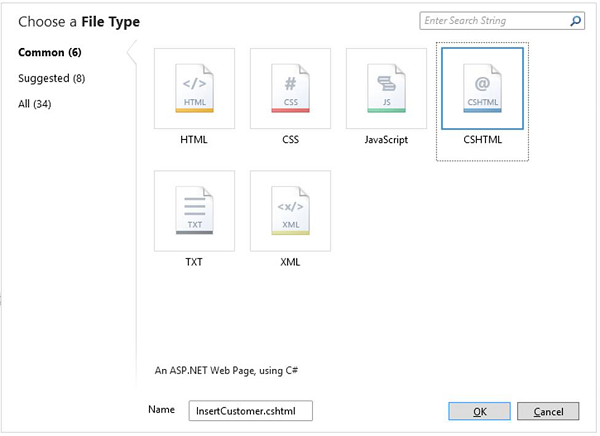
在“名稱”欄位中輸入 **InsertCustomer.cshtml**,然後單擊“確定”。
現在建立一個新的網頁,使用者可以在其中插入 Customers 表中的資料,因此用以下程式碼替換 InsertCustomer.cshtml 檔案。
@{
   Validation.RequireField("FirstName", "First Name is required.");
   Validation.RequireField("LastName", "Last Name is required.");
   Validation.RequireField("Address", "Address is required.");

   var db = Database.Open("WebPagesCustomers");
   var FirstName = Request.Form["FirstName"];
   var LastName = Request.Form["LastName"];
   var Address = Request.Form["Address"];

   if (IsPost && Validation.IsValid()) {
      // Define the insert query. The values to assign to the
      // columns in the Customers table are defined as parameters
      // with the VALUES keyword.

      if(ModelState.IsValid) {
         var insertQuery = "INSERT INTO Customers (FirstName, LastName, Address) " +
            "VALUES (@0, @1, @2)";
         db.Execute(insertQuery, FirstName, LastName, Address);

         // Display the page that lists products.
         Response.Redirect("~/ListCustomers");
      }
   }
}

<!DOCTYPE html>
<html>

   <head>
      <title>Add Customer</title>
      <style type = "text/css">
         label {
            float:left;
            width: 8em;
            text-align:
            right;
            margin-right: 0.5em;
         }
         fieldset {
            padding: 1em;
            border: 1px solid;
            width: 50em;
         }
         legend {
            padding: 2px 4px;
            border: 1px solid;
            font-weight:bold;
         }
         .validation-summary-errors {
            font-weight:bold;
            color:red;
            font-size: 11pt;
         }
      </style>

   </head>
   <body>
      <h1>Add New Customer</h1>
      @Html.ValidationSummary("Errors with your submission:")

      <form method = "post" action = "">
         <fieldset>
            <legend>Add Customer</legend>
            <div>
               <label>First Name:</label>
               <input name = "FirstName" type = "text" size = "50" value = "@FirstName"/>
            </div>

            <div>
               <label>Last Name:</label>
               <input name = "LastName" type = "text" size = "50" value = "@LastName" />
            </div>

            <div>
               <label>Address:</label>
               <input name = "Address" type = "text" size = "50" value = "@Address" />
            </div>

            <div>
               <label> </label>
               <input type = "submit" value = "Insert" class = "submit" />
            </div>
         </fieldset>
      </form>

   </body>
</html>
現在讓我們執行應用程式並指定以下 URL:**https://:36905/InsertCustomer**,您將看到以下網頁。
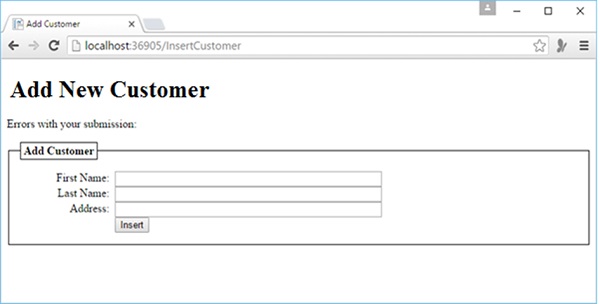
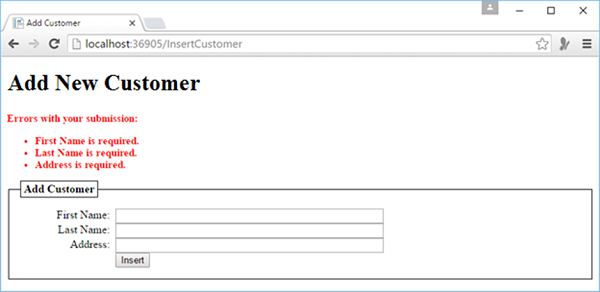
在上面的螢幕截圖中,您可以看到我們添加了驗證,因此如果您在不輸入任何資料或缺少上述任何欄位的情況下單擊“插入”按鈕,您將看到它會顯示錯誤訊息,如下面的螢幕截圖所示。
現在讓我們在所有欄位中輸入一些資料。
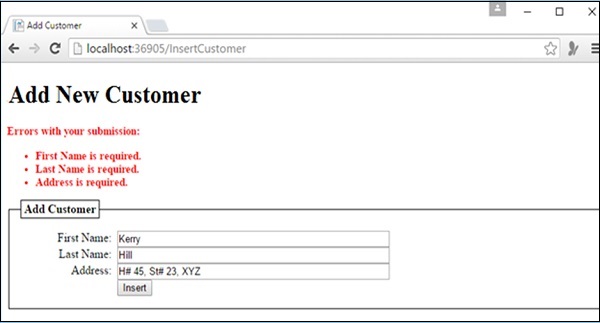
現在單擊“插入”,您將看到更新後的客戶列表,如下面的螢幕截圖所示。
廣告