
- XAML 教程
- XAML - 首頁
- XAML - 概述
- XAML - 環境設定
- 在 macOS 上編寫 XAML 應用程式
- XAML 與 C# 程式碼
- XAML 與 VB.NET
- XAML - 構建塊
- XAML - 控制元件
- XAML - 佈局
- XAML - 事件處理
- XAML - 資料繫結
- XAML - 標記擴充套件
- XAML - 依賴屬性
- XAML - 資源
- XAML - 模板
- XAML - 樣式
- XAML - 觸發器
- XAML - 除錯
- XAML - 自定義控制元件
- XAML 有用資源
- XAML - 快速指南
- XAML - 有用資源
- XAML - 討論
XAML - 網格面板
網格面板提供了一個靈活的區域,該區域由行和列組成。在網格中,子元素可以以表格形式排列。可以使用Grid.Row和Grid.Column屬性將元素新增到任何特定的行和列。
預設情況下,網格面板建立一個具有一個行和一列的網格。可以使用RowDefinitions和ColumnDefinitions屬性建立多行和多列。行的高度和列的寬度可以透過以下三種方式定義:
固定值 - 為邏輯單位(1/96 英寸)分配固定大小
自動 - 它只佔用該特定行/列中的控制元件所需的空間。
星號 (*) - 當填充自動和固定大小後,它將佔用剩餘空間。
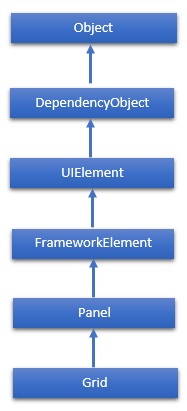
Grid 類的層次繼承如下:
屬性
| 序號 | 屬性及說明 |
|---|---|
| 1 | Background 獲取或設定填充面板內容區域的畫筆。(繼承自 Panel) |
| 2 | Children 獲取此 Panel 的子元素的 UIElementCollection。(繼承自 Panel。) |
| 3 | ColumnDefinitions 獲取在此 Grid 例項上定義的 ColumnDefinition 物件列表。 |
| 4 | Height 獲取或設定元素的建議高度。(繼承自 FrameworkElement。) |
| 5 | ItemHeight 獲取或設定一個值,該值指定 WrapPanel 中包含的所有專案的高度。 |
| 6 | ItemWidth 獲取或設定一個值,該值指定 WrapPanel 中包含的所有專案的寬度。 |
| 7 | Margin 獲取或設定元素的外邊距。(繼承自 FrameworkElement。) |
| 8 | Name 獲取或設定元素的標識名稱。該名稱提供一個引用,以便程式碼隱藏(例如事件處理程式程式碼)可以在 XAML 處理器處理過程中構造標記元素後引用該元素。(繼承自 FrameworkElement。) |
| 9 | Orientation 獲取或設定一個值,該值指定排列子內容的維度。 |
| 10 | Parent 獲取此元素的邏輯父元素。(繼承自 FrameworkElement。) |
| 11 | Resources 獲取或設定區域性定義的資源字典。(繼承自 FrameworkElement。) |
| 12 | RowDefinitions 獲取在此 Grid 例項上定義的 RowDefinition 物件列表。 |
| 13 | Style 獲取或設定此元素呈現時使用的樣式。(繼承自 FrameworkElement。) |
| 14 | Width 獲取或設定元素的寬度。(繼承自 FrameworkElement。) |
方法
| 序號 | 方法及說明 |
|---|---|
| 1 | GetColumn 從指定的 FrameworkElement 獲取 Grid.Column XAML 附加屬性的值。 |
| 2 | GetColumnSpan 從指定的 FrameworkElement 獲取 Grid.ColumnSpan XAML 附加屬性的值。 |
| 3 | GetRow 從指定的 FrameworkElement 獲取 Grid.Row XAML 附加屬性的值。 |
| 4 | SetColumn 設定指定的 FrameworkElement 上 Grid.Column XAML 附加屬性的值。 |
| 5 | SetRow 設定指定的 FrameworkElement 上 Grid.Row XAML 附加屬性的值。 |
| 6 | SetRowSpan 設定指定的 FrameworkElement 上 Grid.RowSpan XAML 附加屬性的值。 |
示例
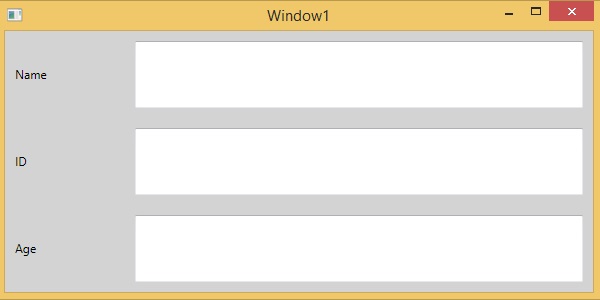
以下示例演示如何將子元素新增到 Grid 中以將其指定為表格形式。以下是 XAML 實現,其中文字塊新增到 Grid 的第一列,文字框新增到第二列。
<Window x:Class = "XAMLGrid.Window1"
   xmlns = "http://schemas.microsoft.com/winfx/2006/xaml/presentation"
   xmlns:x = "http://schemas.microsoft.com/winfx/2006/xaml"
   Title = "Window1" Height = "300" Width = "604">

   <Grid x:Name = "FormLayoutGrid" Background = "LightGray">
      <Grid.ColumnDefinitions>
         <ColumnDefinition Width = "Auto" />
         <ColumnDefinition />
      </Grid.ColumnDefinitions>

      <Grid.RowDefinitions>
         <RowDefinition Height = "*" />
         <RowDefinition Height = "*" />
         <RowDefinition Height = "*" />
      </Grid.RowDefinitions>

      <TextBlock Grid.Row = "0" Grid.Column = "0" Text = "Name"
         Margin = "10" HorizontalAlignment = "Left" VerticalAlignment = "Center"
         Width = "100"/>

      <TextBox Grid.Row = "0" Grid.Column = "1" Margin = "10"/>
      <TextBlock Grid.Row = "1" Grid.Column = "0" Text = "ID" Margin = "10"
         HorizontalAlignment = "Left" VerticalAlignment = "Center" Width = "100"/>

      <TextBox Grid.Row = "1" Grid.Column = "1" Margin = "10"/>
      <TextBlock Grid.Row = "2" Grid.Column = "0" Text = "Age" Margin = "10"
         HorizontalAlignment = "Left" VerticalAlignment = "Center" Width = "100"/>

      <TextBox Grid.Row = "2" Grid.Column = "1" Margin = "10"/>
   </Grid>

</Window>
編譯並執行上述程式碼後,將產生以下輸出:
我們建議您執行上述示例程式碼並嘗試其他一些屬性。
佈局巢狀
佈局巢狀意味著在一個佈局內使用另一個佈局面板,例如,在網格內定義堆疊面板。此概念廣泛用於利用應用程式中的多個佈局。
示例
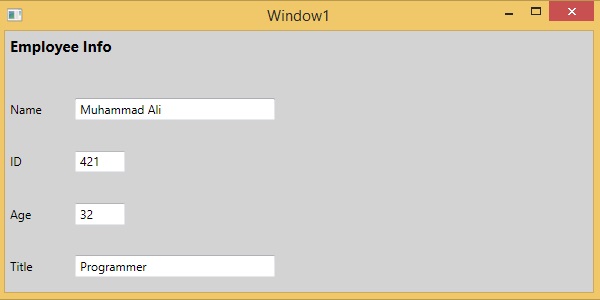
在以下示例中,我們將在網格內使用堆疊面板。讓我們看一下下面的 XAML 程式碼:
<Window x:Class = "XAMLNestingLayouts.Window1"
   xmlns = "http://schemas.microsoft.com/winfx/2006/xaml/presentation"
   xmlns:x = "http://schemas.microsoft.com/winfx/2006/xaml"
   Title = "Window1" Height = "300" Width = "604">

   <Grid Background = "LightGray">
      <Grid.RowDefinitions>
         <RowDefinition Height = "*"/>
         <RowDefinition Height = "*"/>
         <RowDefinition Height = "*"/>
         <RowDefinition Height = "*"/>
         <RowDefinition Height = "*"/>
      </Grid.RowDefinitions>

      <Grid.ColumnDefinitions>
         <ColumnDefinition Width = "*"/>
      </Grid.ColumnDefinitions>

      <Label Content = "Employee Info" FontSize = "15" FontWeight = "Bold"
         Grid.Column = "0" Grid.Row = "0"/>

      <StackPanel Grid.Column = "0" Grid.Row = "1" Orientation = "Horizontal">
         <Label Content = "Name"  VerticalAlignment = "Center" Width = "70"/>
         <TextBox Name = "txtName" Text = "Muhammad Ali"
            VerticalAlignment = "Center" Width = "200"></TextBox>
      </StackPanel>

      <StackPanel Grid.Column = "0" Grid.Row = "2" Orientation = "Horizontal">
         <Label Content = "ID" VerticalAlignment = "Center" Width = "70"/>
         <TextBox Name = "txtCity" Text = "421" VerticalAlignment = "Center"
            Width = "50"></TextBox>
      </StackPanel>

      <StackPanel Grid.Column = "0" Grid.Row = "3" Orientation = "Horizontal">
         <Label Content = "Age" VerticalAlignment = "Center" Width = "70"/>
         <TextBox Name = "txtState" Text = "32" VerticalAlignment = "Center"
            Width = "50"></TextBox>
      </StackPanel>

      <StackPanel Grid.Column = "0" Grid.Row = "4" Orientation = "Horizontal">
         <Label Content = "Title" VerticalAlignment = "Center" Width = "70"/>
         <TextBox Name = "txtCountry" Text = "Programmer"
            VerticalAlignment = "Center" Width = "20></TextBox>
      </StackPanel>
   </Grid>

</Window>
編譯並執行上述程式碼後,將產生以下輸出:
我們建議您執行上述示例程式碼並嘗試其他一些巢狀佈局。