
- XAML 教程
- XAML - 首頁
- XAML - 概述
- XAML - 環境設定
- 在 macOS 上編寫 XAML 應用程式
- XAML 與 C# 程式碼
- XAML 與 VB.NET
- XAML - 構建塊
- XAML - 控制元件
- XAML - 佈局
- XAML - 事件處理
- XAML - 資料繫結
- XAML - 標記擴充套件
- XAML - 依賴屬性
- XAML - 資源
- XAML - 模板
- XAML - 樣式
- XAML - 觸發器
- XAML - 除錯
- XAML - 自定義控制元件
- XAML 有用資源
- XAML - 快速指南
- XAML - 有用資源
- XAML - 討論
XAML - 環境設定
Microsoft 提供了兩個重要的 XAML 工具:
- Visual Studio
- Expression Blend
目前,這兩個工具都可以建立 XAML,但事實是 Visual Studio 更常被開發人員使用,而 Expression Blend 仍然更常被設計師使用。
Microsoft 提供了 Visual Studio 的免費版本,可以從 https://www.visualstudio.com/en-us/downloads/download-visual-studio-vs.aspx 下載
注意 - 在本教程中,我們將主要使用 WPF 專案和 Windows 應用商店應用。但是,Visual Studio 的免費版本不支援 Windows 應用商店應用。因此,為此目的,您將需要 Visual Studio 的許可版本。
安裝
請按照以下步驟在您的系統上安裝 Visual Studio:
下載檔案後,執行安裝程式。將顯示以下對話方塊。
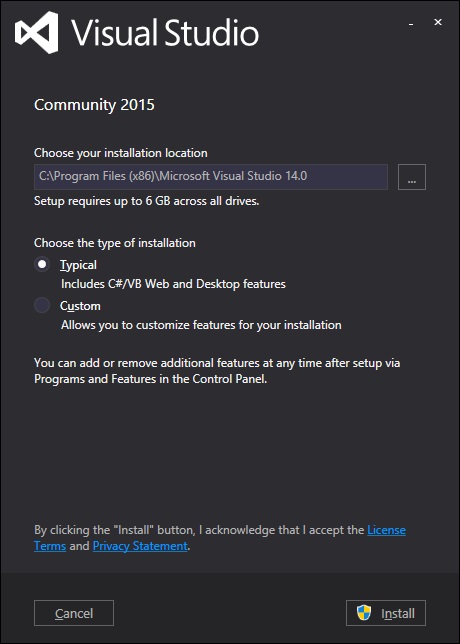
單擊“安裝”按鈕,它將啟動安裝過程。
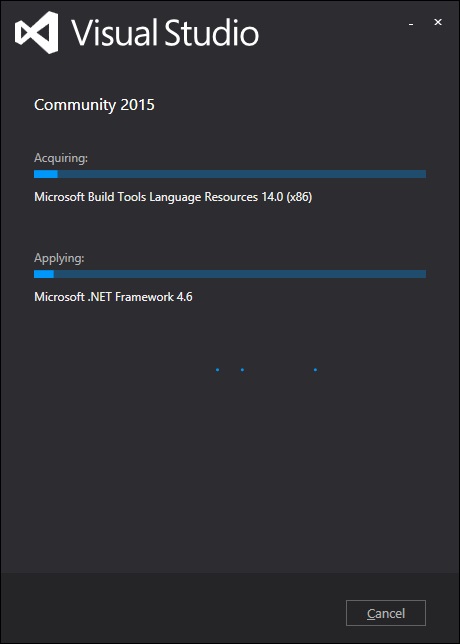
安裝過程成功完成後,您將看到以下螢幕。
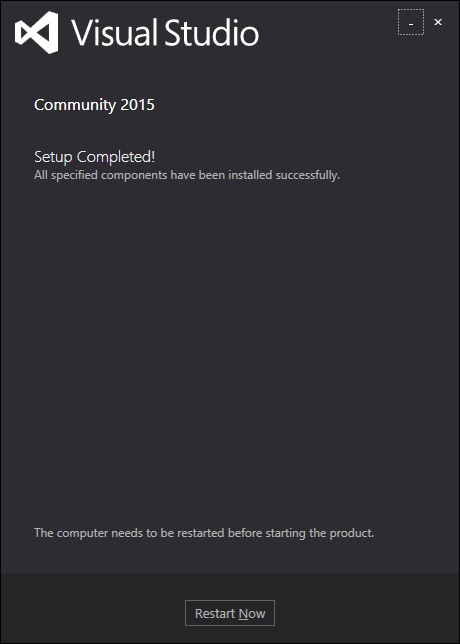
關閉此對話方塊,並在需要時重新啟動計算機。
現在從“開始”選單開啟 Visual Studio,它將顯示以下對話方塊。第一次使用時需要一些時間,僅用於準備。
完成後,您將看到 Visual Studio 的主視窗。
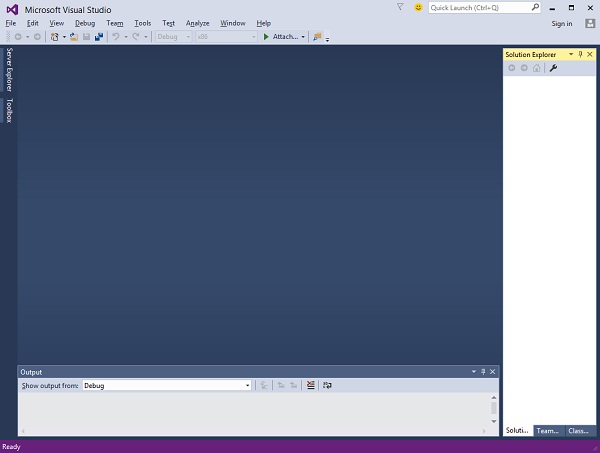
實施的第一步
讓我們從一個簡單的實現開始。請按照以下步驟操作:
單擊“檔案”→“新建”→“專案”選單選項。
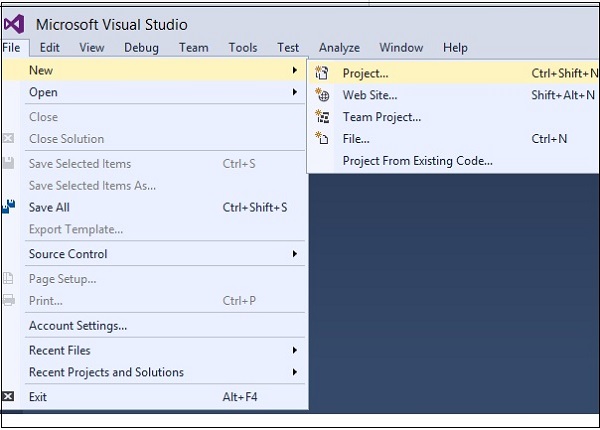
將顯示以下對話方塊:
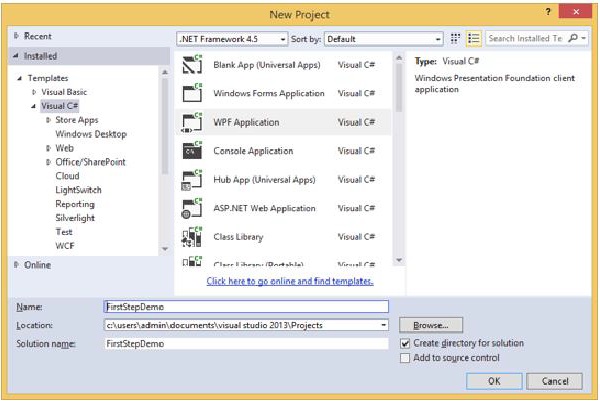
在“模板”下,選擇“Visual C#”並選擇“WPF 應用程式”。為專案命名,然後單擊“確定”按鈕。
在 mainwindow.xaml 檔案中,預設情況下會編寫以下 XAML 標記。在本教程的後面,您將瞭解所有這些標記。
<Window x:Class = "FirstStepDemo.MainWindow"
   xmlns = "http://schemas.microsoft.com/winfx/2006/xaml/presentation"
   xmlns:x = "http://schemas.microsoft.com/winfx/2006/xaml"
   xmlns:d = "http://schemas.microsoft.com/expression/blend/2008"
   xmlns:mc = "http://schemas.openxmlformats.org/markup-compatibility/2006"
   xmlns:local = "clr-namespace:FirstStepDemo"
   mc:Ignorable = "d" Title = "MainWindow" Height = "350" Width = "604">

   <Grid>

   </Grid>
</Window>
預設情況下,網格設定為頁面後的第一個元素。
讓我們在 Grid 元素下新增一個按鈕和一個文字塊。這稱為**物件元素語法**,左尖括號後跟我們要例項化的內容的名稱,例如按鈕,然後定義一個內容屬性。分配給 Content 的字串將顯示在按鈕上。現在將按鈕的高度和寬度分別設定為 30 和 50。同樣初始化文字塊的屬性。
現在檢視設計視窗。您將看到一個按鈕。現在按 F5 執行此 XAML 程式碼。
<Window x:Class = "FirstStepDemo.MainWindow"
   xmlns = "http://schemas.microsoft.com/winfx/2006/xaml/presentation"
   xmlns:x = "http://schemas.microsoft.com/winfx/2006/xaml"
   xmlns:d = "http://schemas.microsoft.com/expression/blend/2008"
   xmlns:mc = "http://schemas.openxmlformats.org/markup-compatibility/2006"
   xmlns:local = "clr-namespace:FirstStepDemo"
   mc:Ignorable = "d" Title = "MainWindow" Height = "350" Width = "604">

   <Grid>
      <Button Content = "First Button" Height = "30" Width = "80"/>
      <TextBlock Text = "Congratulations you have successfully build your first app"
         Height = "30" Margin = "162,180,122,109"/>
   </Grid>

</Window>
編譯並執行上述程式碼後,您將看到以下視窗。
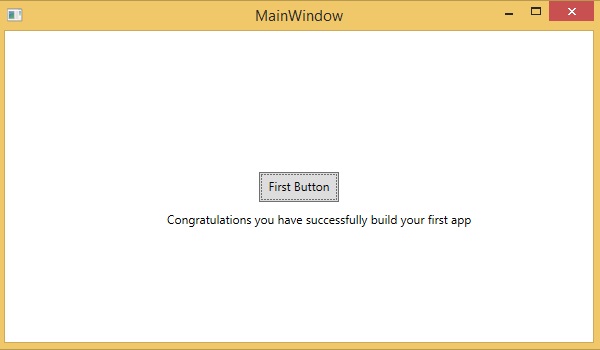
恭喜!您已經設計了您的第一個按鈕。