
- XAML 教程
- XAML - 首頁
- XAML - 概述
- XAML - 環境設定
- 在 MAC OS 上編寫 XAML 應用程式
- XAML 與 C# 程式碼
- XAML 與 VB.NET
- XAML - 構建塊
- XAML - 控制元件
- XAML - 佈局
- XAML - 事件處理
- XAML - 資料繫結
- XAML - 標記擴充套件
- XAML - 依賴屬性
- XAML - 資源
- XAML - 模板
- XAML - 樣式
- XAML - 觸發器
- XAML - 除錯
- XAML - 自定義控制元件
- XAML 有用資源
- XAML - 快速指南
- XAML - 有用資源
- XAML - 討論
XAML - 觸發器
基本上,觸發器使您能夠根據屬性的值更改屬性值或執行操作。因此,它基本上允許您動態更改控制元件的外觀和/或行為,而無需建立新的控制元件。
觸發器用於在滿足某些條件時更改任何給定屬性的值。觸發器通常在樣式或文件的根目錄中定義,並應用於該特定控制元件。觸發器有三種類型:
- 屬性觸發器
- 資料觸發器
- 事件觸發器
屬性觸發器
在屬性觸發器中,當一個屬性發生變化時,它將導致另一個屬性發生立即或動畫變化。例如,如果要在滑鼠懸停在按鈕上時更改按鈕外觀,可以使用屬性觸發器。
示例
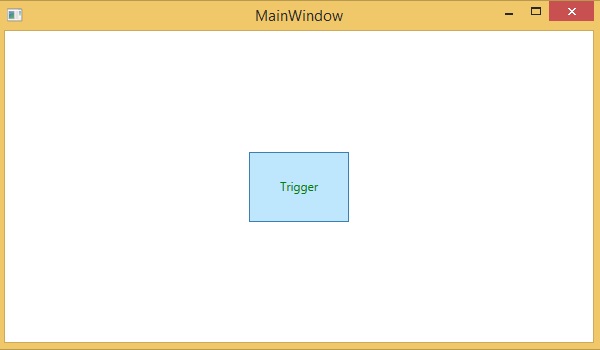
以下示例演示瞭如何在滑鼠進入其區域時更改按鈕的前景色。
<Window x:Class = "XAMLPropertyTriggers.MainWindow"
   xmlns = "http://schemas.microsoft.com/winfx/2006/xaml/presentation"
   xmlns:x = "http://schemas.microsoft.com/winfx/2006/xaml"
   Title = "MainWindow" Height = "350" Width = "604">

   <Window.Resources>
      <Style x:Key = "TriggerStyle" TargetType = "Button">
         <Setter Property = "Foreground" Value = "Blue" />
         <Style.Triggers>
            <Trigger Property = "IsMouseOver" Value = "True">
               <Setter Property = "Foreground" Value = "Green" />
            </Trigger>
         </Style.Triggers>
      </Style>
   </Window.Resources>

   <Grid>
      <Button Width = "100" Height = "70" Style = "{StaticResource TriggerStyle}"
         Content = "Trigger"/>
   </Grid>

</Window>
編譯並執行上述程式碼後,將生成以下輸出:
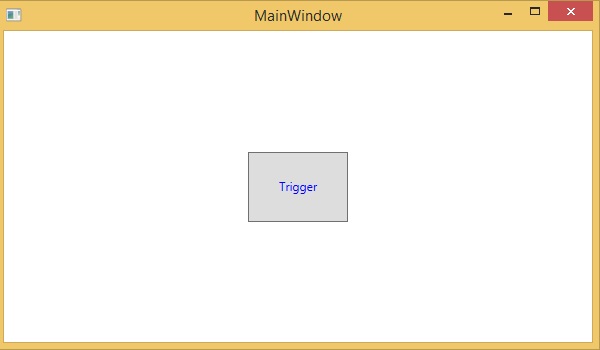
當滑鼠進入按鈕區域時,前景色將更改為綠色。
資料觸發器
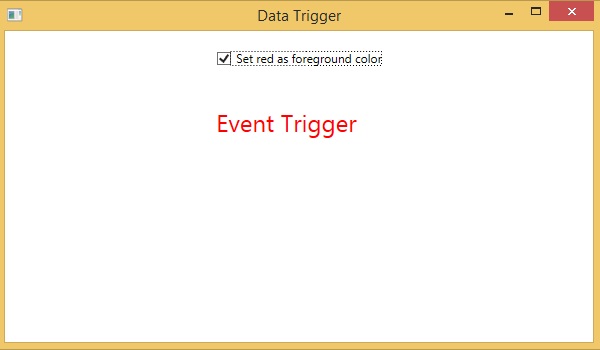
資料觸發器在繫結資料滿足某些條件時執行某些操作。讓我們看一下以下 XAML 程式碼,其中建立了一個複選框和一個文字塊,並具有一些屬性。當選中複選框時,它會將前景色更改為紅色。
<Window x:Class = "XAMLDataTrigger.MainWindow"
   xmlns = "http://schemas.microsoft.com/winfx/2006/xaml/presentation"
   xmlns:x = "http://schemas.microsoft.com/winfx/2006/xaml"
   Title = "Data Trigger" Height = "350" Width = "604">

   <StackPanel HorizontalAlignment = "Center">
      <CheckBox x:Name = "redColorCheckBox" Content = "Set red as foreground color" Margin = "20"/>

      <TextBlock Name = "txtblock" VerticalAlignment = "Center"
         Text = "Event Trigger" FontSize = "24" Margin = "20">
         <TextBlock.Style>
            <Style>
               <Style.Triggers>
                  <DataTrigger Binding = "{Binding ElementName = redColorCheckBox, Path = IsChecked}"
                     Value = "true">
                     <Setter Property = "TextBlock.Foreground" Value = "Red"/>
                     <Setter Property = "TextBlock.Cursor" Value = "Hand" />
                  </DataTrigger>
               </Style.Triggers>
            </Style>
         </TextBlock.Style>
      </TextBlock>
   </StackPanel>

</Window>
編譯並執行上述程式碼後,將生成以下輸出:
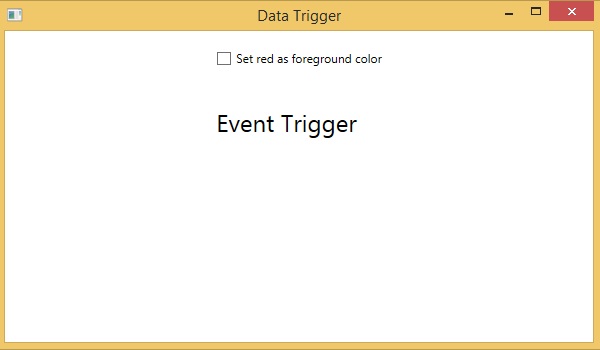
選中複選框後,文字塊的前景色將更改為紅色。
事件觸發器
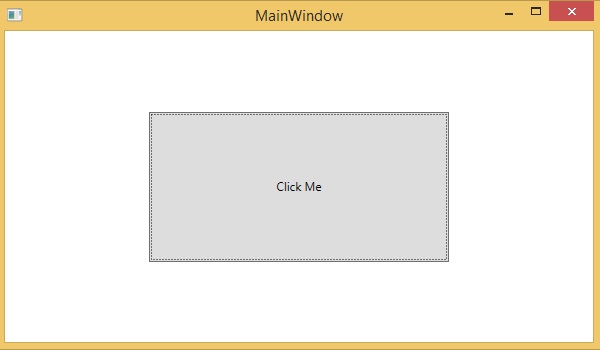
事件觸發器在觸發特定事件時執行某些操作。它通常用於完成一些動畫,例如 DoubleAnimation、ColorAnimation 等。以下程式碼塊建立了一個簡單的按鈕。當單擊事件觸發時,它將擴充套件按鈕的寬度和高度。
<Window x:Class = "XAMLEventTrigger.MainWindow"
   xmlns = "http://schemas.microsoft.com/winfx/2006/xaml/presentation"
   xmlns:x = "http://schemas.microsoft.com/winfx/2006/xaml"
   Title = "MainWindow" Height = "350" Width = "604">

   <Grid>
      <Button Content = "Click Me" Width = "60" Height = "30">
         <Button.Triggers>
            <EventTrigger RoutedEvent = "Button.Click">
               <EventTrigger.Actions>
                  <BeginStoryboard>
                     <Storyboard>

                        <DoubleAnimationUsingKeyFrames Storyboard.TargetProperty = "Width" Duration = "0:0:4">
                           <LinearDoubleKeyFrame Value = "60" KeyTime = "0:0:0"/>
                           <LinearDoubleKeyFrame Value = "120" KeyTime = "0:0:1"/>
                           <LinearDoubleKeyFrame Value = "200" KeyTime = "0:0:2"/>
                           <LinearDoubleKeyFrame Value = "300" KeyTime = "0:0:3"/>
                        </DoubleAnimationUsingKeyFrames>

                        <DoubleAnimationUsingKeyFrames Storyboard.TargetProperty = "Height" Duration = "0:0:4">
                           <LinearDoubleKeyFrame Value = "30" KeyTime = "0:0:0"/>
                           <LinearDoubleKeyFrame Value = "40" KeyTime = "0:0:1"/>
                           <LinearDoubleKeyFrame Value = "80" KeyTime = "0:0:2"/>
                           <LinearDoubleKeyFrame Value = "150" KeyTime = "0:0:3"/>
                        </DoubleAnimationUsingKeyFrames>

                     </Storyboard>
                  </BeginStoryboard>
               </EventTrigger.Actions>
            </EventTrigger>
         </Button.Triggers>
      </Button>
   </Grid>
</Window>
編譯並執行上述程式碼後,將生成以下輸出:
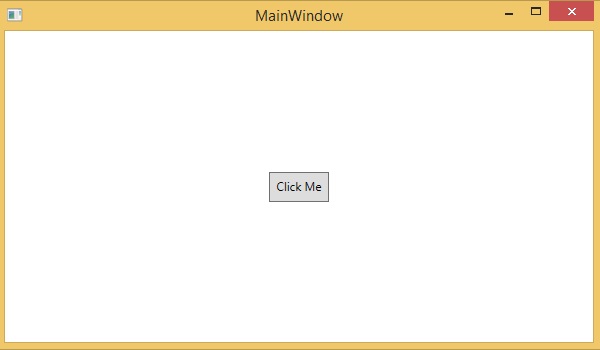
現在,單擊按鈕,您將觀察到它將開始在兩個維度上擴充套件。
廣告