
- XAML 教程
- XAML - 首頁
- XAML - 概述
- XAML - 環境設定
- 在 macOS 上編寫 XAML 應用程式
- XAML 與 C# 程式碼
- XAML 與 VB.NET
- XAML - 構建塊
- XAML - 控制元件
- XAML - 佈局
- XAML - 事件處理
- XAML - 資料繫結
- XAML - 標記擴充套件
- XAML - 依賴屬性
- XAML - 資源
- XAML - 模板
- XAML - 樣式
- XAML - 觸發器
- XAML - 除錯
- XAML - 自定義控制元件
- XAML 有用資源
- XAML - 快速指南
- XAML - 有用資源
- XAML - 討論
XAML - 事件處理
XAML 中的事件概念與其他流行程式語言(如 .NET 和 C++)中的事件類似。在 XAML 中,所有控制元件都公開了一些事件,以便可以出於特定目的訂閱這些事件。
每當發生事件時,應用程式都會收到通知,程式可以對它們做出反應,例如,關閉按鈕用於關閉對話方塊。
可以訂閱許多型別的事件,以根據應用程式的要求實現不同的應用程式行為,但最常用的事件是與滑鼠和鍵盤相關的事件,例如:
- 單擊
- 滑鼠按下
- 滑鼠進入
- 滑鼠離開
- 滑鼠釋放
- 鍵按下
- 鍵釋放
在本節中,我們將使用一些基本且最常用的事件來了解如何將特定控制元件的事件連結到程式碼隱藏,其中行為將根據使用者在發生特定事件時想要執行的操作而實現。
讓我們來看一個簡單的按鈕單擊事件示例。下面是 Button 控制元件的 XAML 實現,該控制元件已建立並使用一些屬性和 Click 事件 (Click="OnClick") 初始化。
<Window x:Class = "XAMLEventHandling.MainWindow"
   xmlns = "http://schemas.microsoft.com/winfx/2006/xaml/presentation"
   xmlns:x = "http://schemas.microsoft.com/winfx/2006/xaml"
   Title = "MainWindow" Height = "350" Width = "604">

   <Grid>
      <Button x:Name = "button1" Content = "Click" Click = "OnClick"
         Width = "150" Height = "30" HorizontalAlignment = "Center" />
   </Grid>

</Window>
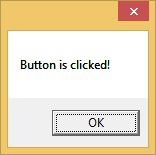
每當單擊此按鈕時,它將觸發一個 **OnClick** 事件,您可以新增任何型別的行為作為對 Click 的響應。讓我們來看一下 OnClick 事件的實現,它將在單擊此按鈕時顯示一條訊息。
using System;
using System.Windows;
using System.Windows.Controls;

namespace XAMLEventHandling {
   /// <summary>
      /// Interaction logic for MainWindow.xaml
   /// </summary>

   public partial class MainWindow : Window {
      public MainWindow() {
         InitializeComponent();
      }
      private void OnClick(object sender, RoutedEventArgs e) {
         MessageBox.Show("Button is clicked!");
      }
   }
}
編譯並執行上述程式碼後,將生成以下輸出:
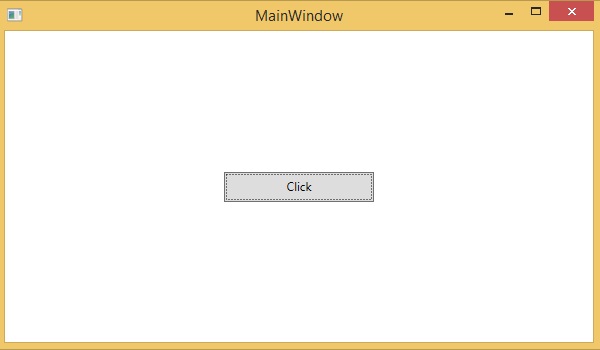
單擊按鈕時,將觸發單擊 (OnClick) 事件,並將顯示以下訊息。
現在讓我們來看一個稍微複雜的示例,其中處理多個事件。
示例
以下示例包含一個帶有 ContextMenu 的文字框,用於操作文字框內的文字。
以下 XAML 程式碼建立了一個 TextBox、一個 ContextMenu 和一些具有某些屬性和事件(例如 Checked、Unchecked 和 Click)的 MenuItem。
<Window x:Class = "XAMLContextMenu.MainWindow"
   xmlns = "http://schemas.microsoft.com/winfx/2006/xaml/presentation"
   xmlns:x = "http://schemas.microsoft.com/winfx/2006/xaml"
   Title = "MainWindow" Height = "350" Width = "604">

   <Grid>
      <TextBox Name = "textBox1" TextWrapping = "Wrap" Margin = "10" Grid.Row = "7">
         Hi, this is XAML tutorial.
         <TextBox.ContextMenu>

            <ContextMenu>
               <MenuItem Header = "_Bold" IsCheckable = "True"
                  Checked = "Bold_Checked" Unchecked = "Bold_Unchecked" />
               <MenuItem Header = "_Italic" IsCheckable = "True"
                  Checked = "Italic_Checked" Unchecked = "Italic_Unchecked" />
               <Separator />
               <MenuItem Header = "Increase Font Size" Click = "IncreaseFont_Click" />
               <MenuItem Header = "_Decrease Font Size" Click = "DecreaseFont_Click" />
            </ContextMenu>

         </TextBox.ContextMenu>
      </TextBox>
   </Grid>

</Window>
以下是 C# 中不同事件的實現,每當選中、取消選中或單擊選單項時,這些事件將被觸發。
using System;
using System.Collections.Generic;
using System.Linq;
using System.Text;
using System.Threading.Tasks;
using System.Windows;
using System.Windows.Controls;
using System.Windows.Data;

namespace XAMLContextMenu {
   /// <summary>
      /// Interaction logic for MainWindow.xaml
   /// </summary>

   public partial class MainWindow : Window {
      public MainWindow() {
         InitializeComponent();
      }
      private void Bold_Checked(object sender, RoutedEventArgs e) {
         textBox1.FontWeight = FontWeights.Bold;
      }
      private void Bold_Unchecked(object sender, RoutedEventArgs e) {
         textBox1.FontWeight = FontWeights.Normal;
      }
      private void Italic_Checked(object sender, RoutedEventArgs e) {
         textBox1.FontStyle = FontStyles.Italic;
      }
      private void Italic_Unchecked(object sender, RoutedEventArgs e) {
         textBox1.FontStyle = FontStyles.Normal;
      }
      private void IncreaseFont_Click(object sender, RoutedEventArgs e) {
         if (textBox1.FontSize < 18) {
            textBox1.FontSize += 2;
         }
      }
      private void DecreaseFont_Click(object sender, RoutedEventArgs e) {
         if (textBox1.FontSize > 10) {
            textBox1.FontSize -= 2;
         }
      }
   }
}
編譯並執行上述程式碼後,將生成以下輸出:
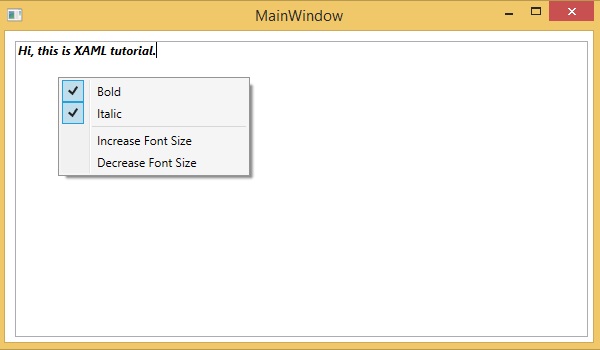
我們建議您執行上述示例程式碼並嘗試其他一些事件。
事件
| 序號 | 控制元件和描述 |
|---|---|
| 1 | Checked 當選中 ToggleButton 時觸發。(繼承自 ToggleButton) |
| 2 | 單擊 當單擊按鈕控制元件時發生。(繼承自 ButtonBase) |
| 3 | ContextMenuClosing 在元素上的任何上下文選單關閉之前發生。(繼承自 FrameworkElement。) |
| 4 | ContextMenuOpening 當元素上的任何上下文選單開啟時發生。(繼承自 FrameworkElement。) |
| 5 | DataContextChanged 當 FrameworkElement.DataContext 屬性的值更改時發生。(繼承自 FrameworkElement) |
| 6 | DragEnter 當輸入系統報告一個以該元素為目標的基礎拖動事件時發生。(繼承自 UIElement)。 |
| 7 | DragLeave 當輸入系統報告一個以該元素為原點的基礎拖動事件時發生。(繼承自 UIElement) |
| 8 | DragOver 當輸入系統報告一個以該元素為潛在放置目標的基礎拖動事件時發生。(繼承自 UIElement) |
| 9 | DragStarting 當啟動拖動操作時發生。(繼承自 UIElement) |
| 10 | DropCompleted 當拖放操作結束時發生。(繼承自 UIElement) |
| 11 | DropDownClosed 當 ComboBox 的下拉部分關閉時發生。 |
| 12 | DropDownOpened 當 ComboBox 的下拉部分開啟時發生。 |
| 13 | GotFocus 當 UIElement 獲取焦點時發生。(繼承自 UIElement) |
| 14 | Holding 當在這個元素的命中測試區域上發生未處理的保持互動時發生。(繼承自 UIElement) |
| 15 | Intermediate 當 ToggleButton 的狀態切換到不確定狀態時觸發。(繼承自 ToggleButton) |
| 16 | IsEnabledChanged 當 IsEnabled 屬性更改時發生。(繼承自 Control) |
| 17 | 鍵按下 當 UIElement 具有焦點時按下鍵盤鍵時發生。(繼承自 UIElement) |
| 18 | 鍵釋放 當 UIElement 具有焦點時釋放鍵盤鍵時發生。(繼承自 UIElement) |
| 19 | LostFocus 當 UIElement 失去焦點時發生。(繼承自 UIElement) |
| 20 | ManipulationCompleted 當 UIElement 上的操作完成時發生。(繼承自 UIElement) |
| 21 | ManipulationDelta 當輸入裝置在操作期間更改位置時發生。(繼承自 UIElement) |
| 22 | ManipulationInertiaStarting 當輸入裝置在操作期間與 UIElement 物件失去接觸並開始慣性時發生。(繼承自 UIElement) |
| 23 | ManipulationStarted 當輸入裝置開始對 UIElement 進行操作時發生。(繼承自 UIElement) |
| 24 | ManipulationStarting 當首次建立操作處理器時發生。(繼承自 UIElement) |
| 25 | SelectionChanged 當文字選擇發生更改時發生。 |
| 26 | SizeChanged 當 FrameworkElement 上的 ActualHeight 或 ActualWidth 屬性的值發生更改時發生。(繼承自 FrameworkElement) |
| 27 | Unchecked 當取消選中 ToggleButton 時發生。(繼承自 ToggleButton) |
| 28 | ValueChanged 當範圍值更改時發生。(繼承自 RangeBase) |