
- XAML 教程
- XAML - 首頁
- XAML - 概述
- XAML - 環境設定
- 在 macOS 上編寫 XAML 應用程式
- XAML 與 C# 程式碼
- XAML 與 VB.NET
- XAML - 構建塊
- XAML - 控制元件
- XAML - 佈局
- XAML - 事件處理
- XAML - 資料繫結
- XAML - 標記擴充套件
- XAML - 依賴屬性
- XAML - 資源
- XAML - 模板
- XAML - 樣式
- XAML - 觸發器
- XAML - 除錯
- XAML - 自定義控制元件
- XAML 有用資源
- XAML - 快速指南
- XAML - 有用資源
- XAML - 討論
XAML - 模板
模板描述了控制元件的整體外觀和視覺呈現。每個控制元件都與其關聯一個預設模板,該模板賦予控制元件外觀。
在 XAML 中,當您想要自定義控制元件的視覺行為和視覺外觀時,可以輕鬆建立自己的模板。邏輯和模板之間的連線可以透過資料繫結實現。
樣式和模板之間的主要區別在於:
樣式只能使用控制元件的預設屬性更改控制元件的外觀。
使用模板,您可以訪問比樣式中更多控制元件的部分。您還可以指定控制元件的現有行為和新行為。
有兩種最常用的模板型別。
- 控制元件模板
- 資料模板
控制元件模板
控制元件模板定義或指定控制元件的視覺外觀和結構。所有 UI 元素都具有一定的外觀和行為,例如,按鈕具有外觀和行為。單擊事件或滑鼠懸停事件是響應單擊和懸停而觸發的行為,並且按鈕還具有可以由控制元件模板更改的預設外觀。
讓我們再次看一個簡單的示例,其中建立了兩個具有某些屬性的按鈕。一個帶有模板,另一個帶有預設按鈕。
<Window x:Class = "TemplateDemo.MainWindow"
   xmlns = "http://schemas.microsoft.com/winfx/2006/xaml/presentation"
   xmlns:x = "http://schemas.microsoft.com/winfx/2006/xaml"
   Title = "MainWindow" Height = "350" Width = "604">

   <Window.Resources>
      <ControlTemplate x:Key = "ButtonTemplate" TargetType = "Button">
         <Grid>
            <Ellipse x:Name = "ButtonEllipse" Height = "100" Width = "150" >
               <Ellipse.Fill>
                  <LinearGradientBrush StartPoint = "0,0.2" EndPoint = "0.2,1.4">
                     <GradientStop Offset = "0" Color = "Red"/>
                     <GradientStop Offset = "1" Color = "Orange"/>
                  </LinearGradientBrush>
               </Ellipse.Fill>
            </Ellipse>
            <ContentPresenter Content = "{TemplateBinding Content}"
               HorizontalAlignment = "Center" VerticalAlignment = "Center" />
         </Grid>
         <ControlTemplate.Triggers>
            <Trigger Property = "IsMouseOver" Value = "True">
               <Setter TargetName = "ButtonEllipse" Property = "Fill" >
                  <Setter.Value>
                     <LinearGradientBrush StartPoint = "0,0.2" EndPoint="0.2,1.4">
                        <GradientStop Offset = "0" Color = "YellowGreen"/>
                        <GradientStop Offset = "1" Color = "Gold"/>
                     </LinearGradientBrush>
                  </Setter.Value>
               </Setter>
            </Trigger>

            <Trigger Property = "IsPressed" Value = "True">
               <Setter Property = "RenderTransform">
                  <Setter.Value>
                     <ScaleTransform ScaleX = "0.8" ScaleY = "0.8" CenterX = "0" CenterY = "0" />
                  </Setter.Value>
               </Setter>

               <Setter Property = "RenderTransformOrigin" Value = "0.5,0.5" />
            </Trigger>
         </ControlTemplate.Triggers>
      </ControlTemplate>
   </Window.Resources>

   <StackPanel>
      <Button Content = "Round Button!" Template = "{StaticResource ButtonTemplate}"
         Width = "150" Margin = "50" />
      <Button Content = "Default Button!" Height = "40" Width = "150" Margin = "5" />
   </StackPanel>

</Window>
編譯並執行上述程式碼後,將生成以下 MainWindow:
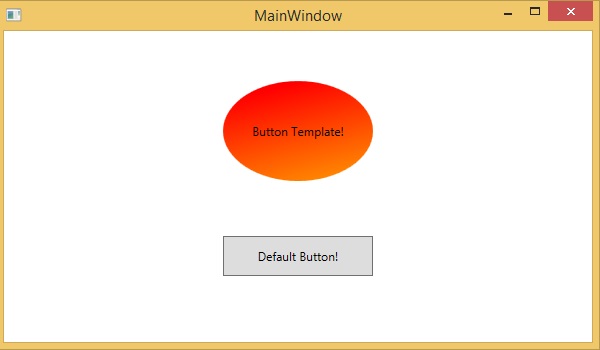
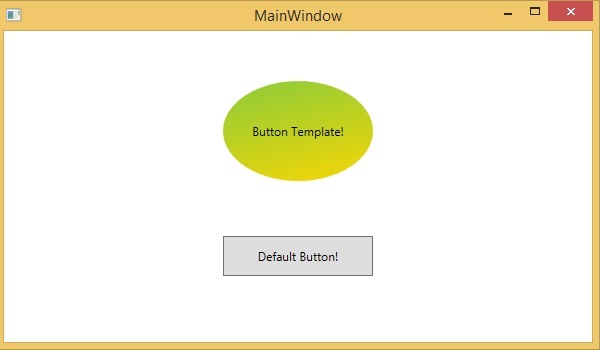
當您將滑鼠懸停在帶有自定義模板的按鈕上時,它也會更改顏色,如下所示:
資料模板
資料模板定義並指定資料集合的外觀和結構。它提供了靈活地格式化和定義任何 UI 元素上資料的呈現方式。它主要用於與資料相關的專案控制元件,例如 ComboBox、ListBox 等。
讓我們看一個數據模板的簡單示例。以下 XAML 程式碼建立了一個帶資料模板和文字塊的組合框。
<Window x:Class = "XAMLDataTemplate.MainWindow"
   xmlns = "http://schemas.microsoft.com/winfx/2006/xaml/presentation"
   xmlns:x = "http://schemas.microsoft.com/winfx/2006/xaml"
   Title = "MainWindow" Height = "350" Width = "604">

   <Grid VerticalAlignment = "Top">
      <ComboBox Name = "Presidents" ItemsSource = "{Binding}" Height = "30" Width = "400">
         <ComboBox.ItemTemplate>
            <DataTemplate>
               <StackPanel Orientation = "Horizontal" Margin = "2">
                  <TextBlock Text = "Name: " Width = "95" Background = "Aqua" Margin = "2" />
                  <TextBlock Text = "{Binding Name}" Width = "95" Background = "AliceBlue" Margin = "2" />
                  <TextBlock Text = "Title: " Width = "95" Background = "Aqua" Margin = "10,2,0,2" />
                  <TextBlock Text = "{Binding Title}" Width = "95" Background = "AliceBlue" Margin = "2" />
               </StackPanel>
            </DataTemplate>
         </ComboBox.ItemTemplate>
      </ComboBox>
   </Grid>

</Window>
以下是 C# 中的實現,其中員工物件被分配給 DataContext:
using System;
using System.Windows;
using System.Windows.Controls;

namespace XAMLDataTemplate {
   /// <summary>
      /// Interaction logic for MainWindow.xaml
   /// </summary>

   public partial class MainWindow : Window {
      public MainWindow() {
         InitializeComponent();
         DataContext = Employee.GetEmployees();
      }
   }
}
以下是 C# 中 Employee 類的實現:
using System;
using System.Collections.Generic;
using System.Collections.ObjectModel;
using System.ComponentModel;
using System.Linq;
using System.Runtime.CompilerServices;
using System.Text;
using System.Threading.Tasks;

namespace XAMLDataTemplate {
   public class Employee : INotifyPropertyChanged {
      private string name; public string Name {
         get { return name; }
         set { name = value; RaiseProperChanged(); }
      }
      private string title; public string Title {
         get { return title; }
         set { title = value; RaiseProperChanged(); }
      }
      public static Employee GetEmployee() {
         var emp = new Employee() {
            Name = "Waqas", Title = "Software Engineer" };
         return emp;
      }
      public event PropertyChangedEventHandler PropertyChanged;
      private void RaiseProperChanged( [CallerMemberName] string caller = ""){
         if (PropertyChanged != null) {
            PropertyChanged(this, new PropertyChangedEventArgs(caller));
         }
      }
      public static ObservableCollection<Employee> GetEmployees() {
         var employees = new ObservableCollection<Employee>();
         employees.Add(new Employee() { Name = "Ali", Title = "Developer" });
         employees.Add(new Employee() { Name = "Ahmed", Title = "Programmer" });
         employees.Add(new Employee() { Name = "Amjad", Title = "Desiner" });
         employees.Add(new Employee() { Name = "Waqas", Title = "Programmer" });
         employees.Add(new Employee() { Name = "Bilal", Title = "Engineer" });
         employees.Add(new Employee() { Name = "Waqar", Title = "Manager" });
         return employees;
      }
   }
}
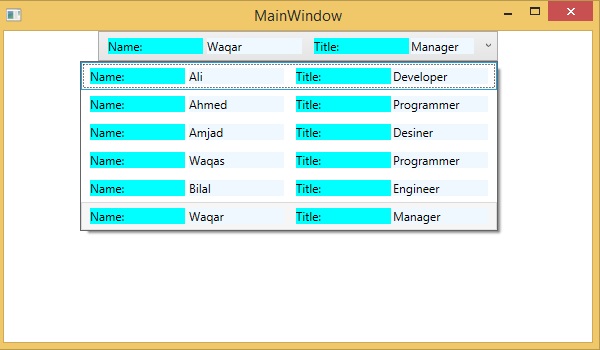
編譯並執行上述程式碼後,將生成以下輸出。它包含一個組合框,當您單擊組合框時,您會看到在 Employee 類中建立的資料集合被列為組合框項。
我們建議您執行上述程式碼並進行實驗。
廣告