
- Puppeteer 教程
- Puppeteer - 首頁
- Puppeteer - 簡介
- Puppeteer - 元素處理
- Puppeteer - Google 使用
- Puppeteer - NodeJS 安裝
- Puppeteer VS Code 配置
- Puppeteer - 安裝
- Puppeteer - 基本測試
- Puppeteer - 非無頭執行
- Puppeteer 與 Selenium 的比較
- Puppeteer 與 Protractor 的比較
- Puppeteer 與 Cypress 的比較
- Puppeteer - 瀏覽器操作
- Puppeteer - 標籤處理
- Puppeteer - 基本命令
- Puppeteer - Firefox
- Puppeteer - Chrome
- Puppeteer - 處理確認警報
- Puppeteer - 處理下拉選單
- Puppeteer - 定位器
- Puppeteer - XPath 函式
- Puppeteer - XPath 屬性
- Puppeteer - XPath 分組
- Puppeteer - 絕對 XPath
- Puppeteer - 相對 XPath
- Puppeteer - XPath 軸
- Puppeteer - 型別選擇器
- 名稱選擇器 & 類名選擇器
- Puppeteer - ID 選擇器
- Puppeteer - 屬性選擇器
- Puppeteer - 處理連結/按鈕
- 處理編輯框 & 複選框
- Puppeteer - 處理框架
- Puppeteer - 鍵盤模擬
- Puppeteer - 獲取元素文字
- Puppeteer - 獲取元素屬性
- Puppeteer - 裝置模擬
- Puppeteer - 停用 JavaScript
- Puppeteer - 同步
- Puppeteer - 捕獲螢幕截圖
- Puppeteer 有用資源
- Puppeteer - 快速指南
- Puppeteer - 有用資源
- Puppeteer - 討論
Puppeteer - XPath 軸
為了唯一地確定一個元素,我們可以利用html標籤內的任何屬性,或者使用html標籤上屬性的組合。大多數情況下使用id屬性,因為它在頁面中是唯一的。
但是,如果id屬性不存在,我們可以使用其他屬性,例如class、name等等。如果id、name和class等屬性不存在,我們可以利用僅該標籤可用的獨特屬性或屬性及其值的組合來識別元素。
為此,我們必須使用xpath表示式。此外,如果頁面上的元素是動態的,那麼xpath選擇器可以作為選擇器的一個不錯的選擇。
xpath是雙向的,這意味著我們可以從父元素遍歷到子元素,也可以從子元素遍歷到父元素。xpath軸的詳細資訊將在下面的連結中提供:
https://tutorialspoint.tw/xpath/xpath_axes.htm
在下圖中,讓我們識別高亮的編輯框並獲取其class屬性的值 - gsc-input。
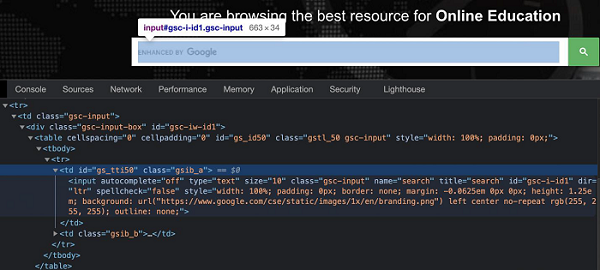
在上面的例子中,表格中(由tr標籤表示)有兩列(由td標籤表示)。輸入框位於第一列。
所以xpath表示式如下:
//table/tbody/tr/child::td.
在這裡,我們使用的是xpath選擇器,所以我們必須使用該方法:page.$x(xpath value)。此方法的詳細資訊在Puppeteer定位器章節中討論。
首先,請按照Puppeteer基本測試章節中的步驟1到2進行操作,步驟如下:
步驟1 - 在建立node_modules資料夾的目錄(Puppeteer和Puppeteer核心已安裝的位置)中建立一個新檔案。
Puppeteer安裝的詳細資訊在Puppeteer安裝章節中討論。
右鍵單擊建立node_modules資料夾的資料夾,然後單擊“新建檔案”按鈕。
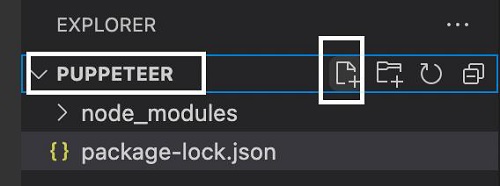
步驟2 - 輸入檔名,例如testcase1.js。
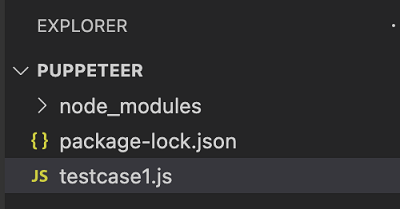
步驟3 - 在建立的testcase1.js檔案中新增以下程式碼。
//Puppeteer library
const pt= require('puppeteer')
async function selectorAxesXpath(){
   //launch browser in headless mode
   const browser = await pt.launch()
   //browser new page
   const page = await browser.newPage()
   //launch URL
   await page.goto('https://tutorialspoint.tw/index.htm')
   //identify element with xpath axes
   const n = (await page.$x("//table/tbody/tr/child::td"))[0]
   // get value of class attribute
   let v = await page.$eval("input", n => n.getAttribute("class"))
   console.log(v)
}
selectorAxesXpath()
步驟4 - 使用以下命令執行程式碼:
node <filename>
所以在我們的例子中,我們將執行以下命令:
node testcase1.js

命令成功執行後,元素的class屬性值 - gsc-input 將列印在控制檯中。