
- Puppeteer 教程
- Puppeteer - 首頁
- Puppeteer - 簡介
- Puppeteer - 元素處理
- Puppeteer - Google 使用
- Puppeteer - NodeJS 安裝
- Puppeteer VS Code 配置
- Puppeteer - 安裝
- Puppeteer - 基本測試
- Puppeteer - 非無頭執行
- Puppeteer 與 Selenium 的比較
- Puppeteer 與 Protractor 的比較
- Puppeteer 與 Cypress 的比較
- Puppeteer - 瀏覽器操作
- Puppeteer - 標籤處理
- Puppeteer - 基本命令
- Puppeteer - Firefox
- Puppeteer - Chrome
- Puppeteer - 處理確認彈窗
- Puppeteer - 處理下拉選單
- Puppeteer - 定位器
- Puppeteer - XPath 函式
- Puppeteer - XPath 屬性
- Puppeteer - XPath 分組
- Puppeteer - 絕對 XPath
- Puppeteer - 相對 XPath
- Puppeteer - XPath 軸
- Puppeteer - 型別選擇器
- 名稱選擇器 & 類名選擇器
- Puppeteer - ID 選擇器
- Puppeteer - 屬性選擇器
- Puppeteer - 處理連結/按鈕
- 處理編輯框 & 複選框
- Puppeteer - 處理框架
- Puppeteer - 鍵盤模擬
- Puppeteer - 獲取元素文字
- Puppeteer - 獲取元素屬性
- Puppeteer - 裝置模擬
- Puppeteer - 停用 JavaScript
- Puppeteer - 同步
- Puppeteer - 擷取螢幕截圖
- Puppeteer 有用資源
- Puppeteer - 快速指南
- Puppeteer - 有用資源
- Puppeteer - 討論
Puppeteer - XPath 屬性
為了唯一地確定一個元素,我們可以利用html標籤中的任何屬性,或者使用html標籤上屬性的組合。大多數情況下使用id屬性,因為它對於一個頁面是唯一的。
但是,如果id屬性不存在,我們可以使用其他屬性,例如class、name等等。如果id、name和class等屬性不存在,我們可以利用僅對該標籤可用或屬性及其值的組合來識別元素。為此,我們必須使用xpath表示式。
如果只有一個屬性的xpath表示式識別多個元素,我們可以使用多個屬性在xpath表示式中定位單個元素。
只使用一個屬性編寫xpath的格式如下:
//tagname[@attribute='value']
對於多個屬性,我們可以應用AND和OR條件。使用AND條件編寫xpath的格式:
//tagName[@attribute1='value1'] [@attribute2='value2']
或者,
//tagName[@attribute1='value1' and @attribute2='value2']
使用OR條件編寫xpath的格式如下:
//tagName[@attribute1='value1' or @attribute2='value2']
我們還可以透過對屬性應用NOT條件來識別元素。使用NOT條件編寫xpath的格式:
//tagname[not(@attribute='value')]
讓我們使用alt屬性來識別頁面上下面突出顯示的徽標,然後單擊它。
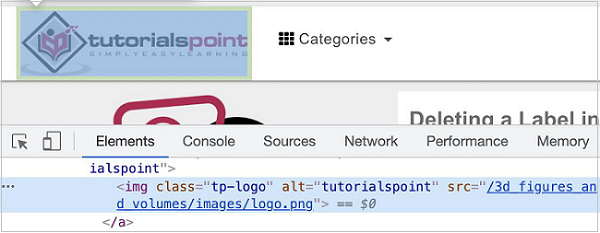
該元素的xpath如下:
//img[@alt='tutorialspoint'].
在這裡,我們使用的是xpath選擇器,因此我們必須使用該方法:page.$x(xpath value)。此方法的詳細資訊在Puppeteer定位器章節中討論。
首先,請按照Puppeteer基本測試章節中的步驟1到2操作,步驟如下:
步驟1 - 在建立node_modules資料夾的目錄(Puppeteer和Puppeteer核心已安裝的位置)中建立一個新檔案。
Puppeteer安裝的詳細資訊在Puppeteer安裝章節中討論。
右鍵單擊建立node_modules資料夾的資料夾,然後單擊“新建檔案”按鈕。
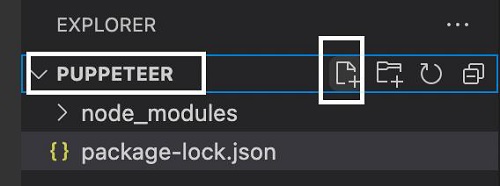
步驟2 - 輸入檔名,例如testcase1.js。
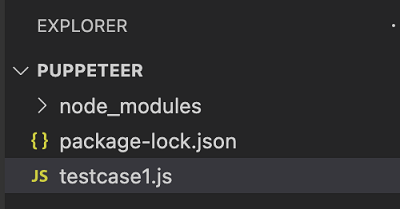
步驟3 - 在建立的testcase1.js檔案中新增以下程式碼。
//Puppeteer library
const pt= require('puppeteer')
async function selectorAttributeXpath(){
   //launch browser in headed mode
   const browser = await pt.launch()
   //browser new page
   const page = await browser.newPage()
   //launch URL
   await page.goto('https://tutorialspoint.tw/questions/index.php')
   //identify element with relative xpath then click
   const b = (await page.$x("//img[@alt='tutorialspoint']"))[0]
   b.click()
   //wait for sometime
   await page.waitForTimeout(4000)
   //obtain URL after click
   console.log(await page.url())
}
selectorAttributeXpath()
步驟4 - 使用以下命令執行程式碼:
node <filename>
因此,在我們的示例中,我們將執行以下命令:
node testcase1.js

成功執行命令後,單擊徽標影像後導航到的頁面的URL - https://tutorialspoint.tw/index.htm 將列印在控制檯中。