
- SpecFlow 教程
- SpecFlow - 首頁
- SpecFlow - 簡介
- 測試驅動開發
- 行為驅動開發
- SpecFlow - Visual Studio 安裝
- Visual Studio 擴充套件安裝
- SpecFlow - 專案設定
- 其他專案依賴項
- SpecFlow - 執行器啟用
- SpecFlow - HTML 報告
- SpecFlow - 繫結測試步驟
- SpecFlow - 建立第一個測試
- 配置 Selenium Webdriver
- SpecFlow - Gherkin
- SpecFlow - Gherkin 關鍵字
- SpecFlow - 特性檔案
- SpecFlow - 步驟定義檔案
- SpecFlow - Hooks
- SpecFlow - 背景說明
- 使用示例進行資料驅動測試
- 不使用示例進行資料驅動測試
- 表格轉換為資料表
- 表格轉換為字典
- 帶 CreateInstance 的表格
- SpecFlow - 帶 CreateSet 的表格
- SpecFlow 有用資源
- SpecFlow - 快速指南
- SpecFlow - 有用資源
- SpecFlow - 討論
SpecFlow - 表格轉換為字典
表格可以在特性檔案中水平和垂直方向上儲存資料。使用字典物件,我們將看到如何以鍵值對的形式垂直訪問特性檔案中的資料。
步驟 1:建立特性檔案
關於如何建立特性檔案的詳細資訊在特性檔案章節中有詳細討論。
Feature: User credential
Scenario: Login module
   When User types details
   | KY       | Val            |
   | username | tutorialspoint |
   | password | pwd1           |
Then user should be able to login
步驟 2:建立訪問表格資料的 C# 檔案
我們必須透過System.Collections.Generic包將表格轉換為字典。我們將在專案中建立一個新資料夾,並在其中新增一個 C# 檔案。右鍵單擊SpecFlow 專案,然後單擊新增。
選擇新建資料夾選項。
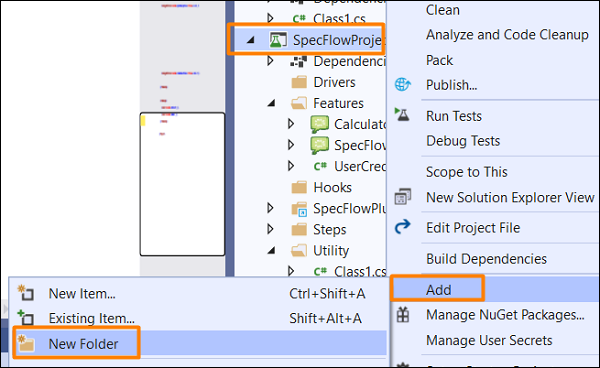
將資料夾命名為Utils。
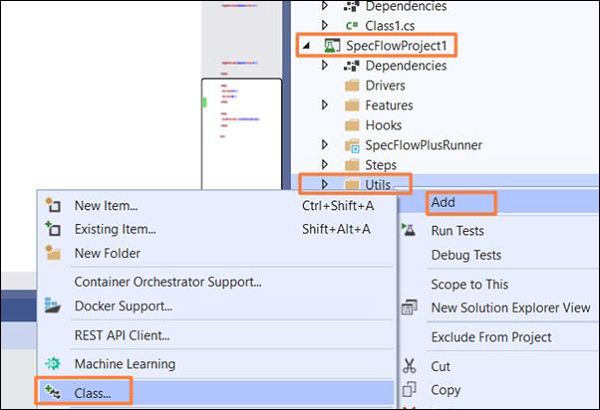
右鍵單擊建立的新資料夾,然後選擇新增選項。單擊類。
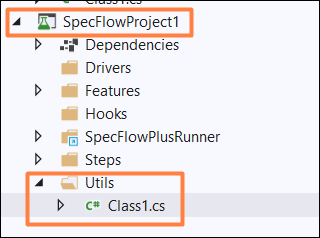
專案資料夾結構
C# 類實現
using System;
using System.Collections.Generic;
using System.Text;
using System.Data;
using TechTalk.SpecFlow;
namespace SpecFlowProject1.Utils {
   class Class1 {
      public static Dictionary<string, string> ToDT(Table t) {
         var dT = new Dictionary<string, string>();

         // iterating through rows
         foreach (var r in t.Rows) {
            dT.Add(r[0], r[1]);
         }
         return dT;
      }
   }
}
步驟 3:建立步驟定義檔案
關於如何建立步驟定義檔案的詳細資訊在步驟定義檔案章節中有詳細討論。
using System;
using TechTalk.SpecFlow;
namespace SpecFlowProject1.Features {
   [Binding]
   public class UserCredentialSteps {
      [When(@"User types details")]
      public void WhenUserTypesDetails(Table t) {

         //Accessing C# class method from Step Definition
         var dict = Utils.Class1.ToDT(t);
         Console.WriteLine(dict["username"]);
         Console.WriteLine(dict["password"]);
      }
      [Then(@"user should be able to login")]
      public void ThenUserShouldBeAbleToLogin() {
         Console.WriteLine("User should be able to login");
      }
   }
}
步驟 4:執行和結果
選擇使用者憑據(1)特性,然後單擊執行檢視中的所有測試。
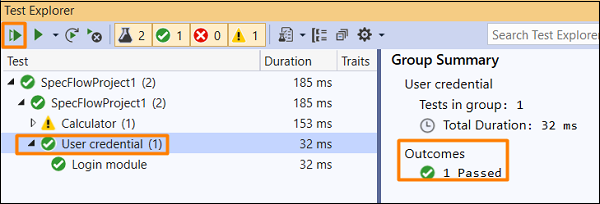
選擇登入模組場景,然後單擊開啟此結果連結的其他輸出。

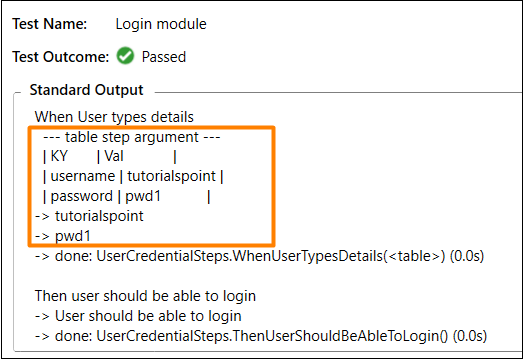
該場景已執行,資料來自特性檔案中表格(轉換為字典)中的 When 步驟。
廣告