
- SpecFlow 教程
- SpecFlow - 首頁
- SpecFlow - 簡介
- 測試驅動開發
- 行為驅動開發
- SpecFlow - Visual Studio 安裝
- Visual Studio 擴充套件安裝
- SpecFlow - 專案設定
- 其他專案依賴項
- SpecFlow - 執行器啟用
- SpecFlow - HTML 報告
- SpecFlow - 繫結測試步驟
- SpecFlow - 建立第一個測試
- 配置 Selenium Webdriver
- SpecFlow - Gherkin
- SpecFlow - Gherkin 關鍵字
- SpecFlow - 特性檔案
- SpecFlow - 步驟定義檔案
- SpecFlow - 鉤子
- SpecFlow - 背景說明
- 使用示例進行資料驅動測試
- 不使用示例進行資料驅動測試
- 表格轉換為資料表
- 表格轉換為字典
- 帶 CreateInstance 的表格
- SpecFlow - 帶 CreateSet 的表格
- SpecFlow 有用資源
- SpecFlow - 快速指南
- SpecFlow - 有用資源
- SpecFlow - 討論
SpecFlow - 將表格轉換為資料表
表格經常與場景大綱混淆。場景大綱適用於整個測試,而表格僅適用於其定義下的單個步驟。
但是,需要構建程式設計邏輯來理解資料,然後才能將其整合到我們的測試中。示例關鍵字用於場景大綱,但資料表不需要任何關鍵字。
SpecFlow 中的 Table 提供多種方法,讓我們看看如何透過表頭將 Table 轉換為 Table。
表格用於以列表形式將一組值傳送到步驟定義檔案。它對於處理大型資料集很有用。SpecFlow 在步驟定義檔案中具有豐富的表格操作 API。
SpecFlow Assist Helpers 包用於處理表格。此外,我們必須將名稱空間TechTalk.SpecFlow.Assist新增到我們的程式碼中。
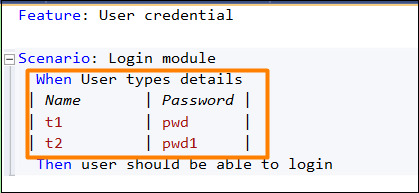
步驟 1:建立特性檔案
如何在章節“特性檔案”中詳細討論瞭如何建立特性檔案。
Feature: User credential

Scenario: Login module
   When User types details
   | Name | Password |
   | t1   | pwd      |
   | t2   | pwd1     |
然後使用者應該能夠登入。
步驟 2:建立 C# 檔案以訪問表格資料
我們必須透過System.Data包將 Table 轉換為資料表。我們將在專案中建立一個新資料夾,並在其中包含一個 C# 檔案。右鍵單擊 SpecFlow 專案,然後單擊“新增”。
選擇新建資料夾選項。
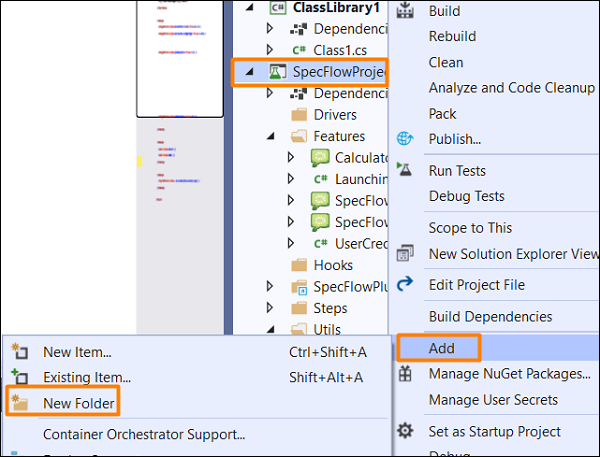
將資料夾命名為Utils。
右鍵單擊建立的新資料夾,然後選擇新增選項。單擊類。
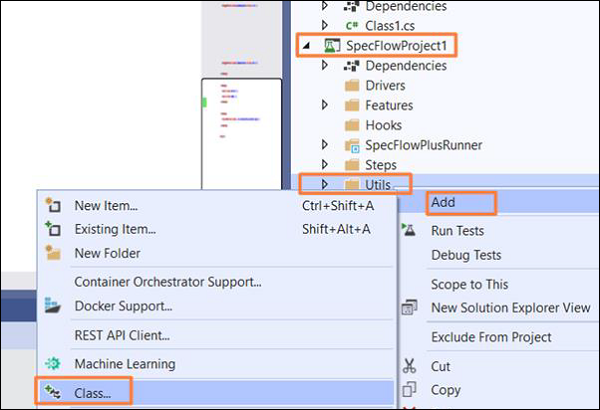
在搜尋框中鍵入C# 類並搜尋。從搜尋結果中選擇類選項,然後單擊新增繼續。

專案資料夾結構

C# 類實現
using System;
using System.Collections.Generic;
using System.Text;
using System.Data;
using TechTalk.SpecFlow;
namespace SpecFlowProject1.Utils {
   class Class1 {
      public static DataTable DT(Table t) {
         var dT = new DataTable();
         foreach (var h in t.Header) {
            dT.Columns.Add(h, typeof(string));
         }
         // iterating rows
         foreach (var row in t.Rows) {
            var n = dT.NewRow();
            foreach (var h in t.Header) {
               n.SetField(h, row[h]);
            }
            dT.Rows.Add(n);
         }
         return dT;
      }
   }
}
步驟 3:建立步驟定義檔案
如何在章節“步驟定義檔案”中詳細討論瞭如何建立步驟定義檔案。
using System;
using System.Data;
using TechTalk.SpecFlow.Assist;
using TechTalk.SpecFlow;
namespace SpecFlowProject1.Features {
   [Binding]
   public class UserCredentialSteps {
      [When(@"User types details")]
      public void WhenUserTypesDetails(Table t) {
         //Accessing C# class method from Step Definition
         var dTable = Utils.Class1.DT(t);

         //iterating rows
         foreach (DataRow r in dTable.Rows) {
            Console.WriteLine(r.ItemArray[0].ToString());
            Console.WriteLine(r.ItemArray[1].ToString());
         }
      }
      [Then(@"user should be able to login")]
      public void ThenUserShouldBeAbleToLogin() {
         Console.WriteLine("User should be able to login");
      }
   }
}
步驟 4:執行和結果
選擇使用者憑據(1)特性,然後單擊執行檢視中的所有測試。
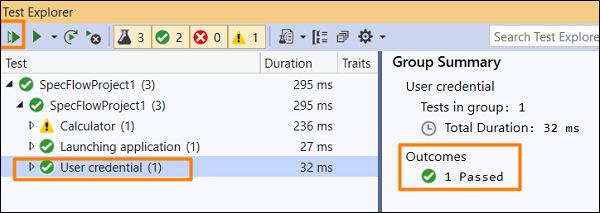
選擇登入模組場景,然後單擊開啟此結果的附加輸出連結。


該場景已執行,資料來自特性檔案 When 步驟中表格(轉換為資料表)傳遞的資料。
廣告