
- MFC 教程
- MFC - 主頁
- MFC - 概述
- MFC - 環境設定
- MFC - VC++ 專案
- MFC - 入門
- MFC - Windows 基礎
- MFC - 對話方塊
- MFC - Windows 資源
- MFC - 屬性表
- MFC - Windows 佈局
- MFC - 控制元件管理
- MFC - Windows 控制元件
- MFC - 訊息和事件
- MFC - ActiveX 控制元件
- MFC - 檔案系統
- MFC - 標準 I/O
- MFC - 文件檢視
- MFC - 字串
- MFC - 陣列
- MFC - 連結串列
- MFC - 資料庫類
- MFC - 序列化
- MFC - 多執行緒
- MFC - Internet 程式設計
- MFC - GDI
- MFC - 庫
- MFC 有用的資源
- MFC - 快速指南
- MFC - 有用的資源
- MFC - 討論
MFC - 計時器
?>
計時器是非空間物件,使用計算機或應用程式中的重複時間間隔。為了工作,控制元件在每個週期內都向作業系統傳送一條訊息。與大多數控制元件不同的是,MFC 計時器沒有按鈕來表示它,也沒有類。要建立一個計時器,你只需呼叫 CWnd::SetTimer() 方法。此函式呼叫會為你的應用程式建立一個計時器。與其他控制元件一樣,計時器使用識別符號。
讓我們建立一個新的基於 MFC 對話方塊的應用程式。
步驟 1 − 刪除標題並將其 ID 設定為 IDC_STATIC_TXT
步驟 2 − 為文字控制元件新增變數值。
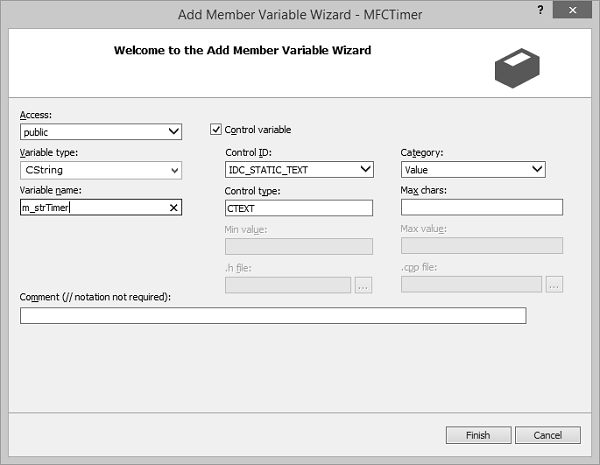
步驟 3 − 在解決方案中轉到類檢視。
步驟 4 − 點選 CMFCTimeDlg 類。
步驟 5 − 在屬性視窗中,點選訊息按鈕。
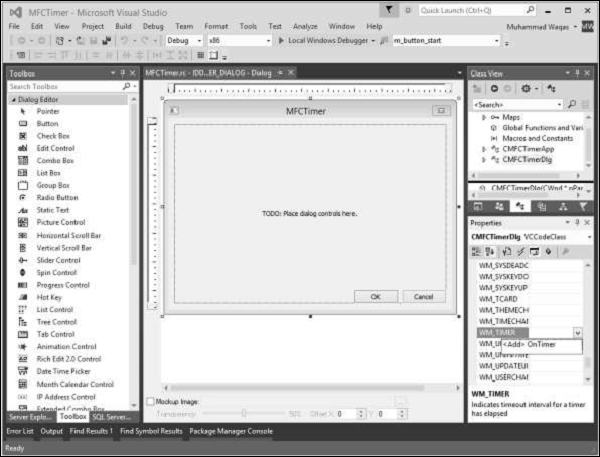
步驟 6 − 點選 WM_TIMER 欄位並點選其組合框的箭頭。選擇
void CMFCTimerDlg::OnTimer(UINT_PTR nIDEvent) {
   // TODO: Add your message handler code here and/or call default
   CTime CurrentTime = CTime::GetCurrentTime();

   int iHours = CurrentTime.GetHour();
   int iMinutes = CurrentTime.GetMinute();
   int iSeconds = CurrentTime.GetSecond();
   CString strHours, strMinutes, strSeconds;

   if (iHours < 10)
      strHours.Format(_T("0%d"), iHours);
   else
      strHours.Format(_T("%d"), iHours);

   if (iMinutes < 10)
      strMinutes.Format(_T("0%d"), iMinutes);
   else
      strMinutes.Format(_T("%d"), iMinutes);

   if (iSeconds < 10)
      strSeconds.Format(_T("0%d"), iSeconds);
   else
      strSeconds.Format(_T("%d"), iSeconds);

   m_strTimer.Format(_T("%s:%s:%s"), strHours, strMinutes, strSeconds);

   UpdateData(FALSE);
   CDialogEx::OnTimer(nIDEvent);
}
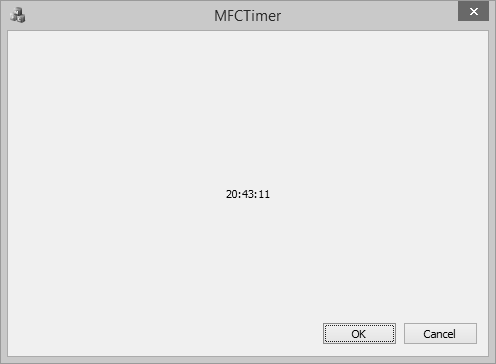
步驟 7 − 編譯並執行上述程式碼時,你將看到以下輸出。
mfc_windows_controls.htm
廣告