
- BabylonJS 教程
- BabylonJS - 首頁
- BabylonJS - 簡介
- BabylonJS - 環境設定
- BabylonJS - 概述
- BabylonJS - 基本元素
- BabylonJS - 材質
- BabylonJS - 動畫
- BabylonJS - 相機
- BabylonJS - 光源
- BabylonJS - 引數化形狀
- BabylonJS - 網格
- 向量位置和旋轉
- BabylonJS - 貼花
- BabylonJS - Curve3
- BabylonJS - 動態紋理
- BabylonJS - 視差貼圖
- BabylonJS - 鏡頭光暈
- BabylonJS - 建立螢幕截圖
- BabylonJS - 反射探針
- 標準渲染管線
- BabylonJS - ShaderMaterial
- BabylonJS - 骨骼和骨架
- BabylonJS - 物理引擎
- BabylonJS - 播放聲音和音樂
- BabylonJS 有用資源
- BabylonJS - 快速指南
- BabylonJS - 有用資源
- BabylonJS - 討論
BabylonJS - 材質
材質就像物體的衣服。您可以新增顏色、紋理並用它包裹您的網格。您可以使用相同的材質覆蓋多個網格。網格可以是我們在上一章示例中看到的場景 - 穿過天空的平面。
在本章中,我們將學習如何為本章中的網格新增顏色、紋理和反射。
我們將向已建立的場景新增材質。我們將透過向我們建立的所有形狀新增材質來逐步進行。
讓我們考慮一些示例,看看材質的新增是如何工作的。
語法
var materialforshapes = new BABYLON.StandardMaterial("texture1", scene);
上面的材質不會改變任何內容,因為它預設為材質。我們將使用可用的屬性使物件看起來更吸引人。
可用的屬性如下:
看看這些應用於材質的屬性如何改變網格的外觀和感覺。
基本材質屬性 - 菲涅爾引數
菲涅爾是 BabylonJS 在標準材質上新增的新功能。它允許更改應用於形狀的顏色。您可以透過使用簡單的菲涅爾獲得類似玻璃的反射。菲涅爾將讓您在邊緣獲得更多反射,而不是在中心全部反射。
菲涅爾有以下屬性可用
StandardMaterial.diffuseFresnelParameters
StandardMaterial.opacityFresnelParameters
StandardMaterial.reflectionFresnelParameters
StandardMaterial.emissiveFresnelParameters
StandardMaterial.refractionFresnelParameters
演示
<!doctype html>
<html>
   <head>
      <meta charset = "utf-8">
      <title>BabylonJs - Basic Element-Creating Scene</title>
      <script src = "babylon.js"></script>
      <style>
         canvas {width: 100%; height: 100%;}
      </style>
   </head>

   <body>
      <canvas id = "renderCanvas"></canvas>
      <script type = "text/javascript">
         var canvas = document.getElementById("renderCanvas");
         var engine = new BABYLON.Engine(canvas, true);
         var createScene  = function() {
            var scene = new BABYLON.Scene(engine);

            var camera = new BABYLON.ArcRotateCamera("camera1", 0, 0, 10, BABYLON.Vector3.Zero(), scene);

            camera.setPosition(new BABYLON.Vector3(0, 5, -10));

            camera.attachControl(canvas);
            camera.upperBetaLimit = Math.PI / 2;
            camera.lowerRadiusLimit = 4;

            var light = new BABYLON.HemisphericLight("light1", new BABYLON.Vector3(0, 1, 0), scene);
            light.intensity = 0.7;

            var knot = BABYLON.Mesh.CreateTorusKnot("knot", 1, 0.4, 128, 64, 2, 3, scene);
            var yellowSphere = BABYLON.Mesh.CreateSphere("yellowSphere", 16, 1.5, scene);
            yellowSphere.setPivotMatrix(BABYLON.Matrix.Translation(3, 0, 0));
            var yellowMaterial = new BABYLON.StandardMaterial("yellowMaterial", scene);
            yellowMaterial.diffuseColor = BABYLON.Color3.Yellow();
            yellowSphere.material = yellowMaterial;

            // Ground
            var ground = BABYLON.Mesh.CreateBox("Mirror", 1.0, scene);
            ground.scaling = new BABYLON.Vector3(100.0, 0.01, 100.0);
            ground.material = new BABYLON.StandardMaterial("ground", scene);
            ground.material.diffuseTexture = new BABYLON.Texture("images/rainbow.png", scene);
            ground.material.diffuseTexture.uScale = 10;
            ground.material.diffuseTexture.vScale = 10;
            ground.position = new BABYLON.Vector3(0, -2, 0);

            // Main material
            var mainMaterial = new BABYLON.StandardMaterial("main", scene);
            knot.material = mainMaterial;

            var probe = new BABYLON.ReflectionProbe("main", 512, scene);
            probe.renderList.push(yellowSphere);
            probe.renderList.push(ground);
            mainMaterial.diffuseColor = new BABYLON.Color3(1, 0.5, 0.5);
            mainMaterial.refractionTexture = probe.cubeTexture;
            mainMaterial.refractionFresnel<h3>Parameters</h3> = new BABYLON.Fresnel<h3>Parameters</h3>();
            mainMaterial.refractionFresnel<h3>Parameters</h3>.bias = 0.5;
            mainMaterial.refractionFresnel<h3>Parameters</h3>.power = 16;
            mainMaterial.refractionFresnel<h3>Parameters</h3>.leftColor = BABYLON.Color3.Black();
            mainMaterial.refractionFresnel<h3>Parameters</h3>.rightColor = BABYLON.Color3.White();
            mainMaterial.indexOfRefraction = 1.05;

            // Fog
            scene.fogMode = BABYLON.Scene.FOGMODE_LINEAR;
            scene.fogColor = scene.clearColor;
            scene.fogStart = 20.0;
            scene.fogEnd = 50.0;

            // Animations
            scene.registerBeforeRender(function () {
               yellowSphere.rotation.y += 0.01;
               //  greenSphere.rotation.y += 0.01;
            });
            return scene;
         };
         var scene = createScene();
         engine.runRenderLoop(function() {
            scene.render();
         });
      </script>
   </body>
</html>
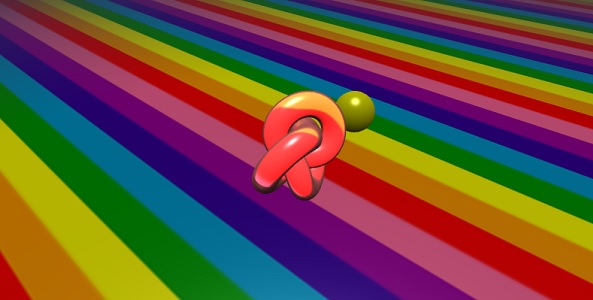
輸出
以上程式碼行生成以下輸出:
解釋
以下程式碼應用菲涅爾效果。左右顏色應用於網格的邊緣。
mainMaterial.refractionFresnelParameters = new BABYLON.FresnelParameters();
mainMaterial.refractionFresnelParameters.bias = 0.5;
mainMaterial.refractionFresnelParameters.power = 16;
mainMaterial.refractionFresnelParameters.leftColor = BABYLON.Color3.Black();
mainMaterial.refractionFresnelParameters.rightColor = BABYLON.Color3.White();
偏差和冪屬性控制表面上的菲涅爾效果。
在此演示中,我們使用了名為 rainbow.png 的影像。影像儲存在本地 images/ 資料夾中。您可以下載任何您選擇的影像並在演示連結中使用。
廣告