
- Angular 6 教程
- Angular 6 - 首頁
- Angular 6 - 概述
- Angular 6 - 環境設定
- Angular 6 - 專案設定
- Angular 6 - 元件
- Angular 6 - 模組
- Angular 6 - 資料繫結
- Angular 6 - 事件繫結
- Angular 6 - 模板
- Angular 6 - 指令
- Angular 6 - 管道
- Angular 6 - 路由
- Angular 6 - 服務
- Angular 6 - Http 服務
- Angular 6 - Http 客戶端
- Angular 6 - 表單
- Angular 6 - 動畫
- Angular 6 - 材料
- Angular 6 - CLI
- Angular 6 有用資源
- Angular 6 快速指南
- Angular 6 - 有用資源
- Angular 6 - 討論
Angular 6 快速指南
Angular 6 - 概述
Angular 有五個主要版本。第一個釋出的版本是 Angular 1,也稱為 AngularJS。Angular 1 之後是 Angular 2,與 Angular 1 相比,它帶來了很多變化。
Angular 的結構基於元件/服務架構。AngularJS 基於模型檢視控制器。Angular 6 於 2018 年 5 月釋出,被證明是一項重大突破,是 Angular 團隊在 Angular 5 之後釋出的最新版本。
Angular 6 幾乎與 Angular 5 相同。它與 Angular 5 向後相容。使用 Angular 5 開發的專案可以在 Angular 5 中無任何問題地執行。
現在讓我們看看 Angular 5 中的新功能和更改。
Angular 5 及其功能
Angular 5 於 2017 年 11 月釋出。根據其速度和大小的目標,它比 Angular 4 更快,體積更小。以下是 Angular 5 中引入的功能。
HTTPClient API - 引入了 HTTPClient API 以棄用 HTTP 庫。HTTPClient API 比 HTTP 庫更快、更安全、更高效。
多個匯出別名 - 元件可以使用多個別名匯出,以簡化遷移過程。
數字、日期和貨幣的國際化管道 - 引入了新的管道以實現更好的標準化。
Lambda 支援 - 可以使用具有正確名稱的 lambda 表示式代替函式。
構建最佳化器 - 引入構建最佳化器。它最佳化構建大小並提高應用程式速度。Angular CLI 自動使用構建最佳化器。
改進的編譯器 - 從 Angular 5 開始,編譯器支援增量編譯,從而實現更快的編譯速度。編譯器使用 TypeScript 轉換,這是從 TypeScript 2.3 開始提供的新功能。
現在讓我們看看新增到 Angular 6 中的新功能 -
更新的 Angular CLI,命令列介面 - 添加了新命令,例如 ng-update 用於從舊版本遷移到當前版本。ng-add 用於快速新增應用程式功能,使應用程式成為漸進式 Web 應用程式。
更新的 CDK,元件開發工具包 - 支援建立自定義 UI 元素,而無需 Angular Material 庫。支援響應式網頁設計佈局。支援覆蓋包以建立彈出視窗。
更新的 Angular Material - 添加了新的樹元件 mat-tree(帶樣式的版本)和 cdk-tree(無樣式的版本),以表示樹狀的分層結構。
使用 RxJS,一個響應式 JS 庫
Angular Element - 允許將 Angular 元件釋出為 Web 元件,然後可以在任何 HTML 頁面中使用。使用 Angular Element 包,可以輕鬆建立原生自定義元素。
多個驗證器 - 允許在表單構建器上應用多個驗證器。
服務上的樹形抖動 - 現在也可以對服務應用樹形抖動以刪除死程式碼。
Angular 6 - 環境設定
在本章中,我們將討論 Angular 6 所需的環境設定。要安裝 Angular 6,我們需要以下內容 -
- Nodejs
- Npm
- Angular CLI
- 用於編寫程式碼的 IDE
Nodejs 必須大於 8.11,npm 必須大於 5.6。
Nodejs
要檢查系統中是否安裝了 nodejs,請在終端中鍵入node -v。這將幫助您檢視當前安裝在系統上的 nodejs 版本。
C:\>node -v
v8.11.3
如果它沒有列印任何內容,請在您的系統上安裝 nodejs。要安裝 nodejs,請訪問 nodejs 的主頁https://nodejs.com.tw/en/download/ 並根據您的作業系統安裝軟體包。
nodejs 的主頁如下所示 -
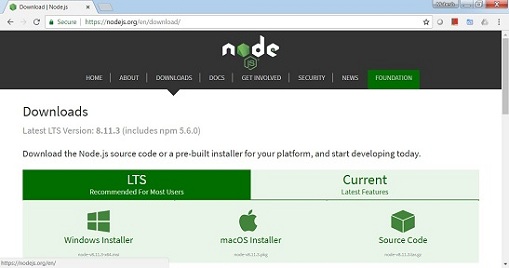
根據您的作業系統,安裝所需的軟體包。安裝 nodejs 後,npm 也會隨之安裝。要檢查 npm 是否已安裝,請在終端中鍵入 npm -v。它應該顯示 npm 的版本。
C:\>npm -v
5.6.0
藉助 angular CLI,Angular 4 的安裝非常簡單。訪問 angular 的主頁https://cli.angular.io/ 以獲取命令的參考。
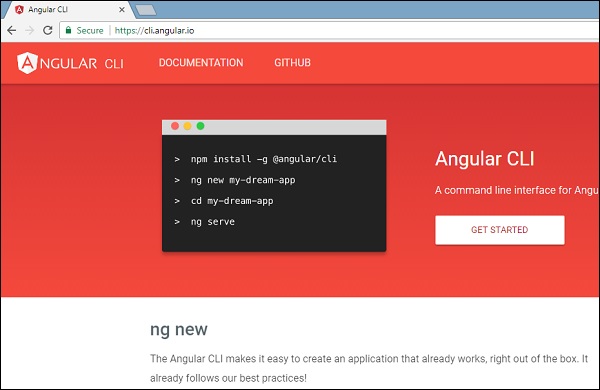
鍵入npm install -g @angular/cli,以在您的系統上安裝 angular cli。
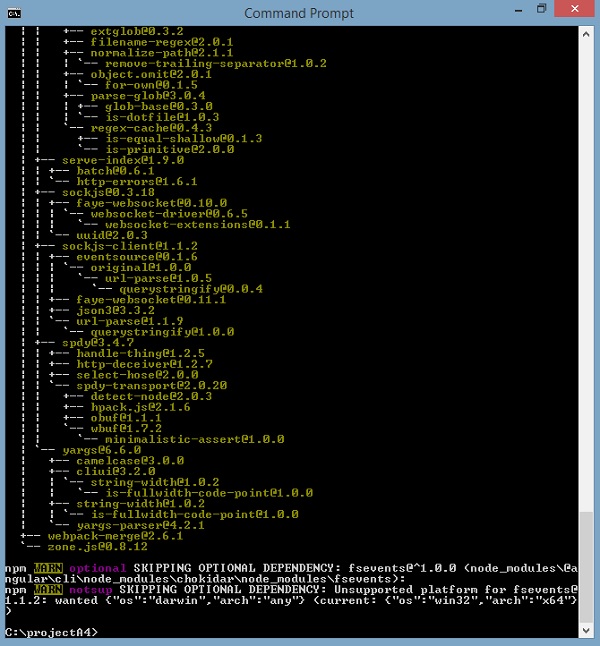
安裝 Angular CLI 後,您將在終端中獲得上述安裝資訊。您可以使用任何您選擇的 IDE,例如 WebStorm、Atom、Visual Studio Code 等。
專案設定的詳細資訊將在下一章中說明。
Angular 6 - 專案設定
AngularJS 基於模型檢視控制器,而 Angular 4 基於元件結構。Angular 6 使用與 Angular 4 相同的結構,但與 Angular 4 相比速度更快。
Angular 6 使用 TypeScript 2.9 版本,而 Angular 4 使用 TypeScript 2.2 版本。這在效能方面帶來了很大的差異。
為了安裝 Angular 6,Angular 團隊推出了 Angular CLI,它簡化了安裝過程。您需要執行幾個命令才能安裝 Angular 6。
訪問此站點https://cli.angular.io 以安裝 Angular CLI。
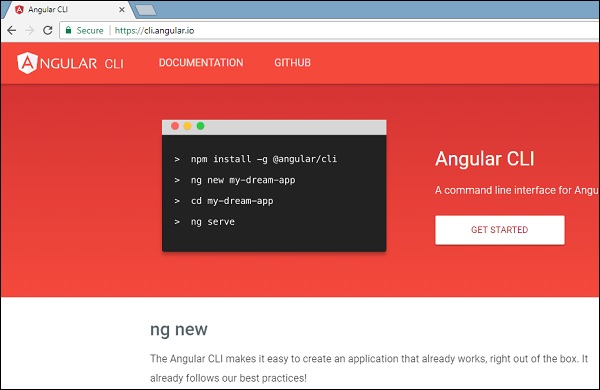
要開始安裝,我們首先需要確保已安裝最新版本的 nodejs 和 npm。npm 包與 nodejs 一起安裝。
訪問 nodejs 網站https://nodejs.com.tw/en/。
建議使用者使用最新版本的 Nodejs v8.11.3。已經擁有大於 8.11 的 nodejs 的使用者可以跳過上述過程。安裝 nodejs 後,您可以使用命令 node -v 在命令列中檢查 node 的版本,如下所示 -
node -v
v8.11.3
命令提示符顯示 v8.11.3。安裝 nodejs 後,npm 也會隨之安裝。
要檢查 npm 的版本,請在終端中鍵入命令npm -v。它將顯示 npm 的版本,如下所示。
npm -v
v5.6.0
npm 的版本為 5.6.0。現在我們已經安裝了 nodejs 和 npm,讓我們執行 angular cli 命令來安裝 Angular 6。您將在網頁上看到以下命令 -
npm install -g @angular/cli //command to install angular 6
ng new Angular 6-app // name of the project
cd my-dream-app
ng serve
讓我們從命令列中的第一個命令開始,看看它是如何工作的。
首先,我們將建立一個空目錄,在其中我們將執行 Angular CLI 命令。
npm install -g @angular/cli //command to install angular 6
我們建立了一個空資料夾ProjectA4並安裝了 Angular CLI 命令。我們還使用了-g 將 Angular CLI 全域性安裝。現在,您可以在任何目錄或資料夾中建立您的 Angular 4 專案,並且不必按專案安裝 Angular CLI,因為它已全域性安裝在您的系統上,並且您可以從任何目錄使用它。
現在讓我們檢查 Angular CLI 是否已安裝。要檢查安裝,請在終端中執行以下命令 -
ng -v
     _                      _                 ____ _     ___
    / \   _ __   __ _ _   _| | __ _ _ __     / ___| |   |_ _|
   / ? \ | '_ \ / _` | | | | |/ _` | '__|   | |   | |    | |
  / ___ \| | | | (_| | |_| | | (_| | |      | |___| |___ | |
 /_/   \_\_| |_|\__, |\__,_|_|\__,_|_|       \____|_____|___|
                |___/


Angular CLI: 6.1.3
Node: 8.11.3
OS: win32 x64
Angular:
...

Package                      Version
------------------------------------------------------
@angular-devkit/architect    0.7.3
@angular-devkit/core         0.7.3
@angular-devkit/schematics   0.7.3
@schematics/angular          0.7.3
@schematics/update           0.7.3
rxjs                         6.2.2
typescript                   2.9.2
我們獲得了 @angular/cli 版本,目前為 6.1.3。正在執行的節點版本為 8.11.3,以及作業系統詳細資訊。上述詳細資訊告訴我們我們已成功安裝 angular cli,現在我們已準備好開始我們的專案。
我們現在已經安裝了 Angular 6。現在讓我們在 Angular 6 中建立我們的第一個專案。要在 Angular 6 中建立專案,我們將使用以下命令 -
ng new projectname
我們將專案命名為ng new Angular6App。
現在讓我們在命令列中執行上述命令。
ng new Angular6App
CREATE Angular6App/angular.json (3593 bytes)
CREATE Angular6App/package.json (1317 bytes)
CREATE Angular6App/README.md (1028 bytes)
CREATE Angular6App/tsconfig.json (408 bytes)
CREATE Angular6App/tslint.json (2805 bytes)
CREATE Angular6App/.editorconfig (245 bytes)
CREATE Angular6App/.gitignore (503 bytes)
CREATE Angular6App/src/favicon.ico (5430 bytes)
CREATE Angular6App/src/index.html (298 bytes)
CREATE Angular6App/src/main.ts (370 bytes)
CREATE Angular6App/src/polyfills.ts (3194 bytes)
CREATE Angular6App/src/test.ts (642 bytes)
CREATE Angular6App/src/styles.css (80 bytes)
CREATE Angular6App/src/browserslist (375 bytes)
CREATE Angular6App/src/karma.conf.js (964 bytes)
CREATE Angular6App/src/tsconfig.app.json (170 bytes)
CREATE Angular6App/src/tsconfig.spec.json (256 bytes)
CREATE Angular6App/src/tslint.json (314 bytes)
CREATE Angular6App/src/assets/.gitkeep (0 bytes)
CREATE Angular6App/src/environments/environment.prod.ts (51 bytes)
CREATE Angular6App/src/environments/environment.ts (642 bytes)
CREATE Angular6App/src/app/app.module.ts (314 bytes)
CREATE Angular6App/src/app/app.component.html (1141 bytes)
CREATE Angular6App/src/app/app.component.spec.ts (1010 bytes)
CREATE Angular6App/src/app/app.component.ts (215 bytes)
CREATE Angular6App/src/app/app.component.css (0 bytes)
CREATE Angular6App/e2e/protractor.conf.js (752 bytes)
CREATE Angular6App/e2e/tsconfig.e2e.json (213 bytes)
CREATE Angular6App/e2e/src/app.e2e-spec.ts (307 bytes)
CREATE Angular6App/e2e/src/app.po.ts (208 bytes)
專案Angular6App已成功建立。它安裝了專案在 Angular 6 中執行所需的所有必需軟體包。現在讓我們切換到已建立的專案,該專案位於Angular6App目錄中。在命令列中更改目錄 - cd Angular 6-app。
我們將使用 Visual Studio Code IDE 來處理 Angular 6;您可以使用任何 IDE,例如 Atom、WebStorm 等。
要下載 Visual Studio Code,請訪問https://vscode.com.tw/ 並點選下載 Windows 版。
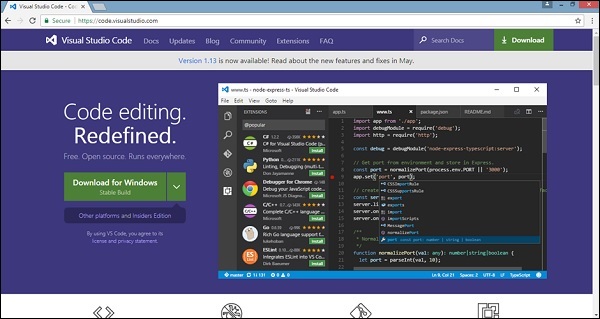
點選下載 Windows 版以安裝 IDE 並執行安裝程式以開始使用 IDE。
編輯器如下所示 -
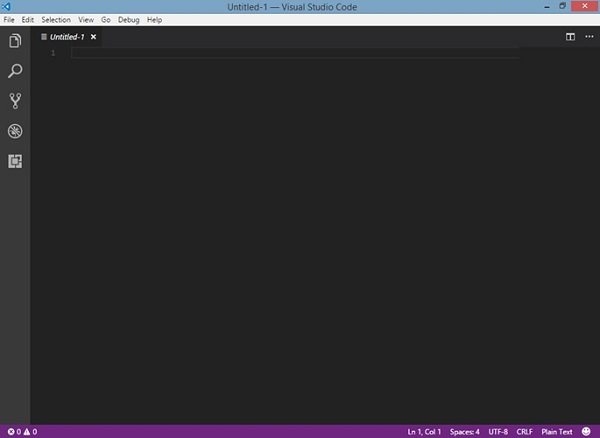
我們還沒有在其中啟動任何專案。現在讓我們使用 angular-cli 建立的專案。
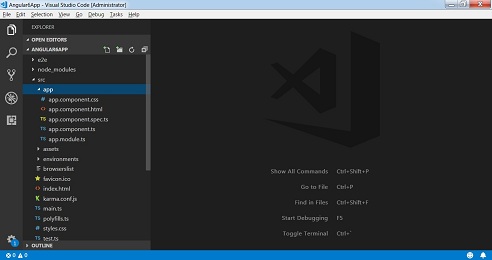
現在我們有了專案的資料夾結構,讓我們使用以下命令編譯我們的專案 -
ng serve
ng serve命令構建應用程式並啟動 Web 伺服器。
** Angular Live Development Server is listening on localhost:4200, open your browser on https://:4200/ **
...
Date: 2018-08-18T11:17:54.745Z
Hash: 0ace6c8a055c58d1734c
Time: 20490ms
chunk {main} main.js, main.js.map (main) 10.7 kB [initial] [rendered]
chunk {polyfills} polyfills.js, polyfills.js.map (polyfills) 227 kB [initial] [rendered]
chunk {runtime} runtime.js, runtime.js.map (runtime) 5.22 kB [entry] [rendered]
chunk {styles} styles.js, styles.js.map (styles) 15.6 kB [initial] [rendered]
chunk {vendor} vendor.js, vendor.js.map (vendor) 3.27 MB [initial] [rendered]
i ?wdm?: Compiled successfully.
Web 伺服器在埠 4200 上啟動。在瀏覽器中鍵入 urlhttps://:4200/並檢視輸出。您將被定向到以下螢幕 -
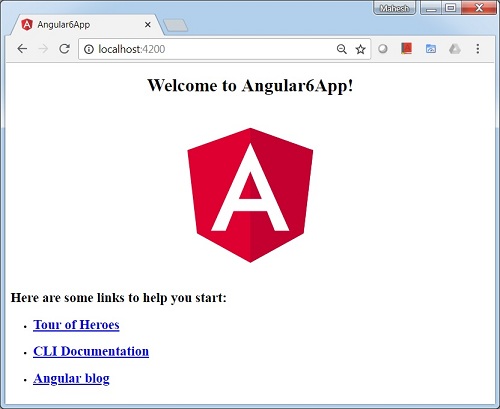
現在讓我們進行一些更改以顯示以下內容 -
"歡迎使用 Angular 6 專案"
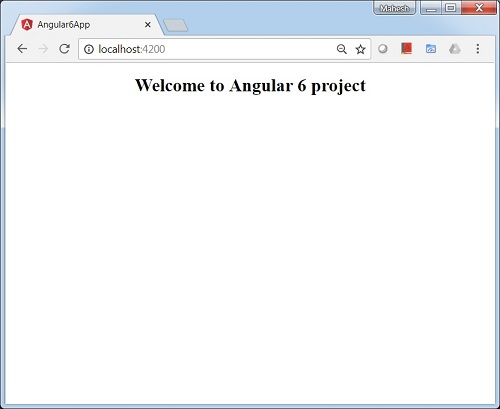
我們對檔案 - app.component.html和app.component.ts進行了更改。我們將在後續章節中詳細討論。
讓我們完成專案設定。如果您看到我們使用了埠 4200,這是 angular-cli 在編譯時使用的預設埠。如果需要,您可以使用以下命令更改埠 -
ng serve --host 0.0.0.0 -port 4205
Angular 6 應用程式資料夾具有以下資料夾結構 -
e2e - 端到端測試資料夾。主要使用 e2e 進行整合測試,並幫助確保應用程式正常工作。
node_modules - 安裝的 npm 包為 node_modules。您可以開啟資料夾並檢視可用的軟體包。
src - 我們將在其中使用 Angular 4 處理專案的資料夾。
Angular 6 應用資料夾具有以下檔案結構 -
.angular-cli.json - 它主要儲存專案名稱、cli 版本等資訊。
.editorconfig - 這是編輯器的配置檔案。
.gitignore - 為了與克隆儲存庫的任何其他使用者共享忽略規則,應將 .gitignore 檔案提交到儲存庫中。
karma.conf.js - 這用於透過探針進行單元測試。karma.conf.js 檔案中提供了專案所需的所有資訊。
package.json - package.json 檔案說明在執行 npm install 時將哪些庫安裝到 node_modules 中。
目前,如果您在編輯器中開啟該檔案,您將看到其中添加了以下模組。
"@angular/animations": "^6.1.0",
"@angular/common": "^6.1.0",
"@angular/compiler": "^6.1.0",
"@angular/core": "^6.1.0",
"@angular/forms": "^6.1.0",
"@angular/http": "^6.1.0",
"@angular/platform-browser": "^6.1.0",
"@angular/platform-browser-dynamic": "^6.1.0",
"@angular/router": "^6.1.0",
"core-js": "^2.5.4",
"rxjs": "^6.0.0",
"zone.js": "~0.8.26"
如果您需要新增更多庫,可以在這裡新增它們並執行 npm install 命令。
protractor.conf.js - 這是應用程式所需的測試配置。
tsconfig.json - 這基本上包含編譯期間所需的編譯器選項。
tslint.json - 這是配置檔案,其中包含編譯時要考慮的規則。
src 資料夾是主資料夾,內部具有不同的檔案結構。
app
它包含下面描述的檔案。這些檔案預設由 angular-cli 安裝。
app.module.ts - 如果您開啟該檔案,您將看到程式碼引用了匯入的不同庫。Angular-cli 使用了這些預設庫進行匯入 - angular/core、platform-browser。名稱本身解釋了庫的用法。
它們被匯入並儲存到諸如declarations、imports、providers和bootstrap之類的變數中。
import { BrowserModule } from '@angular/platform-browser';
import { NgModule } from '@angular/core';
import { AppComponent } from './app.component';
@NgModule({
   declarations: [
      AppComponent
   ],
   imports: [
      BrowserModule
   ],
   providers: [],
   bootstrap: [AppComponent]
})
export class AppModule { }
declarations - 在 declarations 中,儲存了對元件的引用。Appcomponent 是在啟動新專案時建立的預設元件。我們將在另一部分學習建立新元件。
imports - 這將包含如上所示匯入的模組。目前,BrowserModule 是 imports 的一部分,它從 @angular/platform-browser 匯入。
providers - 這將引用建立的服務。服務將在後續章節中討論。
bootstrap - 這引用了建立的預設元件,即 AppComponent。
app.component.css - 您可以在此處編寫 css 結構。現在,我們已將背景顏色新增到 div 中,如下所示。
.divdetails{
   background-color: #ccc;
}
app.component.html - html 程式碼將在此檔案中可用。
<!--The content below is only a placeholder and can be replaced.-->
<div class = "divdetails">
   <div style = "text-align:center">
      <h1>
         Welcome to {{title}}!
      </h1>
      <img width = "300" src =    "data:image/svg+xml;base64,PD94bWwgdmVyc2lvbj0iMS4wIiBlbmNv
         ZGluZz0idXRmLTgiPz4NCjwhLS0gR2VuZXJhdG9yOiBBZG9iZSBJbGx1c3Ry
         YXRvciAxOS4xLjAsIFNWRyBFeHBvcnQgUGx1Zy1JbiAuIFNWRyBWZXJzaW9
         uOiA2LjAwIEJ1aWxkIDApICAtLT4NCjxzdmcgdmVyc2lvbj0iMS4xIiBpZD0i
         TGF5ZXJfMSIgeG1sbnM9Imh0dHA6Ly93d3cudzMub3JnLzIwMDAvc3ZnIiB4b
         Wxuczp4bGluaz0iaHR0cDovL3d3dy53My5vcmcvMTk5OS94bGluayIgeD0iMHB
         4IiB5PSIwcHgiDQoJIHZpZXdCb3g9IjAgMCAyNTAgMjUwIiBzdHlsZT0iZW5hY
         mxlLWJhY2tncm91bmQ6bmV3IDAgMCAyNTAgMjUwOyIgeG1sOnNwYWNlPSJwcmV
         zZXJ2ZSI+DQo8c3R5bGUgdHlwZT0idGV4dC9jc3MiPg0KCS5zdDB7ZmlsbDojR
         EQwMDMxO30NCgkuc3Qxe2ZpbGw6I0MzMDAyRjt9DQoJLnN0MntmaWxsOiNGRkZ
         GRkY7fQ0KPC9zdHlsZT4NCjxnPg0KCTxwb2x5Z29uIGNsYXNzPSJzdDAiIHBva
         W50cz0iMTI1LDMwIDEyNSwzMCAxMjUsMzAgMzEuOSw2My4yIDQ2LjEsMTg2LjM
         gMTI1LDIzMCAxMjUsMjMwIDEyNSwyMzAgMjAzLjksMTg2LjMgMjE4LjEsNjMuMi
         AJIi8+DQoJPHBvbHlnb24gY2xhc3M9InN0MSIgcG9pbnRzPSIxMjUsMzAgMTI1L
         DUyLjIgMTI1LDUyLjEgMTI1LDE1My40IDEyNSwxNTMuNCAxMjUsMjMwIDEyNSwy
         MzAgMjAzLjksMTg2LjMgMjE4LjEsNjMuMiAxMjUsMzAgCSIvPg0KCTxwYXRoIGN
         sYXNzPSJzdDIiIGQ9Ik0xMjUsNTIuMUw2Ni44LDE4Mi42aDBoMjEuN2gwbDExLj
         ctMjkuMmg0OS40bDExLjcsMjkuMmgwaDIxLjdoMEwxMjUsNTIuMUwxMjUsNTIuM
         UwxMjUsNTIuMUwxMjUsNTIuMQ0KCQlMMTI1LDUyLjF6IE0xNDIsMTM1LjRIMTA4b
         DE3LTQwLjlMMTQyLDEzNS40eiIvPg0KPC9nPg0KPC9zdmc+DQo=">
   </div>
   <h2>Here are some links to help you start: </h2>
   <ul>
      <li>
         <h2>
            <a target = "_blank" href="https://angular.io/tutorial">Tour of Heroes</a>
         </h2>
      </li>
      <li>
         <h2>
            <a target = "_blank" href = "https://github.com/angular/angular-cli/wiki">
               CLI Documentation
            </a>
         </h2>
      </li>
      <li>
         <h2>
            <a target = "_blank" href="http://angularjs.blogspot.ca/">Angular blog</a>
         </h2>
      </li>
   </ul>
</div>
這是專案建立時當前可用的預設 html 程式碼。
app.component.spec.ts - 這些是自動生成的檔案,包含源元件的單元測試。
app.component.ts - 元件的類在此處定義。您可以在 .ts 檔案中處理 html 結構。處理將包括連線到資料庫、與其他元件互動、路由、服務等活動。
檔案結構如下所示 -
import { Component } from '@angular/core';
@Component({
   selector: 'app-root',
   templateUrl: './app.component.html',
   styleUrls: ['./app.component.css']
})
export class AppComponent {
   title = 'app';
}
Assets
您可以在此資料夾中儲存影像、js 檔案。
Environment
此資料夾包含生產或開發環境的詳細資訊。該資料夾包含兩個檔案。
- environment.prod.ts
- environment.ts
這兩個檔案都包含最終檔案是否應在生產環境或開發環境中編譯的詳細資訊。
Angular 4 應用資料夾的其他檔案結構包括以下內容 -
favicon.ico
這是一個通常位於網站根目錄的檔案。
index.html
這是在瀏覽器中顯示的檔案。
<!doctype html>
<html lang = "en">
   <head>
      <meta charset = "utf-8">
      <title>HTTP Search Param</title>
      <base href = "/">
      <link href = "https://fonts.googleapis.com/icon?family=Material+Icons" rel = "stylesheet">
      <link href = "https://fonts.googleapis.com/css?family=Roboto|Roboto+Mono" rel = "stylesheet">
      <link href = "styles.c7c7b8bf22964ff954d3.bundle.css" rel = "stylesheet">
      <meta name = "viewport" content = "width = device-width, initial-scale = 1">
      <link rel = "icon" type = "image/x-icon" href = "favicon.ico">
   </head>
   <body>
      <app-root></app-root>
   </body>
</html>
主體包含<app-root></app-root>。這是在app.component.ts檔案中使用的選擇器,並將顯示來自 app.component.html 檔案的詳細資訊。
main.ts
main.ts 是我們從那裡開始專案開發的檔案。它從匯入我們需要的基本模組開始。現在,如果您看到 angular/core、angular/platform-browser-dynamic、app.module 和 environment,它們在 angular-cli 安裝和專案設定期間預設匯入。
import { enableProdMode } from '@angular/core';
import { platformBrowserDynamic } from '@angular/platform-browser-dynamic';
import { AppModule } from './app/app.module';
import { environment } from './environments/environment';
if (environment.production) {
   enableProdMode();
}
platformBrowserDynamic().bootstrapModule(AppModule);
platformBrowserDynamic().bootstrapModule(AppModule)具有父模組引用AppModule。因此,當它在瀏覽器中執行時,呼叫的檔案是 index.html。Index.html 內部引用 main.ts,當以下程式碼執行時,它呼叫父模組,即 AppModule -
platformBrowserDynamic().bootstrapModule(AppModule);
當呼叫 AppModule 時,它會呼叫 app.module.ts,後者根據引導進一步呼叫 AppComponent,如下所示 -
bootstrap: [AppComponent]
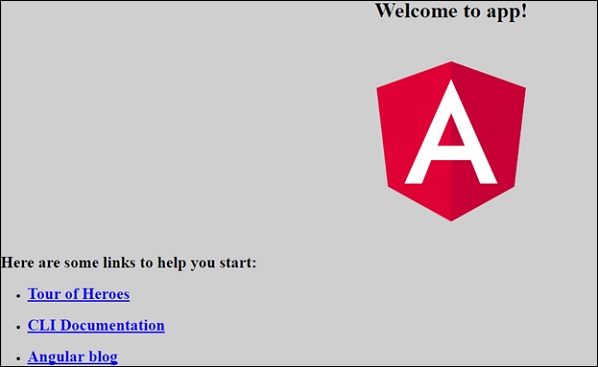
在 app.component.ts 中,有一個selector: app-root,它用於 index.html 檔案中。這將顯示 app.component.html 中存在的內容。
瀏覽器中將顯示以下內容 -
polyfill.ts
這主要用於向後相容性。
styles.css
這是專案所需的樣式檔案。
test.ts
在這裡,將處理用於測試專案的單元測試用例。
tsconfig.app.json
這在編譯期間使用,它具有執行應用程式需要使用的配置詳細資訊。
tsconfig.spec.json
這有助於維護測試詳細資訊。
typings.d.ts
它用於管理 TypeScript 定義。
Angular 6 - 元件
使用 Angular 6 進行的大部分開發都在元件中完成。元件基本上是與元件的 .html 檔案互動的類,該檔案顯示在瀏覽器上。我們在前面的一章中看到了檔案結構。檔案結構具有 app 元件,它包含以下檔案 -
app.component.css
app.component.html
app.component.spec.ts
app.component.ts
app.module.ts
當我們使用 angular-cli 命令建立新專案時,上述檔案是預設建立的。
如果您開啟app.module.ts檔案,它會匯入一些庫,並且還分配了 appcomponent 的宣告,如下所示 -
import { BrowserModule } from '@angular/platform-browser';
import { NgModule } from '@angular/core';
import { AppComponent } from './app.component';
@NgModule({
   declarations: [
      AppComponent
   ],
   imports: [
      BrowserModule
   ],
   providers: [],
   bootstrap: [AppComponent]
})
export class AppModule { }
declarations 包括我們已匯入的 AppComponent 變數。這成為父元件。
現在,angular-cli 有一個命令來建立您自己的元件。但是,預設建立的 app 元件將始終保持為父元件,建立的下一個元件將形成子元件。
現在讓我們執行命令來建立元件。
ng generate component new-cmp
當您在命令列中執行上述命令時,您將收到以下輸出 -
D:\Node\Angular6App>ng generate component new-cmp
CREATE src/app/new-cmp/new-cmp.component.html (26 bytes)
CREATE src/app/new-cmp/new-cmp.component.spec.ts (629 bytes)
CREATE src/app/new-cmp/new-cmp.component.ts (272 bytes)
CREATE src/app/new-cmp/new-cmp.component.css (0 bytes)
UPDATE src/app/app.module.ts (398 bytes)
現在,如果我們去檢查檔案結構,我們將看到在 src/app 資料夾下建立了新的 new-cmp 資料夾。
在 new-cmp 資料夾中建立了以下檔案 -
new-cmp.component.css - 建立了新元件的 css 檔案。
new-cmp.component.html - 建立了 html 檔案。
new-cmp.component.spec.ts - 這可以用於單元測試。
new-cmp.component.ts - 在這裡,我們可以定義模組、屬性等。
對 app.module.ts 檔案進行了如下更改 -
import { BrowserModule } from '@angular/platform-browser';
import { NgModule } from '@angular/core';
import { AppComponent } from './app.component';
import { NewCmpComponent } from './new-cmp/new-cmp.component';
// includes the new-cmp component we created
@NgModule({
   declarations: [
      AppComponent,
      NewCmpComponent // here it is added in declarations and will behave as a child component
   ],
   imports: [
      BrowserModule
   ],
   providers: [],
   bootstrap: [AppComponent] //for bootstrap the AppComponent the main app component is given.
})

export class AppModule { }
new-cmp.component.ts 檔案生成如下 -
import { Component, OnInit } from '@angular/core'; // here angular/core is imported .
@Component({
   // this is a declarator which starts with @ sign. The component word marked in bold needs to be the same.
   selector: 'app-new-cmp', //
   templateUrl: './new-cmp.component.html',
   // reference to the html file created in the new component.
   styleUrls: ['./new-cmp.component.css'] // reference to the style file.
})
export class NewCmpComponent implements OnInit {
   constructor() { }
   ngOnInit() {}
}
如果您檢視上面的 new-cmp.component.ts 檔案,它會建立一個名為 NewCmpComponent 的新類,該類實現了 OnInit。其中包含一個建構函式和一個名為 ngOnInit() 的方法。當類執行時,預設會呼叫 ngOnInit。
讓我們檢查一下流程是如何工作的。現在,預設建立的 app 元件成為父元件。以後新增的任何元件都成為子元件。
當我們在https://:4200/瀏覽器中點選 url 時,它首先執行 index.html 檔案,如下所示 -
<!doctype html>
<html lang = "en">
   <head>
      <meta charset = "utf-8">
      <title>Angular 6 Application</title>
      <base href = "/">
      <meta name = "viewport" content = "width = device-width, initial-scale = 1">
      <link rel = "icon" type = "image/x-icon" href = "favicon.ico">
   </head>
   <body>
      <app-root></app-root>
   </body>
</html>
以上是普通的 html 檔案,我們沒有看到任何列印在瀏覽器中的內容。看看 body 部分中的標籤。
<app-root></app-root>
這是 Angular 預設建立的根標籤。此標籤在main.ts檔案中具有引用。
import { enableProdMode } from '@angular/core';
import { platformBrowserDynamic } from '@angular/platform-browser-dynamic';
import { AppModule } from './app/app.module';
import { environment } from './environments/environment';
if (environment.production) {
   enableProdMode();
}
platformBrowserDynamic().bootstrapModule(AppModule);
AppModule 從主父模組的 app 中匯入,並將相同的模組傳遞給 bootstrap Module,這使得 appmodule 載入。
現在讓我們看看app.module.ts檔案 -
import { BrowserModule } from '@angular/platform-browser';
import { NgModule } from '@angular/core';
import { AppComponent } from './app.component';
import { NewCmpComponent } from './new-cmp/new-cmp.component';
@NgModule({
   declarations: [
      AppComponent,
      NewCmpComponent
   ],
   imports: [
      BrowserModule
   ],
   providers: [],
   bootstrap: [AppComponent]
})

export class AppModule { }
在這裡,AppComponent 是給定的名稱,即儲存app. Component.ts引用的變數,並將相同的變數傳遞給 bootstrap。現在讓我們看看app.component.ts檔案。
import { Component } from '@angular/core';
@Component({
   selector: 'app-root',
   templateUrl: './app.component.html',
   styleUrls: ['./app.component.css']
})
export class AppComponent {
   title = 'Angular 6 Project!';
}
Angular core 被匯入並作為 Component 引用,並在 Declarator 中使用,如下所示 -
@Component({
   selector: 'app-root',
   templateUrl: './app.component.html',
   styleUrls: ['./app.component.css']
})
在 declarator 中,引用了選擇器、templateUrl和styleUrl。此處的選擇器只不過是我們上面看到的 index.html 檔案中放置的標籤。
類 AppComponent 有一個名為 title 的變數,它顯示在瀏覽器中。
@Component使用名為 app.component.html 的 templateUrl,如下所示 -
<!--The content below is only a placeholder and can be replaced.-->
<div style = "text-align:center">
   <h1>
      Welcome to {{title}}.
   </h1>
</div>
它只有 html 程式碼和花括號中的變數 title。它將被替換為app.component.ts檔案中存在的 value。這稱為繫結。我們將在後續章節中討論繫結的概念。
現在我們已經建立了一個名為new-cmp的新元件。當執行建立新元件的命令時,相同的元件會被包含在app.module.ts檔案中。
app.module.ts引用了建立的新元件。
現在讓我們檢查在 new-cmp 中建立的新檔案。
new-cmp.component.ts
import { Component, OnInit } from '@angular/core';
@Component({
   selector: 'app-new-cmp',
   templateUrl: './new-cmp.component.html',
   styleUrls: ['./new-cmp.component.css']
})
export class NewCmpComponent implements OnInit {
   constructor() { }
   ngOnInit() {}
}
在這裡,我們還必須匯入 core。元件的引用在 declarator 中使用。
declarator 具有名為app-new-cmp的選擇器以及templateUrl和styleUrl。
名為new-cmp.component.html的 .html 如下所示 -
<p>
   new-cmp works!
</p>
如上所示,我們有 html 程式碼,即 p 標籤。樣式檔案為空,因為我們目前不需要任何樣式。但是,當我們執行專案時,我們沒有看到任何與新元件相關的內容顯示在瀏覽器中。現在讓我們新增一些內容,稍後可以在瀏覽器中看到。
選擇器,即app-new-cmp需要新增到app.component .html檔案中,如下所示 -
<!--The content below is only a placeholder and can be replaced.-->
<div style = "text-align:center">
   <h1>
      Welcome to {{title}}.
   </h1>
</div>
<app-new-cmp></app-new-cmp>
當新增<app-new-cmp></app-new-cmp>標籤時,建立的新元件的 .html 檔案中存在的所有內容都將與父元件資料一起顯示在瀏覽器上。
讓我們看看新元件 .html檔案和new-cmp.component.ts檔案。
new-cmp.component.ts
import { Component, OnInit } from '@angular/core';
@Component({
   selector: 'app-new-cmp',
   templateUrl: './new-cmp.component.html',
   styleUrls: ['./new-cmp.component.css']
})
export class NewCmpComponent implements OnInit {
   newcomponent = "Entered in new component created";
   constructor() {}
   ngOnInit() { }
}
在類中,我們添加了一個名為 new component 的變數,其值為“Entered in new component created”。
上述變數在.new-cmp.component.html檔案中繫結如下:
<p>
   {{newcomponent}}
</p>
<p>
   new-cmp works!
</p>
現在,由於我們在父元件的app.component.html檔案中包含了<app-new-cmp></app-new-cmp>選擇器,因此新元件.html檔案(new-cmp.component.html)中的內容將在瀏覽器中顯示如下:

類似地,我們可以根據需要建立元件並在app.component.html檔案中使用選擇器連結它們。
Angular 6 - 模組
Angular中的模組指的是一個可以將與應用程式相關的元件、指令、管道和服務分組的地方。
如果您正在開發一個網站,則標題、頁尾、左側、中心和右側部分將成為模組的一部分。
要定義模組,我們可以使用NgModule。當您使用Angular-cli命令建立新專案時,ngmodule預設情況下會在app.module.ts檔案中建立,它看起來如下所示:
import { BrowserModule } from '@angular/platform-browser';
import { NgModule } from '@angular/core';
import { AppComponent } from './app.component';
@NgModule({
   declarations: [
      AppComponent
   ],
   imports: [
      BrowserModule
   ],
   providers: [],
   bootstrap: [AppComponent]
})
export class AppModule { }
NgModule需要匯入如下:
import { NgModule } from '@angular/core';
ngmodule的結構如下所示:
@NgModule({
   declarations: [
      AppComponent
   ],
   imports: [
      BrowserModule
   ],
   providers: [],
   bootstrap: [AppComponent]
})
它以@NgModule開頭,幷包含一個具有declarations、imports、providers和bootstrap的物件。
宣告(Declaration)
它是一個建立的元件陣列。如果建立了任何新元件,它將首先被匯入,並且引用將包含在declarations中,如下所示:
declarations: [
   AppComponent,
   NewCmpComponent
]
匯入(Import)
它是一個應用程式中需要使用的模組陣列。它也可以被Declaration陣列中的元件使用。例如,現在在@NgModule中,我們看到匯入了BrowserModule。如果您的應用程式需要表單,您可以包含以下模組:
import { FormsModule } from '@angular/forms';
@NgModule中的匯入將如下所示:
imports: [
   BrowserModule,
   FormsModule
]
提供程式(Providers)
這將包括建立的服務。
引導(Bootstrap)
這包括用於啟動執行的主應用程式元件。
Angular 6 - 資料繫結
資料繫結從AngularJS、Angular 2、4開始就可用,現在在Angular 6中也可用。我們使用花括號進行資料繫結 - {{}}; 這個過程稱為插值。我們已經在之前的示例中看到了如何將值宣告為變數title,以及如何在瀏覽器中列印它。
app.component.html檔案中的變數被稱為{{title}},title的值在app.component.ts檔案中初始化,在app.component.html中顯示該值。
現在讓我們在瀏覽器中建立一個月份下拉列表。為此,我們在app.component.ts中建立了一個月份陣列,如下所示:
import { Component } from '@angular/core';
@Component({
   selector: 'app-root',
   templateUrl: './app.component.html',
   styleUrls: ['./app.component.css']
})
export class AppComponent {
   title = 'Angular 6 Project!';
   // declared array of months.
   months = ["January", "Feburary", "March", "April", "May",
            "June", "July", "August", "September",
            "October", "November", "December"];
}
上面顯示的月份陣列需要在瀏覽器中的下拉列表中顯示。為此,我們將使用以下程式碼行:
<!--The content below is only a placeholder and can be replaced. -->
<div style = "text-align:center">
   <h1>
      Welcome to {{title}}.
   </h1>
</div>
<div> Months :
   <select>
      <option *ngFor = "let i of months">{{i}}</option>
   </select>
</div>
我們建立了帶有選項的普通select標籤。在option中,我們使用了for迴圈。for迴圈用於遍歷月份陣列,這將依次建立具有月份中存在的值的option標籤。
Angular中的語法for是*ngFor = "let I of months",要獲取月份的值,我們在{{i}}中顯示它。
兩個花括號有助於資料繫結。您在app.component.ts檔案中宣告變數,並且將使用花括號替換相同的變數。
讓我們看看上述月份陣列在瀏覽器中的輸出
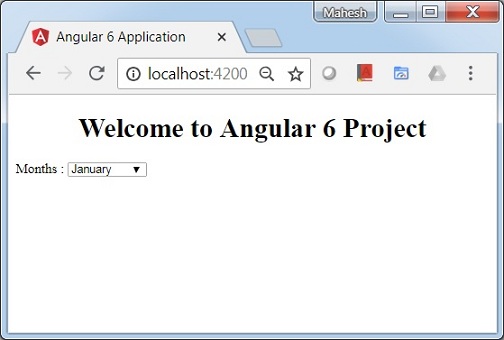
在app.component.ts中設定的變數可以使用花括號繫結到app.component.html;例如,{{}}。
現在讓我們根據條件在瀏覽器中顯示資料。在這裡,我們添加了一個變數並將值設定為true。使用if語句,我們可以隱藏/顯示要顯示的內容。
示例
import { Component } from '@angular/core';
@Component({
   selector: 'app-root',
   templateUrl: './app.component.html',
   styleUrls: ['./app.component.css']
})
export class AppComponent {
   title = 'Angular 4 Project!';
   //array of months.
   months = ["January", "February", "March", "April",
            "May", "June", "July", "August", "September",
            "October", "November", "December"];
   isavailable = true;   //variable is set to true
}
<!--The content below is only a placeholder and can be replaced.-->
<div style = "text-align:center">
   <h1>
      Welcome to {{title}}.
   </h1>
</div>
<div> Months :
   <select>
      <option *ngFor = "let i of months">{{i}}</option>
   </select>
</div>
<br/>
<div>
   <span *ngIf = "isavailable">Condition is valid.</span>
  <!--over here based on if condition the text condition is valid is displayed.
  If the value of isavailable is set to false it will not display the text.-->
</div>
輸出
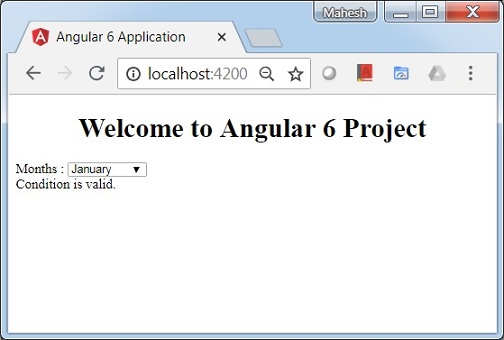
讓我們嘗試使用IF THEN ELSE條件使用上述示例。
示例
import { Component } from '@angular/core';
@Component({
   selector: 'app-root',
   templateUrl: './app.component.html',
   styleUrls: ['./app.component.css']
})
export class AppComponent {
   title = 'Angular 4 Project!';
   //array of months.
   months = ["January", "February", "March", "April",
            "May", "June", "July", "August", "September",
            "October", "November", "December"];
   isavailable = false;
}
在這種情況下,我們將isavailable變數設定為false。要列印else條件,我們將不得不建立ng-template,如下所示:
<ng-template #condition1>Condition is invalid</ng-template>
完整的程式碼如下所示:
<!--The content below is only a placeholder and can be replaced.-->
<div style = "text-align:center">
   <h1>
      Welcome to {{title}}.
   </h1>
</div>
<div> Months :
   <select>
      <option *ngFor="let i of months">{{i}}</option>
   </select>
</div>
<br/>
<div>
   <span *ngIf = "isavailable; else condition1">Condition is valid.</span>
   <ng-template #condition1>Condition is invalid</ng-template>
</div>
If與else條件一起使用,使用的變數是condition1。它被分配為ng-template的id,當available變數設定為false時,將顯示文字Condition is invalid。
以下螢幕截圖顯示了瀏覽器中的顯示。

現在讓我們使用if then else條件。
import { Component } from '@angular/core';
@Component({
   selector: 'app-root',
   templateUrl: './app.component.html',
   styleUrls: ['./app.component.css']
})
export class AppComponent {
   title = 'Angular 4 Project!';
   //array of months.
   months = ["January", "February", "March", "April",
            "May", "June", "July", "August", "September",
            "October", "November", "December"];
   isavailable = true;
}
現在,我們將變數isavailable設定為true。在html中,條件以以下方式編寫:
<!--The content below is only a placeholder and can be replaced.-->
<div style = "text-align:center">
   <h1>
   Welcome to {{title}}.
   </h1>
</div>
<div> Months :
   <select>
      <option *ngFor = "let i of months">{{i}}</option>
   </select>
</div>
<br/>
<div>
   <span *ngIf = "isavailable; then condition1 else condition2">Condition is valid.</span>
   <ng-template #condition1>Condition is valid</ng-template>
   <ng-template #condition2>Condition is invalid</ng-template>
</div>
如果變數為true,則condition1,否則condition2。現在,使用id#condition1和#condition2建立了兩個模板。
瀏覽器中的顯示如下:
Angular 6 - 事件繫結
在本章中,我們將討論事件繫結在Angular 6中是如何工作的。當用戶以鍵盤移動、滑鼠點選或滑鼠懸停的形式與應用程式互動時,它會生成一個事件。需要處理這些事件以執行某種操作。這就是事件繫結發揮作用的地方。
讓我們考慮一個例子來更好地理解這一點。
app.component.html
<!--The content below is only a placeholder and can be replaced.-->
<div style = "text-align:center">
   <h1>
      Welcome to {{title}}.
   </h1>
</div>
<div> Months :
   <select>
      <option *ngFor = "let i of months">{{i}}</option>
   </select>
</div>
<br/>
<div>
   <span *ngIf = "isavailable; then condition1 else condition2">
      Condition is valid.
   </span>
   <ng-template #condition1>Condition is valid</ng-template>
   <ng-template #condition2>Condition is invalid</ng-template>
</div>
<button (click)="myClickFunction($event)">
   Click Me
</button>
在app.component.html檔案中,我們定義了一個按鈕並使用click事件向其添加了一個函式。
以下是定義按鈕並向其新增函式的語法。
(click)="myClickFunction($event)"
該函式在.ts檔案中定義:app.component.ts
import { Component } from '@angular/core';
@Component({
   selector: 'app-root',
   templateUrl: './app.component.html',
   styleUrls: ['./app.component.css']
})
export class AppComponent {
   title = 'Angular 6 Project!';
   //array of months.
   months = ["January", "Feburary", "March", "April",
            "May", "June", "July", "August", "September",
            "October", "November", "December"];
   isavailable = true;
   myClickFunction(event) {
      //just added console.log which will display the event details in browser on click of the button.
      alert("Button is clicked");
      console.log(event);
   }
}
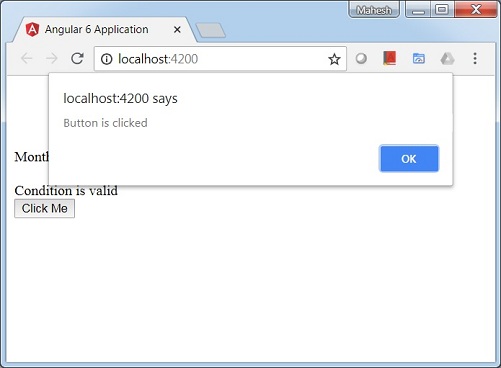
點選按鈕後,控制權將轉到函式myClickFunction,並將出現一個對話方塊,其中顯示the Button is clicked,如下面的螢幕截圖所示:
現在讓我們將change事件新增到下拉列表中。
以下程式碼行將幫助您將change事件新增到下拉列表中:
<!--The content below is only a placeholder and can be replaced.-->
<div style = "text-align:center">
   <h1>
      Welcome to {{title}}.
   </h1>
</div>
<div> Months :
   <select (change) = "changemonths($event)">
      <option *ngFor = "let i of months">{{i}}</option>
   </select>
</div>
<br/>
<div>
   <span *ngIf = "isavailable; then condition1 else condition2">
      Condition is valid.
   </span>
   <ng-template #condition1>Condition is valid</ng-template>
   <ng-template #condition2>Condition is invalid</ng-template>
</div>
<button (click) = "myClickFunction($event)">Click Me</button>
該函式在app.component.ts檔案中宣告:
import { Component } from '@angular/core';
@Component({
   selector: 'app-root',
   templateUrl: './app.component.html',
   styleUrls: ['./app.component.css']
})
export class AppComponent {
   title = 'Angular 6 Project!';
   //array of months.
   months = ["January", "Feburary", "March", "April",
            "May", "June", "July", "August", "September",
            "October", "November", "December"];
   isavailable = true;
   myClickFunction(event) {
      alert("Button is clicked");
      console.log(event);
   }
   changemonths(event) {
      console.log("Changed month from the Dropdown");
      console.log(event);
   }
}
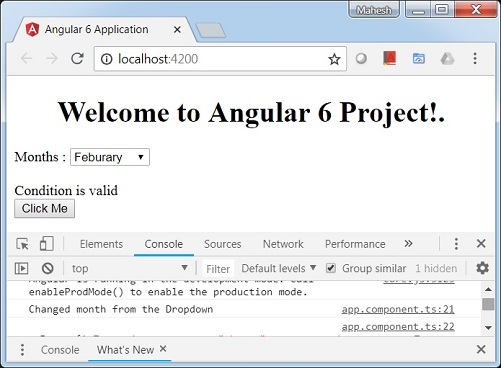
控制檯訊息“Changed month from the Dropdown”與事件一起顯示在控制檯中。
讓我們在下拉列表的值更改時在app.component.ts中新增一個警報訊息,如下所示:
import { Component } from '@angular/core';
@Component({
   selector: 'app-root',
   templateUrl: './app.component.html',
   styleUrls: ['./app.component.css']
})
export class AppComponent {
   title = 'Angular 6 Project!';
   //array of months.
   months = ["January", "February", "March", "April",
            "May", "June", "July", "August", "September",
            "October", "November", "December"];

   isavailable = true;
   myClickFunction(event) {
      //just added console.log which will display the event details in browser
      on click of the button.
      alert("Button is clicked");
      console.log(event);
   }
   changemonths(event) {
      alert("Changed month from the Dropdown");
   }
}
當下拉列表中的值更改時,將出現一個對話方塊,並將顯示以下訊息:“Changed month from the Dropdown”。

Angular 6 - 模板
Angular 6使用<ng-template>作為標籤,類似於Angular 4,而不是Angular 2中使用的<template>。Angular 4將<template>更改為<ng-template>的原因是<template>標籤與html<template>標準標籤之間存在名稱衝突。它將在未來完全棄用。
現在讓我們將模板與if else條件一起使用,並檢視輸出。
app.component.html
<!--The content below is only a placeholder and can be replaced.-->
<div style = "text-align:center">
   <h1>
      Welcome to {{title}}.
   </h1>
</div>
<div> Months :
   <select (change) = "changemonths($event)" name = "month">
      <option *ngFor = "let i of months">{{i}}</option>
   </select>
</div>
<br/>
<div>
   <span *ngIf = "isavailable;then condition1 else condition2">Condition is valid.</span>
   <ng-template #condition1>Condition is valid from template</ng-template>
   <ng-template #condition2>Condition is invalid from template</ng-template>
</div>
<button (click) = "myClickFunction($event)">Click Me</button>
對於Span標籤,我們添加了帶有else條件的if語句,並將呼叫模板condition1,否則呼叫condition2。
模板需要呼叫如下:
<ng-template #condition1>Condition is valid from template</ng-template>
<ng-template #condition2>Condition is invalid from template</ng-template>
如果條件為真,則呼叫condition1模板,否則呼叫condition2。
app.component.ts
import { Component } from '@angular/core';
@Component({
   selector: 'app-root',
   templateUrl: './app.component.html',
   styleUrls: ['./app.component.css']
})
export class AppComponent {
   title = 'Angular 6 Project!';
   //array of months.
   months = ["January", "February", "March", "April",
      "May", "June", "July", "August", "September",
      "October", "November", "December"];
   isavailable = false;
   myClickFunction(event) {
      this.isavailable = false;
   }
   changemonths(event) {
      alert("Changed month from the Dropdown");
      console.log(event);
   }
}
瀏覽器中的輸出如下:

變數isavailable為false,因此列印condition2模板。如果您單擊按鈕,則將呼叫相應的模板。如果您檢查瀏覽器,您會發現您永遠不會在dom中獲得span標籤。以下示例將幫助您理解這一點。
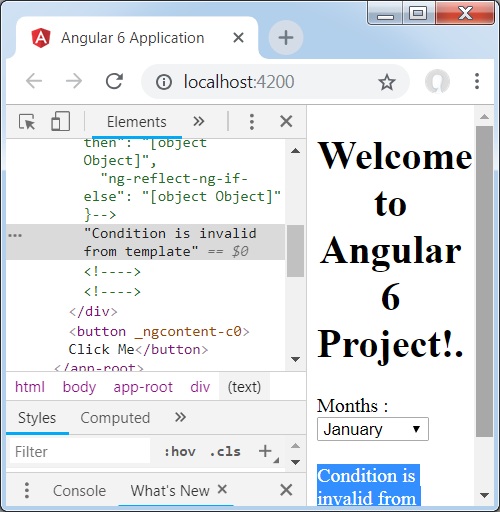
如果您檢查瀏覽器,您會發現dom中沒有span標籤。它在dom中具有Condition is invalid from template。
html中的以下程式碼行將幫助我們在dom中獲取span標籤。
<!--The content below is only a placeholder and can be replaced.-->
<div style = "text-align:center">
   <h1>
      Welcome to {{title}}.
   </h1>
</div>
<div> Months :
   <select (change) = "changemonths($event)" name = "month">
      <option *ngFor = "let i of months">{{i}}</option>
   </select>
</div>
<br/>
<div>
   <span *ngIf = "isavailable; else condition2">Condition is valid.</span>
   <ng-template #condition1>Condition is valid from template</ng-template>
   <ng-template #condition2>Condition is invalid from template</ng-template>
</div>
<button (click)="myClickFunction($event)">Click Me</button>
如果我們刪除then條件,我們將在瀏覽器中獲得"Condition is valid"訊息,並且span標籤也存在於dom中。例如,在app.component.ts中,我們將isavailable變數設定為true。

Angular 6 - 指令
Angular中的指令是一個js類,它被宣告為@directive。我們在Angular中有3個指令。指令列在下面:
元件指令
它們構成主類,其中包含有關如何在執行時處理、例項化和使用元件的詳細資訊。
結構指令
結構指令基本上處理操作dom元素。結構指令在指令前有一個*號。例如,*ngIf和*ngFor。
屬性指令
屬性指令處理更改dom元素的外觀和行為。您可以建立自己的指令,如下所示。
如何建立自定義指令?
在本節中,我們將討論將在元件中使用的自定義指令。自定義指令由我們建立,不是標準的。
讓我們看看如何建立自定義指令。我們將使用命令列建立指令。使用命令列建立指令的命令是:
ng g directive nameofthedirective
e.g
ng g directive changeText
它在命令列中顯示如下
C:\projectA6\Angular6App>ng g directive changeText
CREATE src/app/change-text.directive.spec.ts (241 bytes)
CREATE src/app/change-text.directive.ts (149 bytes)
UPDATE src/app/app.module.ts (486 bytes)
上述檔案,即change-text.directive.spec.ts和change-text.directive.ts被建立,並且app.module.ts檔案被更新。
app.module.ts
import { BrowserModule } from '@angular/platform-browser';
import { NgModule } from '@angular/core';
import { AppComponent } from './app.component';
import { NewCmpComponent } from './new-cmp/new-cmp.component';
import { ChangeTextDirective } from './change-text.directive';
@NgModule({
   declarations: [
      AppComponent,
      NewCmpComponent,
      ChangeTextDirective
   ],
   imports: [
      BrowserModule
   ],
   providers: [],
   bootstrap: [AppComponent]
})
export class AppModule { }
ChangeTextDirective類包含在上述檔案中的declarations中。該類也從下面給出的檔案中匯入。
change-text.directive
import { Directive } from '@angular/core';
@Directive({
   selector: '[appChangeText]'
})
export class ChangeTextDirective {
   constructor() { }
}
上述檔案包含一個指令,它還具有一個selector屬性。我們在selector中定義的內容必須與我們在其中分配自定義指令的檢視匹配。
在app.component.html檢視中,讓我們新增指令如下:
<div style = "text-align:center">
   <span appChangeText >Welcome to {{title}}.</span>
</div>
我們將在change-text.directive.ts檔案中編寫更改,如下所示:
change-text.directive.ts
import { Directive, ElementRef} from '@angular/core';
@Directive({
   selector: '[appChangeText]'
})
export class ChangeTextDirective {
   constructor(Element: ElementRef) {
      console.log(Element);
      Element.nativeElement.innerText = "Text is changed by changeText Directive. ";
   }
}
在上述檔案中,有一個名為ChangeTextDirective的類和一個建構函式,它接收型別為ElementRef的元素,這是必需的。該元素包含應用Change Text指令的所有詳細資訊。
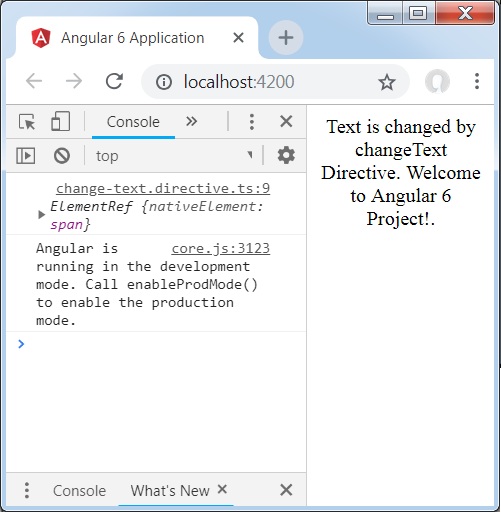
我們添加了console.log元素。可以在瀏覽器控制檯中看到它的輸出。元素的文字也如上所示更改。
現在,瀏覽器將顯示以下內容。
Angular 6 - 管道
在本章中,我們將討論Angular 6中的管道是什麼。管道在Angular 1中以前稱為過濾器,從Angular 2開始稱為管道。
| 字元用於轉換資料。以下是相同的語法
{{ Welcome to Angular 6 | lowercase}}
它接收整數、字串、陣列和日期作為輸入,以|分隔,並將其轉換為所需的格式,並在瀏覽器中顯示。
讓我們考慮一些使用管道符號的示例。
這裡,我們希望將給定的文字顯示為大寫。這可以透過使用管道符號來實現,如下所示:
在app.component.ts檔案中,我們定義了title變數:
app.component.ts
import { Component } from '@angular/core';
@Component({
   selector: 'app-root',
   templateUrl: './app.component.html',
   styleUrls: ['./app.component.css']
})
export class AppComponent {
   title = 'Angular 6 Project!';
}
以下程式碼行進入app.component.html檔案。
<b>{{title | uppercase}}</b><br/>
<b>{{title | lowercase}}</b>
瀏覽器顯示如下面的螢幕截圖所示:
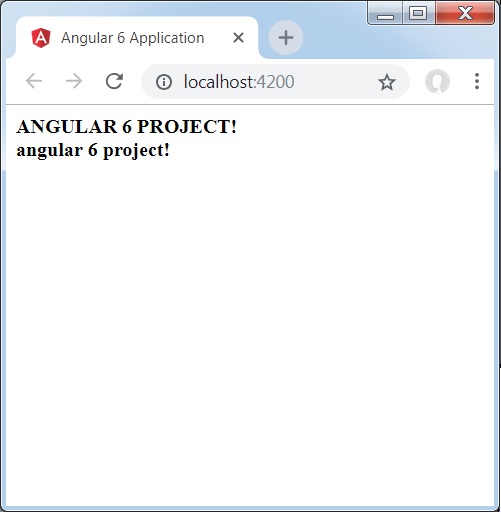
Angular 6提供了一些內建管道。這些管道列出如下:
- 小寫管道
- 大寫管道
- 日期管道
- 貨幣管道
- JSON管道
- 百分比管道
- 十進位制管道
- 切片管道
我們已經看到了小寫和大寫管道。現在讓我們看看其他管道是如何工作的。
以下程式碼行將幫助我們在app.component.ts檔案中定義所需的變數:
import { Component } from '@angular/core';
@Component({
   selector: 'app-root',
   templateUrl: './app.component.html',
   styleUrls: ['./app.component.css']
})
export class AppComponent {
   title = 'Angular 6 Project!';
   todaydate = new Date();
   jsonval = {name:'Rox', age:'25', address:{a1:'Mumbai', a2:'Karnataka'}};
   months = ["Jan", "Feb", "Mar", "April", "May", "Jun",
            "July", "Aug", "Sept", "Oct", "Nov", "Dec"];
}
我們將在app.component.html檔案中使用這些管道。
<!--The content below is only a placeholder and can be replaced.-->
<div style = "width:100%;">
   <div style = "width:40%;float:left;border:solid 1px black;">
      <h1>Uppercase Pipe</h1>
      <b>{{title | uppercase}}</b><br/>
      <h1>Lowercase Pipe</h1>
      <b>{{title | lowercase}}</b>
      <h1>Currency Pipe</h1>
      <b>{{6589.23 | currency:"USD"}}</b><br/>
      <b>{{6589.23 | currency:"USD":true}}</b> //Boolean true is used to get the sign of the currency.
      <h1>Date pipe</h1>
      <b>{{todaydate | date:'d/M/y'}}</b><br/>
      <b>{{todaydate | date:'shortTime'}}</b>
      <h1>Decimal Pipe</h1>
      <b>{{ 454.78787814 | number: '3.4-4' }}</b> // 3 is for main integer, 4 -4 are for integers to be displayed.
   </div>
   <div style = "width:40%;float:left;border:solid 1px black;">
      <h1>Json Pipe</h1>
      <b>{{ jsonval | json }}</b>
      <h1>Percent Pipe</h1>
      <b>{{00.54565 | percent}}</b>
      <h1>Slice Pipe</h1>
      <b>{{months | slice:2:6}}</b>
      // here 2 and 6 refers to the start and the end index
   </div>
</div>
以下螢幕截圖顯示了每個管道的輸出:
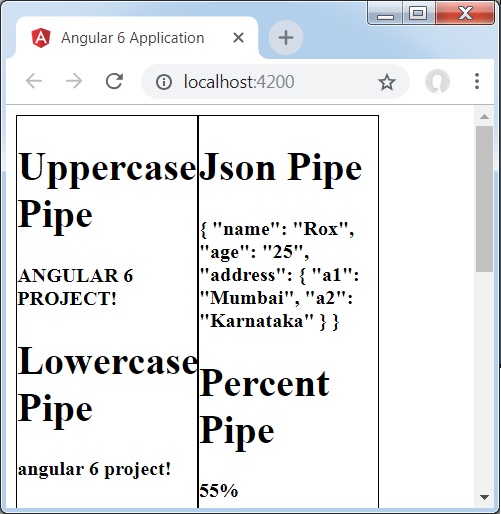
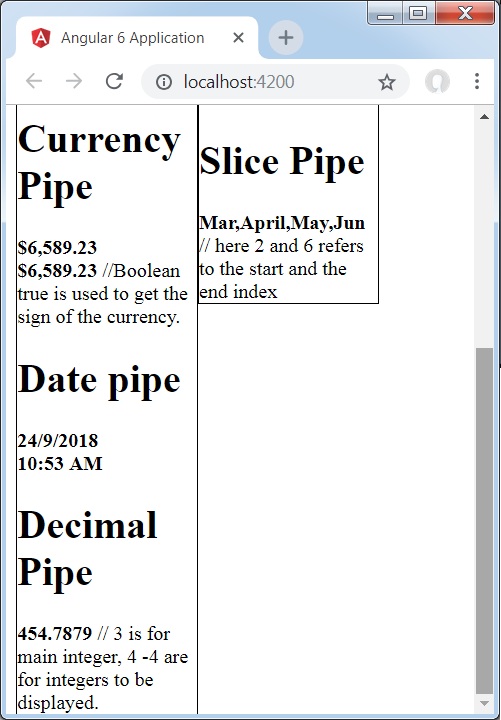
如何建立自定義管道?
要建立自定義管道,我們建立了一個新的ts檔案。這裡,我們想要建立sqrt自定義管道。我們為檔案指定了相同的名稱,它看起來如下所示:
app.sqrt.ts
import {Pipe, PipeTransform} from '@angular/core';
@Pipe ({
   name : 'sqrt'
})
export class SqrtPipe implements PipeTransform {
   transform(val : number) : number {
      return Math.sqrt(val);
   }
}
要建立自定義管道,我們必須從Angular/core中匯入Pipe和PipeTransform。在@Pipe指令中,我們必須為我們的管道命名,這將在我們的.html檔案中使用。由於我們正在建立sqrt管道,因此我們將將其命名為sqrt。
隨著我們繼續,我們必須建立類,類名為SqrtPipe。此類將實現PipeTransform。
在類中定義的transform方法將以數字作為引數,並在獲取平方根後返回該數字。
由於我們建立了一個新檔案,因此我們需要在app.module.ts中新增它。操作如下所示:
import { BrowserModule } from '@angular/platform-browser';
import { NgModule } from '@angular/core';
import { AppComponent } from './app.component';
import { NewCmpComponent } from './new-cmp/new-cmp.component';
import { ChangeTextDirective } from './change-text.directive';
import { SqrtPipe } from './app.sqrt';
@NgModule({
   declarations: [
      SqrtPipe,
      AppComponent,
      NewCmpComponent,
      ChangeTextDirective
   ],
   imports: [
      BrowserModule
   ],
   providers: [],
   bootstrap: [AppComponent]
})
export class AppModule { }
我們建立了app.sqrt.ts類。我們必須在app.module.ts中匯入它並指定檔案路徑。它也必須包含在宣告中,如上所示。
現在讓我們看看在app.component.html檔案中對sqrt管道的呼叫。
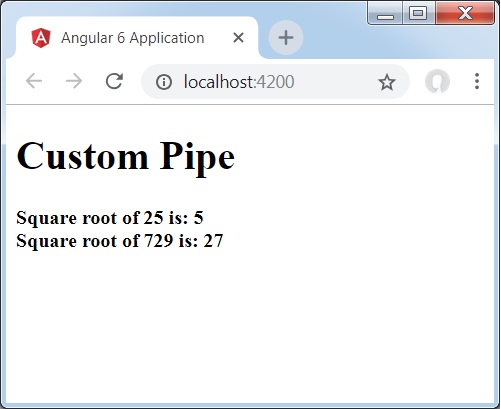
<h1>Custom Pipe</h1>
<b>Square root of 25 is: {{25 | sqrt}}</b>
<br/>
<b>Square root of 729 is: {{729 | sqrt}}</b>
輸出如下所示:
Angular 6 - 路由
路由基本上意味著在頁面之間導航。您已經看到許多網站包含指向新頁面的連結。這可以透過使用路由來實現。這裡我們所指的頁面將以元件的形式存在。我們已經看到了如何建立元件。現在讓我們建立一個元件,並看看如何使用路由。
在主父元件app.module.ts中,我們現在必須包含路由模組,如下所示:
import { BrowserModule } from '@angular/platform-browser';
import { NgModule } from '@angular/core';
import { RouterModule} from '@angular/router';
import { AppComponent } from './app.component';
import { NewCmpComponent } from './new-cmp/new-cmp.component';
import { ChangeTextDirective } from './change-text.directive';
import { SqrtPipe } from './app.sqrt';
@NgModule({
   declarations: [
      SqrtPipe,
      AppComponent,
      NewCmpComponent,
      ChangeTextDirective
   ],
   imports: [
      BrowserModule,
      RouterModule.forRoot([
         {
            path: 'new-cmp',
            component: NewCmpComponent
         }
      ])
   ],
   providers: [],
   bootstrap: [AppComponent]
})
export class AppModule { }
import { RouterModule} from '@angular/router'
這裡,RouterModule是從angular/router匯入的。該模組包含在匯入中,如下所示:
RouterModule.forRoot([
   {
      path: 'new-cmp',
      component: NewCmpComponent
   }
])
RouterModule引用forRoot,它以陣列作為輸入,陣列又包含路徑和元件的物件。路徑是路由器的名稱,元件是類的名稱,即建立的元件。
現在讓我們看看建立的元件檔案:
New-cmp.component.ts
import { Component, OnInit } from '@angular/core';
@Component({
   selector: 'app-new-cmp',
   templateUrl: './new-cmp.component.html',
   styleUrls: ['./new-cmp.component.css']
})
export class NewCmpComponent implements OnInit {
   newcomponent = "Entered in new component created";
   constructor() {}
   ngOnInit() { }
}
突出顯示的類在主模組的匯入中提到。
New-cmp.component.html
<p>
   {{newcomponent}}
</p>

<p>
   new-cmp works!
</p>
現在,我們需要在需要時或從主模組單擊時顯示html檔案中的上述內容。為此,我們需要在app.component.html中新增路由詳細資訊。
<h1>Custom Pipe</h1>
<b>Square root of 25 is: {{25 | sqrt}}</b><br/>
<b>Square root of 729 is: {{729 | sqrt}}</b>
<br />
<br />
<br />
<a routerLink = "new-cmp">New component</a>
<br />
<br/>
<router-outlet></router-outlet>
在上面的程式碼中,我們建立了錨鏈接標籤,並將routerLink設定為"new-cmp"。這在app.module.ts中被引用為路徑。
當用戶點選new component時,頁面應該顯示內容。為此,我們需要以下標籤 - <router-outlet> </router-outlet>。
上述標籤確保當用戶點選new component時,new-cmp.component.html中的內容將顯示在頁面上。
現在讓我們看看輸出如何在瀏覽器中顯示。
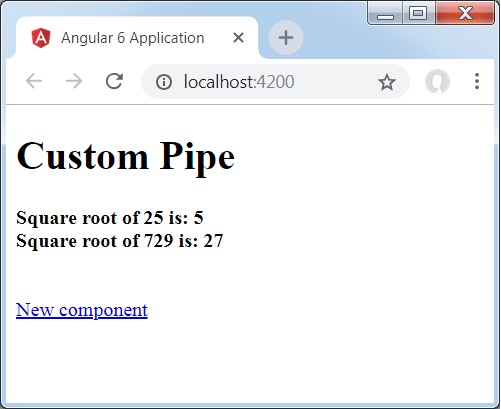
當用戶點選New component時,您將在瀏覽器中看到以下內容。

url包含https://:4200/new-cmp。這裡,new-cmp被附加到原始url,這是在app.module.ts中給出的路徑和app.component.html中的router-link。
當用戶點選New component時,頁面不會重新整理,內容在沒有重新載入的情況下顯示給使用者。只有在點選時,站點程式碼的特定部分才會重新載入。當頁面上有大量內容並且需要根據使用者互動載入時,此功能很有幫助。此功能還提供了良好的使用者體驗,因為頁面不會重新載入。
Angular 6 - 服務
在本章中,我們將討論Angular 6中的服務。
我們可能會遇到需要在頁面上任何位置使用某些程式碼的情況。它可以用於需要在元件之間共享的資料連線等。服務幫助我們實現這一點。使用服務,我們可以訪問整個專案中其他元件的各個方法和屬性。
要建立服務,我們需要使用命令列。相應的命令是:
C:\projectA6\Angular6App>ng g service myservice
CREATE src/app/myservice.service.spec.ts (392 bytes)
CREATE src/app/myservice.service.ts (138 bytes)
檔案在app資料夾中建立如下:
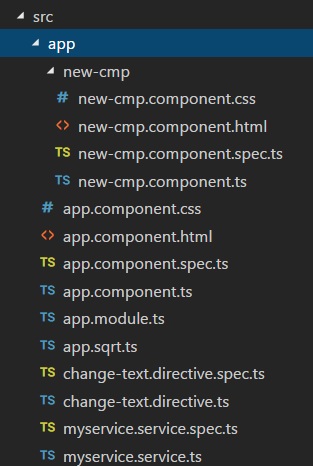
以下是底部建立的檔案 - myservice.service.specs.ts和myservice.service.ts。
myservice.service.ts
import { Injectable } from '@angular/core';
@Injectable()
export class MyserviceService {
   constructor() { }
}
這裡,Injectable模組是從@angular/core匯入的。它包含@Injectable方法和一個名為MyserviceService的類。我們將在此類中建立服務函式。
在建立新服務之前,我們需要在主父app.module.ts中包含建立的服務。
import { BrowserModule } from '@angular/platform-browser';
import { NgModule } from '@angular/core';
import { RouterModule} from '@angular/router';
import { AppComponent } from './app.component';
import { MyserviceService } from './myservice.service';
import { NewCmpComponent } from './new-cmp/new-cmp.component';
import { ChangeTextDirective } from './change-text.directive';
import { SqrtPipe } from './app.sqrt';
@NgModule({
   declarations: [
      SqrtPipe,
      AppComponent,
      NewCmpComponent,
      ChangeTextDirective
   ],
   imports: [
      BrowserModule,
      RouterModule.forRoot([
         {
            path: 'new-cmp',
            component: NewCmpComponent
         }
      ])
   ],
   providers: [MyserviceService],
   bootstrap: [AppComponent]
})
export class AppModule { }
我們已經匯入了帶有類名的服務,並在提供程式中使用了相同的類。現在讓我們切換回服務類並建立一個服務函式。
在服務類中,我們將建立一個函式來顯示今天的日期。我們可以在主父元件app.component.ts以及我們在上一章中建立的新元件new-cmp.component.ts中使用相同的函式。
現在讓我們看看函式在服務中的樣子以及如何在元件中使用它。
import { Injectable } from '@angular/core';
@Injectable()
export class MyserviceService {
   constructor() { }
   showTodayDate() {
      let ndate = new Date();
      return ndate;
   }
}
在上面的服務檔案中,我們建立了一個函式showTodayDate。現在我們將返回建立的新Date()。讓我們看看如何在元件類中訪問此函式。
app.component.ts
import { Component } from '@angular/core';
import { MyserviceService } from './myservice.service';
@Component({
   selector: 'app-root',
   templateUrl: './app.component.html',
   styleUrls: ['./app.component.css']
})
export class AppComponent {
   title = 'Angular 6 Project!';
   todaydate;
   constructor(private myservice: MyserviceService) {}
   ngOnInit() {
      this.todaydate = this.myservice.showTodayDate();
   }
}
ngOnInit函式在建立的任何元件中預設呼叫。日期從服務中獲取,如上所示。要獲取服務的更多詳細資訊,我們需要首先在元件ts檔案中包含該服務。
我們將在.html檔案中顯示日期,如下所示:
{{todaydate}}
<app-new-cmp></app-new-cmp>
// data to be displayed to user from the new component class.
現在讓我們看看如何在建立的新元件中使用服務。
import { Component, OnInit } from '@angular/core';
import { MyserviceService } from './../myservice.service';
@Component({
   selector: 'app-new-cmp',
   templateUrl: './new-cmp.component.html',
   styleUrls: ['./new-cmp.component.css']
})
export class NewCmpComponent implements OnInit {
   todaydate;
   newcomponent = "Entered in new component created";
   constructor(private myservice: MyserviceService) {}
   ngOnInit() {
      this.todaydate = this.myservice.showTodayDate();
   }
}
在我們建立的新元件中,我們需要首先匯入我們想要的服務並訪問其方法和屬性。請參見突出顯示的程式碼。todaydate在元件html中顯示如下:
<p>
   {{newcomponent}}
</p>
<p>
   Today's Date : {{todaydate}}
</p>
新元件的選擇器用於app.component.html檔案中。來自上面html檔案的內容將在瀏覽器中顯示,如下所示:
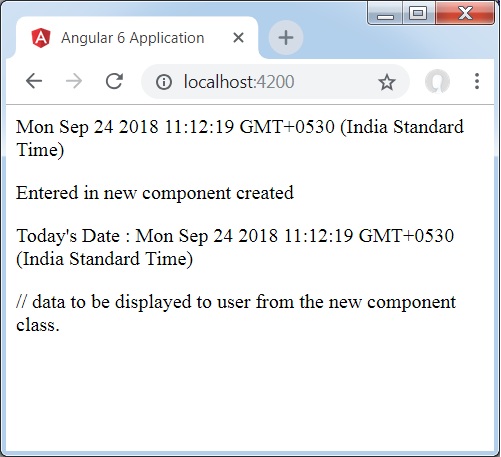
如果您更改任何元件中服務的屬性,則其他元件中的相同屬性也會更改。現在讓我們看看它是如何工作的。
我們將在服務中定義一個變數,並在父元件和新元件中使用它。我們將在父元件中再次更改變數的值,並檢視它是否在新元件中也更改了。
在myservice.service.ts中,我們建立了一個屬性並在其他父元件和新元件中使用了它。
import { Injectable } from '@angular/core';
@Injectable()
export class MyserviceService {
   serviceproperty = "Service Created";
   constructor() { }
   showTodayDate() {
      let ndate = new Date();
      return ndate;
   }
}
現在讓我們在其他元件中使用serviceproperty變數。在app.component.ts中,我們訪問變數的方式如下:
import { Component } from '@angular/core';
import { MyserviceService } from './myservice.service';
@Component({
   selector: 'app-root',
   templateUrl: './app.component.html',
   styleUrls: ['./app.component.css']
})
export class AppComponent {
   title = 'Angular 4 Project!';
   todaydate;
   componentproperty;
   constructor(private myservice: MyserviceService) {}
   ngOnInit() {
      this.todaydate = this.myservice.showTodayDate();
      console.log(this.myservice.serviceproperty);
      this.myservice.serviceproperty = "component created"; // value is changed.
      this.componentproperty = this.myservice.serviceproperty;
   }
}
我們現在將獲取變數並在console.log中使用它。在下一行,我們將變數的值更改為"component created"。我們將在new-cmp.component.ts中執行相同的操作。
import { Component, OnInit } from '@angular/core';
import { MyserviceService } from './../myservice.service';
@Component({
   selector: 'app-new-cmp',
   templateUrl: './new-cmp.component.html',
   styleUrls: ['./new-cmp.component.css']
})
export class NewCmpComponent implements OnInit {
   todaydate;
   newcomponentproperty;
   newcomponent = "Entered in newcomponent";
   constructor(private myservice: MyserviceService) {}
   ngOnInit() {
      this.todaydate = this.myservice.showTodayDate();
      this.newcomponentproperty = this.myservice.serviceproperty;
   }
}
在上面的元件中,我們沒有更改任何內容,而是直接將屬性分配給元件屬性。
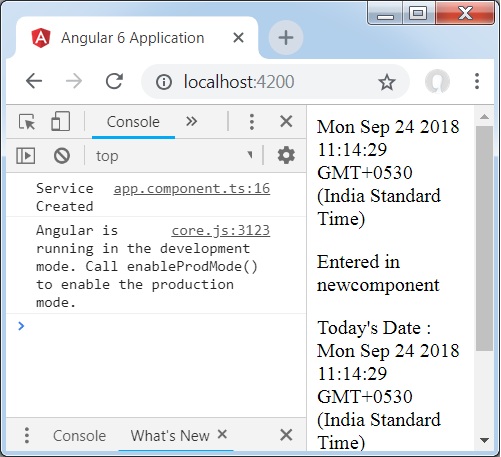
現在,當您在瀏覽器中執行它時,服務屬性將被更改,因為它的值在app.component.ts中被更改,並且new-cmp.component.ts將顯示相同的內容。
在更改之前,還要檢查控制檯中的值。
Angular 6 - Http 服務
Http服務將幫助我們獲取外部資料、向其釋出資料等。我們需要匯入http模組才能使用http服務。讓我們考慮一個示例來了解如何使用http服務。
要開始使用http服務,我們需要在app.module.ts中匯入模組,如下所示:
import { BrowserModule } from '@angular/platform-browser';
import { NgModule } from '@angular/core';
import { BrowserAnimationsModule } from '@angular/platform-browser/animations';
import { HttpModule } from '@angular/http';
import { AppComponent } from './app.component';
@NgModule({
   declarations: [
      AppComponent
   ],
   imports: [
      BrowserModule,
      BrowserAnimationsModule,
      HttpModule
   ],
   providers: [],
   bootstrap: [AppComponent]
})
export class AppModule { }
如果您看到突出顯示的程式碼,我們已經從@angular/http匯入HttpModule,並且它也新增到匯入陣列中。
現在讓我們在app.component.ts中使用http服務。
import { Component } from '@angular/core';
import { Http } from '@angular/http';
import 'rxjs/add/operator/map';
@Component({
   selector: 'app-root',
   templateUrl: './app.component.html',
   styleUrls: ['./app.component.css']
})
export class AppComponent {
   constructor(private http: Http) { }
   ngOnInit() {
      this.http.get("http://jsonplaceholder.typicode.com/users").
      map((response) ⇒ response.json()).
      subscribe((data) ⇒ console.log(data))
   }
}
讓我們理解上面突出顯示的程式碼。我們需要匯入http才能使用該服務,操作如下:
import { Http } from '@angular/http';
在類AppComponent中,建立了一個建構函式和型別為Http的私有變數http。要獲取資料,我們需要使用http提供的get API,如下所示
this.http.get();
它將要獲取的url作為引數,如程式碼所示。
我們將使用測試url - https://jsonplaceholder.typicode.com/users來獲取json資料。在獲取的url資料上執行兩個操作:map和subscribe。Map方法有助於將資料轉換為json格式。要使用map,我們需要匯入它,如下所示:
import {map} from 'rxjs/operators';
Map完成後,subscribe將在控制檯中記錄輸出,如瀏覽器中所示:
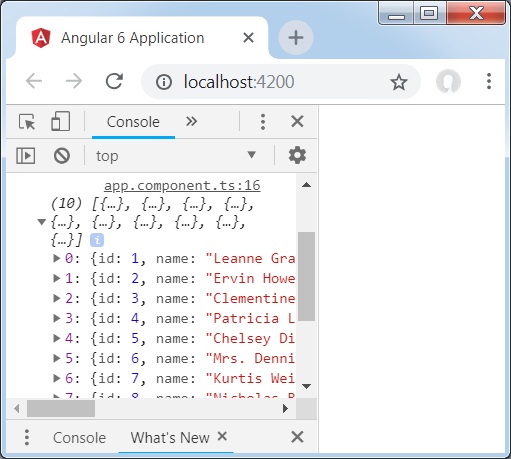
如果您看到,json物件顯示在控制檯中。這些物件也可以在瀏覽器中顯示。
要使物件在瀏覽器中顯示,請在app.component.html和app.component.ts中更新程式碼,如下所示:
import { Component } from '@angular/core';
import { Http } from '@angular/http';
import { map} from 'rxjs/operators';
@Component({
   selector: 'app-root',
   templateUrl: './app.component.html',
   styleUrls: ['./app.component.css']
})
export class AppComponent {
   constructor(private http: Http) { }
   httpdata;
   ngOnInit() {
      this.http.get("http://jsonplaceholder.typicode.com/users")
      .pipe(map((response) => response.json()))
      .subscribe((data) => this.displaydata(data));
   }
   displaydata(data) {this.httpdata = data;}
}
在app.component.ts中,使用subscribe方法,我們將呼叫display data方法並將獲取的資料作為引數傳遞給它。
在display data方法中,我們將資料儲存在一個名為httpdata的變數中。使用for迴圈在瀏覽器中顯示此httpdata變數中的資料,這在app.component.html檔案中完成。
<ul *ngFor = "let data of httpdata">
   <li>Name : {{data.name}} Address: {{data.address.city}}</li>
</ul>
json物件如下所示:
{
   "id": 1,
   "name": "Leanne Graham",
   "username": "Bret",
   "email": "Sincere@april.biz",

   "address": {
      "street": "Kulas Light",
      "suite": "Apt. 556",
      "city": "Gwenborough",
      "zipcode": "92998-3874",
      "geo": {
         "lat": "-37.3159",
         "lng": "81.1496"
      }
   },

   "phone": "1-770-736-8031 x56442",
   "website": "hildegard.org",
   "company": {
      "name": "Romaguera-Crona",
      "catchPhrase": "Multi-layered client-server neural-net",
      "bs": "harness real-time e-markets"
   }
}
該物件具有id、name、username、email和address等屬性,address內部包含street、city等,以及與phone、website和company相關的其他詳細資訊。使用for迴圈,我們將在瀏覽器中顯示name和city詳細資訊,如app.component.html檔案中所示。
瀏覽器中顯示的方式如下:
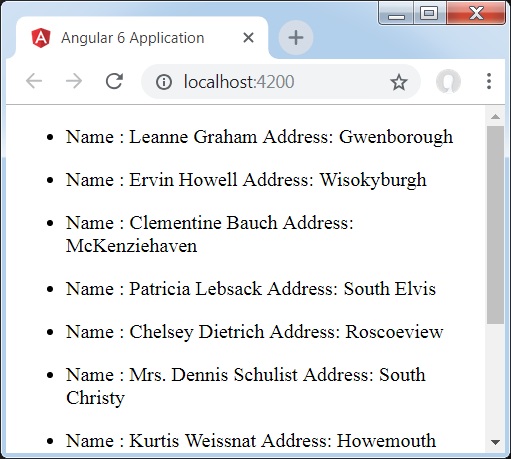
現在讓我們新增搜尋引數,它將根據特定資料進行過濾。我們需要根據傳遞的搜尋引數獲取資料。
以下是app.component.html和app.component.ts檔案中所做的更改:
app.component.ts
import { Component } from '@angular/core';
import { Http } from '@angular/http';
import { map} from 'rxjs/operators';
@Component({
   selector: 'app-root',
   templateUrl: './app.component.html',
   styleUrls: ['./app.component.css']
})
export class AppComponent {
   constructor(private http: Http) { }
   httpdata;
   name;
   searchparam = 2;
   ngOnInit() {
      this.http.get("http://jsonplaceholder.typicode.com/users?id="+this.searchparam)
      .pipe(map((response) => response.json()))
      .subscribe((data) => this.displaydata(data));
   }
   displaydata(data) {this.httpdata = data;}
}
對於get api,我們將新增搜尋引數id = this.searchparam。searchparam等於2。我們需要json檔案中id = 2的詳細資訊。
瀏覽器顯示方式如下:
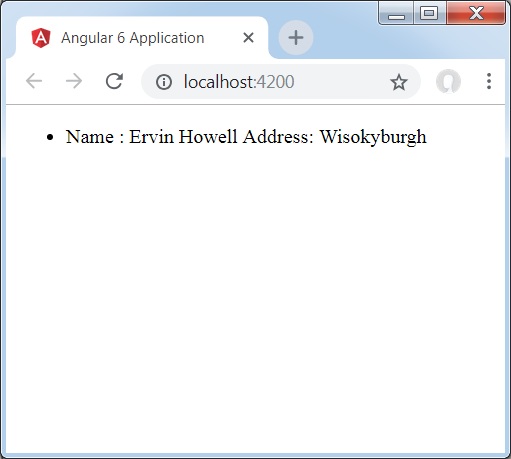
我們在瀏覽器中控制檯輸出了從http接收到的資料。它也在瀏覽器控制檯中顯示。瀏覽器中顯示了json中id = 2的name。
Angular 6 - Http 客戶端
HttpClient是在Angular 6中引入的,它將幫助我們獲取外部資料、向其釋出資料等。我們需要匯入http模組才能使用http服務。讓我們考慮一個示例來了解如何使用http服務。
要開始使用http服務,我們需要在app.module.ts中匯入模組,如下所示:
import { BrowserModule } from '@angular/platform-browser';
import { NgModule } from '@angular/core';
import { BrowserAnimationsModule } from '@angular/platform-browser/animations';
import { HttpClientModule } from '@angular/common/http';
import { AppComponent } from './app.component';
@NgModule({
   declarations: [
      AppComponent
   ],
   imports: [
      BrowserModule,
      BrowserAnimationsModule,
      HttpClientModule
   ],
   providers: [],
   bootstrap: [AppComponent]
})
export class AppModule { }
如果您看到突出顯示的程式碼,我們已經從@angular/common/http匯入HttpClientModule,並且它也新增到匯入陣列中。
現在讓我們在app.component.ts中使用http客戶端。
import { Component } from '@angular/core';
import { HttpClient } from '@angular/common/http';
@Component({
   selector: 'app-root',
   templateUrl: './app.component.html',
   styleUrls: ['./app.component.css']
})
export class AppComponent {
   constructor(private http: HttpClient) { }
   ngOnInit() {
      this.http.get("http://jsonplaceholder.typicode.com/users").
      subscribe((data) ⇒ console.log(data))
   }
}
讓我們理解上面突出顯示的程式碼。我們需要匯入http才能使用該服務,操作如下:
import { HttpClient } from '@angular/common/http';
在類AppComponent中,建立了一個建構函式和型別為Http的私有變數http。要獲取資料,我們需要使用http提供的get API,如下所示
this.http.get();
它將要獲取的url作為引數,如程式碼所示。
我們將使用測試網址 − https://jsonplaceholder.typicode.com/users 來獲取 JSON 資料。訂閱將在控制檯中記錄輸出,如瀏覽器中所示 −
如果您看到,json物件顯示在控制檯中。這些物件也可以在瀏覽器中顯示。
要使物件在瀏覽器中顯示,請在app.component.html和app.component.ts中更新程式碼,如下所示:
import { Component } from '@angular/core';
import { HttpClient } from '@angular/common/http';
@Component({
   selector: 'app-root',
   templateUrl: './app.component.html',
   styleUrls: ['./app.component.css']
})
export class AppComponent {
   constructor(private http: HttpClient) { }
   httpdata;
   ngOnInit() {
      this.http.get("http://jsonplaceholder.typicode.com/users")
      .subscribe((data) => this.displaydata(data));
   }
   displaydata(data) {this.httpdata = data;}
}
在app.component.ts中,使用subscribe方法,我們將呼叫display data方法並將獲取的資料作為引數傳遞給它。
在display data方法中,我們將資料儲存在一個名為httpdata的變數中。使用for迴圈在瀏覽器中顯示此httpdata變數中的資料,這在app.component.html檔案中完成。
<ul *ngFor = "let data of httpdata">
   <li>Name : {{data.name}} Address: {{data.address.city}}</li>
</ul>
json物件如下所示:
{
   "id": 1,
   "name": "Leanne Graham",
   "username": "Bret",
   "email": "Sincere@april.biz",

   "address": {
      "street": "Kulas Light",
      "suite": "Apt. 556",
      "city": "Gwenborough",
      "zipcode": "92998-3874",
      "geo": {
         "lat": "-37.3159",
         "lng": "81.1496"
      }
   },

   "phone": "1-770-736-8031 x56442",
   "website": "hildegard.org",
   "company": {
      "name": "Romaguera-Crona",
      "catchPhrase": "Multi-layered client-server neural-net",
      "bs": "harness real-time e-markets"
   }
}
該物件具有id、name、username、email和address等屬性,address內部包含street、city等,以及與phone、website和company相關的其他詳細資訊。使用for迴圈,我們將在瀏覽器中顯示name和city詳細資訊,如app.component.html檔案中所示。
瀏覽器中顯示的方式如下:
現在讓我們新增搜尋引數,它將根據特定資料進行過濾。我們需要根據傳遞的搜尋引數獲取資料。
以下是app.component.html和app.component.ts檔案中所做的更改:
app.component.ts
import { Component } from '@angular/core';
import { HttpClient } from '@angular/common/http';
@Component({
   selector: 'app-root',
   templateUrl: './app.component.html',
   styleUrls: ['./app.component.css']
})
export class AppComponent {
   constructor(private http: HttpClient) { }
   httpdata;
   name;
   searchparam = 2;
   ngOnInit() {
      this.http.get("http://jsonplaceholder.typicode.com/users?id="+this.searchparam)
      .subscribe((data) => this.displaydata(data));
   }
   displaydata(data) {this.httpdata = data;}
}
對於get api,我們將新增搜尋引數id = this.searchparam。searchparam等於2。我們需要json檔案中id = 2的詳細資訊。
瀏覽器顯示方式如下:
我們在瀏覽器中控制檯輸出了從http接收到的資料。它也在瀏覽器控制檯中顯示。瀏覽器中顯示了json中id = 2的name。
Angular 6 - 表單
在本章中,我們將瞭解如何在 Angular 6 中使用表單。我們將討論兩種處理表單的方式 - 模板驅動表單和模型驅動表單。
模板驅動表單
對於模板驅動表單,大部分工作都在模板中完成;而對於模型驅動表單,大部分工作都在元件類中完成。
現在讓我們考慮在模板驅動表單上工作。我們將建立一個簡單的登入表單,並在表單中新增電子郵件 ID、密碼和提交按鈕。首先,我們需要從@angular/core匯入 FormsModule,這在app.module.ts中完成,如下所示 −
import { BrowserModule } from '@angular/platform-browser';
import { NgModule } from '@angular/core';
import { RouterModule} from '@angular/router';
import { HttpModule } from '@angular/http';
import { FormsModule } from '@angular/forms';
import { AppComponent } from './app.component';
import { MyserviceService } from './myservice.service';
import { NewCmpComponent } from './new-cmp/new-cmp.component';
import { ChangeTextDirective } from './change-text.directive';
import { SqrtPipe } from './app.sqrt';
@NgModule({
   declarations: [
      SqrtPipe,
      AppComponent,
      NewCmpComponent,
      ChangeTextDirective
   ],
   imports: [
      BrowserModule,
      HttpModule,
      FormsModule,
      RouterModule.forRoot([
         {path: 'new-cmp',component: NewCmpComponent}
      ])
   ],
   providers: [MyserviceService],
   bootstrap: [AppComponent]
})
export class AppModule { }
因此,在app.module.ts中,我們匯入了 FormsModule,並在 imports 陣列中添加了它,如突出顯示的程式碼所示。
現在讓我們在app.component.html檔案中建立表單。
<form #userlogin = "ngForm" (ngSubmit) = "onClickSubmit(userlogin.value)" >
   <input type = "text" name = "emailid" placeholder = "emailid" ngModel>
   <br/>
   <input type = "password" name = "passwd" placeholder = "passwd" ngModel>
   <br/>
   <input type = "submit" value = "submit">
</form>
我們建立了一個簡單的表單,其中包含具有電子郵件 ID、密碼和提交按鈕的輸入標籤。我們已為其分配了型別、名稱和佔位符。
在模板驅動表單中,我們需要透過新增ngModel指令和name屬性來建立模型表單控制元件。因此,在任何我們希望 Angular 從表單中訪問我們的資料的地方,都向該標籤新增 ngModel,如上所示。現在,如果我們必須讀取 emailid 和 passwd,我們需要在它們上面新增 ngModel。
如果看到,我們還在#userlogin中添加了 ngForm。ngForm指令需要新增到我們建立的表單模板中。我們還添加了函式onClickSubmit並將其分配給userlogin.value。
現在讓我們在app.component.ts中建立函式並獲取在表單中輸入的值。
import { Component } from '@angular/core';
import { MyserviceService } from './myservice.service';
@Component({
   selector: 'app-root',
   templateUrl: './app.component.html',
   styleUrls: ['./app.component.css']
})
export class AppComponent {
   title = 'Angular 6 Project!';
   todaydate;
   componentproperty;
   constructor(private myservice: MyserviceService) { }
   ngOnInit() {
      this.todaydate = this.myservice.showTodayDate();
   }
   onClickSubmit(data) {
      alert("Entered Email id : " + data.emailid);
   }
}
在上面的app.component.ts檔案中,我們定義了函式 onClickSubmit。當單擊表單提交按鈕時,控制權將轉到上述函式。
瀏覽器顯示方式如下:

表單如下所示。讓我們在其中輸入資料,並在提交函式中,電子郵件 ID 已經輸入。
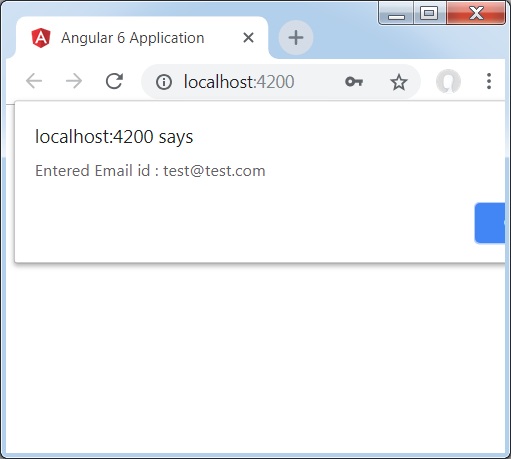
電子郵件 ID 顯示在底部,如上圖所示。
模型驅動表單
在模型驅動表單中,我們需要從 @angular/forms 匯入 ReactiveFormsModule,並在 imports 陣列中使用它。
app.module.ts中會有一些更改。
import { BrowserModule } from '@angular/platform-browser';
import { NgModule } from '@angular/core';
import { RouterModule} from '@angular/router';
import { HttpModule } from '@angular/http';
import { ReactiveFormsModule } from '@angular/forms';
import { AppComponent } from './app.component';
import { MyserviceService } from './myservice.service';
import { NewCmpComponent } from './new-cmp/new-cmp.component';
import { ChangeTextDirective } from './change-text.directive';
import { SqrtPipe } from './app.sqrt';
@NgModule({
   declarations: [
      SqrtPipe,
      AppComponent,
      NewCmpComponent,
      ChangeTextDirective
   ],
   imports: [
      BrowserModule,
      HttpModule,
      ReactiveFormsModule,
      RouterModule.forRoot([
         {
            path: 'new-cmp',
            component: NewCmpComponent
         }
      ])
   ],
   providers: [MyserviceService],
   bootstrap: [AppComponent]
})
export class AppModule { }
在app.component.ts中,我們需要為模型驅動表單匯入一些模組。例如,import { FormGroup, FormControl } from '@angular/forms'。
import { Component } from '@angular/core';
import { MyserviceService } from './myservice.service';
import { FormGroup, FormControl } from '@angular/forms';
@Component({
   selector: 'app-root',
   templateUrl: './app.component.html',
   styleUrls: ['./app.component.css']
})
export class AppComponent {
   title = 'Angular 6 Project!';
   todaydate;
   componentproperty;
   emailid;
   formdata;
   constructor(private myservice: MyserviceService) { }
   ngOnInit() {
      this.todaydate = this.myservice.showTodayDate();
      this.formdata = new FormGroup({
         emailid: new FormControl("angular@gmail.com"),
         passwd: new FormControl("abcd1234")
      });
   }
   onClickSubmit(data) {this.emailid = data.emailid;}
}
變數 formdata 在類的開頭初始化,並如上所示初始化為 FormGroup。變數 emailid 和 passwd 初始化為預設值,以便在表單中顯示。如果需要,可以將其保留為空。
表單 UI 中將顯示這些值。
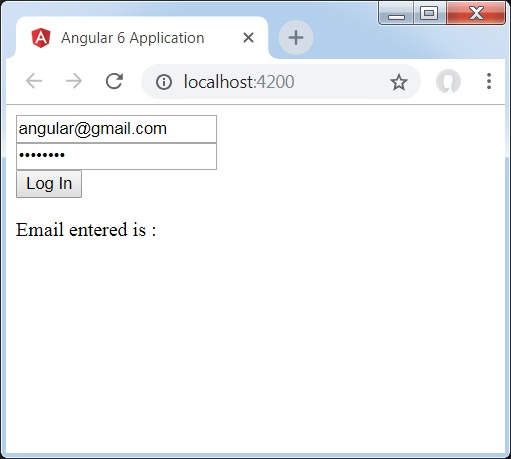
我們使用 formdata 初始化表單值;我們需要在表單 UI app.component.html中使用它。
<div>
   <form [formGroup] = "formdata" (ngSubmit) = "onClickSubmit(formdata.value)" >
      <input type = "text" class = "fortextbox" name = "emailid" placeholder = "emailid"
         formControlName="emailid">
      <br/>

      <input type = "password" class = "fortextbox" name="passwd"
         placeholder = "passwd" formControlName = "passwd">
      <br/>

      <input type = "submit" class = "forsubmit" value = "Log In">
   </form>
</div>
<p>
   Email entered is : {{emailid}}
</p>
在 .html 檔案中,我們使用了方括號中的 formGroup 用於表單;例如,[formGroup]="formdata"。提交時,呼叫函式onClickSubmit並傳遞formdata.value。
使用了輸入標籤formControlName。它被賦予了一個我們在app.component.ts檔案中使用的值。
單擊提交後,控制權將傳遞給函式onClickSubmit,該函式在app.component.ts檔案中定義。
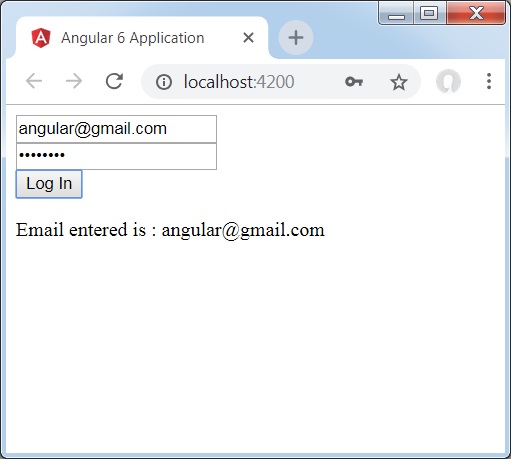
單擊登入後,將顯示該值,如上圖所示。
表單驗證
現在讓我們討論使用模型驅動表單進行表單驗證。可以使用內建的表單驗證,也可以使用自定義驗證方法。我們將在表單中使用這兩種方法。我們將繼續使用我們在前面章節中建立的相同示例。在 Angular 4 中,我們需要從@angular/forms匯入 Validators,如下所示 −
import { FormGroup, FormControl, Validators} from '@angular/forms'
Angular 具有內建的驗證器,例如必填欄位、最小長度、最大長度和模式。這些可以透過 Validators 模組訪問。
只需新增驗證器或所需驗證器的陣列即可告訴 Angular 特定欄位是否為必填欄位。
現在讓我們在一個輸入文字框(即電子郵件 ID)上嘗試相同操作。對於電子郵件 ID,我們添加了以下驗證引數 −
- 必填
- 模式匹配
這是app.component.ts中程式碼如何進行驗證的。
import { Component } from '@angular/core';
import { FormGroup, FormControl, Validators} from '@angular/forms';
@Component({
   selector: 'app-root',
   templateUrl: './app.component.html',
   styleUrls: ['./app.component.css']
})
export class AppComponent {
   title = 'Angular 6 Project!';
   todaydate;
   componentproperty;
   emailid;
   formdata;
   ngOnInit() {
      this.formdata = new FormGroup({
         emailid: new FormControl("", Validators.compose([
            Validators.required,
            Validators.pattern("[^ @]*@[^ @]*")
         ])),
         passwd: new FormControl("")
      });
   }
   onClickSubmit(data) {this.emailid = data.emailid;}
}
在Validators.compose中,可以新增要在輸入欄位上驗證的事項列表。現在,我們添加了必填和模式匹配引數,以便僅接受有效的電子郵件。
在app.component.html中,如果任何表單輸入無效,則提交按鈕將被停用。操作方法如下 −
<div>
   <form [formGroup] = "formdata" (ngSubmit) = "onClickSubmit(formdata.value)" >
      <input type = "text" class = "fortextbox" name = "emailid" placeholder = "emailid"
         formControlName = "emailid">
      <br/>
      <input type = "password" class = "fortextbox" name = "passwd"
         placeholder = "passwd" formControlName = "passwd">
      <br/>
      <input type = "submit" [disabled] = "!formdata.valid" class = "forsubmit"
         value = "Log In">
   </form>
</div>
<p>
   Email entered is : {{emailid}}
</p>
對於提交按鈕,我們在方括號中添加了 disabled,該值設定為 - !formdata.valid。因此,如果 formdata.valid 無效,則按鈕將保持停用狀態,使用者將無法提交它。
讓我們看看它在瀏覽器中的工作方式 −
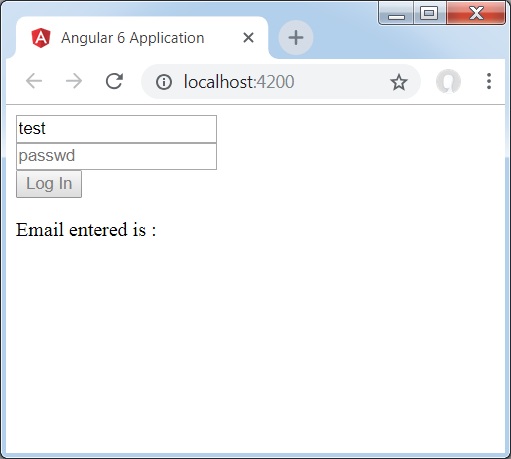
在上述情況下,輸入的電子郵件 ID 無效,因此登入按鈕被停用。現在讓我們嘗試輸入有效的電子郵件 ID 並檢視區別。

現在,輸入的電子郵件 ID 有效。因此,我們可以看到登入按鈕已啟用,使用者將能夠提交它。這樣,輸入的電子郵件 ID 將顯示在底部。
現在讓我們嘗試使用相同的表單進行自定義驗證。對於自定義驗證,我們可以定義自己的自定義函式並在其中新增所需詳細資訊。現在我們將看到一個示例。
import { Component } from '@angular/core';
import { FormGroup, FormControl, Validators} from '@angular/forms';
@Component({
   selector: 'app-root',
   templateUrl: './app.component.html',
   styleUrls: ['./app.component.css']
})
export class AppComponent {
   title = 'Angular 6 Project!';
   todaydate;
   componentproperty;
   emailid;
   formdata;
   ngOnInit() {
      this.formdata = new FormGroup({
         emailid: new FormControl("", Validators.compose([
            Validators.required,
            Validators.pattern("[^ @]*@[^ @]*")
         ])),
         passwd: new FormControl("", this.passwordvalidation)
      });
   }
   passwordvalidation(formcontrol) {
      if (formcontrol.value.length < 5) {
         return {"passwd" : true};
      }
   }
   onClickSubmit(data) {this.emailid = data.emailid;}
}
在上面的示例中,我們建立了一個函式password validation,並在表單控制元件中使用了它 - passwd: new FormControl("", this.passwordvalidation)。
在我們建立的函式中,我們將檢查輸入字元的長度是否合適。如果字元少於五個,它將返回 passwd 為 true,如上所示 - return {"passwd" : true};。如果字元多於五個,則將其視為有效,並且登入將被啟用。
現在讓我們看看它在瀏覽器中的顯示方式 −

我們在密碼中只輸入了三個字元,登入被停用。要啟用登入,我們需要超過五個字元。現在讓我們輸入有效長度的字元並檢查。
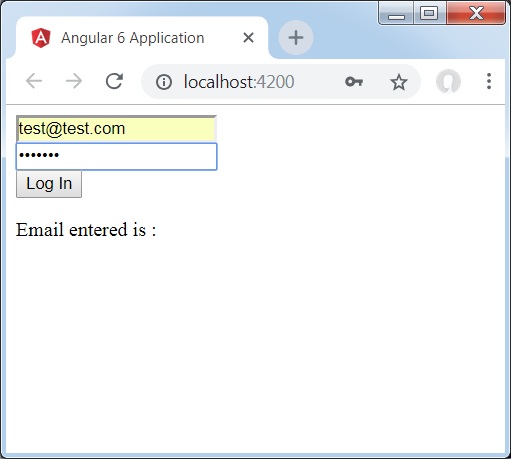
登入已啟用,因為電子郵件 ID 和密碼均有效。登入後,電子郵件將顯示在底部。
Angular 6 - 動畫
動畫增加了 HTML 元素之間的許多互動。Angular 2 中也提供了動畫。與 Angular 6 的區別在於,動畫不再是@angular/core庫的一部分,而是一個需要在app.module.ts中匯入的單獨包。
首先,我們需要匯入庫,如下所示 −
import { BrowserAnimationsModule } from '@angular/platform-browser/animations';
BrowserAnimationsModule需要新增到app.module.ts中的 import 陣列中,如下所示 −
app.module.ts
import { BrowserModule } from '@angular/platform-browser';
import { NgModule } from '@angular/core';
import { BrowserAnimationsModule } from '@angular/platform-browser/animations';
import { AppComponent } from './app.component';
@NgModule({
   declarations: [
      AppComponent
   ],
   imports: [
      BrowserModule,
      BrowserAnimationsModule
   ],
   providers: [],
   bootstrap: [AppComponent]
})
export class AppModule { }
在app.component.html中,我們添加了要進行動畫處理的 HTML 元素。
<div>
   <button (click) = "animate()">Click Me</button>
   <div [@myanimation] = "state" class = "rotate">
      <img src = "assets/images/img.png" width = "100" height = "100">
   </div>
</div>
對於主 div,我們添加了一個按鈕和一個包含影像的 div。有一個點選事件,為此呼叫 animate 函式。並且對於 div,添加了@myanimation指令並將其值設定為 state。
現在讓我們看看定義動畫的app.component.ts。
import { Component } from '@angular/core';
import { trigger, state, style, transition, animate } from '@angular/animations';
@Component({
   selector: 'app-root',
   templateUrl: './app.component.html',
   styleUrls: ['./app.component.css'],
   styles:[`
      div{
         margin: 0 auto;
         text-align: center;
         width:200px;
      }
      .rotate{
         width:100px;
         height:100px;
         border:solid 1px red;
      }
   `],
   animations: [
      trigger('myanimation',[
         state('smaller',style({
            transform : 'translateY(100px)'
         })),
         state('larger',style({
            transform : 'translateY(0px)'
         })),
         transition('smaller <=> larger',animate('300ms ease-in'))
      ])
   ]
})
export class AppComponent {
   state: string = "smaller";
   animate() {
      this.state= this.state == 'larger' ? 'smaller' : 'larger';
   }
}
我們必須匯入要在 .ts 檔案中使用的動畫函式,如上所示。
import { trigger, state, style, transition, animate } from '@angular/animations';
在這裡,我們從 @angular/animations 匯入了 trigger、state、style、transition 和 animate。
現在,我們將 animations 屬性新增到 @Component() 裝飾器中 −
animations: [
   trigger('myanimation',[
      state('smaller',style({
         transform : 'translateY(100px)'
      })),
      state('larger',style({
         transform : 'translateY(0px)'
      })),
      transition('smaller <=> larger',animate('300ms ease-in'))
   ])
]
Trigger 定義動畫的開始。它的第一個引數是要賦予 HTML 標籤的動畫名稱,該動畫需要應用於該標籤。第二個引數是我們匯入的函式 - state、transition 等。
state函式包含動畫步驟,元素將在這些步驟之間進行轉換。現在我們定義了兩個狀態,smaller 和 larger。對於 smaller 狀態,我們給出了樣式transform:translateY(100px)和transform:translateY(100px)。
Transition 函式向 HTML 元素新增動畫。第一個引數獲取狀態,即開始和結束;第二個引數接受 animate 函式。animate 函式允許定義轉換的長度、延遲和緩動。
現在讓我們檢視 .html 檔案以瞭解 transition 函式的工作原理
<div>
   <button (click) = "animate()">Click Me</button>
   <div [@myanimation] = "state" class="rotate">
      <img src = "assets/images/img.png" width = "100" height = "100">
   </div>
</div>
在@component指令中添加了一個 style 屬性,它將 div 居中對齊。讓我們考慮以下示例以瞭解相同內容 −
styles:[`
   div{
      margin: 0 auto;
      text-align: center;
      width:200px;
   }
   .rotate{
      width:100px;
      height:100px;
      border:solid 1px red;
   }
`],
在這裡,使用特殊字元 [``] 向 HTML 元素新增樣式(如果有)。對於 div,我們給出了在 app.component.ts 檔案中定義的動畫名稱。
單擊按鈕時,它會呼叫在 app.component.ts 檔案中定義的 animate 函式,如下所示 −
export class AppComponent {
   state: string = "smaller";
   animate() {
      this.state= this.state == ‘larger’? 'smaller' : 'larger';
   }
}
定義了 state 變數,並將其預設值設定為 smaller。animate 函式在單擊時更改狀態。如果狀態為 larger,它將轉換為 smaller;如果為 smaller,它將轉換為 larger。
瀏覽器 (https://:4200/) 中的輸出將如下所示 −
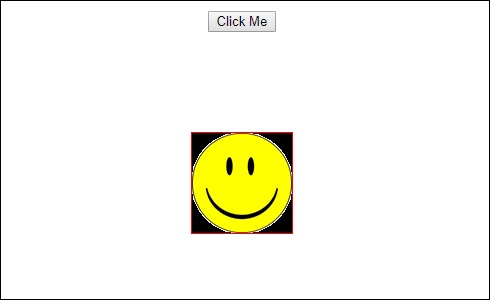
單擊Click Me按鈕後,影像的位置將發生變化,如下面的螢幕截圖所示 −
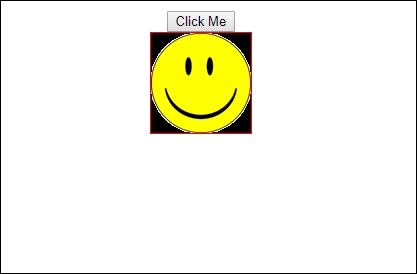
transform 函式應用於y方向,當單擊 Click Me 按鈕時,它會從 0 更改為 100px。影像儲存在assets/images資料夾中。
Angular 6 - 材料
Materials為您的專案提供了許多內建模組。自動完成、日期選擇器、滑塊、選單、網格和工具欄等功能可用於 Angular 6 中的材料。
要使用材料,我們需要匯入包。Angular 2 也具有所有上述功能,但它們作為 @angular/core 模組的一部分提供。Angular 6 推出了一個單獨的模組@angular/materials.。這有助於使用者匯入所需的材料。
要開始使用材料,需要安裝兩個包 - materials 和 cdk。Material 元件依賴於動畫模組以獲得高階功能,因此需要為此使用動畫包,即 @angular/animations。該包已在上一章中更新。
npm install --save @angular/material @angular/cdk
現在讓我們檢視 package.json。已安裝@angular/material和@angular/cdk。
{
  "name": "angular6-app",
  "version": "0.0.0",
  "scripts": {
      "ng": "ng",
      "start": "ng serve",
      "build": "ng build",
      "test": "ng test",
      "lint": "ng lint",
      "e2e": "ng e2e"
   },
   "private": true, "dependencies": {
      "@angular/animations": "^6.1.0",
      "@angular/cdk": "^6.4.7",
      "@angular/common": "^6.1.0",
      "@angular/compiler": "^6.1.0",
      "@angular/core": "^6.1.0",
      "@angular/forms": "^6.1.0",
      "@angular/http": "^6.1.0",
      "@angular/material": "^6.4.7",
      "@angular/platform-browser": "^6.1.0",
      "@angular/platform-browser-dynamic": "^6.1.0",
      "@angular/router": "^6.1.0",
      "core-js": "^2.5.4",
      "rxjs": "^6.0.0",
      "zone.js": "~0.8.26"
   },
   "devDependencies": {
      "@angular-devkit/build-angular": "~0.7.0",
      "@angular/cli": "~6.1.3",
      "@angular/compiler-cli": "^6.1.0",
      "@angular/language-service": "^6.1.0",
      "@types/jasmine": "~2.8.6",
      "@types/jasminewd2": "~2.0.3",
      "@types/node": "~8.9.4",
      "codelyzer": "~4.2.1",
      "jasmine-core": "~2.99.1",
      "jasmine-spec-reporter": "~4.2.1",
      "karma": "~1.7.1",
      "karma-chrome-launcher": "~2.2.0",
      "karma-coverage-istanbul-reporter": "~2.0.0",
      "karma-jasmine": "~1.1.1",
      "karma-jasmine-html-reporter": "^0.2.2",
      "protractor": "~5.3.0",
      "ts-node": "~5.0.1",
      "tslint": "~5.9.1",
      "typescript": "~2.7.2"
   }
}
我們突出顯示了安裝以使用材料的包。
現在我們將在父模組 - app.module.ts中匯入模組,如下所示。
import { BrowserModule } from '@angular/platform-browser';
import { NgModule } from '@angular/core';
import { BrowserAnimationsModule } from '@angular/platform-browser/animations';
import { MatButtonModule, MatMenuModule, MatSidenavModule } from '@angular/material';
import { FormsModule } from '@angular/forms';
import { AppComponent } from './app.component';
@NgModule({
   declarations: [
      AppComponent
   ],
   imports: [
      BrowserModule,
      BrowserAnimationsModule,
      MatButtonModule,
      MatMenuModule,
      FormsModule,
      MatSidenavModule
   ],
   providers: [],
   bootstrap: [AppComponent]
})
export class AppModule { }
在上述檔案中,我們從 @angular/materials 匯入了以下模組。
import { MatButtonModule, MatMenuModule, MatSidenavModule } from '@angular/material';
並在 imports 陣列中使用了它,如下所示 −
imports: [
   BrowserModule,
   BrowserAnimationsModule,
   MatButtonModule,
   MatMenuModule,
   FormsModule,
   MatSidenavModule
]
app.component.ts如下所示 −
import { Component } from '@angular/core';
@Component({
   selector: 'app-root',
   templateUrl: './app.component.html',
   styleUrls: ['./app.component.css']
})
export class AppComponent {
   myData: Array<any>;
   constructor() {}
}
現在讓我們在styles.css中新增 material-css 支援。
@import "~@angular/material/prebuilt-themes/indigo-pink.css";
現在讓我們在app.component.html中新增材料。
<button mat-button [matMenuTriggerFor] = "menu">Menu</button>
<mat-menu #menu = "matMenu">
   <button mat-menu-item>
      File
   </button>
   <button mat-menu-item>
      Save As
   </button>
</mat-menu>
<mat-sidenav-container class = "example-container">
   <mat-sidenav #sidenav class = "example-sidenav">
      Angular 6
   </mat-sidenav>
   <div class = "example-sidenav-content">
      <button type = "button" mat-button  (click) = "sidenav.open()">
         Open sidenav
      </button>
   </div>
</mat-sidenav-container>
在上述檔案中,我們添加了 Menu 和 SideNav。
選單
要新增選單,使用<mat-menu></mat-menu>。file和Save As項新增到mat-menu下按鈕。添加了一個主按鈕Menu。透過使用[matMenuTriggerFor]="menu"將同一個的引用賦予<mat-menu>,並在# in <mat-menu>中使用選單。
側邊欄
要新增側邊欄,我們需要<mat-sidenav-container></mat-sidenav-container>。<mat-sidenav></mat-sidenav>作為子元素新增到容器中。添加了另一個 div,它透過使用(click)="sidenav.open()"觸發側邊欄。以下是選單和側邊欄在瀏覽器中的顯示 −
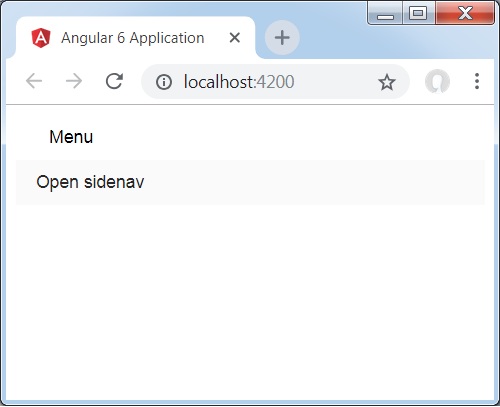
單擊opensidenav後,它將顯示側邊欄,如下所示 −
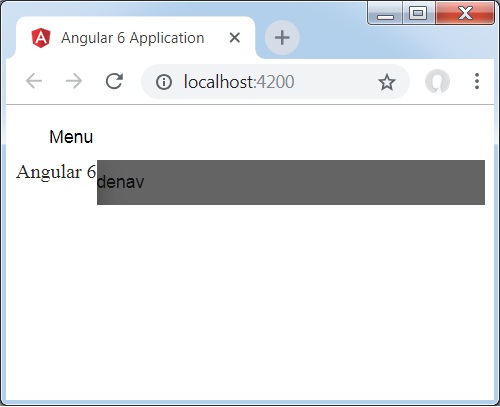
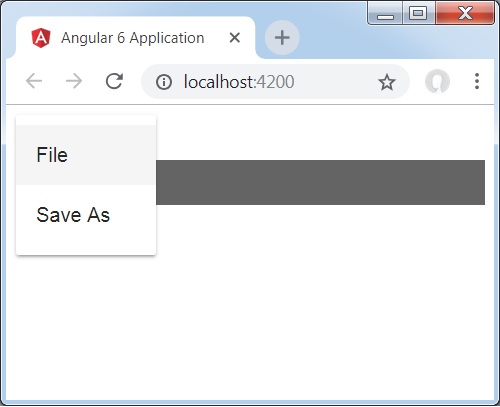
單擊選單後,您將獲得兩個專案File和Save As,如下所示 −
現在讓我們使用 Material 新增一個日期選擇器。要新增日期選擇器,我們需要匯入顯示日期選擇器所需的模組。
在app.module.ts中,我們匯入了以下模組,如下所示,用於日期選擇器。
import { BrowserModule } from '@angular/platform-browser';
import { NgModule } from '@angular/core';
import { BrowserAnimationsModule } from '@angular/platform-browser/animations';
import { MatDatepickerModule, MatInputModule, MatNativeDateModule } from '@angular/material';
import { FormsModule } from '@angular/forms';
import { AppComponent } from './app.component';
@NgModule({
   declarations: [
      AppComponent
   ],
   imports: [
      BrowserModule,
      BrowserAnimationsModule,
      FormsModule,
      MatDatepickerModule,
      MatInputModule,
      MatNativeDateModule
   ],
   providers: [],
   bootstrap: [AppComponent]
})
export class AppModule { }
這裡,我們匯入了諸如MatDatepickerModule、MatInputModule和MatNativeDateModule之類的模組。
現在,app.component.ts如下所示:
import { Component } from '@angular/core';
@Component({
   selector: 'app-root',
   templateUrl: './app.component.html',
   styleUrls: ['./app.component.css']
})
export class AppComponent {
   myData: Array<any>;
   constructor() {}
}
app.component.html如下所示:
<mat-form-field>
   <input matInput [matDatepicker] = "picker" placeholder = "Choose a date">
   <mat-datepicker-toggle matSuffix [for] = "picker"></mat-datepicker-toggle>
   <mat-datepicker #picker></mat-datepicker>
</mat-form-field>
這就是日期選擇器在瀏覽器中顯示的方式。
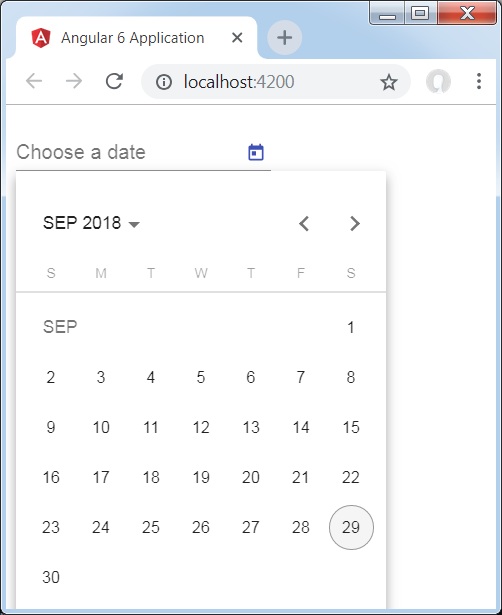
Angular 6 - CLI
Angular CLI 使任何 Angular 專案的啟動變得容易。Angular CLI 帶有命令,可以幫助我們非常快速地建立和啟動專案。現在讓我們瞭解一下可用於建立專案、元件和服務、更改埠等的命令。
要使用 Angular CLI,我們需要在系統上安裝它。讓我們使用以下命令來實現:
npm install -g @angular/cli
要建立一個新專案,我們可以在命令列中執行以下命令,然後專案將被建立。
ng new PROJECT-NAME
cd PROJECT-NAME
ng serve //
ng serve // 將編譯,您可以在瀏覽器中看到專案的輸出:
https://:4200/
4200 是建立新專案時使用的預設埠。您可以使用以下命令更改埠:
ng serve --host 0.0.0.0 --port 4201
下表列出了使用 Angular 4 專案時所需的一些重要命令。
| 元件 | ng g component new-component |
| 指令 | ng g directive new-directive |
| 管道 | ng g pipe new-pipe |
| 服務 | ng g service new-service |
| 模組 | ng g module my-module |
每當建立新的模組、元件或服務時,其引用都會在父模組app.module.ts中更新。