
- Angular 6 教程
- Angular 6 - 首頁
- Angular 6 - 概述
- Angular 6 - 環境搭建
- Angular 6 - 專案搭建
- Angular 6 - 元件
- Angular 6 - 模組
- Angular 6 - 資料繫結
- Angular 6 - 事件繫結
- Angular 6 - 模板
- Angular 6 - 指令
- Angular 6 - 管道
- Angular 6 - 路由
- Angular 6 - 服務
- Angular 6 - Http 服務
- Angular 6 - Http 客戶端
- Angular 6 - 表單
- Angular 6 動畫
- Angular 6 - 材料
- Angular 6 - CLI
- Angular 6 有用資源
- Angular 6 - 快速指南
- Angular 6 - 有用資源
- Angular 6 - 討論
Angular 6 動畫
動畫增加了HTML元素之間的許多互動。Angular 2中也提供了動畫功能。Angular 6的區別在於,動畫不再是@angular/core庫的一部分,而是一個需要在app.module.ts中匯入的單獨包。
首先,我們需要匯入如下所示的庫:
import { BrowserAnimationsModule } from '@angular/platform-browser/animations';
需要將BrowserAnimationsModule新增到app.module.ts中的匯入陣列中,如下所示:
app.module.ts
import { BrowserModule } from '@angular/platform-browser';
import { NgModule } from '@angular/core';
import { BrowserAnimationsModule } from '@angular/platform-browser/animations';
import { AppComponent } from './app.component';
@NgModule({
   declarations: [
      AppComponent
   ],
   imports: [
      BrowserModule,
      BrowserAnimationsModule
   ],
   providers: [],
   bootstrap: [AppComponent]
})
export class AppModule { }
在app.component.html中,我們添加了需要動畫化的HTML元素。
<div>
   <button (click) = "animate()">Click Me</button>
   <div [@myanimation] = "state" class = "rotate">
      <img src = "assets/images/img.png" width = "100" height = "100">
   </div>
</div>
對於主div,我們添加了一個按鈕和一個包含影像的div。有一個點選事件,呼叫animate函式。對於div,添加了@myanimation指令並將值設定為state。
現在讓我們看看定義動畫的app.component.ts。
import { Component } from '@angular/core';
import { trigger, state, style, transition, animate } from '@angular/animations';
@Component({
   selector: 'app-root',
   templateUrl: './app.component.html',
   styleUrls: ['./app.component.css'],
   styles:[`
      div{
         margin: 0 auto;
         text-align: center;
         width:200px;
      }
      .rotate{
         width:100px;
         height:100px;
         border:solid 1px red;
      }
   `],
   animations: [
      trigger('myanimation',[
         state('smaller',style({
            transform : 'translateY(100px)'
         })),
         state('larger',style({
            transform : 'translateY(0px)'
         })),
         transition('smaller <=> larger',animate('300ms ease-in'))
      ])
   ]
})
export class AppComponent {
   state: string = "smaller";
   animate() {
      this.state= this.state == 'larger' ? 'smaller' : 'larger';
   }
}
我們必須匯入要在.ts檔案中使用的動畫函式,如上所示。
import { trigger, state, style, transition, animate } from '@angular/animations';
在這裡,我們從@angular/animations匯入了trigger、state、style、transition和animate。
現在,我們將動畫屬性新增到@Component()裝飾器中:
animations: [
   trigger('myanimation',[
      state('smaller',style({
         transform : 'translateY(100px)'
      })),
      state('larger',style({
         transform : 'translateY(0px)'
      })),
      transition('smaller <=> larger',animate('300ms ease-in'))
   ])
]
Trigger定義了動畫的開始。它的第一個引數是需要應用動畫的html標籤的動畫名稱。第二個引數是我們匯入的函式——state、transition等。
state函式包含動畫步驟,元素將在這些步驟之間轉換。現在我們定義了兩個狀態,smaller和larger。對於smaller狀態,我們設定了樣式transform:translateY(100px)和transform:translateY(100px)。
Transition函式為html元素新增動畫。第一個引數取狀態,即開始和結束;第二個引數接受animate函式。animate函式允許你定義轉換的長度、延遲和緩動。
現在讓我們看看.html檔案,看看transition函式是如何工作的
<div>
   <button (click) = "animate()">Click Me</button>
   <div [@myanimation] = "state" class="rotate">
      <img src = "assets/images/img.png" width = "100" height = "100">
   </div>
</div>
在@component指令中添加了一個style屬性,它將div居中對齊。讓我們考慮以下示例來理解這一點:
styles:[`
   div{
      margin: 0 auto;
      text-align: center;
      width:200px;
   }
   .rotate{
      width:100px;
      height:100px;
      border:solid 1px red;
   }
`],
這裡,使用特殊字元[``]來新增html元素的樣式(如果存在)。對於div,我們使用了在app.component.ts檔案中定義的動畫名稱。
點選按鈕後,它會呼叫在app.component.ts檔案中定義的animate函式,如下所示:
export class AppComponent {
   state: string = "smaller";
   animate() {
      this.state= this.state == �larger�? 'smaller' : 'larger';
   }
}
定義了state變數,並將其預設值設定為smaller。animate函式在點選時更改狀態。如果狀態為larger,它將轉換為smaller;如果為smaller,它將轉換為larger。
這就是瀏覽器輸出(https://:4200/)的樣子:
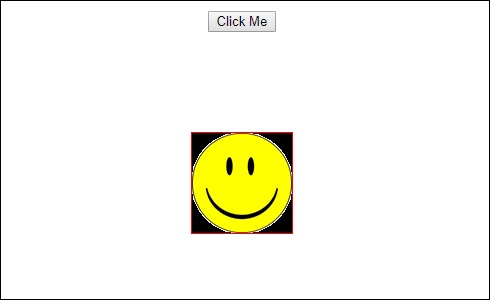
點選點選我按鈕後,影像的位置會發生變化,如下面的截圖所示:

transform函式應用於y方向,點選“點選我”按鈕時,它從0變為100px。影像儲存在assets/images資料夾中。