
- Angular 6 教程
- Angular 6 - 主頁
- Angular 6 - 概覽
- Angular 6 - 環境設定
- Angular 6 - 專案設定
- Angular 6 - 元件
- Angular 6 - 模組
- Angular 6 - 資料繫結
- Angular 6 - 事件繫結
- Angular 6 - 模板
- Angular 6 - 指令
- Angular 6 - 管道
- Angular 6 - 路由
- Angular 6 - 服務
- Angular 6 - HTTP 服務
- Angular 6 - HTTP 客戶端
- Angular 6 - 表單
- Angular 6 - 動畫
- Angular 6 - 材質
- Angular 6 - CLI
- Angular 6 實用資源
- Angular 6 - 快速指南
- Angular 6 - 實用資源
- Angular 6 - 討論
Angular 6 - 事件繫結
在本節中,我們將討論 Angular 6 中事件繫結的工作原理。當用戶以鍵盤移動、滑鼠點選或滑鼠懸停的形式與應用程式互動時,它會生成事件。需要處理這些事件以執行某種操作。這就是事件繫結發揮作用的地方。
我們來看一個例子來更好地理解這一點。
app.component.html
<!--The content below is only a placeholder and can be replaced.-->
<div style = "text-align:center">
   <h1>
      Welcome to {{title}}.
   </h1>
</div>
<div> Months :
   <select>
      <option *ngFor = "let i of months">{{i}}</option>
   </select>
</div>
<br/>
<div>
   <span *ngIf = "isavailable; then condition1 else condition2">
      Condition is valid.
   </span>
   <ng-template #condition1>Condition is valid</ng-template>
   <ng-template #condition2>Condition is invalid</ng-template>
</div>
<button (click)="myClickFunction($event)">
   Click Me
</button>
在 app.component.html 檔案中,我們定義了一個按鈕,並使用 click 事件向其添加了一個函式。
以下是定義按鈕並向其新增函式的語法。
(click)="myClickFunction($event)"
該函式在 .ts 檔案中定義: app.component.ts
import { Component } from '@angular/core';
@Component({
   selector: 'app-root',
   templateUrl: './app.component.html',
   styleUrls: ['./app.component.css']
})
export class AppComponent {
   title = 'Angular 6 Project!';
   //array of months.
   months = ["January", "Feburary", "March", "April",
            "May", "June", "July", "August", "September",
            "October", "November", "December"];
   isavailable = true;
   myClickFunction(event) {
      //just added console.log which will display the event details in browser on click of the button.
      alert("Button is clicked");
      console.log(event);
   }
}
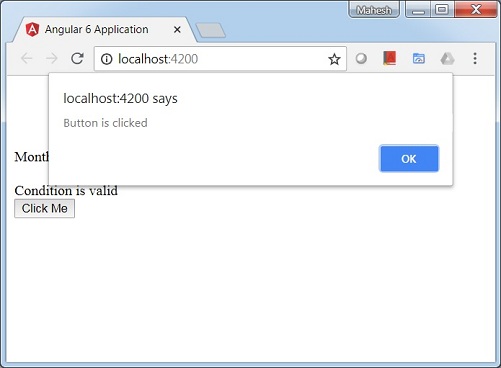
單擊按鈕後,控制元件將進入函式 myClickFunction,並且將出現一個對話方塊,顯示 Button is clicked,如下圖所示 −
現在讓我們向下拉列表新增 change 事件。
以下程式碼行將幫助你向下拉列表新增 change 事件 −
<!--The content below is only a placeholder and can be replaced.-->
<div style = "text-align:center">
   <h1>
      Welcome to {{title}}.
   </h1>
</div>
<div> Months :
   <select (change) = "changemonths($event)">
      <option *ngFor = "let i of months">{{i}}</option>
   </select>
</div>
<br/>
<div>
   <span *ngIf = "isavailable; then condition1 else condition2">
      Condition is valid.
   </span>
   <ng-template #condition1>Condition is valid</ng-template>
   <ng-template #condition2>Condition is invalid</ng-template>
</div>
<button (click) = "myClickFunction($event)">Click Me</button>
該函式在 app.component.ts 檔案中宣告 −
import { Component } from '@angular/core';
@Component({
   selector: 'app-root',
   templateUrl: './app.component.html',
   styleUrls: ['./app.component.css']
})
export class AppComponent {
   title = 'Angular 6 Project!';
   //array of months.
   months = ["January", "Feburary", "March", "April",
            "May", "June", "July", "August", "September",
            "October", "November", "December"];
   isavailable = true;
   myClickFunction(event) {
      alert("Button is clicked");
      console.log(event);
   }
   changemonths(event) {
      console.log("Changed month from the Dropdown");
      console.log(event);
   }
}
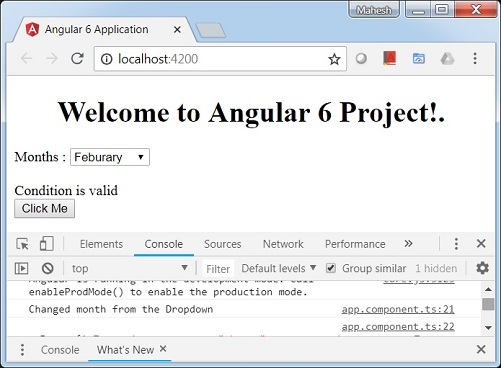
控制檯訊息“Changed month from the Dropdown”會與事件一起顯示在控制檯中。
讓我們在 app.component.ts 中新增一個警報訊息,如下所示,當從下拉列表更改值時顯示該訊息 −
import { Component } from '@angular/core';
@Component({
   selector: 'app-root',
   templateUrl: './app.component.html',
   styleUrls: ['./app.component.css']
})
export class AppComponent {
   title = 'Angular 6 Project!';
   //array of months.
   months = ["January", "February", "March", "April",
            "May", "June", "July", "August", "September",
            "October", "November", "December"];

   isavailable = true;
   myClickFunction(event) {
      //just added console.log which will display the event details in browser
      on click of the button.
      alert("Button is clicked");
      console.log(event);
   }
   changemonths(event) {
      alert("Changed month from the Dropdown");
   }
}
當下拉列表中的值更改時,將出現一個對話方塊,並顯示以下訊息 - “Changed month from the Dropdown”。

廣告