
 資料結構
資料結構 網路
網路 關係資料庫管理系統 (RDBMS)
 作業系統
作業系統 Java
Java MS Excel
 iOS
iOS HTML
HTML CSS
CSS Android
 Python
 C語言程式設計
 C++
C++ C#
C# MongoDB
 MySQL
MySQL Javascript
 PHP
PHP 物理學
物理學 化學
化學 生物學
生物學 數學
數學 英語
英語 經濟學
經濟學 心理學
心理學 社會學
社會學 服裝設計
服裝設計 法學
法學在Snack中使用SVG圓形
有時,任務是在應用程式中繪製基本的形狀,例如線條、矩形、圓形等。為此,可以使用來自“react-native-svg”的Svg。在本文中,將展示帶有四個不同示例的React Native和JavaScript程式碼,其中第一個示例使用“react-native-svg”元件“Svg”和Circle來繪製圓形,對其進行樣式化並顯示它們。在第二個示例中,以同心形式繪製不同樣式的圓形。第三個示例展示瞭如何製作可點選的圓形。單擊此圓形後,簡單的警報會顯示一條訊息。第四個示例展示瞭如果不需要完整的圓形,如何只讓部分圓形顯示在螢幕上。
演算法1
步驟1 − 從'react-native'匯入View、Text,從'react-native-svg'匯入Circle、Svg;
步驟2 − 建立App.js並編寫繪製圓形的程式碼。
步驟3 − 設定cx、cy、r、fill、stroke、strokeWidth、strokeDasharray等的值。
步驟4 − 線上或在個人移動裝置上檢視結果。
示例1:使用'react-native-svg'建立不同樣式的圓形
專案中使用的重要檔案是
App.js
App.js:這是該專案的主要JavaScript檔案。
示例
import{Component}from'react';
import{View,Text}from'react-native';
import{Circle,Svg}from'react-native-svg';

exportdefaultclassStyledCircles_SVGExampleextendsComponent{
   render(){
      return(
         <Viewstyle={{flex:1,alignItems:"center",backgroundColor:'#000'}}>
            <Textstyle={{color:"red",marginTop:60,fontSize:20}}>ShowingCircleStyles</Text>
            <Svgstyle={{alignItems:"center",justifyContent:"center"}}>
               <Circle
               fill="#e37448"
               cx="50%"
               cy="50%"
               r="50"
               />
            </Svg>
            <Svgstyle={{alignItems:"center",justifyContent:"center"}}>
               <Circle
               cx="50%"
               cy="50%"
               r="60"
               fill="none"
               stroke="#ffaa00"
               strokeWidth={2}
               strokeLinecap="round"
               strokeDasharray="412"
               />
            </Svg>
            <Svgstyle={{alignItems:"center",justifyContent:"center",marginTop:20}}>
               <Circle
               cx="50%"
               cy="50%"
               r="70"
               fill="#faf"
               stroke="#00ffff"
               strokeWidth={11}
               strokeDasharray="4"
               />
            </Svg>
         </View>
      );
   }
}
輸出
結果可以線上檢視。
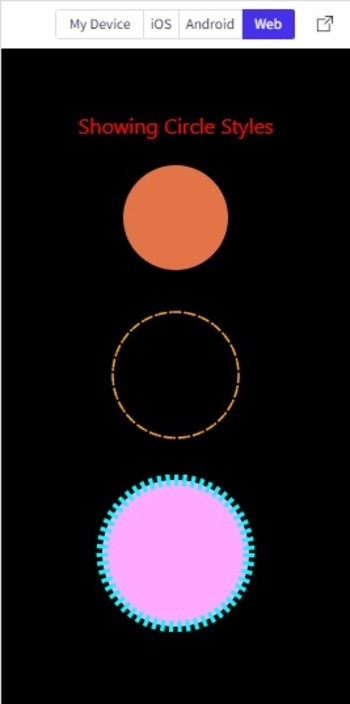
在Web檢視中顯示不同樣式的SVG圓形
演算法2
步驟1 − 從'react-native'匯入View,從'react-native-svg'匯入Circle、Svg;
步驟2 − 建立App.js並編寫繪製圓形的程式碼。
步驟3 − 繪製圓形時,保持cx、cy的值相同,並更改r。更改fill、stroke、strokeWidth、strokeDasharray等是可選的。
步驟4 − 線上或在個人移動裝置上檢視結果。
示例2:建立具有不同樣式的同心圓。
專案中使用的重要檔案是
App.js
App.js:這是該專案的主要JavaScript檔案。
示例
import {Component} from 'react';
import { View} from 'react-native';
import {Circle, Svg} from 'react-native-svg';
export default class manyCircles_SVGExample extends Component {
   render() {
      return (
         <View style={{flex:1, padding:10}}>
            <Svg height="300" width="300" >
               <Circle cx="50%" cy="50%" r="10%" fill="none" stroke="#fa0" strokeWidth={3} strokeDasharray="5" />
               <Circle cx="50%" cy="50%" r="20%" fill="none" stroke="#f00" strokeWidth={7} strokeDasharray="4" />
               <Circle cx="50%" cy="50%" r="25%" fill="none" stroke="#0ff" strokeWidth={2} strokeDasharray="4" />
               <Circle cx="50%" cy="50%" r="30%" fill="none" stroke="#f00" strokeWidth={3} strokeDasharray="3" />
               <Circle cx="50%" cy="50%" r="35%" fill="none" stroke="#ff0" strokeWidth={4} strokeDasharray="3" />
               <Circle cx="50%" cy="50%" r="40%" fill="none" stroke="#0f0" strokeWidth={5} strokeDasharray="2" />
               <Circle cx="50%" cy="50%" r="45%" fill="none" stroke="#0ff" strokeWidth={6} strokeDasharray="2" />
               <Circle cx="50%" cy="50%" r="50%" fill="none" stroke="#000" strokeWidth={1} strokeDasharray="1" />
            </Svg>
         </View>
      );
   }
}
輸出
結果可以線上檢視。此處顯示iOS檢視。
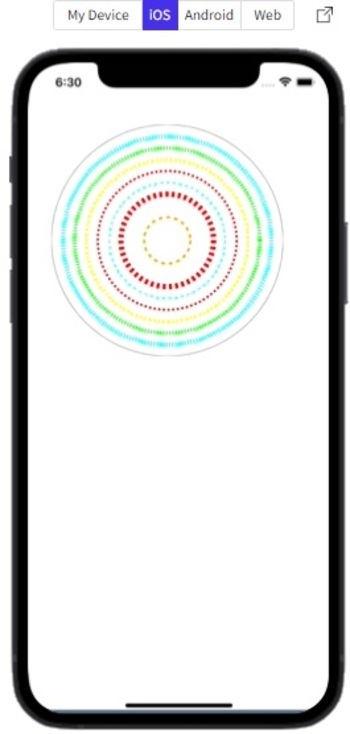
使用iOS模擬器顯示同心圓。
演算法3
步驟1 − 從'react-native'匯入View、TouchableOpacity、Text,從'react-native-svg'匯入Circle、Svg;
步驟2 − 建立App.js並編寫繪製圓形的程式碼。
步驟3 − 將Svg和Circle標籤放在TouchableOpacity標籤內以使圓形可點選。
步驟4 − 檢查結果。
示例3:建立可點選的圓形。
專案中使用的重要檔案是
App.js
App.js:這是該專案的主要JavaScript檔案。
示例
import{Component}from'react';
import{View,TouchableOpacity,Text}from'react-native';
import{Circle,Svg}from'react-native-svg';
exportdefaultclassClickableCircles_SVGExampleextendsComponent{
   render(){
      return(
         <Viewstyle={{flex:1,alignItems:"center",backgroundColor:'#000'}}>
            <Textstyle={{color:"red",marginTop:60,fontSize:20}}>PresstheCircleToseetheMessage</Text>
            <TouchableOpacitystyle={{marginTop:30,marginLeft:200}}onPress={()=>alert("SVGCircleExample")}>
            <Svgstyle={{alignItems:"center",justifyContent:"center"}}>
               <Circle
               fill="#e37448"
               cx="50"
               cy="50"
               r="50"
               />
            </Svg>
            </TouchableOpacity>
         </View>

      );
   }
}
輸出
結果可以線上檢視。

在Web檢視中點選圓形後顯示警報訊息
演算法4
步驟1 − 從'react-native'匯入View,從'react-native-svg'匯入Circle、Svg;
步驟2 − 建立App.js並編寫繪製圓形的程式碼。
步驟3 − 設定Svg的寬度和高度以及圓形的cx、cy和r,以控制圓形部分的顯示。
步驟4 − 檢查結果。
示例4:僅顯示給定圓形的部分。
專案中使用的重要檔案是
App.js
App.js:這是該專案的主要JavaScript檔案。
示例
import {Component} from 'react';
import { View, Text} from 'react-native';
import {Circle, Svg} from 'react-native-svg';

export default class NotFullCircles_SVGExample extends Component {
   render() {
      return (
         <View style={{flex:1}}>
            <Svg height="300" width="200" >
               <Circle cx="200" cy="220" r="20%"
               fill="red" stroke="#000" strokeWidth={11} strokeDasharray="4" />
            </Svg>
            <Svg height="100" width="100" >
               <Circle cx="0" cy="60" r="90%"
               fill="none" stroke="#000" strokeWidth={3} />
            </Svg>
         </View>
      );
   }
}
輸出
結果可以線上檢視。
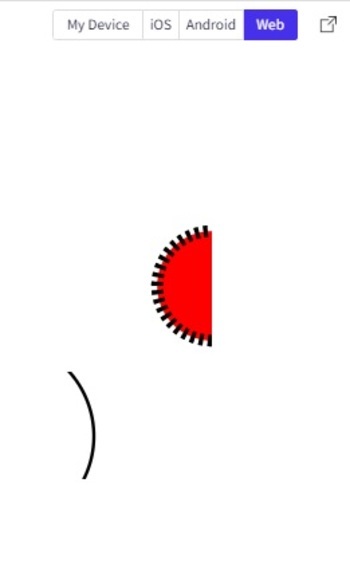
在Web檢視中僅顯示給定圓形的部分
本文透過四個不同的示例,介紹瞭如何在Snack中建立圓形的方法。首先介紹了對圓形進行樣式化的方法,然後展示瞭如何建立同心圓。還展示瞭如何建立可點選的圓形以及顯示圓形部分的方法。

瀏覽量:1K+
