
 資料結構
資料結構 網路
網路 關係型資料庫管理系統
 作業系統
作業系統 Java
Java MS Excel
 iOS
iOS HTML
HTML CSS
CSS Android
 Python
 C語言程式設計
 C++
C++ C#
C# MongoDB
 MySQL
MySQL Javascript
 PHP
PHP 物理學
物理學 化學
化學 生物學
生物學 數學
數學 英語
英語 經濟學
經濟學 心理學
心理學 社會學
社會學 時尚研究
時尚研究 法律研究
法律研究在Snack中使用Material Bottom Tab Navigator
標籤用於在應用程式中實現多頁面檢視。標籤通常放置在螢幕頂部或底部。一些庫允許在移動應用程式中建立標籤。標籤可以使用圖示代替文字型別的標籤。在本文中,展示了 React Native 和 Javascript 程式碼,其中包含兩個不同的示例,第一個示例使用來自 '@react-navigation/material-bottom-tabs' 的 createMaterialBottomTabNavigator 來建立標籤,然後將它們呈現為標籤。在另一個示例中,使用來自 Ionicons 的圖示來建立標籤,然後將它們渲染到裝置螢幕上。
演算法 1
步驟 1 - 從 'react-native' 中匯入 Text、View、StyleSheet。
步驟 2 - 從 '@react-navigation/native' 中匯入 NavigationContainer,然後從 '@react-navigation/material-bottom-tabs' 中匯入 createMaterialBottomTabNavigator。
步驟 3 - 編寫單獨的箭頭函式來顯示不同頁面的內容。
步驟 4 - 建立 App.js 並編寫程式碼。使用 createMaterialBottomTabNavigator() 建立 BtmTbs。
步驟 5 - 建立 NavigationContainer 標籤並在其中建立 BtmTbs.Navigator。從不同的 BtmTbs.Screen 呼叫頁面內容函式。
步驟 6 - 檢查結果。
示例 1:使用來自 '@react-navigation/material-bottom-tabs' 建立標籤型別標籤。
在此示例中,使用 createMaterialBottomTabNavigator 和 ‘@reactnavigation/material-bottom-tabs’ 來開發標籤型別標籤。
專案中使用的重要檔案是
App.js
App.js:這是此專案的 javascript 主檔案。
import{Component}from'react';
import{Text,View,StyleSheet}from'react-native';
import{NavigationContainer}from'@react-navigation/native';
import{createMaterialBottomTabNavigator}from'@react-navigation/material-bottom-tabs';

constBtmTbs=createMaterialBottomTabNavigator();

exportdefaultclassBottomBtmTbsExampleOneextendsComponent{
   render(){
      return(
         <NavigationContainer>
            <BtmTbs.Navigator
               initialRouteName="My_Home"
               activeColor="#c00"
               inactiveColor="#ffe"
               barStyle={{backgroundColor:'#2a2'}}>
               <BtmTbs.Screenname="My_Home"component={AddressHome}/>
               <BtmTbs.Screenname="My_School"component={AddressSchool}/>
               <BtmTbs.Screenname="My_Ofiice"component={AddressOffice}/>
            </BtmTbs.Navigator>
         </NavigationContainer>
      );
   }
}

AddressHome=()=>(
   <Viewstyle={styles.Addresscontents}>
      <Textstyle={styles.AddressHeader}>MyHomeAddress</Text>
      <Textstyle={styles.AddressHeader}>______________</Text>
      <br/>
      <Textstyle={styles.AddressContent}>AddressDetailsHere...</Text>
   </View>
);
AddressSchool=()=>(
   <Viewstyle={styles.Addresscontents}>
      <Textstyle={styles.AddressHeader}>MySchoolAddress</Text>
      <Textstyle={styles.AddressHeader}>______________</Text>
      <br/>
      <Textstyle={styles.AddressContent}>AddressDetailsHere...</Text>
   </View>
);

AddressOffice=()=>(
   <Viewstyle={styles.Addresscontents}>
      <Textstyle={styles.AddressHeader}>MyOfficeAddress</Text>
      <Textstyle={styles.AddressHeader}>______________</Text>
      <br/>
      <Textstyle={styles.AddressContent}>AddressDetailsHere...</Text>
   </View>
);
conststyles=StyleSheet.create({
   Addresscontents:{
      flex:1,
      width:'100%',
      padding:10,
      marginTop:10,
      borderWidth:1,
      borderColor:'black',
   },
   AddressHeader:{
      color:'black',
      fontSize:28,
      textAlign:'center',
   },
});
輸出
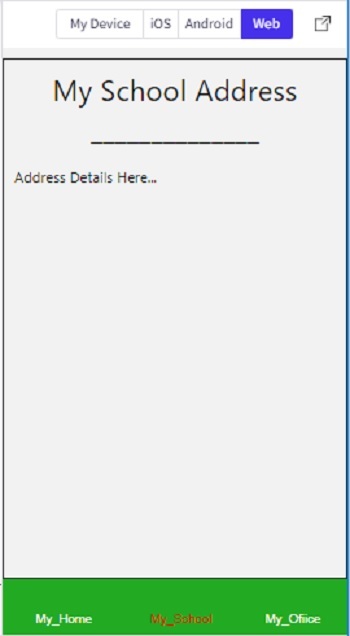
可以線上檢視結果。當用戶輸入程式碼時,Web 檢視會預設被選中,結果會立即顯示。
演算法 2
步驟 1 - 從 'react-native' 中匯入 Text、View、StyleSheet。從 'react-native-vector-icons/Ionicons' 中匯入 Icon。還從 'react-navigation' 中匯入 createAppContainer。
步驟 2 - 編寫單獨的函式來顯示不同頁面的內容。
步驟 3 - 建立 App.js 並編寫程式碼。建立名為 My_Home、My_School 和 My_Office 的類來建立螢幕。
步驟 4 - 使用 createMaterialBottomTabNavigator() 建立 BtmTbs。現在使用 tabBarIcon 選擇圖示並設定圖示屬性。
步驟 5 - 使用 createAppContainer 並使用 BtmTbs 作為引數。從不同的 BtmTbs.Screen 呼叫頁面內容函式。
步驟 6 - 檢查結果。
示例 2:在 Snack 上使用來自 Ionicons 的圖示建立標籤。
專案中使用的重要檔案是
App.js
App.js:這是此專案的 javascript 主檔案。
示例
import {Component} from 'react';
import {StyleSheet, Text, View} from 'react-native';
import {createAppContainer} from 'react-navigation';
import { createMaterialBottomTabNavigator } from 'react-navigation-material-bottom-tabs';
import Icon from 'react-native-vector-icons/Ionicons';

class My_Home extends Component {
   render() {
      return (
         <View style={styles.Addresscontents}>
            <Text style={styles.AddressHeader}>My Home Address</Text>
            <Text style={styles.AddressHeader}>______________</Text>
            <br/>
            <Text style={styles.AddressContent}>Home Address Details Here...</Text>
         </View>
      );
   }
}

class My_School extends Component {
   render() {
      return (
         <View style={styles.Addresscontents}>
            <Text style={styles.AddressHeader}>My School Address</Text>
            <Text style={styles.AddressHeader}>______________</Text>
            <br/>
            <Text style={styles.AddressContent}>School Address Details Here...</Text>
         </View>
      );
   }
}

class My_Office extends Component {
   render() {
      return (
         <View style={styles.Addresscontents}>
            <Text style={styles.AddressHeader}>My Office Address</Text>
            <Text style={styles.AddressHeader}>______________</Text>
            <br/>
            <Text style={styles.AddressContent}>Office Address Details Here...</Text>
         </View>
      );
   }
}

const BtmTbs = createMaterialBottomTabNavigator(
   {
      My_Home: {
         screen: My_Home,
         navigationOptions:{
            tabBarLabel:'My_Home',
            tabBarIcon: () => (
            <View>
               <Icon size={25} name={'ios-home'}/>
            </View>),
         }
      },
      My_School: {
         screen: My_School,
         navigationOptions:{
            tabBarLabel:'My_School',
            tabBarIcon: () => (
            <View>
            <Iconsize={25} name={'school'}/>
            </View>),
            activeColor:"#c00",
            inactiveColor:"#ffe",
            barStyle: { backgroundColor: '#2a2' },
         }
      },
      My_Office: {
         screen: My_Office,
         navigationOptions:{
            tabBarLabel:'My_Office',
            tabBarIcon: () => (
            <View>
            <Iconsize={25} name={'headset'}/>
            </View>),
            activeColor:"#c00",
            inactiveColor:"#ffe",
            barStyle: { backgroundColor: '#2a2' },
         }
      },
   },
   {
      initialRouteName: "My_Home",
      activeColor:"#c00",
      inactiveColor:"#ffe",
      barStyle: { backgroundColor: '#2a2' },
   },
);

const styles = StyleSheet.create({
   Addresscontents: {
      flex: 1,
      width: '100%',
      padding: 10,
      marginTop: 10,
      borderWidth: 1,
      borderColor: 'black',
   },
   AddressHeader: {
      color: 'black',
      fontSize: 28,
      textAlign: 'center',
   },
});

export default createAppContainer(BtmTbs);
輸出
可以線上檢視結果。當用戶輸入程式碼時,Web 檢視會預設被選中,結果會立即顯示。

在本文中,使用兩個不同的示例,給出了在 Expo Snack 上使用 Material Bottom Tab Navigator 顯示不同形式的底部標籤的方法。首先,給出了建立標籤型別底部標籤的方法。第二個示例介紹了建立圖示型別底部標籤的方法,並在線上 Web 檢視中顯示了輸出。

330 次瀏覽
