
 資料結構
資料結構 網路
網路 關係型資料庫管理系統
 作業系統
作業系統 Java
Java MS Excel
 iOS
iOS HTML
HTML CSS
CSS Android
 Python
 C 程式設計
 C++
C++ C#
C# MongoDB
 MySQL
MySQL Javascript
 PHP
PHP 物理學
物理學 化學
化學 生物學
生物學 數學
數學 英語
英語 經濟學
經濟學 心理學
心理學 社會學
社會學 時尚研究
時尚研究 法律研究
法律研究在 Snack 中使用 JSON 格式的資料
使用 Snack Expo 建立的應用程式有很多方法可以使用資料。有時資料儲存為 JSON 格式,即 JavaScript 物件表示法。在這種格式下,資料可以輕鬆地以鍵值對的形式儲存,也可以轉換為 CSV 檔案。本文使用 Snack 上的 javascript,指定了使用 JSON 資料的方法。在示例 1 中,給出了讀取這些資料並將其顯示為表格的方法。在第二個示例中,展示了將 JSON 資料儲存為 CSV 檔案並下載它的方法。
演算法 1
步驟 1 − 從 'react-native' 匯入 View。還從 json 檔案匯入 JSON 資料。這裡,例如使用 products.json
步驟 2 − 建立 App.js 並編寫程式碼。
步驟 3 − 使用 id 作為鍵,並從 json 檔案中獲取所有產品。
步驟 4 − 首先顯示標題,然後使用 map 函式獲取每個產品項。選擇要顯示的列。
步驟 5 − 使用 <table>、<thead>、<tr> 和 <th> 標籤以表格形式顯示資料。
步驟 6 − 檢查結果。
示例中使用的 JSON 檔案:檔名 – products.json
示例
{
   "products": [
      {
         "id": 68,
         "title": "School shoes",
         "price": 122,
         "quantity": 3,
         "total": 160,
         "discount%": 50,
         "discountedRate": 80
      },
      {
         "id": 82,
         "title": "Washing Gloves",
         "price": 50,
         "quantity": 2,
         "total": 60,
         "discount%": 10,
         "discountedRate": 45
      },
      {
         "id": 28,
         "title": "Moisturizer 100ml",
         "price": 45,
         "quantity": 2,
         "total": 90,
         "discount%": 13.1,
         "discountedRate": 70
      },
      {
         "id": 92,
         "title": "Leather Belt",
         "price": 900,
         "quantity": 1,
         "total": 950,
         "discount%": 19.77,
         "discountedRate": 766
      },
      {
         "id": 49,
         "title": "Woollen Shawl",
         "price": 800,
         "quantity": 2,
         "total": 1300,
         "discount%": 20,
         "discountedRate": 994
      }
   ]
}
示例 1:讀取 JSON 資料並將其顯示為表格。
專案中使用的重要檔案是
App.js
App.js:這是該專案的 javascript 主檔案。
示例
import productData from './products.json'

import {Component} from "react";
import {View} from "react-native";

export default class JSONEXAMPLE extends Component {
   render(){
      return (
         <View style={{padding: 10}}>
         <h2>Products Ordered</h2>

         <table>
            <thead>
               <tr>
                  <th>ID</th>
                  <th>Title</th>
                  <th>Price</th>
                  <th>Quantity</th>
               </tr>
            </thead>
            <tbody>
               {productData.products.map(products => {
               const { id, title, price, quantity } = products
               return (
               <tr key={id}>
                  <td>{id}</td>
                  <td>{title}</td>
                  <td>{price}</td>
                  <td>{quantity}</td>
               </tr>
               )
               })}
            </tbody>
         </table>
         </View>
      )
   }
}
檢視結果
結果可以線上檢視。當用戶輸入程式碼時,預設情況下會選擇 Web 檢視,結果會立即顯示。
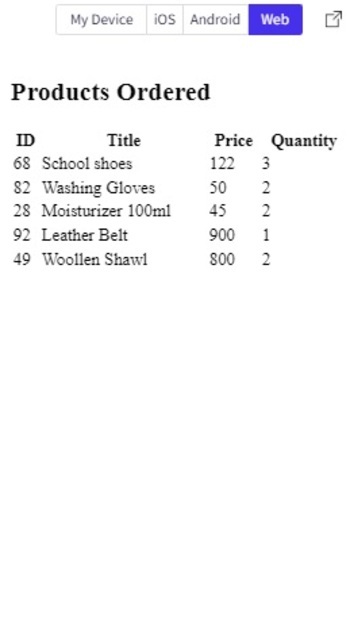
Snack 中 Web 檢視中以表格形式顯示的 JSON 資料
演算法 2
步驟 1 − 從 'react-native' 匯入 View。還從 json 檔案匯入 JSON 資料。這裡,例如使用 products.json
步驟 2 − 建立 App.js 並編寫程式碼。
步驟 3 − 使用 id 作為鍵,並從 json 檔案中獲取所有產品,並將產品資訊以表格形式顯示。
步驟 4 − 編寫一個帶有引數 data、filename 和 filetype 的函式 downldFl()。使用 Blob() 指定檔案型別,並使用 window.URL.createObjectURL(blob) 下載檔案。
步驟 5 − 將標題與 ‘,’ 連線,然後將 json 內容用 “
” 分隔連線。
步驟 6 − 點選下載 CSV 並檢查下載的檔案及其結果。
示例 2:將 JSON 資料轉換為 CSV 並下載檔案。
專案中使用的重要檔案是
App.js
App.js:這是該專案的 javascript 主檔案。
示例
import productData from './products.json'
import {View} from "react-native";

const downldFl = ({ data, fl_name, fl_type }) => {
   const blobb = new Blob([data], { type: fl_type })
   const lnk = document.createElement('a');
   lnk.download = fl_name;
   lnk.href = window.URL.createObjectURL(blobb);
   lnk.click();
   URL.revokeObjectURL(lnk.href);
   lnk.remove();
}

const downloadCSVfile = e => {
   e.preventDefault()

   let headers = ['Id,Title,Price,Quantity']

   let productsCsv = productData.products.reduce((str1, product) => {
   const { id, title, price, quantity } = product
   str1.push([id,title, price, quantity].join(','))
   return str1
   }, [])

   downldFl({
         data: [...headers, ...productsCsv].join('
'),
         fl_name: 'products.csv',
         fl_type: 'text/csv',
      }
   )
}

export default function JSONEXAMPLETWO() {
   return (
      <View style={{padding: 10}}>
         <h2> Download JSON as CSV</h2>

         <table className='productsTable'>
            <thead>
               <tr>
                  <th>ID</th>
                  <th>Title</th>
                  <th>Price</th>
                  <th>Quantity</th>
               </tr>
            </thead>
            <tbody>
               {productData.products.map(products => {
                  const { id, title, price, quantity } = products
                  return (
                     <tr key={id}>
                        <td>{id}</td>
                        <td>{title}</td>
                        <td>{price}</td>
                        <td>{quantity}</td>
                     </tr>
                  )
               }
               )
               }
            </tbody>
         </table>

         <button type='button' onClick={downloadCSVfile}>
            Download CSV
         </button>
      </View>
   )
}
檢視結果
結果可以線上檢視。當用戶點選下載按鈕時,檔案將被下載,結果會立即顯示。
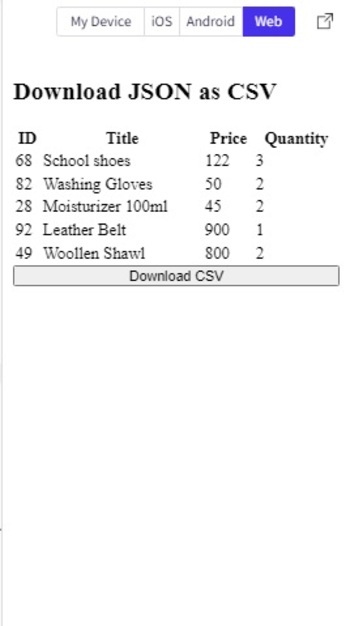
按下下載 CSV 按鈕即可下載檔案。
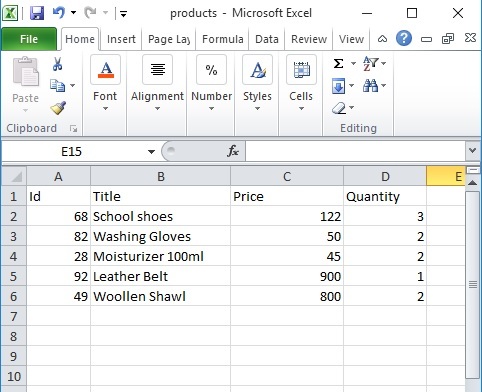
顯示從 JSON 建立的已下載 CSV 檔案的內容。
本文透過兩個不同的示例,給出了在 Expo Snack 應用程式中使用 JSON 的方法。首先給出了讀取 json 檔案並將其內容以表格形式顯示的方法。然後給出了將選定的 JSON 資料儲存為 CSV 格式,然後下載該檔案的方法。

592 次瀏覽
