
- Struts 2 教程
- Struts2 - 首頁
- Struts2 - 基本 MVC 架構
- Struts2 - 概述
- Struts2 - 環境設定
- Struts2 - 架構
- Struts2 - 示例
- Struts2 - 配置
- Struts2 - Action
- Struts2 - 攔截器
- Struts2 - 結果型別
- Struts2 - 值棧/OGNL
- Struts 2 - 檔案上傳
- Struts2 - 資料庫訪問
- Struts2 - 傳送郵件
- Struts2 - 驗證
- Struts2 - 國際化
- Struts2 - 型別轉換
- Struts2 - 主題/模板
- Struts2 - 異常處理
- Struts2 - 註解
- Struts 2 標籤
- Struts2 - 控制標籤
- Struts2 - 資料標籤
- Struts2 - 表單標籤
- Struts2 - Ajax 標籤
- Struts 2 整合
- Struts2 - Spring
- Struts2 - Tiles
- Struts2 - Hibernate
- Struts 2 有用資源
- Struts2 - 問題與解答
- Struts2 - 快速指南
- Struts2 - 有用資源
- Struts2 - 討論
Struts 2 - 檔案上傳
Struts 2 框架透過使用“HTML 中基於表單的檔案上傳”提供對處理檔案上傳的內建支援。當上傳檔案時,它通常會儲存在臨時目錄中,並且應由您的 Action 類處理或移動到永久目錄,以確保資料不會丟失。
注意 - 伺服器可能已實施安全策略,禁止您寫入除臨時目錄和屬於您的 Web 應用程式的目錄之外的目錄。
Struts 中的檔案上傳可以透過一個預定義的攔截器來實現,稱為FileUpload攔截器,它透過org.apache.struts2.interceptor.FileUploadInterceptor類提供,並作為defaultStack的一部分包含在內。您仍然可以在 struts.xml 中使用它來設定各種引數,如下所示。
建立檢視檔案
讓我們從建立檢視開始,該檢視將需要瀏覽和上傳選定的檔案。因此,讓我們使用簡單的 HTML 上傳表單建立一個index.jsp,該表單允許使用者上傳檔案:
<%@ page language = "java" contentType = "text/html; charset = ISO-8859-1"
   pageEncoding = "ISO-8859-1"%>
<%@ taglib prefix = "s" uri = "/struts-tags"%>
<!DOCTYPE html PUBLIC "-//W3C//DTD HTML 4.01 Transitional//EN"
   "http://www.w3.org/TR/html4/loose.dtd">

<html>
   <head>
      <title>File Upload</title>
   </head>

   <body>
      <form action = "upload" method = "post" enctype = "multipart/form-data">
         <label for = "myFile">Upload your file</label>
         <input type = "file" name = "myFile" />
         <input type = "submit" value = "Upload"/>
      </form>
   </body>
</html>
上面的示例中需要注意幾點。首先,表單的enctype設定為multipart/form-data。應設定此項,以便檔案上傳攔截器能夠成功處理檔案上傳。接下來需要注意的是表單的動作方法upload和檔案上傳欄位的名稱 - 即myFile。我們需要此資訊來建立動作方法和 struts 配置。
接下來,讓我們建立一個簡單的 jsp 檔案success.jsp,以顯示檔案上傳結果(如果成功)。
<%@ page contentType = "text/html; charset = UTF-8" %>
<%@ taglib prefix = "s" uri = "/struts-tags" %>

<html>
   <head>
      <title>File Upload Success</title>
   </head>

   <body>
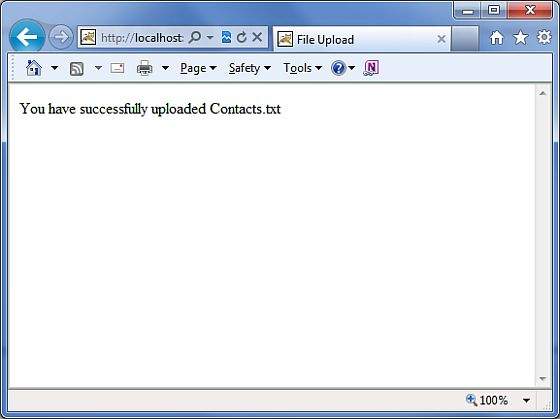
      You have successfully uploaded <s:property value = "myFileFileName"/>
   </body>
</html>
如果上傳檔案時出現錯誤,以下將是結果檔案error.jsp:
<%@ page contentType = "text/html; charset = UTF-8" %>
<%@ taglib prefix = "s" uri = "/struts-tags" %>

<html>
   <head>
      <title>File Upload Error</title>
   </head>

   <body>
      There has been an error in uploading the file.
   </body>
</html>
建立 Action 類
接下來,讓我們建立一個名為uploadFile.java的 Java 類,該類將負責上傳檔案並將該檔案儲存到安全位置:
package com.tutorialspoint.struts2;

import java.io.File;
import org.apache.commons.io.FileUtils;
import java.io.IOException;

import com.opensymphony.xwork2.ActionSupport;

public class uploadFile extends ActionSupport {
   private File myFile;
   private String myFileContentType;
   private String myFileFileName;
   private String destPath;

   public String execute() {
      /* Copy file to a safe location */
      destPath = "C:/apache-tomcat-6.0.33/work/";

      try {
         System.out.println("Src File name: " + myFile);
         System.out.println("Dst File name: " + myFileFileName);

         File destFile  = new File(destPath, myFileFileName);
         FileUtils.copyFile(myFile, destFile);

      } catch(IOException e) {
         e.printStackTrace();
         return ERROR;
      }

      return SUCCESS;
   }

   public File getMyFile() {
      return myFile;
   }

   public void setMyFile(File myFile) {
      this.myFile = myFile;
   }

   public String getMyFileContentType() {
      return myFileContentType;
   }

   public void setMyFileContentType(String myFileContentType) {
      this.myFileContentType = myFileContentType;
   }

   public String getMyFileFileName() {
      return myFileFileName;
   }

   public void setMyFileFileName(String myFileFileName) {
      this.myFileFileName = myFileFileName;
   }
}
uploadFile.java是一個非常簡單的類。需要注意的是,FileUpload 攔截器以及 Parameters 攔截器為我們完成了所有繁重的工作。
FileUpload 攔截器預設為您提供三個引數。它們的名稱採用以下模式:
[您的檔名引數] - 這是使用者上傳的實際檔案。在本例中,它將是“myFile”
[您的檔名引數]ContentType - 這是上傳檔案的 MIME 型別。在本例中,它將是“myFileContentType”
[您的檔名引數]FileName - 這是上傳的檔名。在本例中,它將是“myFileFileName”
這三個引數對我們可用,這要歸功於 Struts 攔截器。我們所要做的就是在我們的 Action 類中建立三個具有正確名稱的引數,並且這些變數會自動為我們自動連線。因此,在上面的示例中,我們有三個引數和一個動作方法,如果一切正常,則該方法只返回“success”,否則返回“error”。
配置檔案
以下是控制檔案上傳過程的 Struts2 配置屬性:
| 序號 | 屬性和描述 |
|---|---|
| 1 | struts.multipart.maxSize 作為檔案上傳接受的檔案的最大大小(以位元組為單位)。預設為 250M。 |
| 2 | struts.multipart.parser 用於上傳多部分表單的庫。預設為jakarta |
| 3 | struts.multipart.saveDir 儲存臨時檔案的位置。預設為 javax.servlet.context.tempdir。 |
為了更改任何這些設定,您可以在應用程式的 struts.xml 檔案中使用constant標籤,就像我更改要上傳的檔案的最大大小一樣。
讓我們將我們的struts.xml配置如下:
<?xml version = "1.0" Encoding = "UTF-8"?>
<!DOCTYPE struts PUBLIC
   "-//Apache Software Foundation//DTD Struts Configuration 2.0//EN"
   "http://struts.apache.org/dtds/struts-2.0.dtd">

<struts>
   <constant name = "struts.devMode" value = "true" />
   <constant name = "struts.multipart.maxSize" value = "1000000" />
   <package name = "helloworld" extends = "struts-default">
      <action name = "upload" class = "com.tutorialspoint.struts2.uploadFile">
         <result name = "success">/success.jsp</result>
         <result name = "error">/error.jsp</result>
      </action>
   </package>
</struts>
由於FileUpload攔截器是攔截器預設堆疊的一部分,因此我們不需要顯式配置它。但是,您可以在<action>內新增<interceptor-ref>標籤。fileUpload 攔截器接受兩個引數(a) maximumSize和(b) allowedTypes。
maximumSize引數設定允許的最大檔案大小(預設為大約 2MB)。allowedTypes引數是接受的內容(MIME)型別的逗號分隔列表,如下所示:
<action name = "upload" class = "com.tutorialspoint.struts2.uploadFile">
   <interceptor-ref name = "basicStack">
   <interceptor-ref name = "fileUpload">
      <param name = "allowedTypes">image/jpeg,image/gif</param>
   </interceptor-ref>
   <result name = "success">/success.jsp</result>
   <result name = "error">/error.jsp</result>
</action>
以下是web.xml檔案的內容:
<?xml version = "1.0" Encoding = "UTF-8"?>
<web-app xmlns:xsi = "http://www.w3.org/2001/XMLSchema-instance"
   xmlns = "http://java.sun.com/xml/ns/javaee"
   xmlns:web = "http://java.sun.com/xml/ns/javaee/web-app_2_5.xsd"
   xsi:schemaLocation = "http://java.sun.com/xml/ns/javaee
   http://java.sun.com/xml/ns/javaee/web-app_3_0.xsd"
   id = "WebApp_ID" version = "3.0">

   <display-name>Struts 2</display-name>

   <welcome-file-list>
      <welcome-file>index.jsp</welcome-file>
   </welcome-file-list>

   <filter>
      <filter-name>struts2</filter-name>
      <filter-class>
         org.apache.struts2.dispatcher.FilterDispatcher
      </filter-class>
   </filter>

   <filter-mapping>
      <filter-name>struts2</filter-name>
      <url-pattern>/*</url-pattern>
   </filter-mapping>
</web-app>
現在右鍵單擊專案名稱,然後單擊匯出 > WAR 檔案以建立 WAR 檔案。然後將此 WAR 部署到 Tomcat 的 webapps 目錄中。最後,啟動 Tomcat 伺服器並嘗試訪問 URL https://:8080/HelloWorldStruts2/upload.jsp。這將生成以下螢幕:

現在使用“瀏覽”按鈕選擇檔案“Contacts.txt”,然後單擊“上傳”按鈕,該按鈕將檔案上傳到您的伺服器,您應該會看到下一頁。您可以檢查上傳的檔案是否已儲存在 C:\apache-tomcat-6.0.33\work 中。
請注意,FileUpload 攔截器會自動刪除上傳的檔案,因此您必須在檔案被刪除之前以程式設計方式將上傳的檔案儲存到某個位置。
錯誤訊息
fileUplaod 攔截器使用多個預設錯誤訊息鍵:
| 序號 | 錯誤訊息鍵和描述 |
|---|---|
| 1 | struts.messages.error.uploading 當檔案無法上傳時發生的常規錯誤。 |
| 2 | struts.messages.error.file.too.large 當上傳的檔案大小超過 maximumSize 指定的大小時發生。 |
| 3 | struts.messages.error.content.type.not.allowed 當上傳的檔案與指定的內容型別不匹配時發生。 |
您可以在WebContent/WEB-INF/classes/messages.properties資原始檔中覆蓋這些訊息的文字。